How to Enable or Disable Airplane Mode on Windows 11

Airplane Mode in Windows 11 turns off all wireless signals on your PC with a single switch. That covers Wi-Fi , Bluetooth and, on devices that have a SIM or eSIM, cellular data. It helps you follow airline rules during a flight, save battery, and get offline time without notifications.
The fastest way is the Quick Settings panel on your taskbar . Click the Airplane mode button there and every wireless radio switches off at once. This guide covers four ways to do it: a physical key, the taskbar Network icon, the Win+A shortcut, and the Settings app.
To enable or disable Airplane Mode on Windows 11, click the Network icon on the taskbar and toggle the Airplane mode button. Alternatively, open Quick Settings by pressing Win+A and select the Airplane mode button. You can also find this option within Settings under Network & internet.
Using a Physical Button
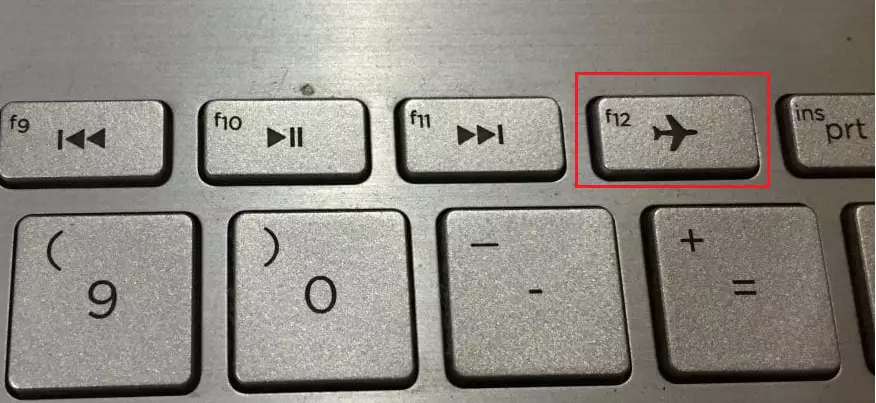
Some laptops have a dedicated physical button or switch for Airplane mode. Look for a small airplane icon on a function key in the top row of the keyboard, or on a slide switch on the side of the device.
On most laptops, the key is the same key as the icon’s function key, and you may need to hold Fn while you press it. Press it once to turn Airplane mode on. Press it again to turn it off. Windows 11 should show an airplane icon in the taskbar when the mode is on.
If a slide switch is set to off, Windows may ignore the on-screen toggle. In that case, the Airplane mode option can be greyed out or turn itself back on. Slide the switch back first, then use the methods below.
Using the Taskbar
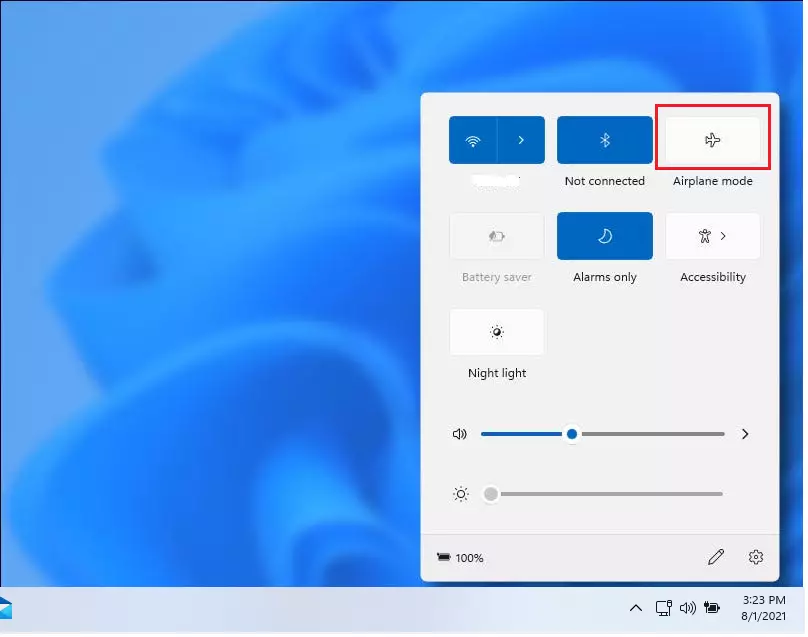
You can turn on Airplane mode from the taskbar by clicking the Network icon in the bottom right corner of your screen. This opens the Quick Settings panel. The Network, speaker and battery icons sit together as one group, and clicking any of them opens the same panel.
If you cannot find the icon, press the Windows key + A to open Quick Settings directly. Then click the Airplane mode button to turn it on or off.
- Look at the bottom right corner of your screen. You should see a group of small icons next to the clock, usually Wi-Fi (or a network cable), speaker and battery.
- Click the Network icon. The Quick Settings panel should open above the taskbar, with tiles for Wi-Fi, Bluetooth and other options.
- Click the Airplane mode button to turn it on or off. When it is on, the tile is highlighted and the taskbar icon changes to an airplane. Wi-Fi and Bluetooth turn off.
To turn Airplane mode off, click the same button again. The tile returns to its normal colour and your Wi-Fi reconnects to a known network. You do not need to restart the PC.
If you do not see an Airplane mode tile in the panel, it may have been removed from the list. Click the pencil icon (Edit quick settings) at the bottom of the panel, click Add, choose Airplane mode, then click Done.

If you do not see the icon, press Windows key + A on your keyboard to open the Quick Settings menu. You can toggle Airplane mode from there.
The shortcut works even when the taskbar icons are hidden or the taskbar is set to hide itself. Press the same keys again, or click anywhere outside the panel, to close it. The panel should appear in the bottom right corner with the Airplane mode tile among the buttons.
Using Windows Settings
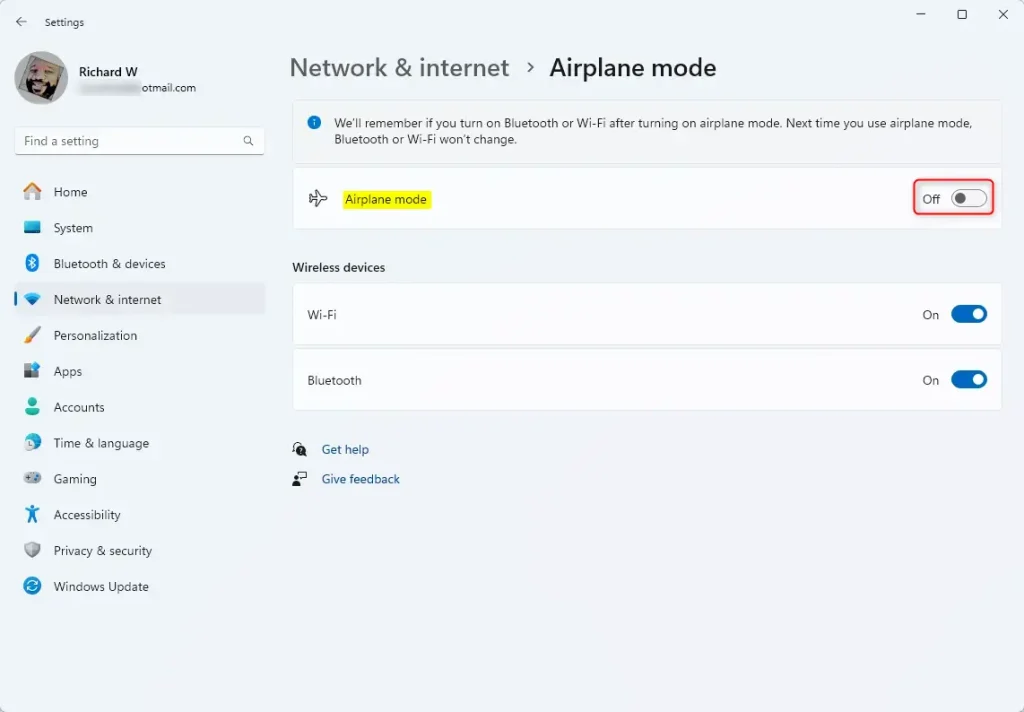
You can also manage Airplane mode through the main system settings. This is the method to use if you want more control, because the Settings page lets you switch Wi-Fi or Bluetooth back on while Airplane mode stays active.
- Press Windows key + I to open Settings. %%LNK0%% The Settings window should open.
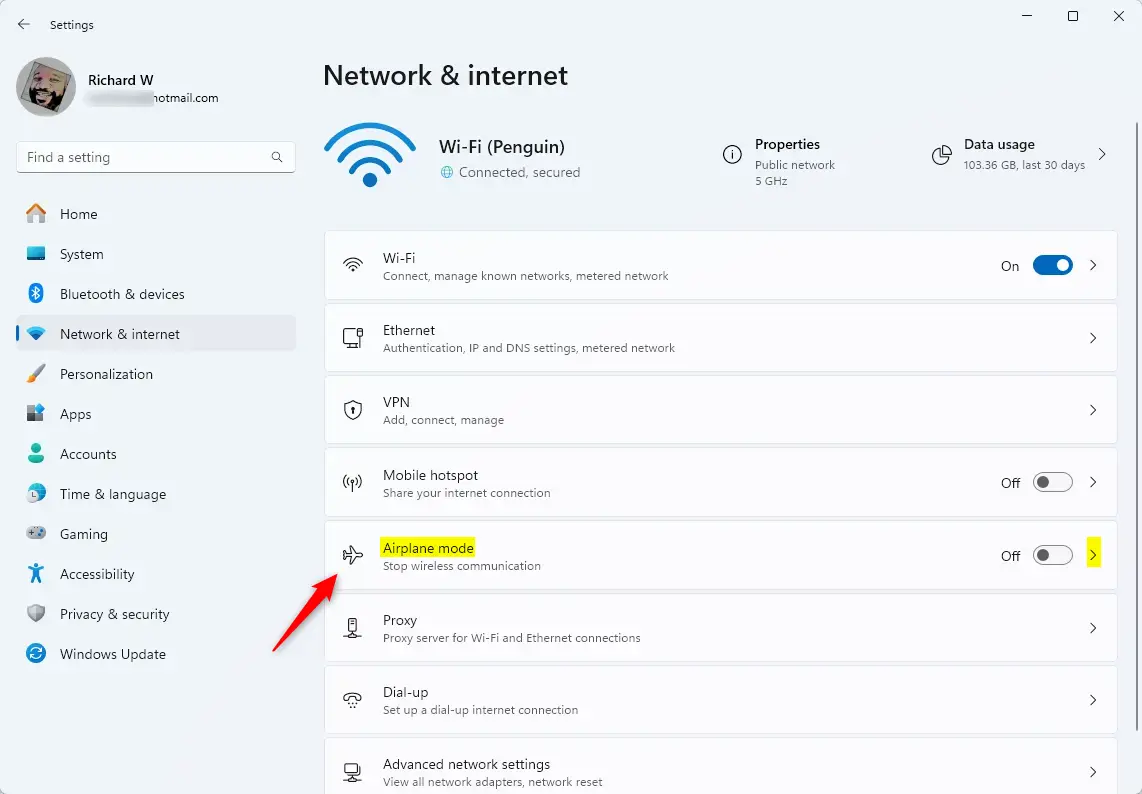
- Click on Network & internet in the left sidebar. The network options appear on the right.
- Click the Airplane mode tile. The Airplane mode page opens.
- Use the toggle switch to turn it On or Off. The Wi-Fi and Bluetooth toggles below it change to match.
While Airplane mode is on, you can switch Wi-Fi or Bluetooth back on from this page. This is useful on a plane, where Wi-Fi and Bluetooth headphones are often allowed. Windows remembers your choice for next time.
If the Airplane mode tile is missing or greyed out, the PC may have no wireless adapter. This is common on desktops. It can also be caused by a hardware switch set to off or a missing network driver. Check for a physical switch first, then look in Device Manager for a warning on the network adapter.

Summary
Airplane mode in Windows 11 is a quick way to turn off all your wireless connections, such as Wi-Fi and Bluetooth, at once. Use the physical key, the taskbar, the Windows key + A shortcut or Settings, whichever is closest. To go back online, use the same method and turn the setting off.
Have a question about this guide?
Answered by AI from this guide. Good questions may be added to this page — please don't include personal details.
Did this guide fix your problem?

About the Author
Richard
Tech Writer, IT Professional
Richard is a writer at Geek Rewind who turns complex IT tasks into clear, step-by-step guides. He draws on years of hands-on experience in system administration and enterprise IT operations, focusing on Windows, Linux and WordPress: the problems people actually run into, and the fixes that work. His server and WordPress guides come from systems he runs himself. Richard builds and maintains the platform behind Geek Rewind, from its Ubuntu servers and Nginx configuration to its custom WordPress plugins. Many new tutorials start with readers' questions, and he's always glad to answer them in the comments.
[…] Make sure Airplane mode is turned off. […]
[…] your Windows 11 PC, make sure the Airplane mode is off. You can select the Network icon on the right side of the taskbar, then make sure […]
[…] a pop-out window with commonly used settings and apps like Volume, Brightness, Wi-Fi, Bluetooth, Airplane mode, Rotation lock, Battery saver, Accessibility, Night light, Mobile hotspot, Nearby sharing, Cast, […]
[…] to settings and features, including Volume, Screen brightness, Night light, Wi-Fi, Bluetooth, Airplane mode, Accessibility, Battery saver, Mobile hotspot, Nearby sharing, Cast, and […]
[…] you adjust your screen brightness, volume, and airplane mode using keyboard shortcuts, an on-screen indicator will appear at the bottom center by default to […]
[…] lets you turn features on or off instantly. This includes Volume, Brightness, Wi-Fi, Bluetooth, Airplane mode, Rotation lock, Battery saver, Accessibility, Night light, Mobile hotspot, Nearby sharing, Cast, […]