7 Ways to Maximize Laptop Battery Life in Windows 11

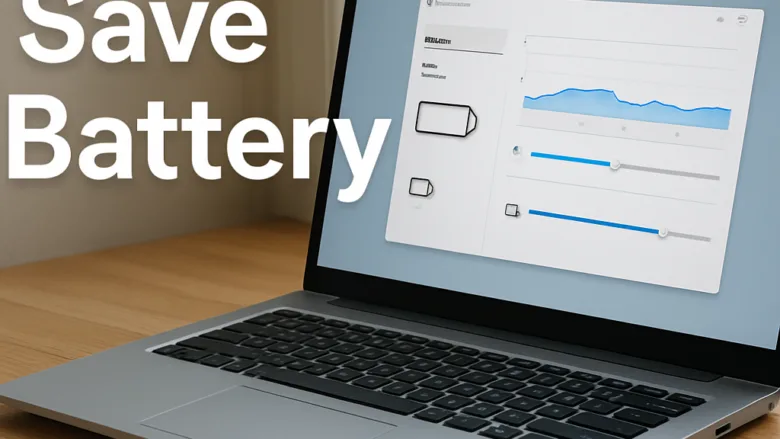
Battery Saver in Windows 11 is a built-in power-saving mode that stops background apps and lowers screen brightness to help your laptop run longer on a single charge. By default, it turns on automatically when your battery level drops to 20 percent.
On Windows 11 version 22H2 and later, Microsoft renamed this feature Energy saver. Older builds of Windows 11 still call it Battery saver. It works the same way, so use whichever name you see on your PC.
You can turn it on at any time from the Quick Settings panel in the bottom-right corner of your screen, or change when it starts in Settings. Managing power-heavy apps and lowering your display brightness also keeps your laptop from draining too fast when you are away from an outlet. The seven tips below cover each of these, plus a few habits that add up over a day.
To maximize laptop battery life using Windows 11 Battery Saver, open the Settings app, click System, select Power & battery, and turn on Energy saver or Battery saver. You can also turn this feature on immediately by clicking the battery icon in the taskbar and selecting the Energy Saver button.
1Turn On Energy Saver and Battery Saver Modes
Turning on Energy saver or Battery saver is the fastest way to stretch your battery life. It limits background app activity, reduces some visual effects, and can dim the screen. You can use the Quick Settings menu on the taskbar for a quick toggle, or the Settings app if you want to control when it starts.
Here is how to turn it on through Settings:
- Click the Start button and select Settings (the gear icon). The Settings window opens.
- Go to System Power & battery You will see your battery level and the power options.
- Find Energy saver (or Battery saver on older builds) and click it to expand the options.
- To turn it on right now, click Turn on now. A small battery icon with a leaf or plus sign appears in the taskbar to show that the mode is active.
- To make it start on its own, open the dropdown for turning it on automatically at a battery level and pick a percentage. The default is 20 percent. A higher number, such as 30 or 40 percent, starts saving power sooner.
If you want the screen to dim in this mode, look for the option to lower screen brightness when using Energy saver and make sure it is on.
You can also use the Quick Settings panel:
- Click the network, sound, or battery icons in the bottom-right corner of the taskbar . The Quick Settings panel opens.
- Click the Energy saver or Battery saver button. The tile turns to your accent color when the mode is on.
If you do not see the tile, click the pencil (Edit quick settings) icon, then Add, and choose it from the list. The tile is only available on devices with a battery. To undo the change, click the tile again or use the same setting in Settings. No restart is needed.
2Adjust Display Brightness and Screen Settings
Lowering your display brightness is one of the most effective ways to save battery. The screen uses more power than almost any other part of the laptop, so even a modest reduction helps.
Follow these steps to lower your screen brightness:
- Open the Settings app from your Start menu .
- Go to System Display
- Drag the slider next to Brightness to the left. The screen dims as you drag.
- Stop at a level you can still read comfortably in your current room. Lower is fine indoors, but you may need more light outside.
The brightness slider only appears for a built-in laptop screen. If you use only an external monitor, you will need to use the buttons on the monitor itself.
You should also look at how quickly your screen turns off when you walk away. A shorter timeout saves a lot of power over a workday:
- Go to Settings System Power & battery
- Click Screen and sleep to expand the options. On some builds this section is called Screen, sleep, & hibernate timeouts.
- Under the On battery power settings, choose shorter times for turning off the screen and for putting the device to sleep. For example, try 2 or 3 minutes for the screen.
Changes apply right away. You can set the times back to longer values whenever you like.
3Find and Tame Power-Hungry Apps
Checking which apps drain your battery helps you find hidden programs that waste power. Windows keeps a usage list, so you do not have to guess.
Here is how to check your app usage:
- Open the Settings app.
- Go to System Power & battery
- Click Battery usage. A chart of your battery level appears, with a list of apps and how much battery each one has used over the last 24 hours. You can change the time range with the dropdown above the chart, for example to 7 days.
- Look for apps that use a lot of power even though you rarely use them.
If an app drains your battery in the background, you can stop it from running when you do not need it:
- Open Settings and go to Apps Installed apps
- Find the app that is using too much power, click the three dots next to its name, and select Advanced options. A page with settings for that app opens.
- Find Background app permissions and change the dropdown to Never.
If Advanced options is missing, or the background setting is not on the page, the app is probably a traditional desktop program rather than a Microsoft Store app. Windows does not manage background permissions for those. Close them from the taskbar or the system tray instead. Be aware that setting an app to Never may stop its notifications and updates. To undo it, change the dropdown back to Always or Power optimized.
4Check Your Battery Health and Generate a Battery Report
A battery report shows how healthy your battery is and whether it may need replacing. It lists the battery’s total capacity over time, so you can see how much charge it holds now compared with when it was new.
Generate the report with a quick command-line tool:
- Right-click the Start button and select Terminal or Command Prompt. This command does not normally need administrator rights, so a regular window is fine.
- Type the following command carefully:
powercfg /batteryreport - Press the Enter key. Windows prints a message that says where the report was saved.
- Open File Explorer and go to the folder from that message. If you opened a regular Terminal window, this is usually your main user folder, and the file is named something like
C:\Users\USERNAME\battery-report.html. If you opened Terminal as administrator, the file may be saved in a system folder instead, so use the path shown in the message. - Double-click the file to open it in your web browser.
In the report, check the Installed batteries section. Compare Design capacity with Full charge capacity. If the full charge capacity is much lower than the design capacity, the battery has worn down, and that may explain short run times no matter what settings you change.
5Disconnect Unnecessary Devices and Peripherals
Disconnecting unneeded USB devices and Bluetooth accessories saves battery by cutting extra power drains. Anything plugged into a port, such as a USB drive, a mouse receiver, or a phone being charged, uses power from your battery. Unplug what you do not need when you work on the go.
Bluetooth accessories also use a small amount of power to keep their wireless connection alive. If you are not using a Bluetooth mouse, headphones, or keyboard, you can turn Bluetooth off completely.
- Open the Settings app.
- Click Bluetooth & devices.
- Switch the main Bluetooth toggle at the top to Off. The toggle label changes to Off and your paired devices disconnect.
You can also use the Bluetooth tile in Quick Settings for the same job. To turn it back on, use the same toggle. Your paired devices usually reconnect on their own.
6Control Background Sync and Cloud Services
Controlling background sync and cloud services stops your laptop from using battery on constant internet traffic. Your laptop regularly checks for new email and syncs cloud files in the background. You can cut this down in your account and app settings.
You can adjust your sync settings like this:
- Open the Settings app.
- Click Accounts.
- Click Windows backup. Here you can switch off the items you do not need to back up and sync, such as app and preference settings.
- Check your cloud storage app, such as OneDrive, and pause syncing while you are away from an outlet. In OneDrive, click its cloud icon in the taskbar notification area and look for the option to pause syncing.
- Open your email and calendar apps and change their settings so they only check for new messages when you refresh them manually, instead of downloading them the second they arrive.
Remember to resume syncing when you are plugged in again, or your files will fall behind. The exact sync options depend on which email and cloud apps you use.
7Unique Expert Tip: Optimize Your Web Browser for Power Savings
Optimizing your web browser for power savings keeps Microsoft Edge and Google Chrome from draining the battery. Browsers use a lot of memory and processor time, but their built-in efficiency features cut this down and give you more battery time.
Microsoft Edge includes an Efficiency mode setting that puts inactive tabs to sleep so the browser stops using processor power. To find it:
- In Edge, click the three dots at the top right and select Settings.
- Click System and performance in the left-hand menu.
- Find Efficiency mode and turn it on. Depending on your Edge version, you may be able to choose when it applies, such as only when your laptop is unplugged or the battery is low.
Chrome has a similar feature called Energy Saver in its performance settings. Check the settings menu of whichever browser you use for performance or energy-saving modes and turn them on. Edge and Chrome update often, so the labels may differ a little on your version.
Also close browser tabs when you finish reading them instead of leaving them open in the background. Tabs that play video or run live pages keep using power even when you are not looking at them.
8Unique Expert Tip: Master the Quick Shutdown Secret
Shutting down completely instead of using sleep saves battery when you will not use the laptop for a while. Sleep mode keeps your work in memory, so the laptop keeps using a small amount of power. A full shutdown stops all power use.
If you know you will not use your laptop for a long time, do not just close the lid or use sleep mode. Shut it down completely. A full shutdown turns off all hardware components and stops the battery from draining while the laptop sits in your bag.
By default, Windows 11 uses a feature called fast startup, which keeps some background processes in a saved state so the PC starts faster. To make sure the computer shuts down completely, do this:
- Hold down the Shift key on your keyboard.
- While holding it, click the Start button, then the power icon, and then click Shut down.
- Release the Shift key once the screen goes dark.
The next start-up may take a little longer than usual. That is normal after a full shutdown.
Frequently asked questions
How to maximize battery life on a laptop?
Turn on Energy saver, lower your screen brightness, and close apps you aren't using. Energy saver limits background activity, and the screen uses more power than most other parts, so dimming it helps the most. Turn off Bluetooth and unplug USB devices you don't need. Check Settings, then System, then Power & battery, to see which apps drain the most.
How to improve battery life 🪟 Windows 11?
Turn on Energy saver to cut background app activity and dim the screen. Lower screen brightness further if you can. Open Settings, go to System, then Power & battery, and check which apps use the most power. Keep Windows and your drivers updated, because updates often fix power problems.
How to speed up 🪟 Windows 11 for keeping battery powered?
Turn on Energy saver to limit background apps and some visual effects while you're on battery. Close programs you don't need. Save your work first, then open Task Manager, select the Processes tab, and end apps using a lot of CPU or memory. Ending a process can close unsaved work.
How to maximize the battery on your laptop when charging?
Charging doesn't extend battery life by itself. To protect battery health while plugged in, set a charge limit if your laptop offers one, such as in Dell Power Manager or the BIOS. Avoid heavy tasks like gaming while charging, since heat wears the battery down. Unplug the laptop once it reaches full charge.
How to optimize battery life on a laptop?
Lower your screen brightness, turn on Energy saver, and close background apps to optimize battery life. Open Settings, then System, then Power & battery, to see which apps use the most power. Turn off Bluetooth when you don't need it, and turn off the keyboard backlight in dim rooms.
What waste's dell laptop battery quicker? energy saver , night light, or just staying on normal mode?
Normal mode uses the most battery. Energy saver saves the most, because it limits background activity and dims the screen. Night light uses only a small amount of power, so it rarely drains a Dell battery quickly. To find the real culprits, check Settings, then System, then Power & battery, and close heavy apps.
Still have a question?
Answered by AI from this guide. Good questions may be added to this page — please don't include personal details.
Did this guide fix your problem?

About the Author
Richard
Tech Writer, IT Professional
Richard is a writer at Geek Rewind who turns complex IT tasks into clear, step-by-step guides. He draws on years of hands-on experience in system administration and enterprise IT operations, focusing on Windows, Linux and WordPress: the problems people actually run into, and the fixes that work. His server and WordPress guides come from systems he runs himself. Richard builds and maintains the platform behind Geek Rewind, from its Ubuntu servers and Nginx configuration to its custom WordPress plugins. Many new tutorials start with readers' questions, and he's always glad to answer them in the comments.
No comments yet — be the first to share your thoughts!