How to Change Windows 11 Keyboard Backlight in Energy Saver


Energy Saver automatically drops your Windows 11 keyboard backlight brightness to 70% to save battery when your laptop runs low on power. You can change this default to any level from 0% to 100% so your keys stay visible in the dark. This only applies to laptops whose keyboard backlight Windows can control. If your keyboard has no backlight, or the light is managed only by the manufacturer’s software, the setting may have no visible effect.
Change keyboard backlight brightness in Windows 11 Energy Saver mode by editing the Registry Editor. Navigate to 🗝️HKEY_LOCAL_MACHINE\
How to Change Keyboard Backlight Brightness in Energy Saver Mode
This adjustment requires Registry Editor, an advanced database for system configurations. Changes here take effect on the system directly, so go carefully. Before you start, consider creating a restore point or exporting the registry key you are about to edit (File Export in Registry Editor). That gives you an easy way back if something goes wrong.
You also need an account with administrator rights. Windows will ask you to confirm when you open Registry Editor.
Step 1Open Registry Editor
- Click the search box on the taskbar , or press the Win, and type regedit.
- Press Enter. If you are asked whether to allow the app to make changes, click Yes.
Registry Editor opens. You will see a folder tree in the left-hand panel and the values for the selected folder in the right-hand panel.
Step 2Go to the Correct Location
- In the left-hand panel, expand the folders one at a time until you reach this path:
HKEY_LOCAL_MACHINE\SOFTWARE\Microsoft\Lighting\Backlight - Click the last folder in the path once to select it.
The right-hand panel now shows the values stored in that folder. If you prefer not to click through each level, you can also paste the path into the address bar at the top of Registry Editor and press Enter.
Step 3Find and Change the Setting
You change the keyboard brightness in Energy Saver by editing the BacklightEnergySaverMultiplier value. This value controls how far the backlight dims when Energy Saver turns on. A higher number keeps your keyboard brighter. A lower number saves more power.
Look in the right-hand panel for that value. If it is already there, you can edit it. If it is not, create it in the next step.
If the value isn’t present, you need to create it. It is normal for it to be missing, because Windows uses the built-in default of 70 until you add your own number.
- Right-click an empty space in the right-hand panel.
- Select New > DWORD (32-bit) Value. This is the type of setting Windows expects here.
- Type the name
BacklightEnergySaverMultiplierand press Enter.
The new value appears in the list. Check the spelling, because Windows ignores a value with the wrong name.
Step 4Set Your Desired Brightness Percentage
- Double-click the value to open its edit window.
- In the Value data box, enter a number between 0 and 100. This sets the keyboard backlight brightness while Energy Saver is on.
Use 0 if you want the backlight off in Energy Saver, and 100 if you want it at full brightness. Set the Base option to Decimal first, so the number you type is read as a normal percentage. In hexadecimal, 64 means 100.
The default setting is 70. If you want to undo your change later, come back to this value and enter 70.
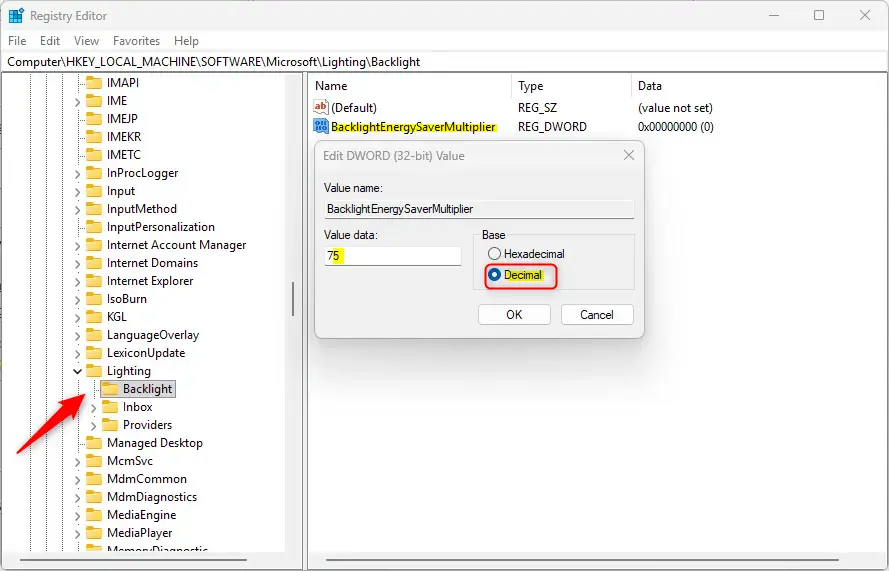
- Click OK when you finish.
The edit window closes and the right-hand panel shows your new number next to the value name.
Step 5Close Registry Editor
- Close the Registry Editor window.
To test the change, turn on Energy Saver in Settings System Power & battery and check the keyboard backlight. If nothing changes, restart your PC and try again. Energy Saver also turns on by itself at the battery level you chose, so the new brightness will apply then too.
That completes the process.
Reference:
Summary
You can change your keyboard backlight brightness in Windows 11's Energy Saver mode by adjusting a setting in Registry Editor. Create or edit the DWORD value, enter a number from 0 to 100, and enter 70 if you ever want to go back to the default.
Frequently asked questions
My 🪟 Windows 11 keyboard backlight isn't working. What can I do to fix this?
Check if your keyboard has a backlight—some laptops don't. Look for a keyboard light key (often F5 or F11) and press it. If nothing happens, Windows may not support your keyboard's backlight. Try the manufacturer's control software. Update chipset drivers from your laptop maker's support page, as outdated drivers can disable backlight control.
How do I adjust keyboard brightness?
Most laptops use a keyboard light key on the function row (often F5 or F11 with a brightness icon). Press it to cycle through brightness levels. Some laptops also let you adjust it in Settings System Display, or through the manufacturer's control panel software if Windows doesn't manage the backlight.
How do I switch on the keyboard light in Windows?
Press the keyboard backlight key on your function row—usually F5, F11, or a key with a light icon. Hold it or press it multiple times to increase brightness. Not all keyboards have a backlight. If nothing happens, your keyboard may not have one, or Windows can't control it, so check your laptop maker's software instead.
How to switch off keyboard light in HP laptop 🪟 Windows 11?
Press the keyboard light key (usually F5 or F11 with a brightness icon) and hold it or press repeatedly to dim the light to off. Some HP laptops also have a backlight setting in Settings System Display If you can't find it, use HP's own control software—search for it in the Start menu or HP's website.
Still have a question?
Answered by AI from this guide. Good questions may be added to this page — please don't include personal details.
Did this guide fix your problem?

About the Author
Richard
Tech Writer, IT Professional
Richard is a writer at Geek Rewind who turns complex IT tasks into clear, step-by-step guides. He draws on years of hands-on experience in system administration and enterprise IT operations, focusing on Windows, Linux and WordPress: the problems people actually run into, and the fixes that work. His server and WordPress guides come from systems he runs himself. Richard builds and maintains the platform behind Geek Rewind, from its Ubuntu servers and Nginx configuration to its custom WordPress plugins. Many new tutorials start with readers' questions, and he's always glad to answer them in the comments.
No comments yet — be the first to share your thoughts!