How to Customize Windows 11 Settings for Efficiency

- 17 steps
- Needs administrator rights
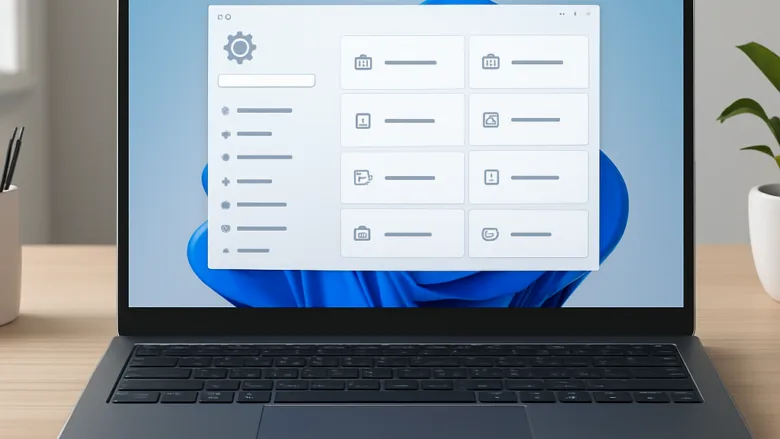
Customizing Windows 11 settings helps you work faster and keep your favorite tools within reach. You can change how the screen looks, stop pop-up notifications, and pin useful apps to the taskbar. Most of these changes take under a minute and can be reversed just as quickly.
The Settings app handles everyday tasks like Wi-Fi connections and display themes. The older Control Panel still manages some deeper system setups. Knowing which one holds the switch you need saves time and keeps the computer running smoothly. The steps below are written for current Windows 11 and work on both Home and Pro unless I say otherwise.
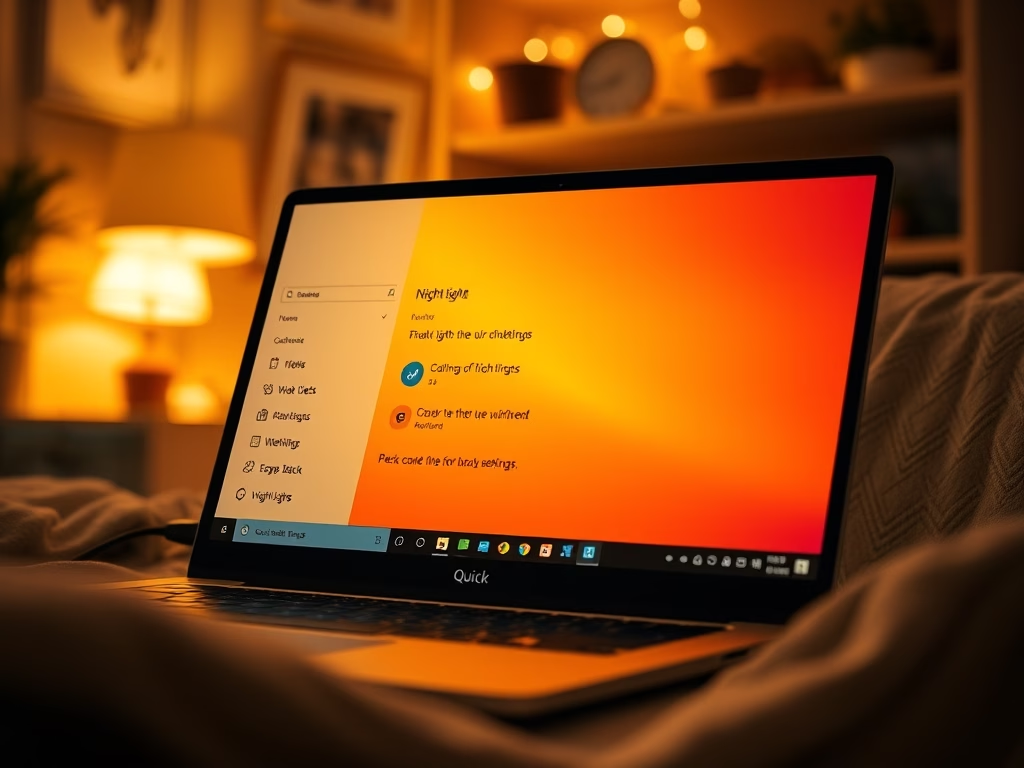
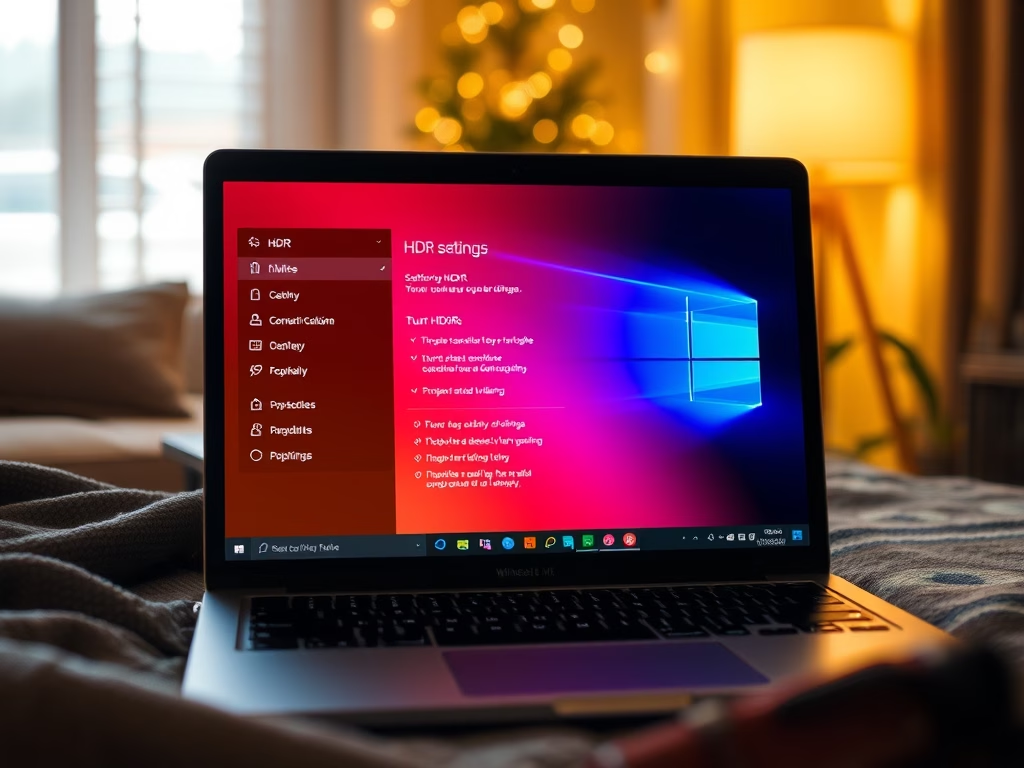
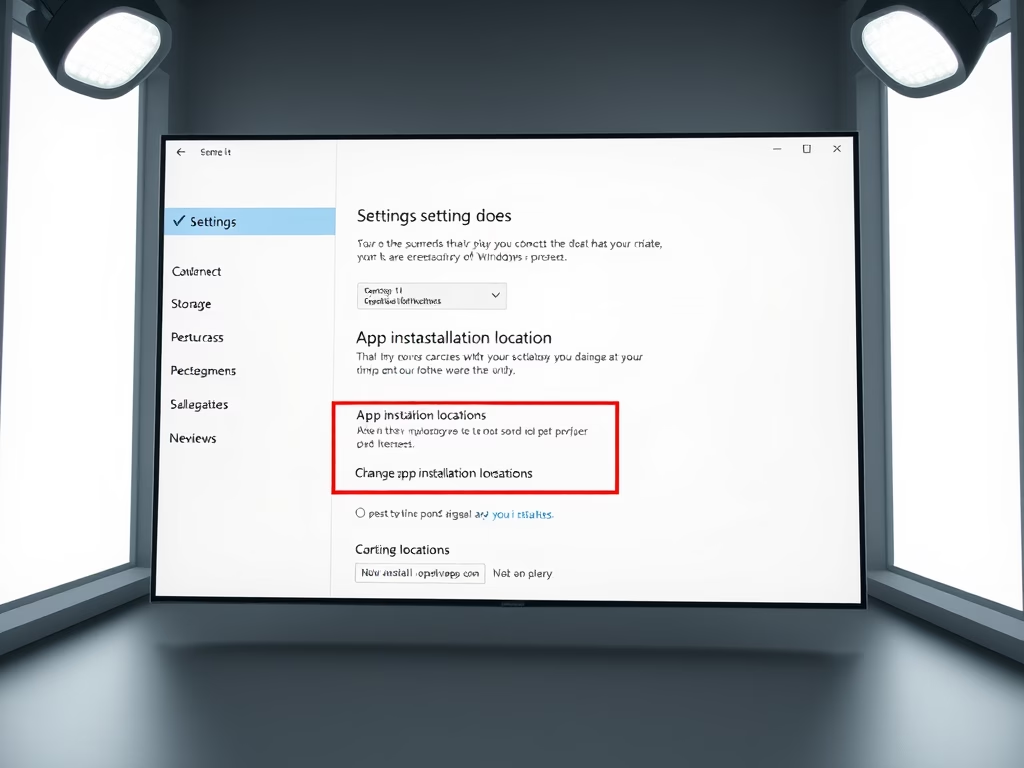
Open Settings System Display and turn on Night light to reduce blue light, or go to Settings System Storage Advanced storage settings Where new content is saved to change where apps install. Settings System Power & battery Screen and sleep lets you adjust sleep timing. Most changes take effect immediately without restarting.
Set Up Your Display and Time
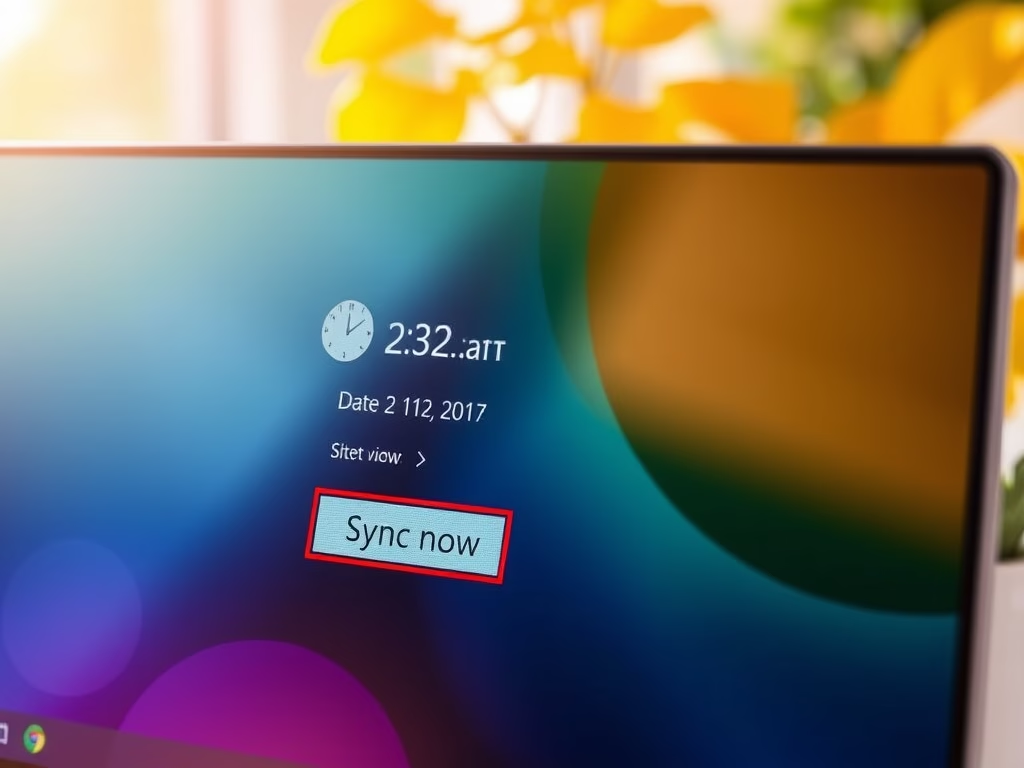
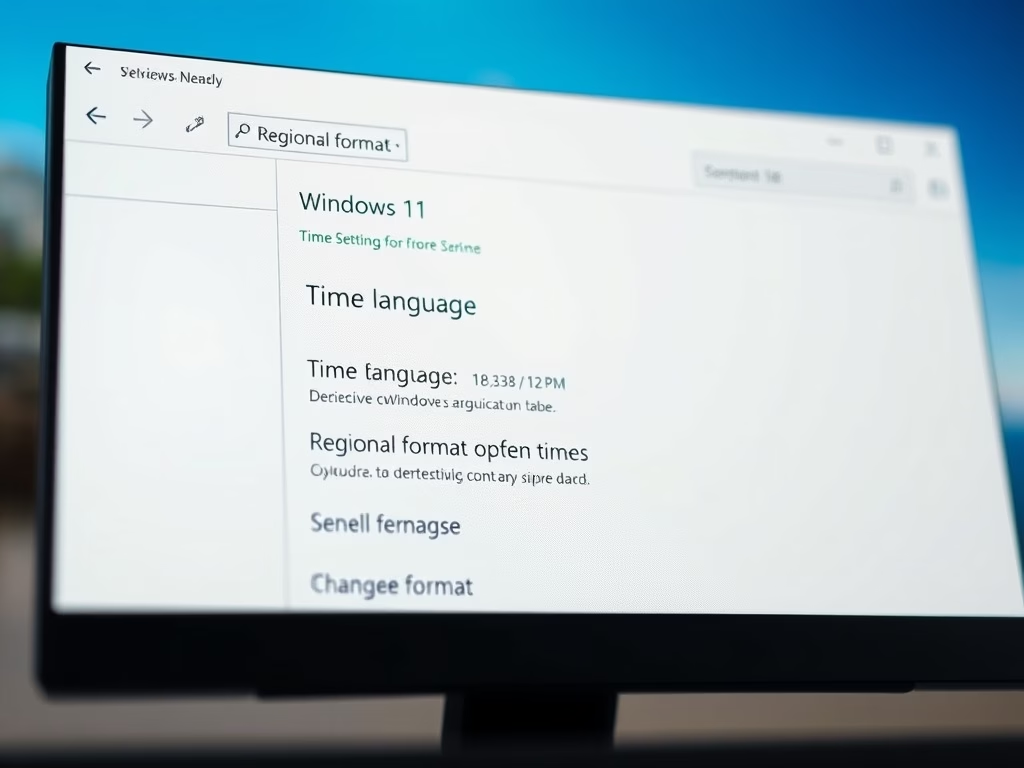
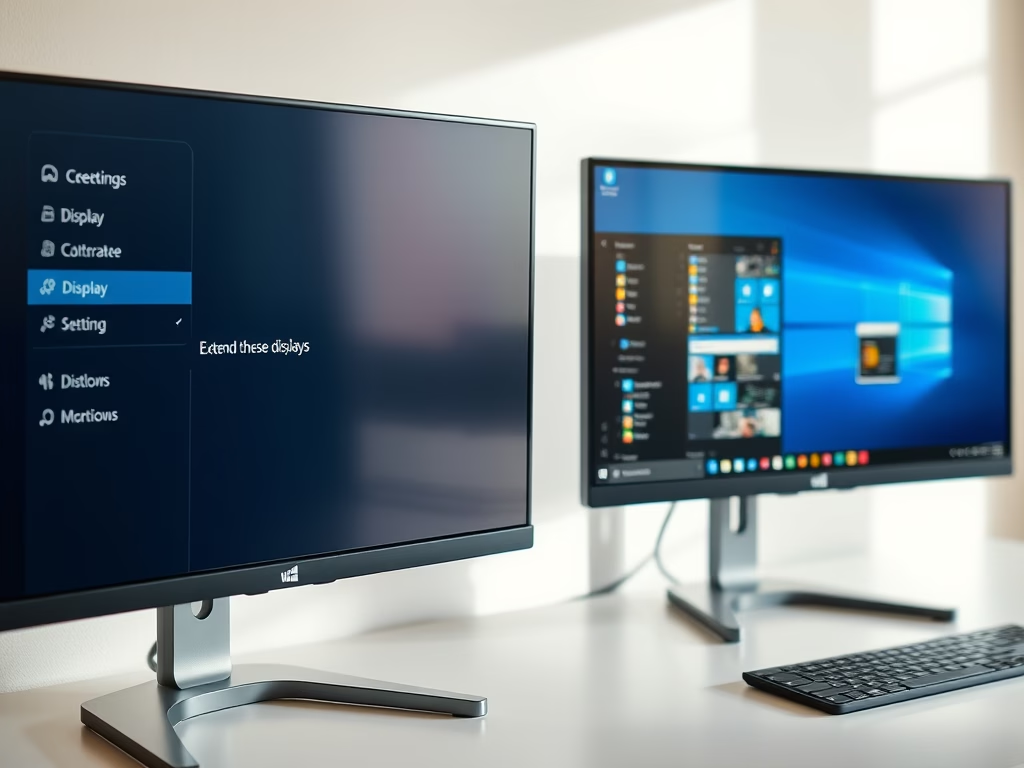
This group covers how your screen looks and behaves, and how to keep the computer clock accurate. These settings suit anyone who wants a more comfortable display or needs precise timekeeping. Each change takes effect right away, and none of them needs a restart.

Manage Apps and Storage
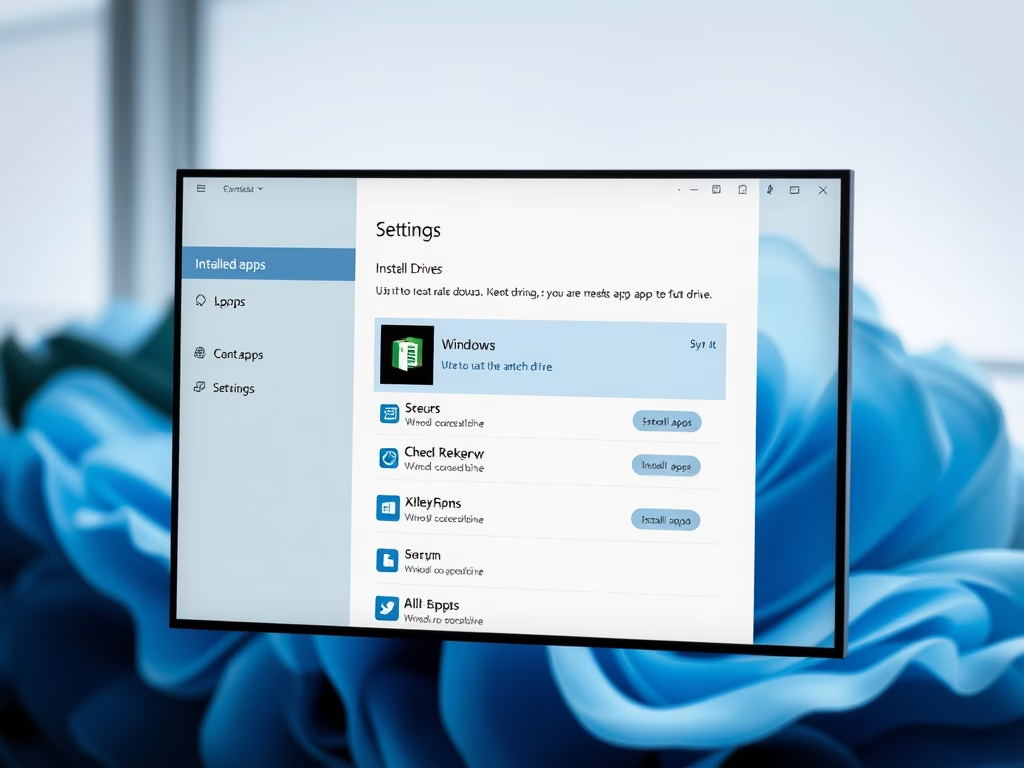
This group controls where applications install and how software is managed on the computer. It is useful if you want to organize storage space or keep apps on a different drive, for example when the C: drive is running low on room.
Customize Power and Convenience Features
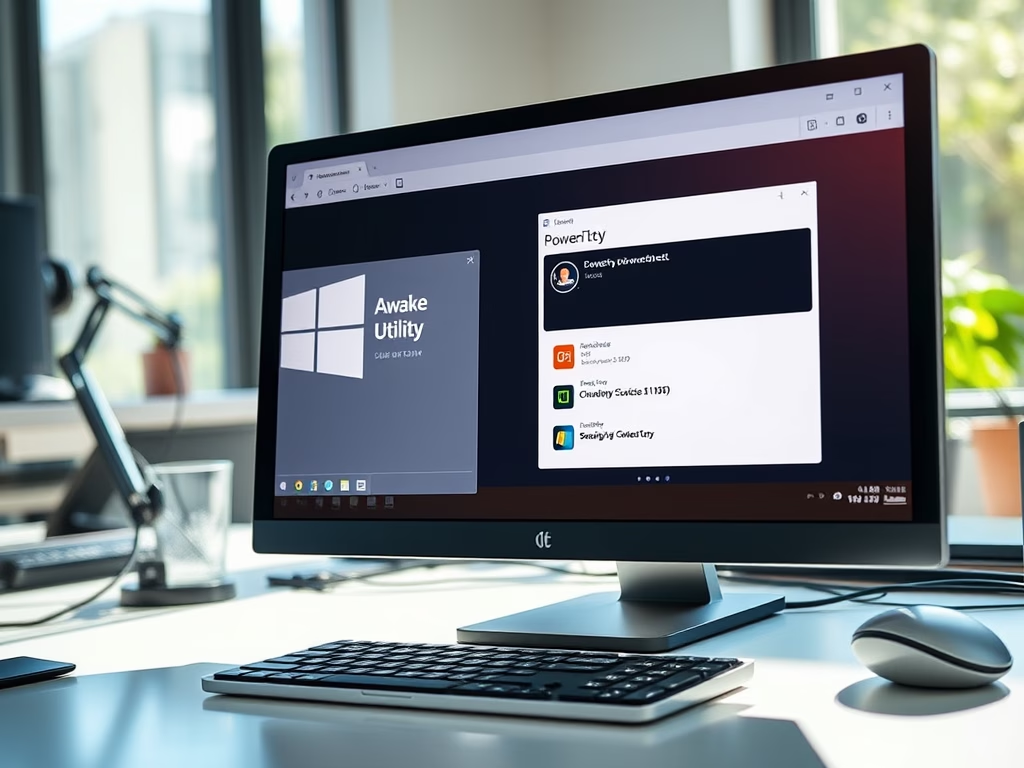
This group fine-tunes how the PC handles power, accessibility, and everyday tasks. The guides below help you adjust screen savers, keep the PC awake, or change how certain keyboard features work. If a setting is greyed out, the cause is usually a missing admin right or a policy set by your workplace.
More on Windows System Settings and Customization
Common questions
How do I change the time on my 🪟 Windows 11 computer?
Windows sets the date and time automatically by default. Turn that off only if you need a specific time, for example when testing software or when the PC has no internet access. To set the time manually:
- Open Settings Time & language Date & time.
- Turn off Set time automatically.
- Turn off Set time zone automatically. The Time zone dropdown is now available for you to change.
- Next to Set the date and time manually, select Change. A small dialog opens where you can enter the date and time, then select Change again to save.
How can I make my screen easier on my eyes at night?
Windows 11 includes a feature called Night Light. It reduces blue light, making the screen warmer and more comfortable to view in the dark. To turn it on:
- Open Settings System Display.
- Select Night light.
- Turn on the Night light switch. The screen should turn warmer in color at once.
- Drag the Strength slider until the color feels comfortable.
You can also turn on Schedule night light so it starts and stops by itself. If the option is missing or greyed out, the display driver is often out of date, so update it through Windows Update. To undo, switch Night light off again.
Where do new apps get installed by default?
- Open Settings System Storage Advanced storage settings Where new content is saved.
- Find the New apps will save to dropdown.
- Select the drive you want. If an Apply button appears, select it to confirm.
This affects apps you install from now on. It does not move apps that are already installed. Some traditional desktop installers also ask for their own folder and ignore this setting. To undo, pick the C: drive from the same dropdown.
How do I stop my PC from going to sleep?
To stop the PC from sleeping while it is plugged in, change the power settings:
- Open Settings System Power & battery Screen and sleep. On newer builds this section may be labeled slightly differently, such as screen, sleep, and hibernate timeouts.
- Find When plugged in, put my device to sleep after.
- Open the dropdown and select Never.
Laptops also show On battery power options, and those are separate. Desktops show only the plugged-in options. The screen can still switch off on its own, because it has its own setting named When plugged in, turn off my screen after. A PC that never sleeps uses more power, so set a time again when you no longer need this.
Can I change the size of icons on my desktop?
You can make desktop icons larger or smaller without opening Settings:
- Right-click an empty area of your desktop.
- Hover over View. A submenu opens beside it.
- Select Large icons, Medium icons, or Small icons. The icons resize at once.
A quicker way is to hold Ctrl and scroll the mouse wheel while the desktop is selected. The same View menu also lets you turn Auto arrange icons and Align icons to grid on or off. To undo the change, select Medium icons, which is the default size.
Frequently asked questions
How to change my Windows settings?
Open Settings by pressing Win+I, or select Start, then the gear icon. Pick a category from the left sidebar, such as System or Personalization. Change the option you want, and most changes apply right away. A few deeper settings still live in Control Panel, so check there if you cannot find one.
How to customize 🪟 Windows 11?
Open Settings and select Personalization to change your theme, accent color, and wallpaper. Under Personalization, choose Taskbar to pick which icons show and how they line up. Turn on Night light under System, then Display, to warm the screen in the evening. Most changes take effect immediately.
How to customize 🪟 Windows 11 suit my needs?
Start by deciding what slows you down. Then match a setting to it: Notifications under System to quiet pop-ups, Night light under Display for eye comfort, or Storage Sense under System Storage to free space automatically. Check Accessibility for text size and contrast. Most of these changes are easy to undo.
How to chang feature of my 🪟 Windows 11 laptop?
Open Settings and find the feature under its matching category, such as Bluetooth & devices for Bluetooth or Display for brightness. Use the search box at the top of Settings if you are unsure where it is. Turn the switch on or off, or pick a new option, and it takes effect right away. Battery modes are under System Power & battery.
How to costumize on settings?
Open Settings from the Start menu, then use the search box at the top to type the name of the option you want. Results jump straight to that switch, so you do not need to hunt through categories. Change it and the setting applies immediately. Press Esc or select the back arrow to return to the main list.
Still have a question?
Answered by AI from this guide. Good questions may be added to this page — please don't include personal details.
Did this guide fix your problem?

About the Author
Richard
Tech Writer, IT Professional
Richard is a writer at Geek Rewind who turns complex IT tasks into clear, step-by-step guides. He draws on years of hands-on experience in system administration and enterprise IT operations, focusing on Windows, Linux and WordPress: the problems people actually run into, and the fixes that work. His server and WordPress guides come from systems he runs himself. Richard builds and maintains the platform behind Geek Rewind, from its Ubuntu servers and Nginx configuration to its custom WordPress plugins. Many new tutorials start with readers' questions, and he's always glad to answer them in the comments.
No comments yet — be the first to share your thoughts!