How to Enable or Disable Typing Insights in Windows 11


Typing Insights is a Windows 11 feature that tracks your typing habits to improve touch keyboard word predictions and spelling corrections. Turning on this tool helps you type faster by learning your most frequently used words. Over time, the keyboard can suggest the words you use most and fix the mistakes you make most often.
Open Settings by pressing Win+I, go to Time & language Typing, then toggle Typing Insights on or off. The change applies immediately without restarting your PC.
You can turn Typing Insights off at any time to stop Windows from collecting your typing data. Disabling the feature takes just a few clicks in your main computer settings. The option is in Settings Time & language > Typing. Menu labels can differ slightly between Windows 11 builds, so if yours looks a little different, look for the Typing Insights toggle on that page.
A few points before you start:
- The setting is available in both Windows 11 Home and Pro. It does not depend on your edition.
- You do not need to restart your PC after changing it. The change applies right away.
- Turning the feature off does not break typing. Your keyboard keeps working, but it stops learning from what you type.
- The change is easy to undo. Return to the same page and switch the toggle back on whenever you want.
- If you share the PC, remember that the setting applies to your own user account, not to every account on the machine.
Choose whether to keep it on based on how you work. If you type a lot on a touch screen and want better suggestions, leave it on. If you care more about limiting the data Windows collects, turn it off. The steps below show how to do either.
Turn Typing Insights On or Off in Settings
Typing insights windows 11 settings can be changed at any time by opening the main Settings app on your computer. You turn typing insights on or off to control whether Windows learns your typing habits to give you better text suggestions and corrections. To do this, you just need to open your system settings and go to the time and language menu where the typing options live.- Open Settings by pressing
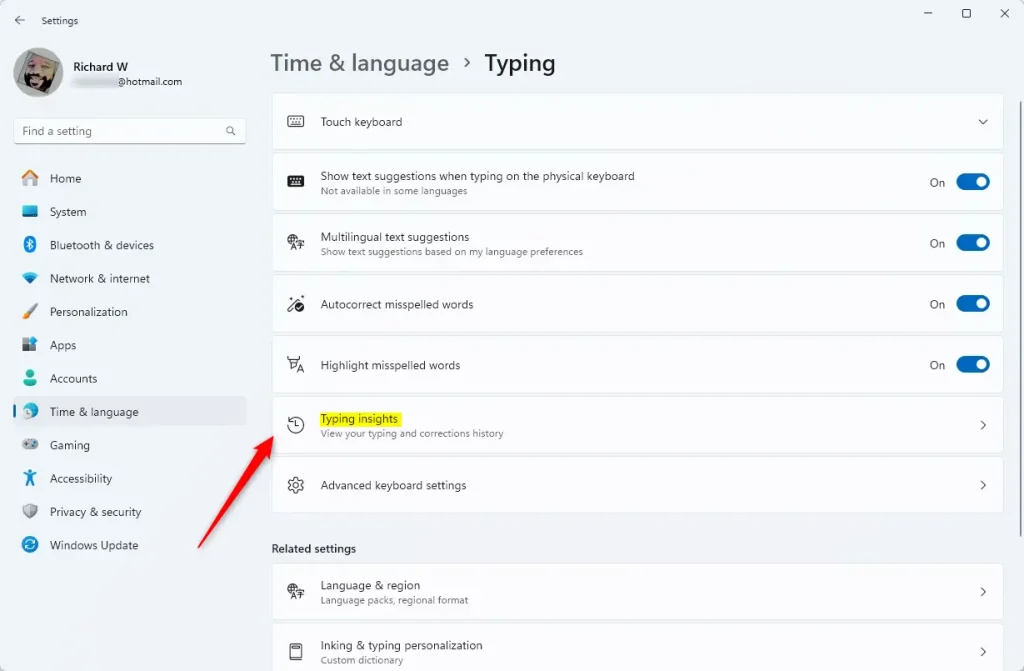
Win+I. - Click on Time & language on the left side, then click on Typing on the right side.
Open Typing settings - Click on Typing insights.
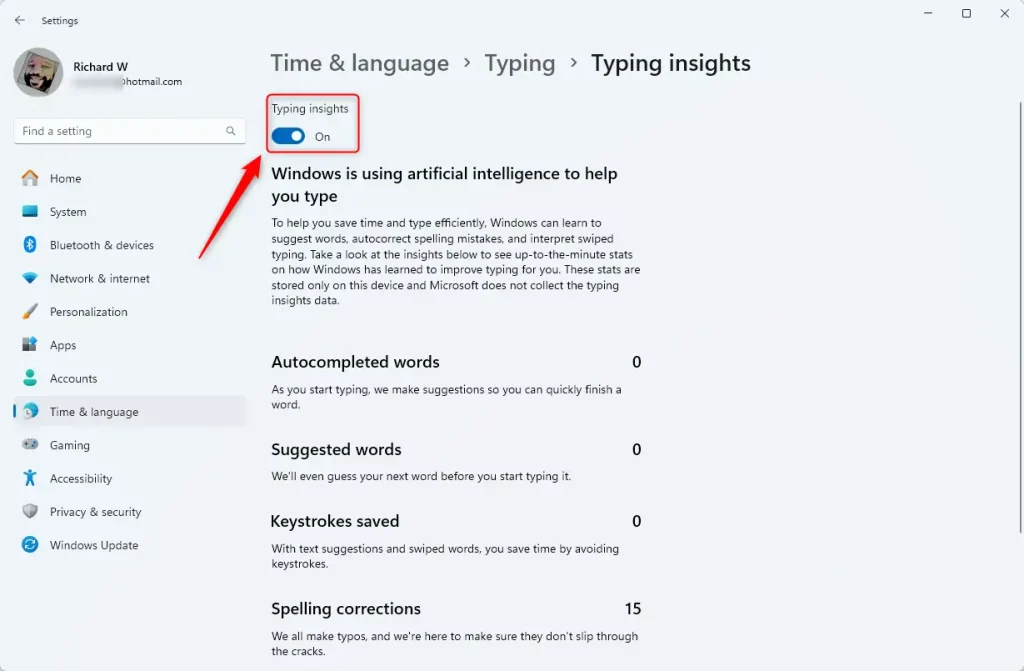
- Turn Typing insights On (this is the default) or Off depending on what you want.
- You can close Settings now if you’d like.
Option Two
Turn Typing Insights On or Off Using Registry
Turn On Typing Insights
This is the default setting.
reg add "HKEY_CURRENT_USER\Software\Microsoft\Input\Settings" /v InsightsEnabled /t REG_DWORD /d 1 /f
Turn Off Typing Insights ⚙️ Requires admin privileges
reg add "HKEY_CURRENT_USER\Software\Microsoft\Input\Settings" /v InsightsEnabled /t REG_DWORD /d 0 /f
Summary
Manage Typing Insights through the Windows Registry (the central database for system settings). This method requires administrative privileges.
Was this guide helpful?

About the Author
Richard
Tech Writer, IT Professional
Richard is a writer at Geek Rewind who turns complex IT tasks into clear, step-by-step guides. He draws on years of hands-on experience in system administration and enterprise IT operations, focusing on Windows, Linux and WordPress: the problems people actually run into, and the fixes that work. His server and WordPress guides come from systems he runs himself. Richard builds and maintains the platform behind Geek Rewind, from its Ubuntu servers and Nginx configuration to its custom WordPress plugins. Many new tutorials start with readers' questions, and he's always glad to answer them in the comments.


No comments yet — be the first to share your thoughts!