What Breaks When You Disable Windows 11 Inking and Typing Personalization

Windows 11 Inking and Typing Personalization is a built-in feature that saves your custom words, writing habits, and local dictionary data to improve text suggestions and handwriting recognition. Turning off this setting stops your PC from learning new words as you type or write, but it does not break your keyboard or stop apps from working.
Your computer stores these learning files locally on your hard drive to help the spellchecker and touch keyboard guess what you want to type next. Disabling the feature simply means Windows stops saving new words, and your spelling suggestions return to the basic built-in dictionary. You can turn the setting back on at any time. The only thing you cannot get back is the vocabulary Windows had already learned.
Disabling Windows 11 Inking and Typing Personalization stops custom word suggestions, reduces touch keyboard prediction accuracy, and decreases handwriting recognition quality. Your keyboard and apps continue working normally, but Windows stops learning new words and personalized writing patterns.
Why Do People Want to Turn It Off?
People want to turn off Inking and Typing Personalization in Windows 11 mainly to protect their personal privacy and stop the operating system from recording their everyday typing habits. Many users feel uncomfortable knowing that Windows creates a custom dictionary based on everything they type and sends that data back to Microsoft for analysis.

Privacy Protection: You might feel uncomfortable knowing your computer creates a personalized dictionary based on everything you type. That dictionary can include names, project terms, and other words you would rather not have stored at all.
Data Sharing Concerns: Users worry that typing patterns and text samples might be sent back to Microsoft to improve future software updates.
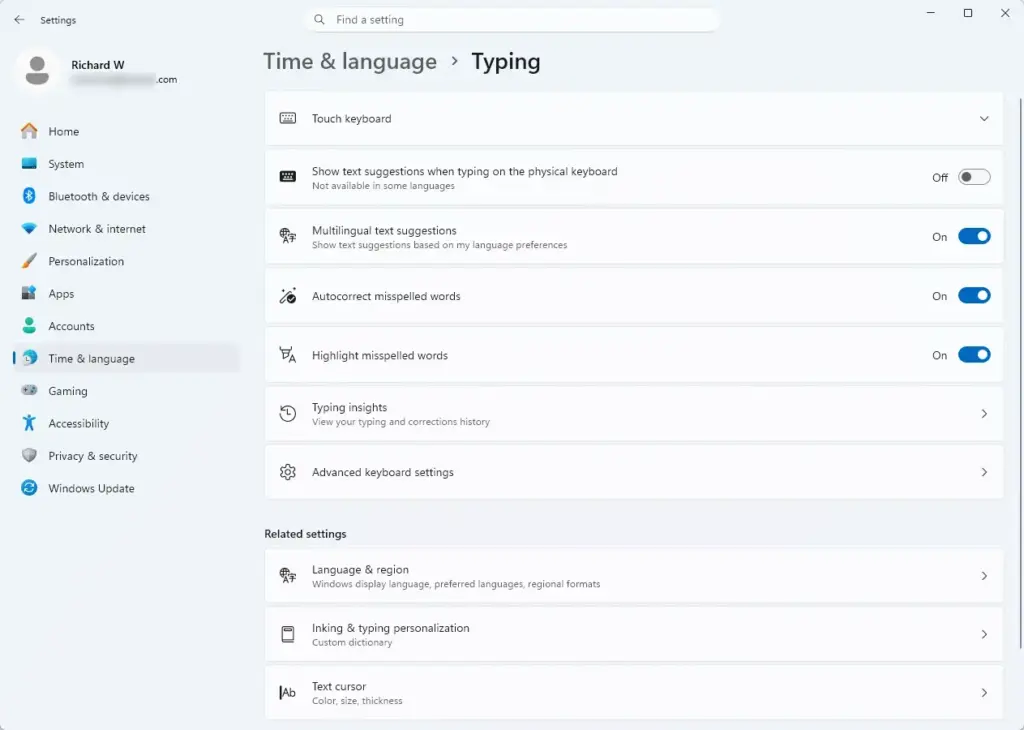
Reduced Clutter: Some people find auto-correct suggestions annoying, especially when typing passwords, code, or non-English words. A learning dictionary can make this worse, because it may start suggesting odd words you typed once by mistake.
Switching off this feature raises a practical question about what stops working. Let us look at the exact impact on your daily computer use.
What Breaks When You Disable Inking and Typing Personalization?
Disabling Inking and Typing Personalization in Windows 11 stops custom word predictions and personalized handwriting recognition. Your physical keyboard and core apps keep working normally, but your computer stops learning new words and fails to improve how it recognizes your handwriting over time as you type.
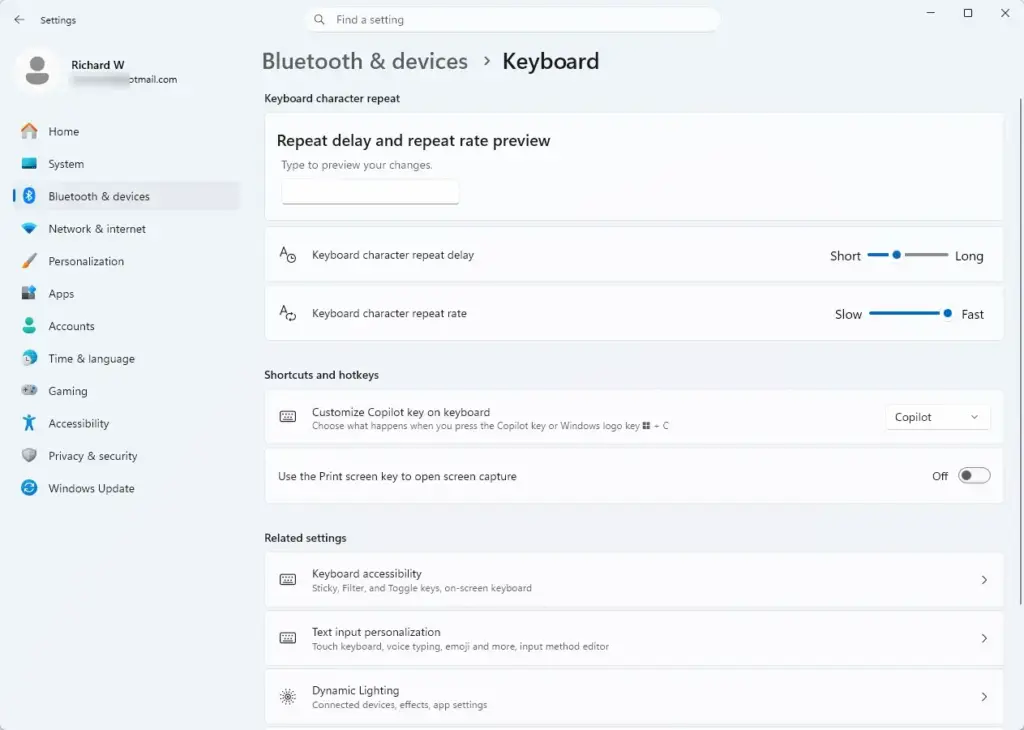
Here is the detailed breakdown of what changes when you turn off this setting:
- Loss of Custom Word Suggestions: When the personalization feature is active, Windows builds a custom dictionary based on your typing history. When you turn it off, your computer stops adding new words to this personal dictionary. If you type a unique word, nickname, or industry term often, Windows will no longer remember it for future auto-complete suggestions. You may see more red squiggly lines under words that are spelled correctly but do not exist in the basic, default dictionary. If that gets annoying, you can usually right-click the flagged word and choose to add it to the dictionary of the app you are using, such as your browser or Office.
- Less Accurate Touch Keyboard Predictions: Text prediction relies on your personal history when using a tablet, convertible laptop, or on-screen keyboard. Without personalization, the touch keyboard falls back to a generic, built-in dictionary. It will still offer basic spell-checking and standard word suggestions, but it will not adapt to your unique writing style or predict your next word with the same level of accuracy. If you only use a physical keyboard on a desktop, you will probably never notice this change.
- Reduced Handwriting Recognition Accuracy: For users who write on their screen with a digital stylus, the handwriting panel learns your personal stroke habits over time. Disabling inking personalization means the handwriting engine stops learning how you form specific letters. While you can still write on the screen and have Windows convert it to text, you might notice an increase in translation errors if your handwriting style is unique.
- Resetting Your Personal Dictionary Data: When you turn off this setting, Windows clears the personal dictionary data it has already saved on your device. Any custom words, phrases, and writing history stored for your user profile are erased. This ensures your data is removed, but it also means you start fresh if you ever decide to turn the feature back on. Think about this before you switch it off if you rely on a lot of specialised vocabulary.
What Does NOT Break?
Basic typing, standard spell checkers, physical keyboards, and core Windows apps continue to work normally after you turn off Inking and Typing Personalization. You will not lose any essential computer functions, and standard spell-checking tools in web browsers and email programs will still flag misspelled words without issues.
- Basic Typing: Your physical keyboard, mouse, and external input devices work exactly as they did before.
- Standard Spell Check: Built-in spell checkers in web browsers, Microsoft Office apps, and email programs continue to flag misspelled words using their own built-in dictionaries.
- System Performance: Your computer’s speed and overall performance remain unaffected. In fact, turning off background learning processes can slightly reduce background resource usage, although on most modern PCs the difference is too small to measure.
If your settings are locked, contact your system administrator. On work or school PCs, an organization policy can lock or hide these options, and a greyed-out toggle or a message saying some settings are managed by your organization usually means that is the cause. Home and Pro editions both include this setting, but managed Pro devices are the ones most likely to have it locked.
How to Turn Off Inking and Typing Personalization in 🪟 Windows 11
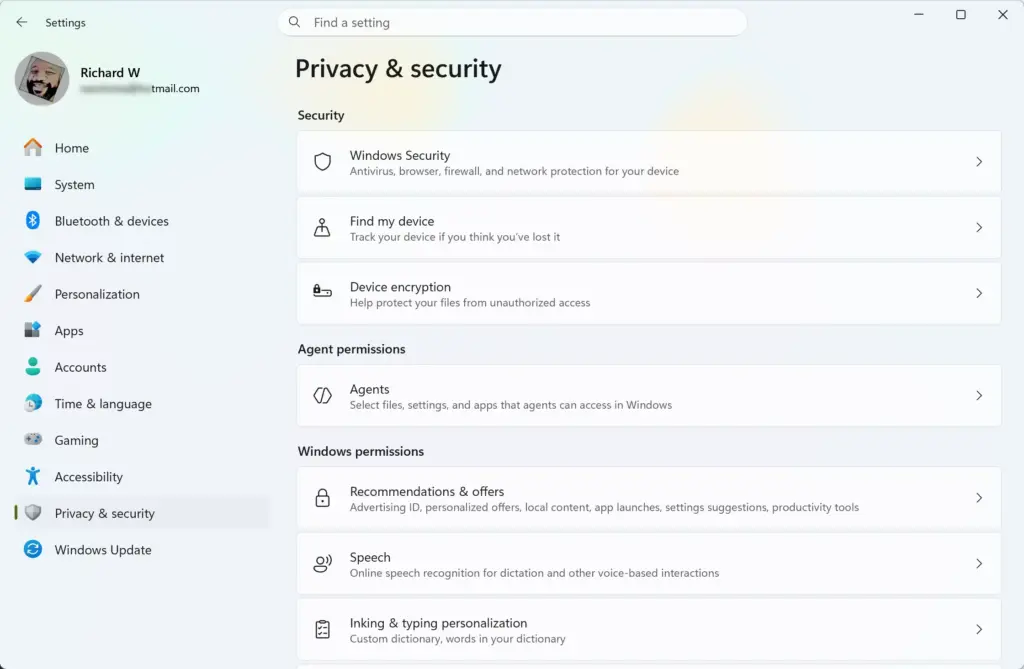
Turning off Inking and Typing Personalization in Windows 11 requires opening your computer settings, going to the privacy section, and turning off the personal dictionary option. This straightforward process stops Windows from saving your text samples and clears any previously stored writing data from your device right away. No restart is needed. The steps below follow the Settings layout of Windows 11 versions that include this page. On some newer builds Microsoft has moved or reworded privacy pages, so if a name differs slightly, look for the closest match.
- Click the Start button on your taskbar and select the Settings app (the gear icon), or press Win+I on your keyboard. The Settings window opens.

Taskbar - In the Settings window, click Privacy & security in the left-hand menu. The privacy options appear on the right.
- Under the Windows permissions section on the right side, click Inking & typing personalization.
- Find the toggle switch labeled Custom inking and typing dictionary and click it to turn it Off. The switch should now show Off. If it is greyed out, your device is probably managed by an organization.
This deletion matters because your computer loses the custom words you taught it, which means predictive text and auto-correction features will no longer recognize your unique vocabulary or typing habits. To undo the change, return to the same page and switch the toggle back to On. Windows will begin learning again, but from an empty dictionary.
How to Manage Related Privacy Settings in 🪟 Windows 11
Disabling inking and typing personalization is a great first step toward a more private computing experience, but Windows 11 includes other similar tracking and diagnostic tools. To thoroughly clean up your privacy settings, check these additional areas:
1Review Diagnostics & Feedback Settings
Reviewing diagnostics and feedback settings in Windows 11 helps you limit the amount of background data your computer sends back to Microsoft. You can easily change your diagnostic data level from optional to required in the main settings menu to keep your device activity private and reduce tracking. Required diagnostic data is the minimum that Windows allows you to send, so you cannot turn it off completely.
- Open the Settings app (press Win+I).

Settings - Click Privacy & security.
- Click Diagnostics & feedback. The diagnostic options expand on the page.
- Under the Diagnostic data section, select Send optional diagnostic data and change it to Send required diagnostic data (the minimum amount allowed). On some Windows 11 builds this appears as a switch, so turning Send optional diagnostic data to Off gives the same result.
- Scroll down and turn off switches for features like Tailored experiences and View diagnostic data if you want to restrict data collection further. These changes apply immediately, and you can switch any of them back on later.
2Control General Privacy Options
Controlling general privacy options in Windows 11 lets you stop apps from tracking your app launches and using personal advertising IDs. You can turn off these tracking switches quickly in your main privacy settings to prevent apps and websites from monitoring your daily computer habits.
- Open the Settings app and go to Privacy & security.
- Click General at the top of the list. A list of switches appears.
- Turn off switches for options such as Let apps use my advertising ID for ads across apps, Let websites provide locally relevant content by accessing my language list, and Let Windows track app launches to improve start and search results. The exact wording and number of switches can vary a little between Windows 11 versions. Each one can be turned back on in the same place, and none of them needs a restart.
Summary
Turning off Inking and Typing Personalization stops your computer from learning your custom words and handwriting style while keeping your physical keyboard and core apps working normally. You only lose automated word predictions and personalized handwriting accuracy, which helps improve your overall privacy without breaking basic computer functions.
Have a question about this guide?
Answered by AI from this guide. Good questions may be added to this page — please don't include personal details.
Did this guide fix your problem?

About the Author
Richard
Tech Writer, IT Professional
Richard is a writer at Geek Rewind who turns complex IT tasks into clear, step-by-step guides. He draws on years of hands-on experience in system administration and enterprise IT operations, focusing on Windows, Linux and WordPress: the problems people actually run into, and the fixes that work. His server and WordPress guides come from systems he runs himself. Richard builds and maintains the platform behind Geek Rewind, from its Ubuntu servers and Nginx configuration to its custom WordPress plugins. Many new tutorials start with readers' questions, and he's always glad to answer them in the comments.
No comments yet — be the first to share your thoughts!