Why Does Settings Time and Language Keep Resetting Your Preferred Calendar Format

- 4 ways to do it
- Needs administrator rights
- Includes a restart or sign-out
Calendar formats in Windows 11 (and in Windows 10, which reached end of support on October 14, 2025) keep resetting because the modern Settings app and the classic Control Panel often conflict with each other. A regional format controls how your PC displays dates, days of the week, and calendar styles such as day-month-year or month-day-year.
Two things usually cause the reset. The first is a language mismatch, where your display language, country or region, and regional format don’t agree. The second is a cloud profile sync bug that overwrites your custom date settings after a restart. The fix is to turn off syncing of language preferences in Windows backup settings and make your display language match your preferred regional format.
Work through the sections below in order. They go from the quickest fix to the most involved, so you can stop as soon as the setting survives a restart.
Windows Settings resets your calendar format because the modern Settings app and Control Panel conflict with each other, and your display language, country, and regional format don’t match. Fix this by opening Control Panel, clicking Region, selecting your preferred country in the Format drop-down on the Formats tab, customizing Short date and Long date layouts, clicking Apply, and restarting your PC.
Method 1Fixing Regional Formats Through the Classic Control Panel
Before you start, check for Windows updates. Regional format reset bugs are often fixed by cumulative updates (monthly packages that bundle many fixes). Open Settings Windows Update and click Check for updates, then install anything it finds and restart.
Also check which Windows 11 version you run. Open Settings System About and read the Version line under Windows specifications. Version 23H2 is out of support and no longer gets fixes, so update to 24H2 or 25H2 if you are still on it.

Follow these steps to update your regional format using the Control Panel:
- Click the Start button on your taskbar and type Control Panel into the search box. The Control Panel app appears in the search results.
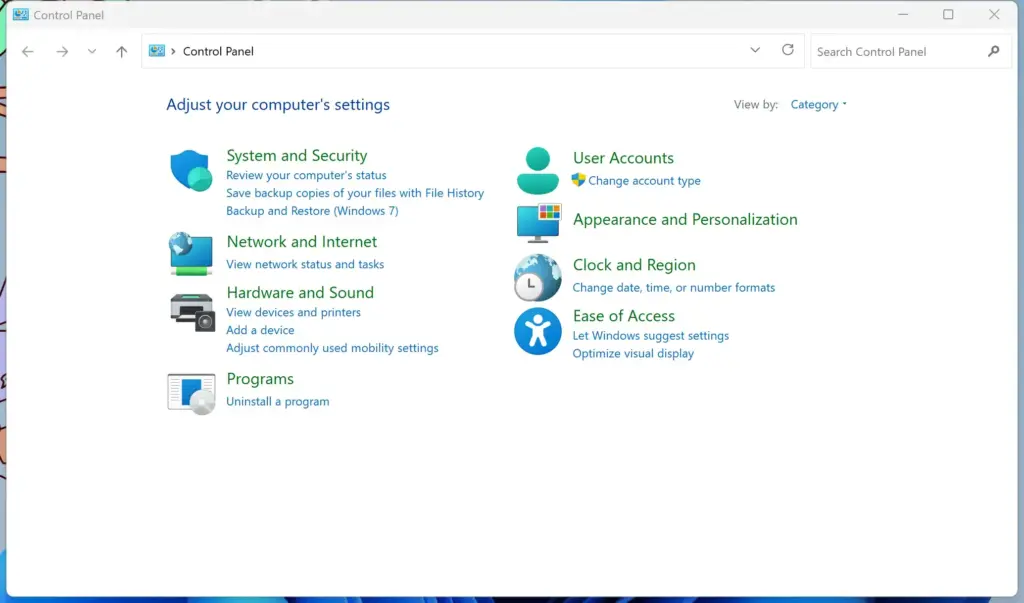
- Click the Control Panel app in the search results. The Control Panel window opens.
- Look at the top right corner of the window. Set View by to Large icons or Small icons so every option is visible. In the default Category view, Region sits under Clock and Region instead.
- Click Region. A smaller window opens with the Formats tab selected.
- On the Formats tab, open the Format drop-down menu and choose your preferred country or region. This tells Windows which calendar and date style to use. The sample lines below the menu update straight away, so you can see what you are picking.
- To customize the layout, open the Short date and Long date drop-down menus near the bottom of the window and pick the layout you want. Check the preview lines to confirm it looks right.
- Click Apply at the bottom right of the window, and then click OK. The window closes and Windows saves the new format.
- Restart your computer and check whether your settings are still in place.
That’s it for this method. If the format is still correct after the restart, the fix worked and you can stop here. If it reverted, continue to the next section.
Method 2Copying Your Settings to Welcome Screen and New User Accounts
This step needs an administrator account. If the button below is missing or does nothing, sign in with an admin account and try again.
- Open the classic Control Panel by typing Control Panel in the Start menu search bar and pressing Enter.
- Click Region. The Region window opens.
- In the Region window, click the Administrative tab at the top.
- Click the Copy settings… button. A new window opens showing your current settings for the welcome screen and new user accounts. Check that the format shown there is the one you want.
- At the bottom of this window, check both boxes: Welcome screen and system accounts and New user accounts.
- Click OK to save your choices.
- Click OK on the main Region window, and then restart your computer.
You should now have the same format on the sign-in screen and in any account you create later. To undo this, change your format back on the Formats tab and repeat the steps above.
There is a quicker route on Windows 11. Open Settings Time & language Language & region and click Administrative language settings. This opens the Region dialog directly, so you skip the Control Panel search. The Copy settings… button is on its Administrative tab, and the steps from there are the same.
Method 3Adjusting Time and Language Settings in the Modern Windows App
Windows can revert your calendar to the default when your country, region, and display language don’t agree with each other. Lining these up in the Settings app often stops the resets. The menu names below are for Windows 11. Windows 10 is very close, but some labels differ slightly.
Here is how to check and fix your settings in the modern app:
- Press the Win+I to open the Settings app.
- Click Time & language in the menu on the left.
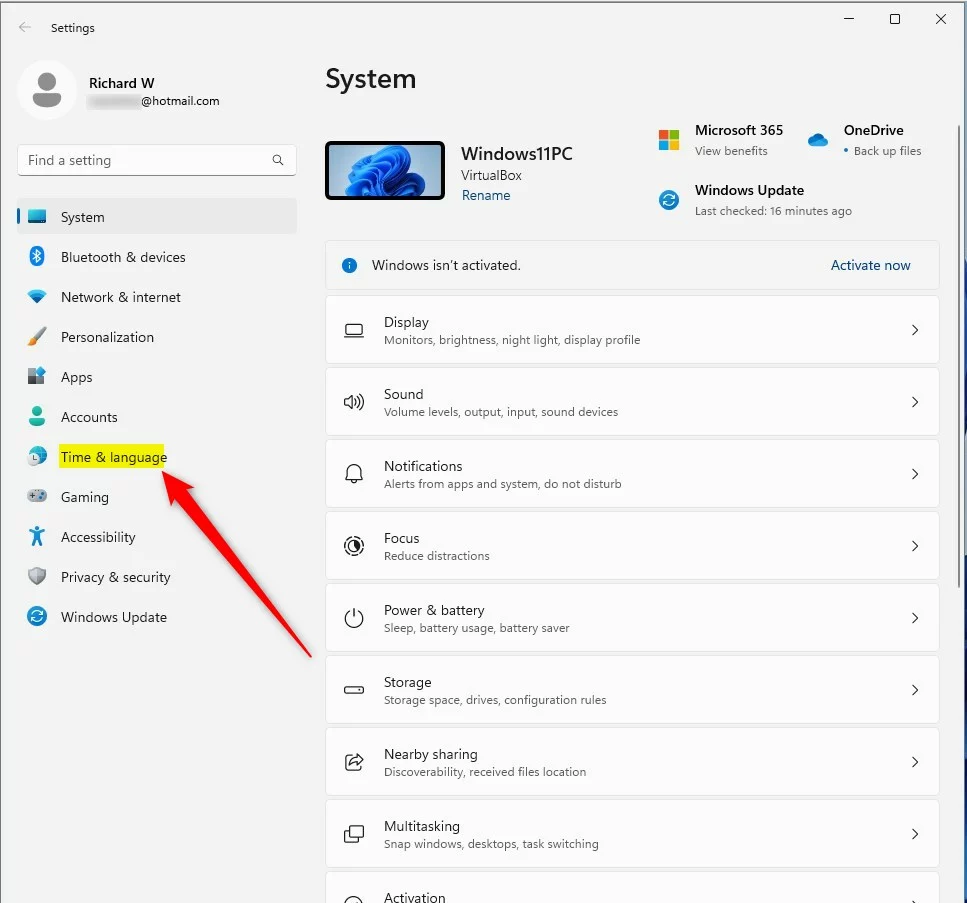
- Click Language & region. The page lists your preferred languages at the top, followed by the region settings.
- Find the Country or region setting. Make sure it matches your actual physical location and the calendar style you want.
- Scroll down to Regional format and open the drop-down menu. Choose the exact format that matches your preferences. If it is already set correctly, change it to a different format, restart your computer, and then change it back. This can clear out a stuck setting.
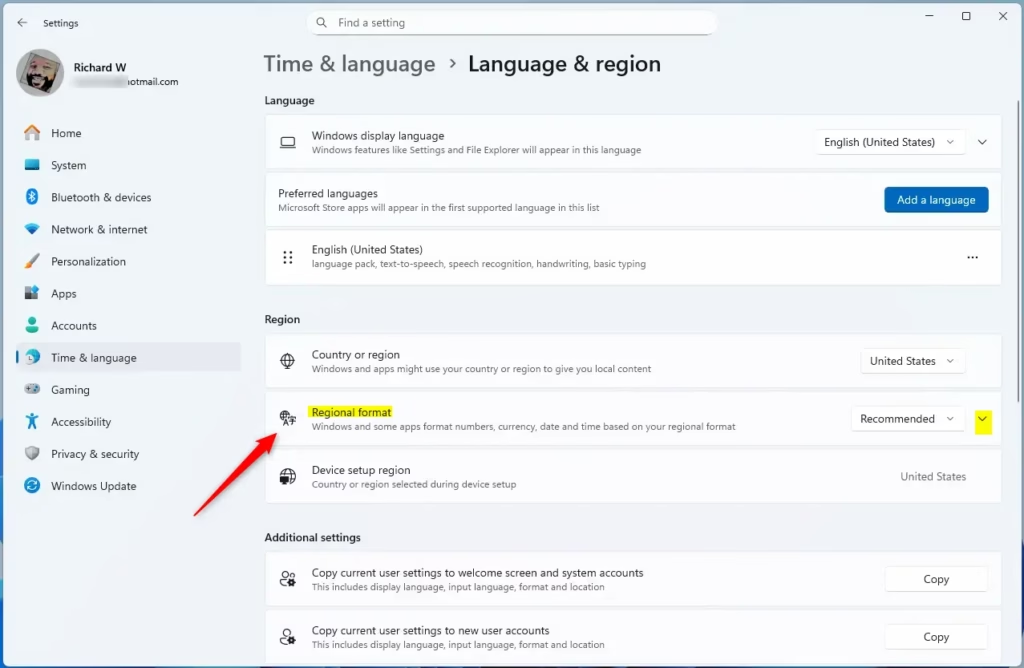
- Check the Preferred languages list further up the same page. Make sure your primary language matches your regional format. For example, if you live in the United Kingdom, a US English language pack at the top of the list can trick Windows into resetting your dates.
You should now have a country, display language, and regional format that agree. If you change the order of your languages, sign out and back in so the new display language is applied. Then check whether the date format has held.
Method 4Checking for Conflicting Group Policy or Sync Settings
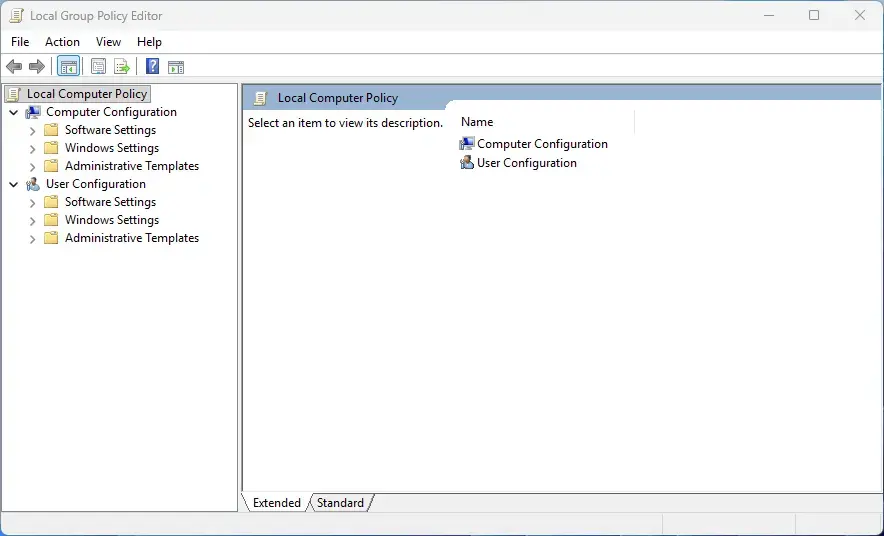
A school or work network, a managed work computer, or your cloud account can force your calendar format back to default. Workplace policies and Microsoft account sync often override personal tweaks in the background.
If a policy is the cause, you can’t change it yourself. Look for the message “Some settings are managed by your organization” in Settings, and talk to your IT department. Sync, on the other hand, is something you control.
If cloud sync is on, your Microsoft account may be pushing settings from an older device onto this computer. Sync only applies to Microsoft accounts, so a local account won’t show these options. Here is how to check your sync settings:
- Open the Settings app by pressing the Win+I.
- Click Accounts in the left menu.
- Click Windows backup on Windows 11, or Sync your settings on Windows 10.
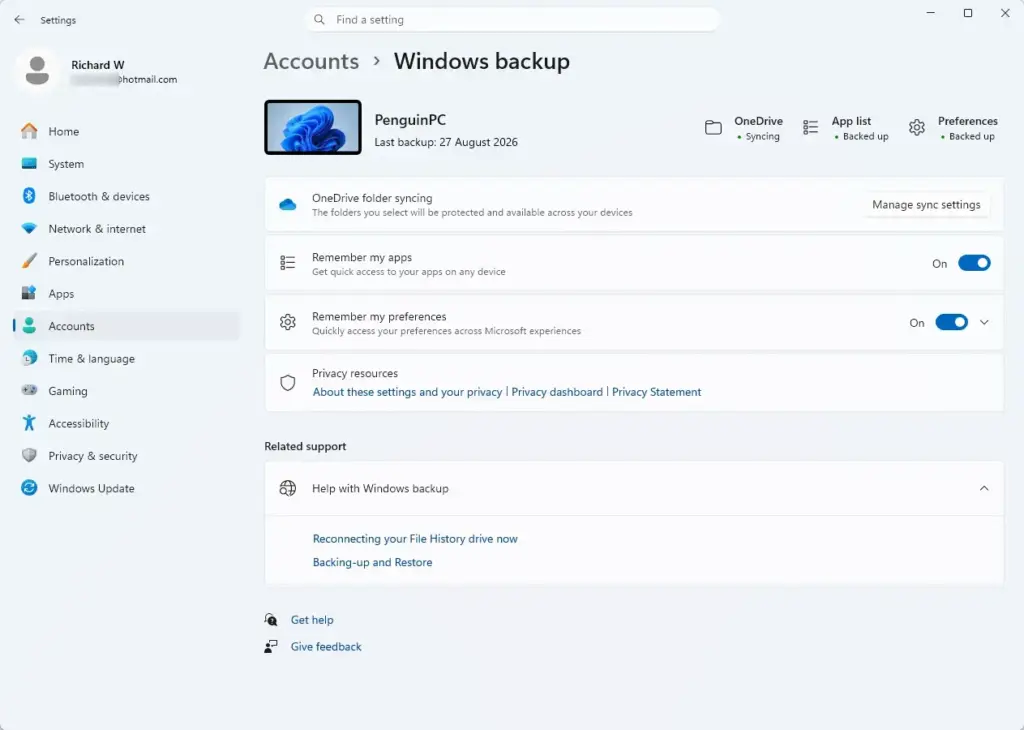
- Look through the options and see whether your passwords, language preferences, or other settings are syncing with the cloud. On Windows 11 they sit under Remember my preferences.
- If your profile keeps pulling old settings from the cloud, turn off synchronization for the settings you don’t want shared, such as your language preferences. You can turn the same switches back on later.
That’s it for sync. Your language preferences should no longer be overwritten from the cloud. Set your calendar format again using one of the earlier methods and restart to test it.
Unique Expert Tip: Fixing Corrupted User Profile Data
If nothing so far has worked, your user profile may be damaged. A corrupted profile can’t save changes properly, so your calendar preferences vanish at each restart. The quickest test is to create a new local user account, sign in to it, and see whether your settings stay put. If they do, the old profile is the problem.
This step requires an administrator account. Back up first, because you may need to move files out of the old profile later. Copy your important folders, such as Documents, Pictures, and Desktop, to an external drive or cloud storage. Then create a restore point: search for Create a restore point in the Start menu, select your system drive on the System Protection tab, and click Create.
- Open the Settings app by pressing the Win+I.
- Go to Accounts and click Other users (Windows 11) or Family & other users (Windows 10).
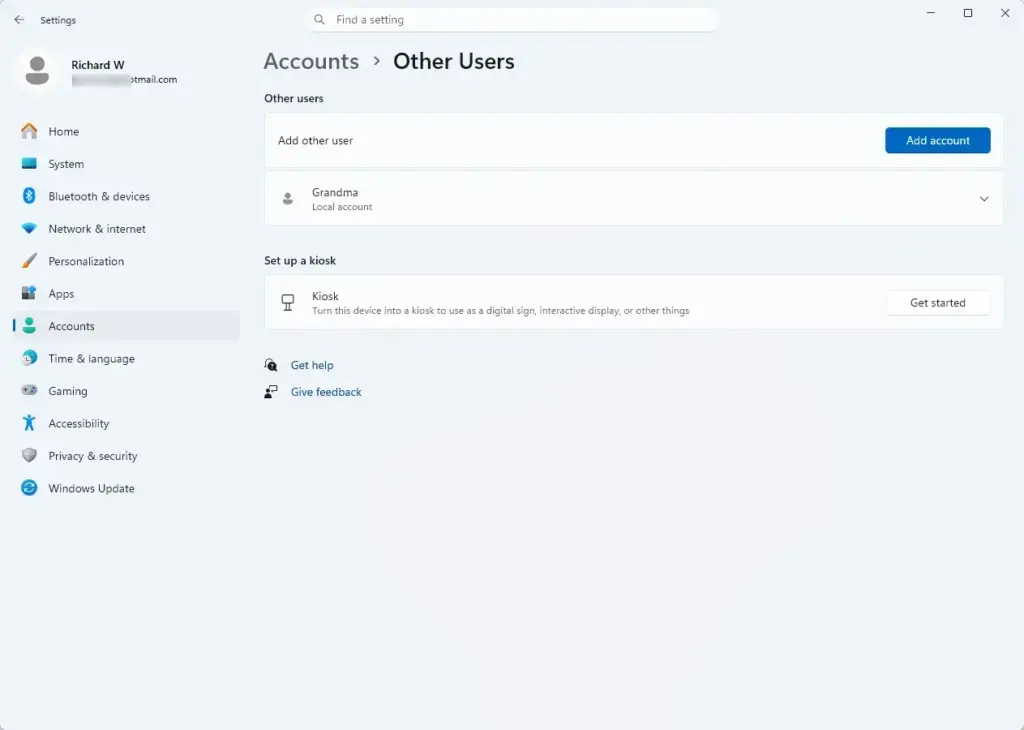
- Click Add account (Windows 11) or Add someone else to this PC (Windows 10). A Microsoft account sign-in window opens.
- Choose I don’t have this person’s sign-in information, and then select Add a user without a Microsoft account.
- Type a new username and password, then follow the onscreen instructions to finish creating the account.
- Click the new account name and change its account type to Administrator.
- Sign out of your current account and sign in to the new one. Set your calendar and regional formats there, restart the computer, and check whether the settings survive.
You should now know whether the old profile is the cause. If the settings stick in the new account, move your files over from the old profile and use the new account from now on. If they still reset, the cause is system-wide, so go on to the next section. You can delete the test account later from the same Other users page.
Unique Expert Tip: Resetting Language and Regional Pack Files via PowerShell
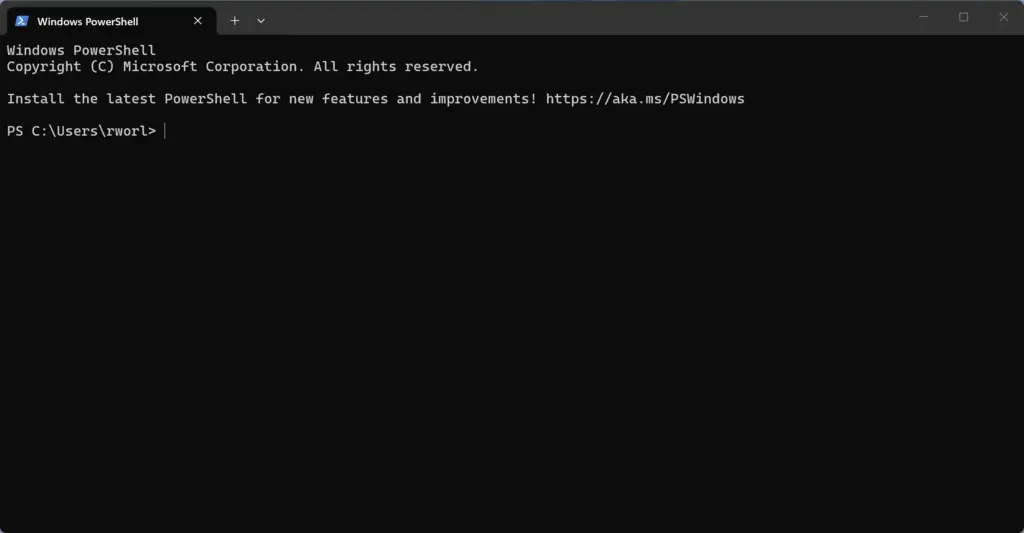
If the earlier methods failed, you can check what language and format Windows is actually using at the system level. This helps you spot a mismatch that the Settings screens may not show clearly. The command below only reads information, so it changes nothing.
- Click Start, type PowerShell, right-click Windows PowerShell, and choose Run as administrator. Click Yes if User Account Control asks for permission.
- A blue or black window opens. Type the following command carefully:
Get-WinSystemLocaleand press Enter. The output shows your current system language format. Compare it with the format you chose in Settings. - If the output doesn’t match your preferred region, don’t try to force it here. Go back to the Language & region page in Settings, correct your language list and regional format as described earlier, and make sure no other tool or background task is changing them. Then restart and run the command again to confirm the output now matches.
That’s it for this check. When the output matches your Settings choices, the system-level format agrees with what you set, and any remaining reset points to sync, policy, or the profile.
Conclusion
Calendar format resets in Windows come down to three causes: regional mismatches, sync rules that overwrite your settings, and corrupted profile files that block your preferences from saving. Work through them in order. Start with the classic Control Panel, then copy your settings to the welcome screen and new accounts, and then align everything in the Settings app. If the problem persists, check sync and policy, and test with a new account.
Restart after each change so you know which one worked. Keep Windows updated too, since cumulative updates often fix regional format bugs. Once your language, region, and format all agree, the calendar should stay as you set it.
Have a question about this guide?
Answered by AI from this guide. Good questions may be added to this page — please don't include personal details.
Did this guide fix your problem?

About the Author
Richard
Tech Writer, IT Professional
Richard is a writer at Geek Rewind who turns complex IT tasks into clear, step-by-step guides. He draws on years of hands-on experience in system administration and enterprise IT operations, focusing on Windows, Linux and WordPress: the problems people actually run into, and the fixes that work. His server and WordPress guides come from systems he runs himself. Richard builds and maintains the platform behind Geek Rewind, from its Ubuntu servers and Nginx configuration to its custom WordPress plugins. Many new tutorials start with readers' questions, and he's always glad to answer them in the comments.
No comments yet — be the first to share your thoughts!