How to Change the Primary Language Display Order in Settings Time and Language Language and Region

- 30 steps
- Needs administrator rights
- Includes a restart or sign-out
Language order in Windows 11 controls which display language your computer uses first across menus, apps, and websites. (Windows 10 reached end of support on October 14, 2025.) When more than one language is installed under Settings Time & language Language & region, Windows works through them in a strict top-to-bottom list.
System updates or shared PC accounts often shuffle this list and push your preferred language down. Moving your main language back to the top takes less than a minute if it is already installed. The steps below are written for Windows 11. Windows 10 uses the same idea, but its Settings pages are laid out differently, so some labels will not match.
Open Settings, go to Time & language Language & region, and click the three dots next to your preferred language in the Preferred languages list. Choose Move up until it sits at the top, then sign out and back in if the menus do not switch. This takes under a minute once the language is installed.
Understanding Windows Language Settings
Windows splits language settings into three parts. Knowing which is which keeps you from changing the wrong one.
- Display Language: This changes the text you see on menus, windows, apps, and websites.
- Preferred Languages: This is a ranked list of the languages you use. Windows checks it from top to bottom. The language at the very top is used first, as long as it is fully supported and its language pack (the files that translate menus and system text) is installed. If it is not, Windows moves down to the next one.
- Regional Format: This changes how your computer shows dates, times, currency, and the first day of the week based on your location. It does not change the language of your menus.
To change your primary display language, you adjust the Preferred languages list in the Settings app. Putting your language at the top tells Windows to use it for menus, apps, and websites.
Check these requirements before you start:
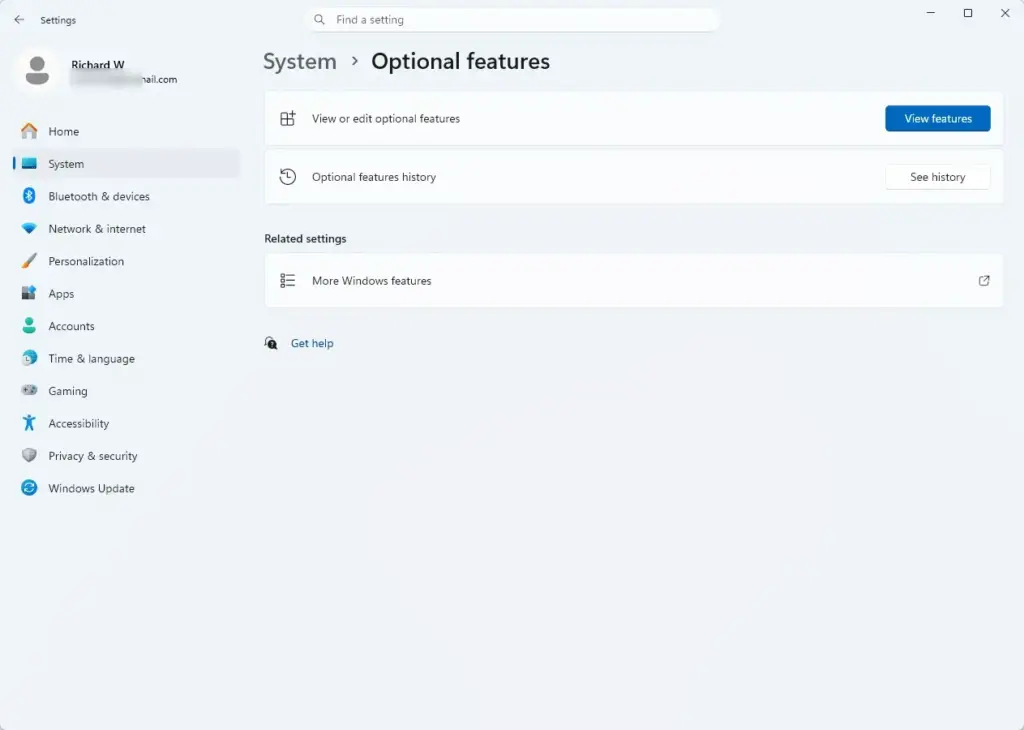
- Windows editionSome PCs ship with a “Single Language” edition of Windows. On those, you cannot add display languages, so the options may be missing or greyed out. Open Settings System About to see your edition.
- Managed devicesWork and school PCs can have language settings locked by policy. If your changes will not stick, ask whoever manages the PC.
- Internet connectionWindows downloads language packs, so the PC must be online. A metered connection (one set to limit data use) may block the download until you switch it off or use another network.
- Administrator permissionInstalling a language pack asks for an administrator password or approval.
Step-by-Step Guide: How to Change the Primary Language Display Order in Settings Time and Language Language and Region
Here is the full process to update your display language. It has five parts: open Settings, find Language & region, add the language if it is missing, move it to the top, and sign out. If your language is already installed, you can skip ahead to the section on moving it to the top of the list.
Step 1Open the Windows Settings Menu
There are two quick ways to open Settings. Use whichever you prefer. The first one goes through the Start menu.
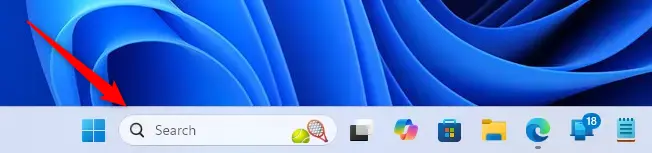
- Click the Start button at the bottom of your screen. It looks like the Windows logo. The Start menu opens.
- Type Settings on your keyboard. The search results appear as you type.
- Click the Settings app icon in the results. The Settings window opens.
That’s it. Settings is now open, and you can move on to the language options.

Step 2Navigate to Time & Language
The language options live under Time & language. This entry sits in the sidebar of the Settings window, alongside the settings for your clock, speech, and regional preferences.
- Look at the list on the left side of the Settings window and find Time & language. It has a small clock-and-globe style icon next to it.
- Click Time & language. The page on the right changes to show Date & time, Language & region, Typing, and other options.
That’s it. You are now on the Time & language page, one click away from the language list.

Step 3Go to Language and Region
The Language & region page holds your Preferred languages list. It tracks every language installed for your account and controls your display order.
- Click Language & region. The page opens with language settings at the top and region settings further down.
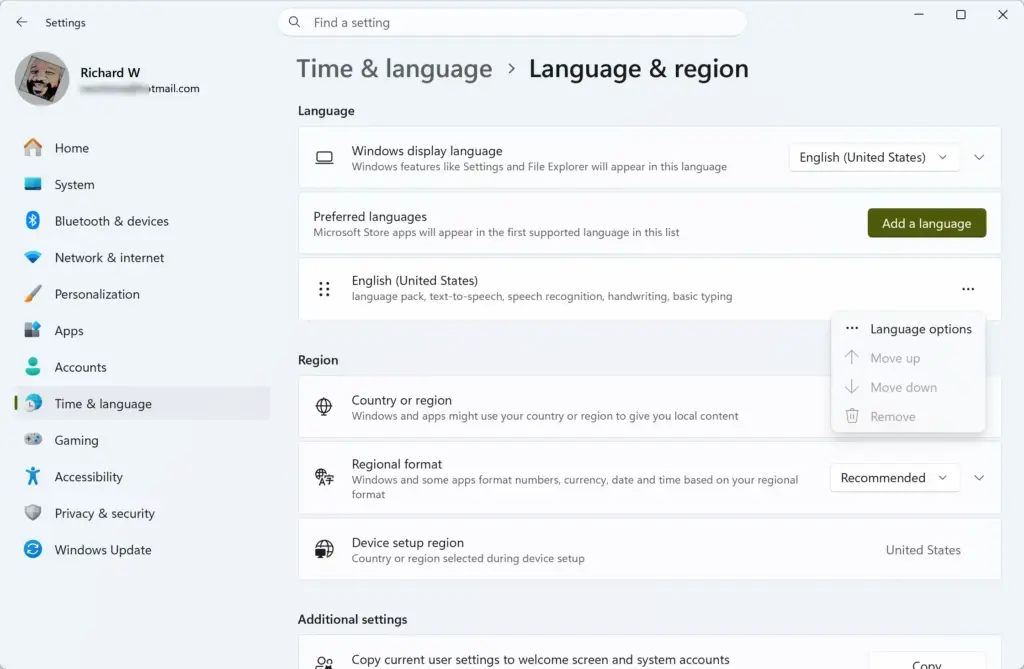
- Look for the Windows display language drop-down near the top, and the Preferred languages section just below it. This is where Windows keeps track of all the languages you use.
You should now see your installed languages listed in order. The one at the top is the one Windows tries first.
Step 4Add Your Desired Language (If It Is Not Listed)
If the language you want is not in the list yet, add it first. You cannot move a language to the top until it appears here. Make sure the PC is online before you begin.
- Click the Add a language button next to the Preferred languages heading. A window opens showing a long list of languages.
- Type the name of your language into the search bar, or scroll down to find it. The list narrows as you type.
- Click your language to select it.
- Click the Next button at the bottom of the window. A screen with optional features appears.
- Look at the options such as Install language pack and Set as my Windows display language. Make sure the box for setting it as your display language is checked. Without the language pack, Windows can only offer typing support, not translated menus.
- Click the Install button. (This step needs administrator permission. If a security prompt asks to make changes, click Yes or enter an administrator password.)
Wait for Windows to download and install the language pack. You need an active internet connection for this, and larger packs can take a few minutes. A progress indicator appears under the language in your list. Do not sign out until it finishes.
If the download never starts, check whether your connection is set as metered. Windows may hold back large downloads on a metered connection.
That’s it. Your language is now installed and listed under Preferred languages, ready to move to the top.
Step 5Change the Display Language Order
The display order changes when you move your chosen language to the very top of the Preferred languages list. There are two ways to do it. The first uses the menu next to each language.
- Find your preferred language in the Preferred languages list under Language & region.
- Click the three dots (…) button next to that language. A small menu opens.
- Click Move up. Repeat until your language sits at position number one. If it is already at the top, Move up is greyed out.
- Look just above the list for the drop-down menu labeled Windows display language. Click it and select your language to make sure it is the active one.
As an alternative to the menu, click and drag the language box to the very top of the list.
If your language is missing from the Windows display language menu, its language pack is not installed yet. Open the three dots menu for that language, choose Language options, and install the language pack from there.
That’s it. Your language is now first in the list and selected as the display language. Windows applies it fully after you sign out and back in.
To undo this, move your old language back to the top, or pick it again in the Windows display language menu. You will need to sign out again for the change to apply.
Step 6Sign Out and Sign Back In
Signing out refreshes your user account so the new display language applies across all apps, menus, and system screens. A full restart also works, but signing out is usually enough.
- Save any open work and close your running programs.
- Click the Start button again.
- Click your user account icon or name in the Start menu. A small menu opens.
- Click Sign out. Windows closes your session and shows the sign-in screen.
- Sign back in with your usual password or PIN.
When your desktop loads, your menus, system buttons, and Windows apps should appear in your chosen language.
That’s it. Your account now uses the new display language.
The sign-in screen itself may still show the old language. That does not mean your change failed. The welcome screen and new user accounts use a separate system-wide copy of the language settings. To update it, copy your settings across from the Administrative tab of the Region window. This needs an administrator account.
- Press the Win + R, type intl.cpl, and press Enter. The Region window opens.
- Click the Administrative tab.
- Click the Copy settings button. A window opens showing your current display language and settings.
- Tick Welcome screen and system accounts to change the sign-in screen. Tick New user accounts if you want new accounts on this PC to start with the same language.
- Click OK and approve the administrator prompt if one appears. If Windows asks you to restart, do so.
You should now see the sign-in screen in your chosen language the next time it appears.
Expert Tip: Managing Regional Formats and App Languages
Regional formats are separate from display language. They control how dates, times, and numbers appear. Changing them makes sure websites, apps, and system calendars show information the way you expect for your location.
- Go back to Settings Time & language Language & region.
- Scroll down to the Region section.
- Use the Country or region setting to pick where you are. Use the Regional format setting to choose how dates, times, and numbers are shown.
The regional format decides things like whether your calendar starts on Monday or Sunday, and whether dates read day-month-year or month-day-year.
That’s it. Dates, times, and numbers now follow the region and format you chose, and the change does not affect your display language.
Some third-party apps download their own language files and ignore the Windows setting. If an app you use every day still appears in the wrong language after you update Windows, open that app’s settings and look for a Language or General tab to change it there. Apps that were already open before you signed out may also need to be closed and reopened.
Summary
To change your primary language display order, open Settings, go to Time & language, and select Language & region. From there you can add language packs, move your preferred language to the top of the list, and choose it in the Windows display language menu. Then sign out and back in so the new display language takes full effect. If the sign-in screen still shows the old language, copy your settings to it from the Administrative tab of the Region window.
Have a question about this guide?
Answered by AI from this guide. Good questions may be added to this page — please don't include personal details.
Did this guide fix your problem?

About the Author
Richard
Tech Writer, IT Professional
Richard is a writer at Geek Rewind who turns complex IT tasks into clear, step-by-step guides. He draws on years of hands-on experience in system administration and enterprise IT operations, focusing on Windows, Linux and WordPress: the problems people actually run into, and the fixes that work. His server and WordPress guides come from systems he runs himself. Richard builds and maintains the platform behind Geek Rewind, from its Ubuntu servers and Nginx configuration to its custom WordPress plugins. Many new tutorials start with readers' questions, and he's always glad to answer them in the comments.
No comments yet — be the first to share your thoughts!