Should You Change Your Active Time Zone Manually or Let Windows Detect It

- 18 steps
- Needs administrator rights
Automatic time zone detection in Windows 11 uses your location to work out which time zone you are in, then sets the clock for you. Depending on your hardware, the location can come from nearby Wi-Fi networks, your internet connection, or a GPS sensor. This keeps the clock correct as you travel.
A manual setting stops the clock from shifting by mistake. That can happen if you work near a border or on a weak connection. To turn on automatic detection, open the Date & time settings and switch on Set time zone automatically. If Windows picks the wrong city, switch it off and choose your time zone from the list yourself. Both methods are covered below, along with the trade-offs.
Yes, let Windows detect your time zone if you travel or move often, since it updates the clock when your location changes. Turn on Set time zone automatically in Settings Time & language Date & time. Switch to a manual time zone only if Windows keeps picking the wrong city, such as when a VPN or distant ISP server misreports your location.
Understanding How Windows Handles Time and Location
Windows combines several sources to find your position: nearby Wi-Fi networks, your internet connection, and any location sensor in the device. When automatic updates are on, it checks these sources in the background. If you move to a new place, Windows notices and updates the clock without any action from you. This helps most if you travel often.
Automatic detection is not always right. Some internet providers route your traffic through a server in another city, and Windows may read that as your real location. Weak Wi-Fi or a VPN (a service that sends your traffic through another network) can cause the same problem.
When that happens, the clock may change to the time zone of the distant location. If you see this more than once, set the time zone by hand, as described further down.
How to Let Windows Detect Your Time Zone Automatically
On a new PC the time zone toggle is usually already on. If your clock does not update when you move, check both settings. The steps below are for Windows 11. Windows 10 uses almost the same path, but the menu looks a little different.
- Click the Start button at the bottom of your screen and select Settings, the small gear icon. The Settings window opens.
- Click Time & language in the menu on the left side. The path is Settings Time & language.

- Click Date & time. You should now see the clock settings, including the time zone options.
- Find the switch labeled Set time zone automatically. If it is off, click it to turn it on. The time zone shown below it should update to match your location.
If you want a faster way back to this page later, right-click the clock in the taskbar and choose Adjust date and time. You can also open the page directly by typing ms-settings:dateandtime into the Run box, which you open with the Win plus R.
If the clock is still a few minutes off, scroll down to Additional settings and click Sync now. This forces Windows to check an internet time server right away. The button is available in recent Windows 11 releases, including 24H2.
If the switch is greyed out, there are two common causes. First, location services may be off. See the location permissions tip later in this article. Second, your workplace or school may manage the PC. Policies on managed computers, which are more common on Pro, Enterprise and Education editions, can lock this setting. In that case, ask your administrator.
Windows 11 Home PCs that you manage yourself usually do not have this lock. A greyed-out toggle there is most often caused by location services being off.
To undo the change, return to the same screen and switch the toggle off. No restart is needed.
How to Set Your Time Zone Manually in Windows
Setting the time zone manually gives you full control if automatic detection keeps getting it wrong. It also suits a desktop PC that never leaves one room. You turn off automatic updates and then pick your region from the list.
Before you start, note that changing the time zone can require administrator rights. If you sign in with a standard account, Windows may ask for an administrator password, or the Time zone list may stay locked. On a PC managed by your workplace or school, an administrator may have blocked the change entirely.
Here is how to set your time zone manually:
- Click the Start button and open Settings.
- Click Time & language.
- Select Date & time.
- Find the switch labeled Set time zone automatically and click it to turn it off. The Time zone drop-down, which was greyed out, becomes available.
- Scroll down a little to find the Time zone section.
- Click the drop-down menu and choose your correct local time zone from the list. Zones are listed by UTC offset (the number of hours a zone sits ahead of or behind a world standard time), so look for your region or a major city in it.
You should now have a fixed time zone. The clock updates as soon as you pick a zone. Because automatic updates are off, Windows will not change the time zone again unless you change it yourself.
If you travel with the PC, remember to change it on arrival. To go back to automatic detection, switch Set time zone automatically on again.
Pros and Cons of Automatic Time Zone Detection
To decide which method suits you, start with the good and bad points of letting Windows detect your time zone automatically.
The Advantages
- ConvenienceYou never need to change the clock when you travel to a new time zone.
- Daylight Saving TimeWindows usually handles the twice-a-year time shifts for you when this feature is on.
- Set and ForgetOnce it is on, the computer handles everything in the background.
The Disadvantages
- InaccuraciesWeak Wi-Fi signals, a VPN, or unusual internet routing can trick Windows into picking the wrong time zone.
- Battery UsageChecking your location all the time uses a small amount of extra battery power on laptops.
- Privacy ConcernsSome users prefer to keep location services turned off.
Pros and Cons of Manual Time Zone Selection
Setting your time zone by hand also has clear benefits and drawbacks.
The Advantages
- Total ReliabilityYour clock never changes on its own. What you set is what you get.
- PrivacyYou can turn off location services without affecting the clock.
- StabilityThis is a good fit for a desktop that stays in one room.
The Disadvantages
- Travel HassleIf you take your laptop on a trip, you must change the time zone by hand when you arrive.
- Extra StepsDepending on your other settings, you may also have to check your daylight saving time setting when the clocks change.
- Admin RightsChanging the time zone may need an administrator account, which matters on shared or managed PCs.
Unique Expert Tips: Fixing Stubborn Time Zone Glitches
Sometimes the clock still misbehaves even when the settings look right. Here are two tips for problems that standard guides often miss.
1Check Your Windows Location Permissions
If Windows says it cannot find your time zone, or the automatic toggle is greyed out, check your location permissions first. Automatic detection depends on location services. If they are off, the feature may not work.
- Open Settings and click Privacy & security. In Windows 10, this section is called Privacy.
- Select Location.
- Make sure the main Location services switch is on.
- Scroll down and check that apps and system services are allowed to use your location. Windows lists these options on the same page. Under the system services, find Time zone detection and make sure it is allowed. The exact layout can differ between Windows 11 builds.
- Go back to Time & language and then Date & time, and check whether Set time zone automatically is now available.
You should now have location access set up for time zone detection, and the toggle should work. If you turned location off for privacy, you can leave it off and set the time zone manually instead.
2The Windows Time Service Problem
If your clock drifts by a few minutes or fails to sync with internet time servers, the Windows Time service may have stopped running. Restarting it often clears the error. Restarting a service can require administrator rights, so sign in with an administrator account before you begin.
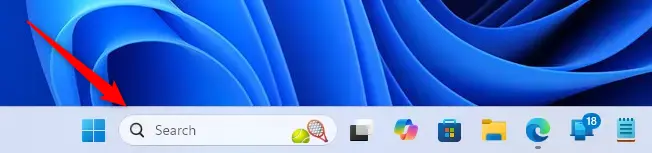
- Click the Start button, type Services in the search bar, and open the Services app. A window opens with a long list of background services.
- Scroll down the list until you find Windows Time.
- Right-click it and choose Restart. If Restart is greyed out, the service is stopped, so choose Start instead. Approve the administrator prompt if Windows shows one.
That’s it. The service reconnects to the time servers and corrects the clock. To check, open Date & time and click Sync now under Additional settings.
Managing Daylight Saving Time and Display Settings
Daylight saving time and clock display settings control how your clock behaves through the year. If your region observes daylight saving time, Windows shifts the clock by one hour twice a year. The related options are on the Date & time settings page.
Some places skip the shift, such as most of Arizona and Hawaii. For those regions, the best fix is to pick the right time zone from the list, for example the Arizona or Hawaii entry. That zone does not apply daylight saving time.
If your zone offers an adjustment switch on the Date & time page, you can also turn it off there. It may be hidden or unavailable when your time zone does not use daylight saving time.
You can also change what the taskbar shows. You can show or hide the time and date, or add extra clocks for other time zones if you work with people in other parts of the world. Keeping these settings tidy means you can see the right time at a glance.

Summary
Whether to set your time zone manually or let Windows detect it depends on how you use your computer. Leave automatic detection on if you travel often and you are comfortable with location services. Set the time zone by hand if you use a stationary desktop, care about privacy, or have seen Windows pick the wrong city. Either way, you can switch methods at any time from the Date & time page.
Have a question about this guide?
Answered by AI from this guide. Good questions may be added to this page — please don't include personal details.
Did this guide fix your problem?

About the Author
Richard
Tech Writer, IT Professional
Richard is a writer at Geek Rewind who turns complex IT tasks into clear, step-by-step guides. He draws on years of hands-on experience in system administration and enterprise IT operations, focusing on Windows, Linux and WordPress: the problems people actually run into, and the fixes that work. His server and WordPress guides come from systems he runs himself. Richard builds and maintains the platform behind Geek Rewind, from its Ubuntu servers and Nginx configuration to its custom WordPress plugins. Many new tutorials start with readers' questions, and he's always glad to answer them in the comments.
No comments yet — be the first to share your thoughts!