How to configure speech recognition microphone gain levels in Windows time and language
Speech recognition microphone gain in Windows 11 controls how loud your voice sounds to dictation and voice typing. If the level is wrong, Windows misses words or types the wrong ones. Fixing it usually takes a couple of minutes.
Advertisement
Voice typing turns your speech into text in almost any app. Press the Win plus H to start it. Voice typing uses online speech recognition, so it also needs a working internet connection. If the microphone level is too low, Windows hears gaps and guesses. If it is too high, your voice distorts and the results are just as bad.
⚡ Quick Answer
Open Settings›System›Sound, scroll to Input, click your microphone, and drag the Input volume slider to between 75 and 85 percent. Speak into the microphone and watch the input meter move into the middle of its range when you talk. Test with Win plus H in Notepad.
Advertisement
Setting Up Your Microphone and Language Correctly
📝Good to KnowBefore you touch the volume, make sure Windows is listening to the right microphone and expecting the right language.
Both are set in Settings. Start with the language, then check the device.
To check and update your settings:
Click the Start button and open the Settings app (the gear icon). The Settings ⚙️ window opens with a list of categories on the left.
Settings
Click Time & language.
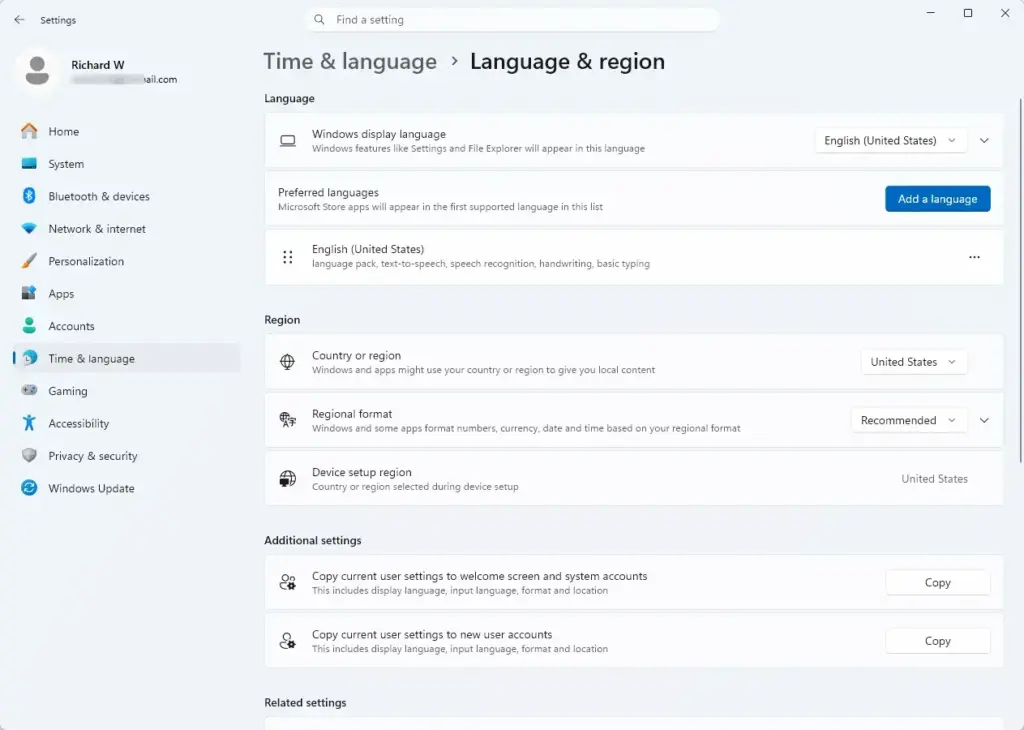
Select Language & region and make sure your display language and preferred language match the language you speak. Settings › Time & language › Language & region If the language you speak is missing, add it here. Windows may need to download a language pack, which can take a few minutes.
Also look for a Speech page under Time & language. On current builds of Windows 11 it has a speech language setting. Set it to the language and regional variant you actually speak. For example, English (United Kingdom) and English (United States) are recognized differently.
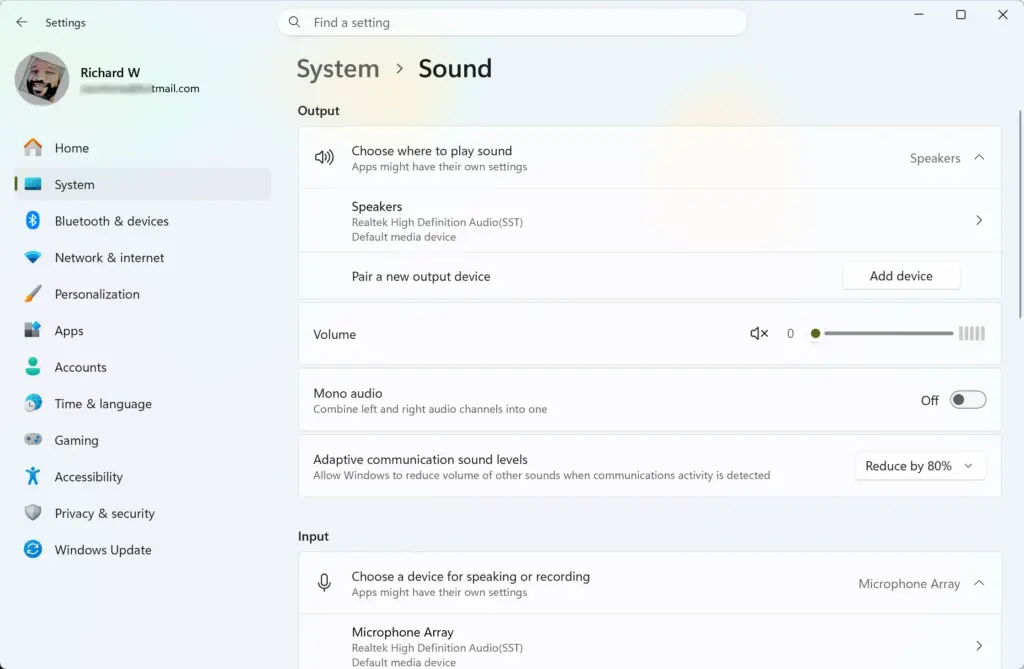
Go back to the main Settings menu, click System, and then select Sound. Settings › System › Sound You should see your output devices at the top and an Input section further down.
Look under Input to see which microphone is currently active. Click your preferred microphone to open its properties. If your microphone is not listed, check the cable or the Bluetooth 🔷 connection, and then reopen the page.
How to Adjust Microphone Gain Levels in Windows
The gain control is on the same Sound page. In Windows 11 it is the Input volume slider on your microphone’s properties page. Moving it up or down changes how loudly Windows hears your voice. Settings applies the change as you drag, so you do not need to save anything or restart.
Follow these steps to adjust your levels:
Advertisement
Open the Windows Start menu and click Settings.
Start Menu
Click System, then select Sound.
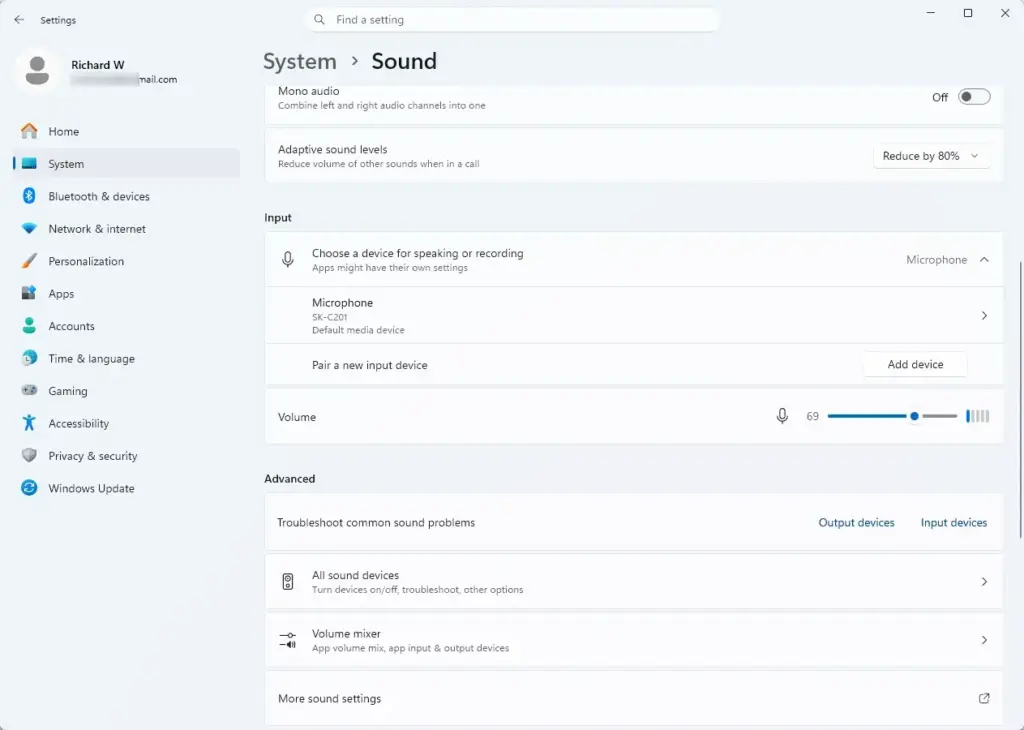
Scroll down to the Input section and click the arrow next to your microphone, or click the microphone itself. Its properties page opens.
Find the slider labeled Input volume. Settings › Sound › Input Some microphones also offer a Microphone boost control. It does not appear on every device, and on many systems it is only in the classic Sound control panel under the microphone's properties. If you cannot find it, Input volume is enough for most setups.
Drag the slider to the right to increase your gain, or to the left to decrease it. A good starting point for most microphones is between 75 and 85 percent.
Speak into your microphone at your normal volume and watch the input meter move up and down. You can also use the microphone test on the same page if your build has one. The bar should move well into the middle of its range when you talk. If it barely moves, raise the gain. If it hits the far right end, lower it.
Press Windows key plus H in a text box, such as Notepad, and dictate a sentence or two. If the words come out right, you are done. If not, nudge the slider by 5 to 10 percent and try again.
📝NoteChanging advanced system volume limits or hardware level properties may require administrator privileges on your computer.
If a prompt appears asking for permission, ask your system administrator to enter the password.
To undo a change, drag the slider back to where it was. Windows keeps no separate reset for this, so it helps to note the old value before you start.
Fixing Common Windows Voice Typing Problems
If voice typing still misbehaves after you set the gain, the cause is usually one of the settings below. Check them in order. If none of them helps, restart the computer and try again.
The wrong input device is selected: Windows may have switched to a disconnected Bluetooth headset or a webcam microphone by default. Always double-check your Sound settings to make sure your main microphone is turned on and active. Webcam and laptop microphones are often far from your mouth and need much more gain.
Microphone permissions are turned off: Windows blocks apps from using your microphone to protect your privacy. Go to Settings, click Privacy & security, select Microphone, and make sure access is turned on for voice apps. If you cannot turn it on, a work or school policy may be controlling it, and you will need your administrator.
Online speech recognition is off: Voice typing relies on cloud-based recognition. Under Privacy & security, look for the Speech page and check that online speech recognition is turned on.
Background noise interference: If your room is too loud, your microphone will pick up room sounds instead of your voice. Move to a quieter space or use a headset with a close-up microphone. Raising the gain in a noisy room makes this worse, because it boosts the noise as well.
If you keep running into issues, try restarting your computer or running the built-in Windows audio troubleshooter. On the Sound page in Settings, look for the option to troubleshoot common sound problems. The exact label and location vary a little between Windows 11 builds.
Summary
Good speech recognition comes down to three things. Windows must use the right microphone, the language settings must match how you speak, and the input volume must be high enough to be clear without distorting. Check those three, test with Windows key plus H, and adjust in small steps until the text comes out right.
📬 Get new Windows tips in your inbox
One email when we publish something worth your time. No spam, unsubscribe anytime.
Have a question about this guide?
Answered by AI from this guide. Good questions may be added to this page — please don't include personal details.
Richard is a writer at Geek Rewind who turns complex IT tasks into clear, step-by-step guides. He draws on years of hands-on experience in system administration and enterprise IT operations, focusing on Windows, Linux and WordPress: the problems people actually run into, and the fixes that work.
His server and WordPress guides come from systems he runs himself. Richard builds and maintains the platform behind Geek Rewind, from its Ubuntu servers and Nginx configuration to its custom WordPress plugins.
Many new tutorials start with readers' questions, and he's always glad to answer them in the comments.
One email when we publish a guide worth your time — new Windows features, the fixes that actually
work, and a heads-up when Microsoft breaks something. Unsubscribe in one click.
📬 Get new Windows tips in your inbox
One email when we publish something worth your time. No spam, unsubscribe anytime.




No comments yet — be the first to share your thoughts!