How to Configure Custom Speech Recognition Punctuation Rules in Windows 11 Speech Settings

Speech settings in Windows 11 let you turn off automatic punctuation so you can speak every symbol out loud for precise writing. By default, Windows 11 automatically inserts periods and commas based on natural pauses in your speech cadence.
Automatic punctuation works well for casual messages, but it often fails during technical documentation or formal writing where exact punctuation is necessary. Switching to manual control ensures you decide every mark that appears on your screen.
One thing to know before you start: the automatic punctuation switch described here belongs to Voice access, which needs Windows 11 version 22H2 or later. It works on both Home and Pro. The older voice typing tool (opened with the Win plus H) is a separate feature with its own settings.
Open Settings Accessibility Speech, turn on Voice access, click the Settings gear on the Voice access bar, select Miscellaneous, and toggle Automatic punctuation off. You then speak punctuation marks aloud—say “period” or “comma” to insert them.
Accessing Speech Settings in 🪟 Windows 11
Speech Settings in Windows 11 lets you manage your voice input devices, online speech privacy controls, and dictation preferences. You can reach them in a few clicks from the main Settings app.
- Press the Win plus I to open Settings. You can also right-click Start and choose Settings.

Windows 11 Start menu with Settings gear icon highlighted. - Select Accessibility from the left-hand navigation menu. The Accessibility options appear on the right.
- Scroll down to the Interaction section and click Speech.
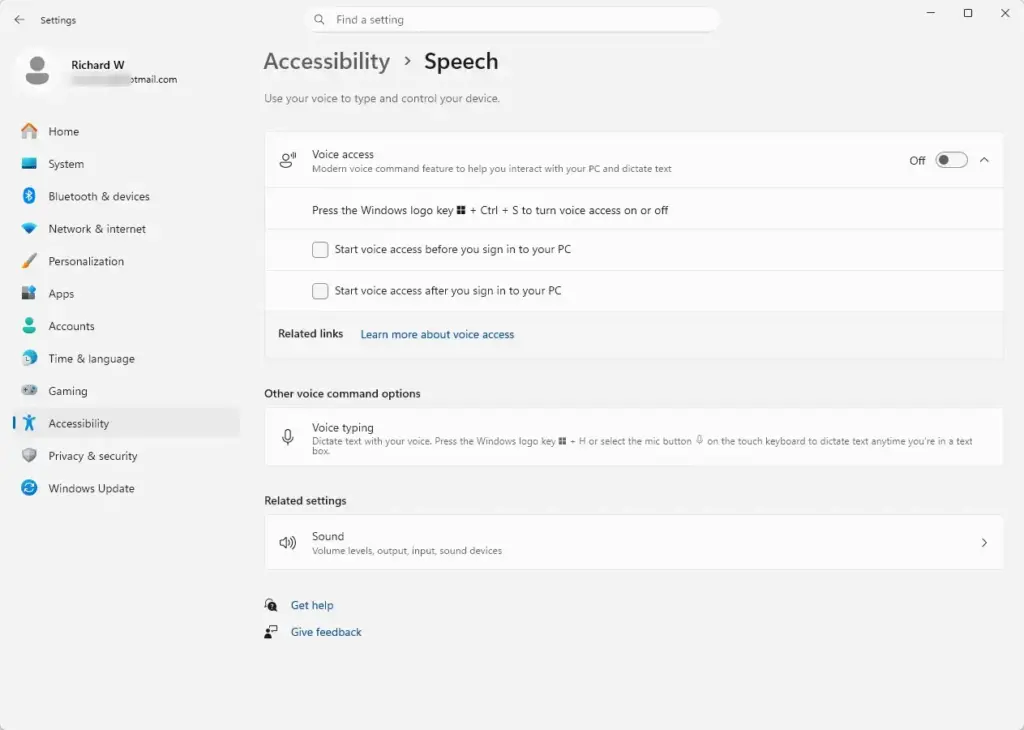
Settings › Accessibility › Speech
This panel houses the master controls for audio input devices, online speech privacy settings, and activation toggles for Voice access. If you don’t see Voice access listed, your PC is probably running an older build of Windows 11. Run Windows Update, restart, and check again.
Keep this window open. You can then test each change as you make it.
Enabling and Configuring Voice Access
- Open Settings.
- Click Accessibility, then open Speech.
- Find the Voice access toggle and switch it On.
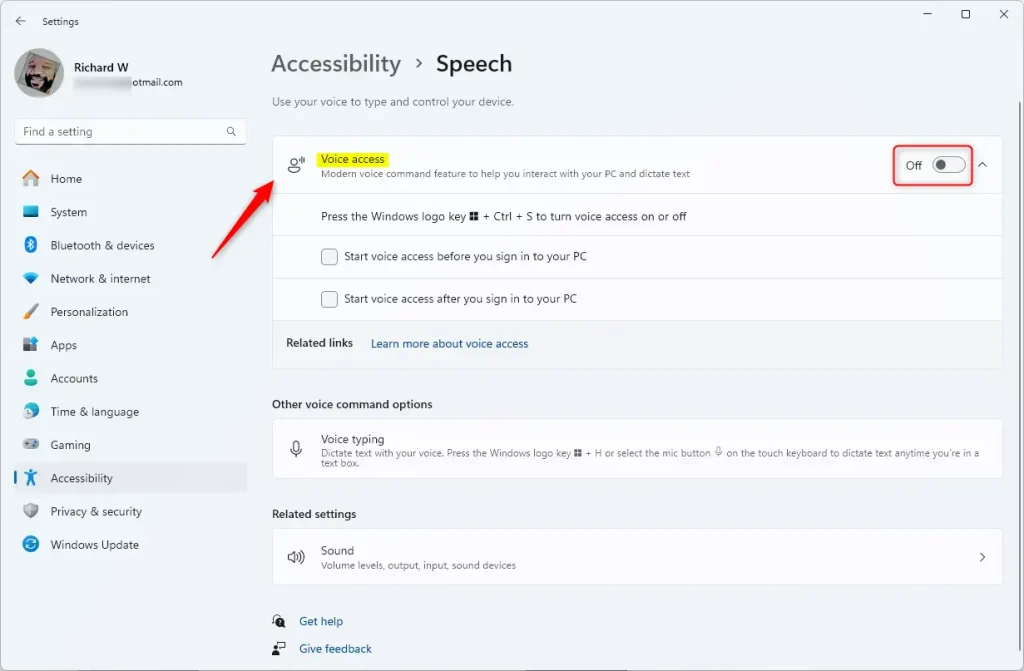
- Follow the on-screen prompts to select your microphone and download the required speech files. Wait for the download to finish before you move on.
Once active, a floating Voice access bar appears at the top of your primary display. This bar indicates whether the microphone is listening, sleeping, or muted. If the bar doesn’t appear, turn the Voice access toggle off and on again, and check that the correct microphone is selected.
To undo this step, switch the Voice access toggle back to Off. No restart is needed.
Managing Automatic Punctuation Preferences
Managing automatic punctuation preferences lets you control whether Windows inserts grammatical marks for you while you dictate. Turn it off if you prefer to speak every symbol out loud.
- Make sure the Voice access bar is showing at the top of your screen.
- Click the Settings icon (the gear) on the Voice access bar. A menu opens.
- Select Miscellaneous from the menu.
- Find the Automatic punctuation option and toggle it off or on according to your preference.
Disabling this feature means the speech engine will type every spoken word literally until you explicitly state a punctuation command like “comma” or “period”. Dictate a short test sentence right away. If punctuation still appears on its own, check that you changed the setting in Voice access and not in a different dictation tool.
To go back to the default behavior, return to the same menu and toggle Automatic punctuation on again.
Using Spoken Commands for Punctuation and Symbols
Spoken commands for punctuation and symbols let you format text accurately when automatic tools miss your phrasing or when you have turned off automatic punctuation. Windows recognizes exact verbal commands such as “period” or “dot” to end a sentence, “comma” for mid-sentence pauses, and “question mark” for questions.
- To insert a period, say “period” or “dot”.
- To end a sentence with a question mark, say “question mark”.
- For pauses within a sentence, say “comma”.
- To start the next line without adding an extra space, say “new line”.
- To insert a double line break, say “new paragraph”.
Say the command as its own phrase, with a short pause before and after it. A good example is: “Thanks for the update, comma, I will review it today, period”. Speaking the command in the middle of a fast sentence is when it is most likely to be typed as a plain word.
Advanced Customization and Troubleshooting Voice Recognition
Advanced customization and troubleshooting for voice recognition help when Windows misinterprets your punctuation commands or fails to catch specific phrases. Start by checking your speech privacy permissions.
- Open Settings.
- Navigate to Privacy & security, then click Speech.
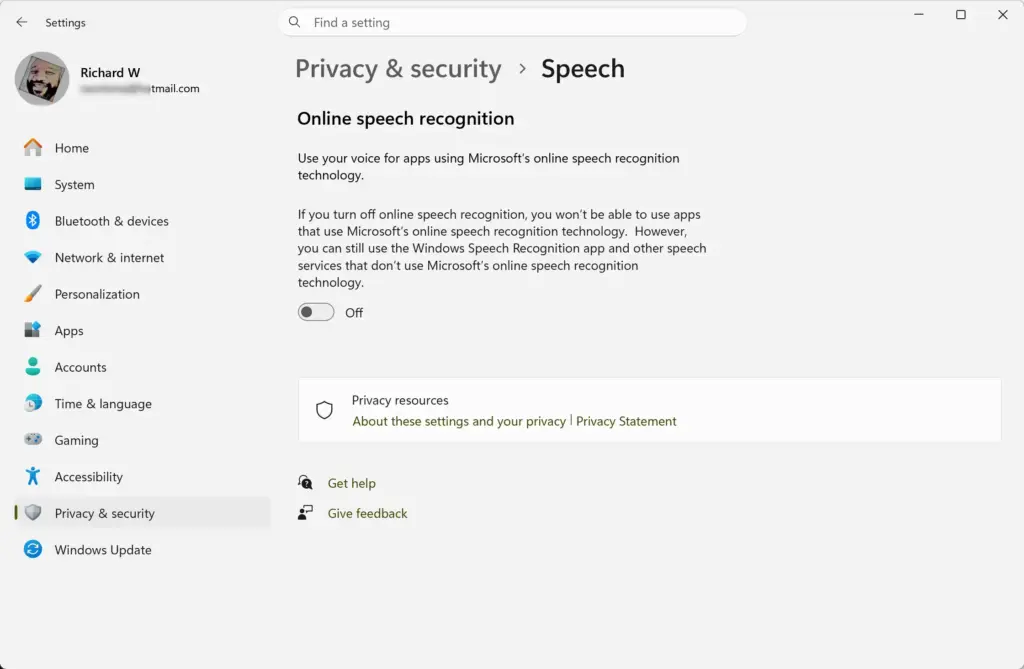
Settings › Privacy & security › Speech - Review your online speech recognition permissions and ensure the feature is fully enabled to allow cloud-enhanced accuracy.
The online speech recognition setting mainly affects voice typing and apps that use Microsoft’s cloud speech services. Voice access runs its speech model on your device. If your commands are misheard in Voice access, the microphone is the more likely cause.
Next, check your physical microphone positioning. Keep it close to your mouth and away from fans or speakers. If background noise still interferes with punctuation detection, run the built-in audio troubleshooter from the System settings panel. In Windows 11, go to System, then Troubleshoot, then Other troubleshooters, and run Recording Audio. Then test your microphone again.
What to do next
You can now dictate text cleanly and control your punctuation marks accurately using your voice. Next, explore how to set up custom voice shortcuts to automate repetitive typing tasks and expand your hands-off workflow efficiency.
Have a question about this guide?
Answered by AI from this guide. Good questions may be added to this page — please don't include personal details.
Did this guide fix your problem?

About the Author
Richard
Tech Writer, IT Professional
Richard is a writer at Geek Rewind who turns complex IT tasks into clear, step-by-step guides. He draws on years of hands-on experience in system administration and enterprise IT operations, focusing on Windows, Linux and WordPress: the problems people actually run into, and the fixes that work. His server and WordPress guides come from systems he runs himself. Richard builds and maintains the platform behind Geek Rewind, from its Ubuntu servers and Nginx configuration to its custom WordPress plugins. Many new tutorials start with readers' questions, and he's always glad to answer them in the comments.
No comments yet — be the first to share your thoughts!