How to Opt Out of Targeted Offers in Windows 11 Privacy Settings

Targeted offers in Windows 11 are promotional pop-ups, tips and suggested apps that Microsoft shows in the Start menu , the Settings app and other places. Windows picks many of them based on how you use your device. Turning these features off stops the operating system from using your habits to choose suggestions and removes ad banners from your screen.
There is no single switch for all of this. The offers come from several places, so you turn them off one area at a time. Each section below covers one place: Start, notifications, the lock screen, diagnostic data and advertising settings, background apps, and File Explorer . The Settings steps are the same on Windows 11 Home and Pro. Option names change slightly between builds, so if yours reads a little differently, pick the closest match.
Open Settings Personalization Start and switch off Show recently added apps, Show most used apps, and Show recommendations for tips, shortcuts, new apps, and more. Then go to Settings Personalization Device usage and turn off every toggle there. Promoted items disappear from the Start menu straight away, and no restart is needed.
Disable Recommendations in the Start Menu
The Start menu is the most visible place for suggestions. It can show recently added apps, most used apps, and a Recommended section with tips and promoted apps. Turning off these toggles (on/off switches) clears most of the clutter and sponsored apps at once.
- Press Win+I to open Settings. The Settings window should appear.

- Select Personalization from the left sidebar.
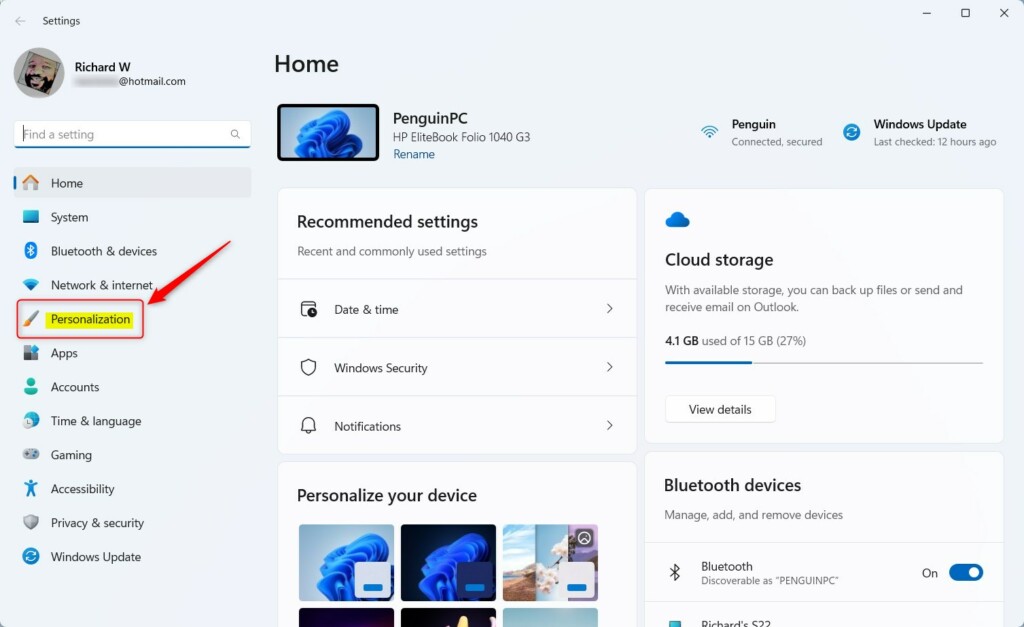
- Click Start in the list of options.
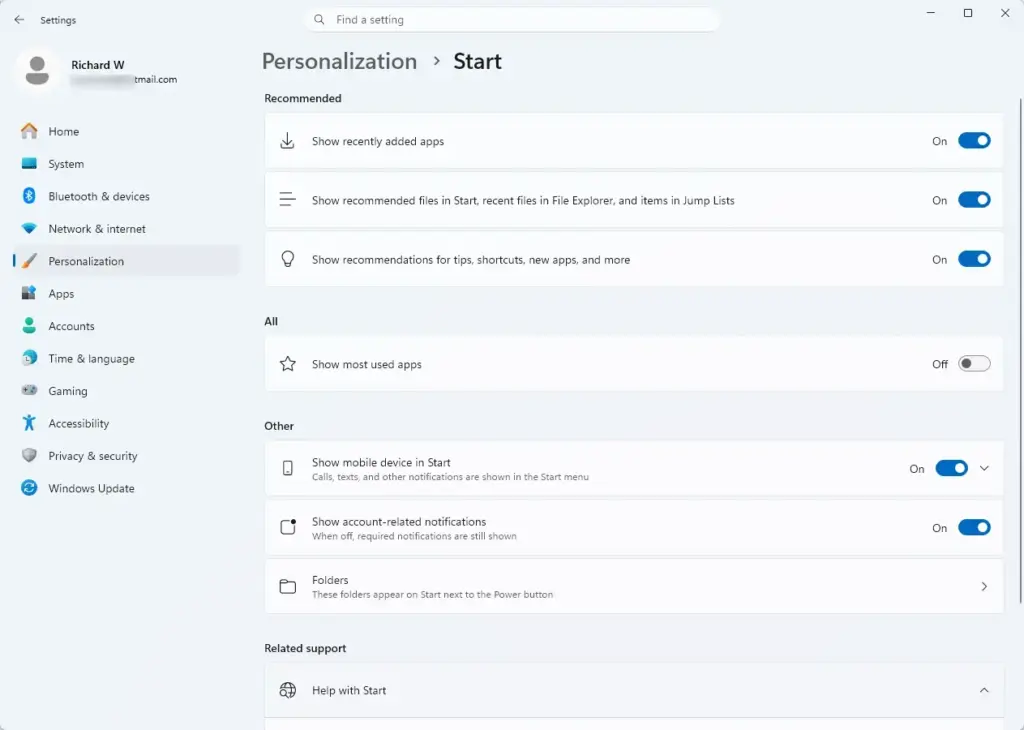
- Turn off the toggles next to Show recently added apps, Show most used apps, and Show recommendations for tips, shortcuts, new apps, and more. Each switch should now read Off.
- Open the Start menu and check it. The lists should be shorter, and the Recommended area should show fewer promoted items or none.
If you cannot find the recommendations toggle, your build may word it differently, for example as a setting for recommended files or websites. Turn off any toggle in that area that suggests content. To undo any of this, return to the same page and switch the toggle back on.
Windows also tailors tips and ads to the way you say you use your PC. That choice lives on a separate page, so turn it off too.
- Go to Settings Personalization Device usage
- Turn off every toggle on the page, such as gaming, family, creativity, schoolwork, entertainment and business. Each should read Off.
When these are on, Microsoft uses them to tailor tips, ads and recommendations. If your build does not show a Device usage page, skip this part. The suggestion cards on the Settings home page are covered by a toggle in the Privacy & security section further down.
Turn Off Promotional Notifications in Settings
Windows also sends tips, suggestions and “what’s new” screens through its notification system. These sit in a collapsed section at the bottom of the Notifications page, so they are hard to spot.
- Open Settings.
- Select System from the left menu.
- Click Notifications.
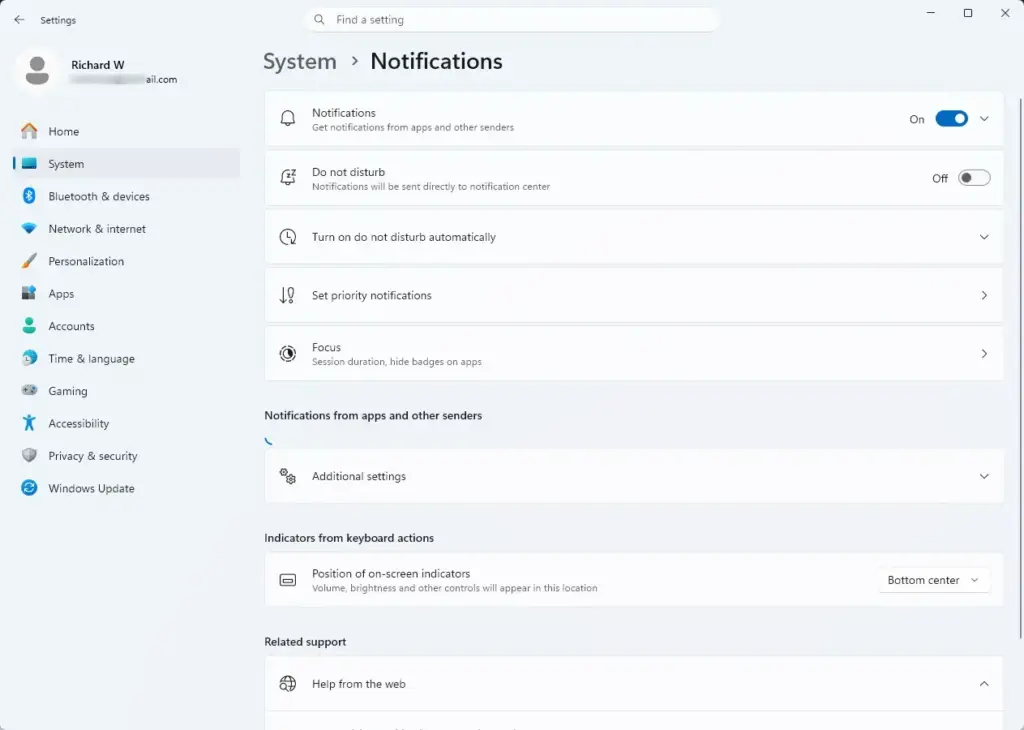
- Scroll to the bottom of the page and click Additional settings to expand it. Several checkboxes should appear.
- Uncheck Show me the welcome experience after updates and occasionally when I sign in to highlight what’s new and suggested.
- Uncheck Get tips and suggestions when using Windows.
Your build may show other similar boxes here, such as one about getting the most out of Windows. If it does, uncheck those too. No restart is needed. To undo the change, tick the boxes again.
Stop Suggested Content on the Lock Screen
The default lock screen background, Windows Spotlight, can show tips, trivia and sponsored images. Switching to a fixed picture or a slideshow removes them.
- Open Settings.
- Select Personalization.
- Click Lock screen.
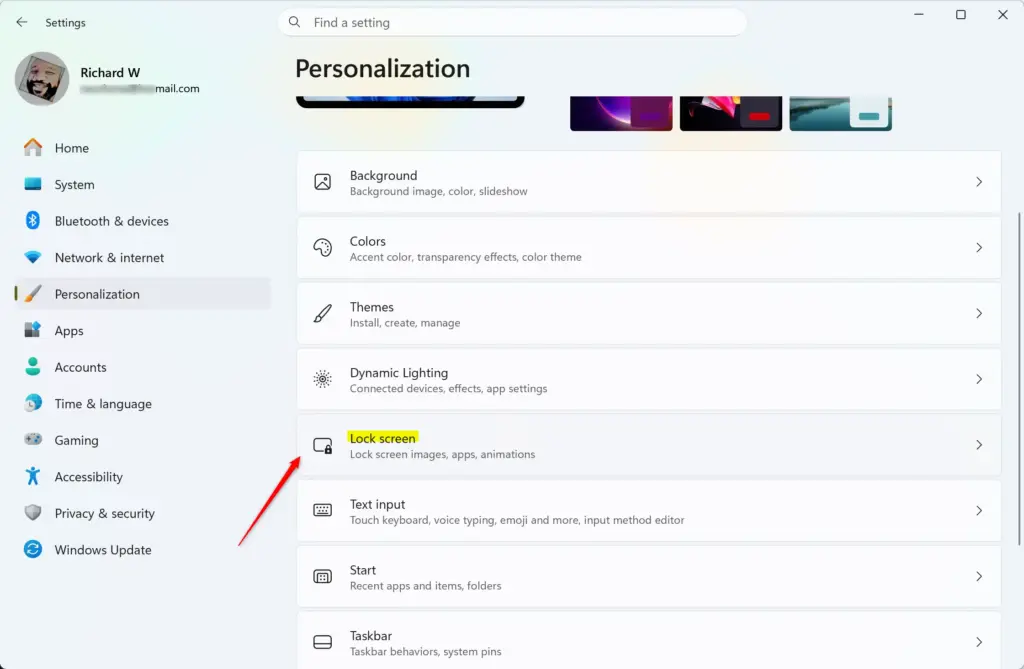
- Open the dropdown menu next to Personalize your lock screen and change it from Windows spotlight to Picture or Slideshow. The preview at the top of the page should change to match.
- If the box for Get fun facts, tips, tricks, and more on your lock screen is still visible, uncheck it.
Press Win+L to lock the PC and confirm that the tips are gone. To go back, set the dropdown to Windows spotlight again.
Block Content Delivery Manager Suggestions via Settings
Windows can use your diagnostic data, which is information about how your PC and apps behave, to tailor the tips, ads and recommendations you see. The Tailored experiences setting controls this. Turning it off cuts one of the main sources of targeted suggestions.
- Open Settings.
- Select Privacy & security.

- Click Diagnostics & feedback.
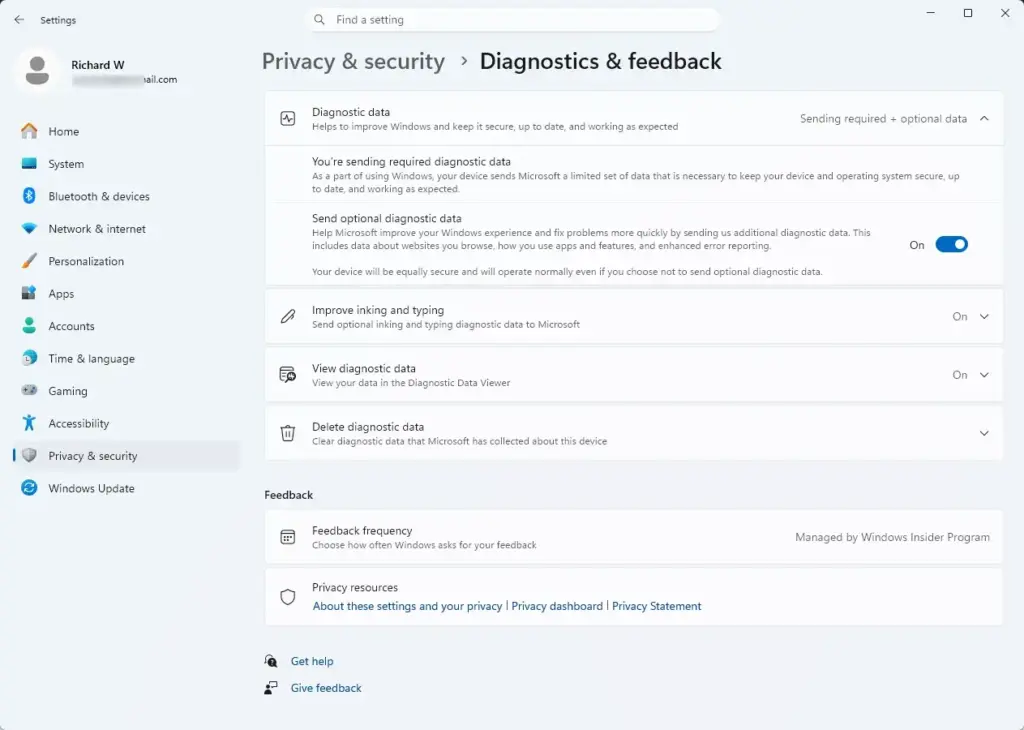
- Find Tailored experiences. You may need to expand its section first.
- Turn the toggle Off. This stops Microsoft from using your diagnostic data to offer personalized tips and recommendations.
This does not turn off diagnostic data collection itself. It only stops that data from being used for tailored suggestions. To undo it, switch the toggle back on.
The main advertising switches are on a different page: Privacy & security General. Three of them matter most for targeted offers.
- Go to Settings Privacy & security General
- Turn off Let apps show me personalized ads by using my advertising ID. The advertising ID is a number Windows gives your account so apps can match ads to your interests.
- Turn off Show me suggested content in the Settings app. This removes suggested content from Settings, including the suggestions on its home page.
- Turn off Let Windows improve Start and search results by tracking app launches. Windows then stops using the apps you open to shape Start and search results .
Each switch should now read Off. The exact wording can vary between builds, and the page may list other toggles, such as one for locally relevant content based on your language list. No restart is needed. To undo any of these, switch the toggle back on.
Remove Tailored Offers via Registry Editor
To turn these off, you edit the registry, the database where Windows stores its settings. This works on both Home and Pro, but a wrong change can cause problems. Back up the registry before you start.
This method modifies system behavior using Registry Editor. Before you open it, create a system restore point. A restore point is a saved snapshot of your Windows system files and settings that you can roll back to if something goes wrong.
- Click Start, type Create a restore point, and open the result. The System Properties window should open on the System Protection tab.
- Under Protection Settings, select your Windows drive, usually C:. If protection shows as Off, click Configure, choose Turn on system protection, and click OK.
- Click Create, type a short description such as “Before registry changes”, and click Create again. Wait for the message that says the restore point was created, then close the window.
- Press Win+R to open the Run dialog box.
- Type
regeditand press Enter to open Registry Editor. When the User Account Control prompt appears, click Yes. - Back up the registry. In Registry Editor, click File, then Export. Choose All as the export range, give the file a name, and save it somewhere safe. To restore it later, double-click the saved file and confirm.
- Navigate to the following location using the left sidebar:
HKEY_CURRENT_USER\Software\Microsoft\Windows\CurrentVersion\ContentDeliveryManager - Look for the DWORD value named
SubscribedContent-338389Enabledin the right pane. If it does not exist, right-click an empty space, select New, click DWORD (32-bit) Value, and name itSubscribedContent-338389Enabled. - Double-click
SubscribedContent-338389Enabled, change its value data to0, then click OK. - Locate or create additional DWORD values such as
SubscribedContent-338388EnabledandSubscribedContent-338389Enabled(depending on your exact build) and set their data to0as well. - Close Registry Editor, then sign out and back in, or restart the PC, so the changes take effect.
If a value you expect is missing, that is normal. Which values exist depends on your build, so creating the value as described above is fine. To reverse a change, set the value back to its previous data, delete the value you created, or import your backup file.
If something else breaks, open System Properties again, click System Restore on the System Protection tab, and pick the restore point you made.
Stop Suggested Apps in File Explorer
File Explorer can show banners that promote cloud storage and other sync services. The setting that controls them sits in Folder Options.
- Open File Explorer.
- Click the three horizontal dots on the command bar at the top and select Options. The Folder Options window should open.
- Click the View tab.
- Scroll down the Advanced settings list and uncheck Show sync provider notifications.
- Click Apply and then OK.
The change applies right away to open File Explorer windows in most cases. If a banner is still showing, close and reopen File Explorer. To undo it, tick the box again.
What to do next
With these suggestions turned off, you should see a cleaner, quieter Windows 11 interface with far fewer marketing prompts. Major Windows updates can reset a few of these options. After a big update, check the Start, Notifications, General and Diagnostics & feedback pages again. You may also want to tidy your taskbar layout or manage your startup applications next to improve performance and usability.
Frequently asked questions
What are some things I should remove from 🪟 Windows 11?
Remove bloatware apps you don't use, disable startup programs slowing your boot, turn off targeted offers in Settings Personalization Start, leave SysMain (formerly Superfetch) enabled unless you have a specific problem, and remove unnecessary fonts. Use Task Manager to see what runs at startup, and Settings Apps Startup to disable items.
Where can I buy discounted 🪟 Windows 11?
Buy Windows 11 licenses from Microsoft's official store, authorized retailers like Amazon or Best Buy, or through your computer manufacturer. Watch for seasonal sales. Avoid unauthorized third-party key resellers—cheap keys often violate Microsoft's terms and risk deactivation.
How to see all apps in 🪟 Windows 11 start menu?
Open the Start menu and scroll down to see all pinned apps. Click 'All' in the top right of the Pinned section to view your entire app list alphabetically. You can also search for an app by typing its name directly from the Start menu. Right-click any app to pin or unpin it.
Which 🪟 Windows 11 version is best for performance?
Windows 11 Pro and Home perform about the same. Choose Pro if you need BitLocker device encryption management, hosting Remote Desktop, or Group Policy access. Performance depends mostly on your hardware. Performance depends more on your hardware and background programs than your Windows version.
Still have a question?
Answered by AI from this guide. Good questions may be added to this page — please don't include personal details.
Did this guide fix your problem?

About the Author
Richard
Tech Writer, IT Professional
Richard is a writer at Geek Rewind who turns complex IT tasks into clear, step-by-step guides. He draws on years of hands-on experience in system administration and enterprise IT operations, focusing on Windows, Linux and WordPress: the problems people actually run into, and the fixes that work. His server and WordPress guides come from systems he runs himself. Richard builds and maintains the platform behind Geek Rewind, from its Ubuntu servers and Nginx configuration to its custom WordPress plugins. Many new tutorials start with readers' questions, and he's always glad to answer them in the comments.
No comments yet — be the first to share your thoughts!