How to Reset App Execution Alias Overrides in Windows 11 Advanced App Settings

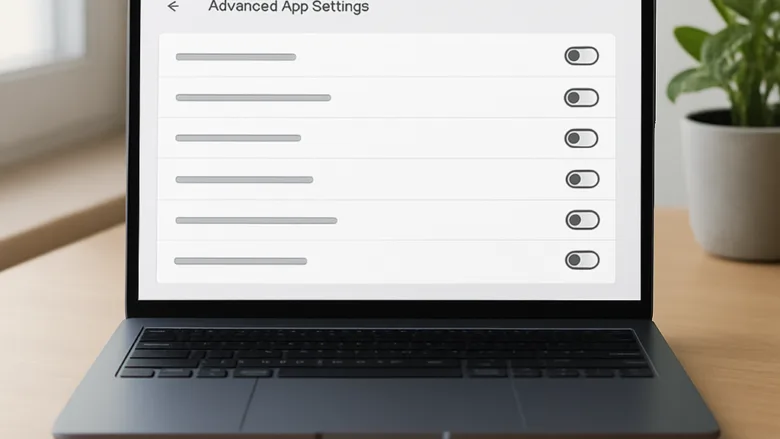
App execution aliases let you launch installed apps from Command Prompt, PowerShell, or the Run dialog using short names like python.exe or wt.exe. Windows 11 manages these shortcuts automatically. Each one is a small stub file, a placeholder that points to the real app, stored in a folder inside your local user profile.
Resetting the app execution alias overrides fixes broken command shortcuts by returning them to their defaults. It also stops one app from hijacking a command you want for another tool. Windows has no single Reset button for aliases. A reset means switching individual aliases off and on, or clearing out stale stub files, as shown below.
Open Settings , go to Apps Advanced app settings App execution aliases, then switch the toggle for the command off and back on to reset that alias. Windows has no single reset button, so you reset each alias individually. Close and reopen your terminal window before testing the command again.
Checking App Execution Aliases in Settings
The App execution aliases page lists every program that registers a shortcut you can type in a terminal. On current Windows 11 builds (22H2 and later) it sits under Advanced app settings. Older Windows 11 releases may place it under Apps & features instead.
- Open Settings. You can press the Win+I.
- Select Apps from the left-hand navigation menu. The Apps page opens on the right.
- Click Advanced app settings. The page shows a few more options, such as where you can get apps from.
- Click App execution aliases. You now see a list of every command shortcut registered for your account.
Each entry shows an app name and the alias it owns, with a toggle switch that reads On or Off. When two apps register the same alias, both appear with their own toggles. You can turn off one Microsoft Store package without touching your main desktop tools.
This is the usual fix when typing python opens the Microsoft Store instead of your real Python install. Turn off the alias owned by the Store’s app installer entry, and the command can reach the copy you installed yourself.
These settings apply per user. Another account on the same PC has its own list and its own toggles.
How to Reset App Execution Aliases via Settings
To reset an alias in Settings, turn its switch off and then back on. This makes Windows recreate the shortcut link for that command. Try it first when a command stops working in your terminal window, because it changes only one alias and is quick to undo.
- Open Settings.
- Go to Apps and select Advanced app settings.
- Click App execution aliases. The list of aliases appears.
- Find the application alias you want to fix in the list.
- Move the toggle next to it from On to Off. The label changes to Off.
- Wait a few moments, then move the toggle back to On. This resets the internal routing for that command.
- Close and reopen any Command Prompt or PowerShell window, then test the command again. Windows that were already open may not pick up the change.
If you want a different app to own the command, leave the toggle for the unwanted app switched Off and skip step 6. To undo any change, switch the toggle back to On.
If a toggle is greyed out, the application package is protected by the operating system or is running in the background. Close any active instances of that application and try again. If it stays greyed out, sign out and back in, or restart the PC, then check again.
Cleaning Up Orphaned Alias Files in WindowsApps
Orphaned alias files are leftover shortcut stubs that stay behind after you uninstall a program. They can make ghost commands appear when you type in PowerShell. You can delete them in File Explorer . Try the Settings toggles first, because those are simpler to undo.
This procedure needs hidden folders to be visible, because the folder lives inside the AppData area of your user profile.
- Open File Explorer from your taskbar or by pressing the Win+E.
- Click the View menu at the top.
- Hover over Show and click Hidden items so it is checked. Protected folders now appear in the file list.
- Click the File Explorer address bar, paste
%LocalAppData%\Microsoft\WindowsApps, and press Enter. The folder opens and lists the alias stubs. Most show a size of 0 KB, which is normal. - Locate the shortcut files for the problem application, such as python*.exe or similar stubs. Only pick files for apps you have already uninstalled or no longer want.
- Right-click the file and select Delete. On Windows 11 the delete command may sit in the first row of icons or in the Show more options menu, depending on your build.
Deleting files directly from the WindowsApps folder may require administrator permissions and ownership changes if the files belong to protected Microsoft Store packages. If you are not sure a stub is orphaned, leave it alone.
Removing the stub of an app that is still installed does not uninstall the app. Windows or the app’s next update may recreate the stub, and repairing or reinstalling the app brings it back immediately. You can also restore a deleted file from the Recycle Bin if you act before emptying it.
Resetting Aliases Using PowerShell Automation
PowerShell lets you check and fix many aliases at once without clicking through menus. This suits IT staff who handle several machines or accounts. It needs an elevated console (one running with administrator rights) and a script you have tested.
- Open an administrator-level console. Right-click the Start button and select Terminal (Admin). On some builds the entry is named Windows PowerShell (Admin).
- Alternatively, open the Start menu , type
powershell, right-click Windows PowerShell, and select Run as administrator. - Approve the User Account Control prompt. The console opens with “Administrator” in the window title.
- Query the current state of your installed package execution aliases with the management cmdlet or script loop you use to check app capability registrations. Save the output so you can compare it later.
A faulty script can break more than aliases. Before you continue, create a restore point. Type Create a restore point in the Start menu , open the result, and select the drive marked System. If protection shows as off, click Configure and choose Turn on system protection. Then click Create, name the point, and wait for the confirmation message.
Only run scripts you have read and understood line by line. Do not paste in a script from a forum or video without knowing its source and what each command changes.
- Run your cleanup or reset script to clear invalid alias mappings from the current user registry hive. Test it on one alias first before running it across the whole list.
Be aware that aliases belong to the user profile. If you approve the UAC prompt with a different administrator account, the elevated session may work on that account’s profile and not yours. Keep the saved output from step 4 so you can see what changed and restore it if needed. If something goes wrong, open System Protection again and use System Restore to return to the point you created.
Troubleshooting Persistent Alias Conflicts
A Microsoft Store update can re-register an alias when it updates an app. You can fix this by pausing background Store updates for that app or by changing settings in the Registry Editor. Back up the registry before you edit it.
Do not disable Windows services to stop this behavior. Some online advice suggests turning off DiagTrack (shown as Connected User Experiences and Telemetry) or similar services. That does not control aliases, and it can affect diagnostics and updates. Create a restore point first if you still want to try it.
To undo a service change, open Services from the Start menu and find the service in the list. Double-click it and set Startup type back to Automatic. Click Start if the service is stopped, then click OK. Some services default to Manual instead, so note the original setting before you change anything.
Also check for stale environment variables that point to outdated installation directories. These are settings that tell Windows where to look for programs. The Path variable comes in two kinds. The user Path applies to your account only, and you can edit it with a standard account. The system Path applies to everyone on the PC, and editing system variables needs administrator rights. Without them, you can only change the user list.
- Open the Start menu and type
Edit the system environment variables. Open the result. Approve the User Account Control prompt or enter administrator credentials if you want to edit system variables. - Click Environment Variables if the dialog does not open straight to it. The user variables are in the top list and the system variables in the bottom list.
- Select Path in the user list and click Edit. Repeat for the system list if you have administrator rights.
- Remove entries that point to folders that no longer exist. Select each dead entry and click Delete.
- Use Move Up to put your preferred executable folders above the WindowsApps entry. Windows searches the list from top to bottom.
- Click OK in each dialog to save.
Removing dead paths makes your terminal sessions look at the correct executable locations instead of falling back to broken Microsoft Store stubs. Changes apply only to new terminal sessions, so open a fresh window after saving. To undo an edit, reopen the dialog and add the entry back with New.
What to do next
You should now see your command-line environment routing commands to your preferred applications without interference from unwanted store stubs. If command-line redirection still fails, check your system and user PATH variables again. Make sure your preferred executable directories come before the default WindowsApps path.
Then confirm the alias toggles in App execution aliases are set the way you want. If the problem comes back after a restart or an app update, check them again, because a Store update may have switched an alias back on.
Frequently asked questions
How can I fix the "your App execution alias settings are configured to launch other commands besides py and python" error?
Open Settings Apps Advanced app settings App execution aliases. Find py and python in the list, toggle them off if they're pointing to the wrong app, then toggle them back on. This resets them to Windows defaults and removes conflicts with other programs claiming those commands.
How do I reset App settings in 🪟 Windows 11?
Open Settings Apps Apps & features, find the app you want to reset, click the three dots menu, and select Repair or Reset if available. For system apps, go to Advanced app settings to manage their aliases and permissions. Some apps don't offer reset options through Settings.
How to manage App execution aliases?
Open Settings Apps Advanced app settings App execution aliases You'll see a list of command shortcuts with toggle switches. Turn aliases on or off to control which apps launch from Command Prompt, PowerShell, or the Run dialog. Toggle them off to disable conflicts between apps.
What are some unnecessary services I should disable in 🪟 Windows 11?
Disable services like DiagTrack (diagnostic tracking), dmwappushservice (app push notifications), and Connected User Experiences if you want reduced data collection. Superfetch (SysMain) is best left enabled; there is no need to disable it because of SSD capacity. Use Task Manager or Services to turn them off. Be cautious—disabling core services can break Windows features.
Still have a question?
Answered by AI from this guide. Good questions may be added to this page — please don't include personal details.
Did this guide fix your problem?

About the Author
Richard
Tech Writer, IT Professional
Richard is a writer at Geek Rewind who turns complex IT tasks into clear, step-by-step guides. He draws on years of hands-on experience in system administration and enterprise IT operations, focusing on Windows, Linux and WordPress: the problems people actually run into, and the fixes that work. His server and WordPress guides come from systems he runs himself. Richard builds and maintains the platform behind Geek Rewind, from its Ubuntu servers and Nginx configuration to its custom WordPress plugins. Many new tutorials start with readers' questions, and he's always glad to answer them in the comments.
No comments yet — be the first to share your thoughts!