How to Set Up Environment Variables in Windows 11

Environment variables in Windows 11 are named text values that tell programs where to find important folders, files, and system settings on your PC. For example, Windows uses a built-in variable to know where its own folders live, so apps don’t have to guess a path like 📁C:\
You can add or change these values so custom tools, programming languages, and batch scripts run properly on your system. Windows 11 handles this through the built-in System Properties window, and a single variable takes less than one minute to add. If you prefer a terminal, Command Prompt and PowerShell can do the same job.
Open System Properties by right-clicking the Start button and selecting System, then click Advanced system settings. In the System Properties window, click Environment Variables, select New under User variables, enter your variable name and value, click OK three times, then close and reopen your programs.
What Are Environment Variables?
An environment variable is a name paired with a value. Windows and your programs look up the name and use the value, so nobody has to type a long path or setting each time. Windows keeps these values and hands them to every program you start.
For example, if you want a script to always know where your working folder is, you can store that folder in a variable called MY_FOLDER. The script asks for MY_FOLDER and gets the path. If you move the folder later, you change the variable once instead of editing every script.
Variables come in two scopes. A user variable applies only to your account. A system variable applies to every account on the PC and needs administrator rights to change.
Ways to Set Environment Variables in 🪟 Windows 11
You can create environment variables in three ways:
- System Properties – a graphical Windows screen with buttons and text boxes. This is the easiest option and the best place to start.
- Command Prompt – a text-based tool where you type commands. It suits quick changes and batch files.
- PowerShell – a more advanced command tool, well suited to scripts and automation.
All three change the same stored values. A variable you create in one place shows up in the others, so pick whichever you are most comfortable with.
1Using System Properties (Easy Way)
You can set environment variables in Windows 11 with the built-in System Properties window, without touching any command-line tools. It is a safe and straightforward way to add, edit, or delete user and system variables, so your apps can find the files they need without long typed paths.
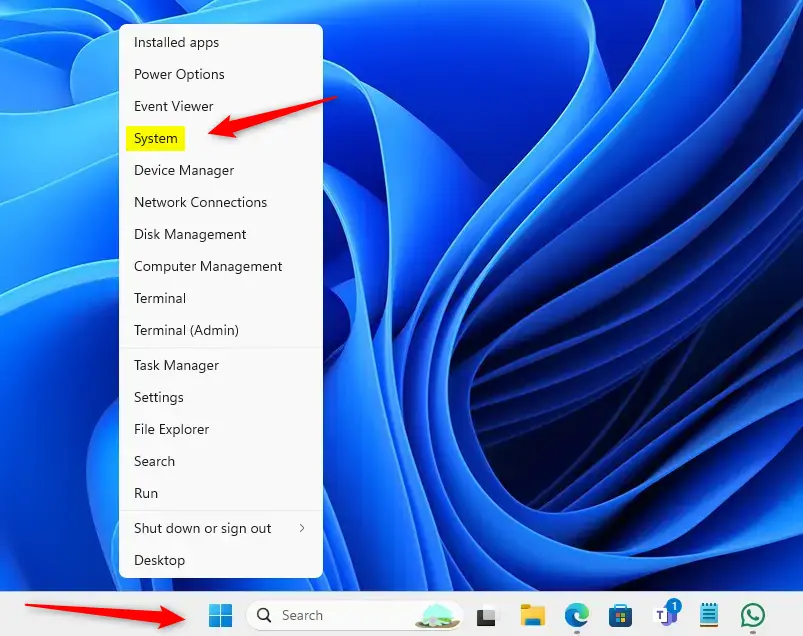
- Right-click the Start button at the bottom of your screen. A menu of system shortcuts opens.
- Select System from the menu. The Settings app opens on System About
- On the right side, under the related links, click Advanced system settings. Windows may ask for administrator approval. If it does, click Yes.
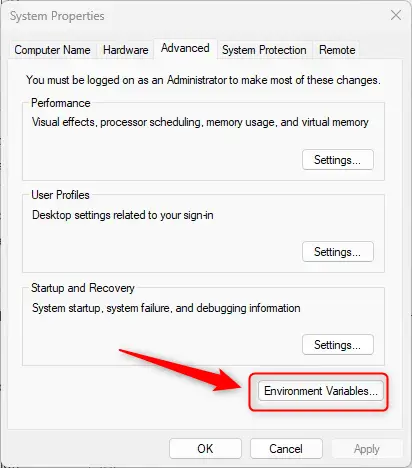
The System Properties window opens on the Advanced tab. If you land on another tab, click Advanced at the top.
- Click the Environment Variables... button near the bottom of the window. A new window opens.
You will now see two lists:
- User variables – These only affect your user account.
- System variables – These affect all users on the computer.
If the buttons under System variables are greyed out or the change won't save, you are signed in with a standard account. Use the User variables list instead, or sign in with an administrator account.
To add a new variable:
- Click New... under the list you want (User or System). ⚠️ Admin privileges required for System variables. A small dialog opens with two boxes.
- In the Variable name box, type a name for the variable (like MY_FOLDER).
- In the Variable value box, type the value (like C:\Users\UserName\Documents). If the value is a folder, you can click Browse Directory... and pick it instead of typing, which avoids typos.
- Click OK to save. The new variable now appears in the list.
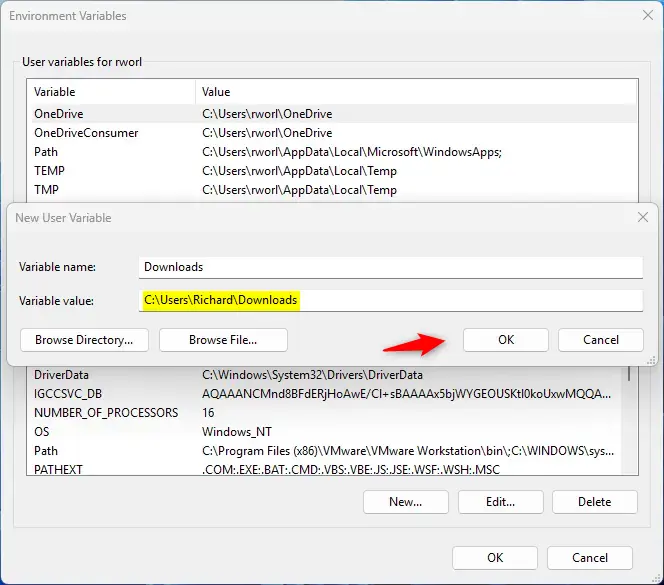
If you close with the window's X instead, your changes are lost.
Programs that are already open won't see the change. Close and reopen them, or log out and back in. You might need to restart your computer if a program still doesn't pick up the new value.
To edit or remove a variable later, open the same window, select the variable in its list, and click Edit... or Delete. Be careful with the built-in variables, especially Path. Edit them only if you know what you are changing.
2Using Command Prompt
You can set environment variables in Windows 11 from Command Prompt with the setx command. It writes permanent values to your user profile or to the whole system, using typed commands instead of menus. A user variable doesn't strictly need administrator rights, but the system-wide option does, so it is simplest to open an administrator window from the start.
- Right-click the Start button and select Windows Terminal (Admin). On some builds the entry is labeled Terminal (Admin). ⚠️ Admin privileges required.
- Click Yes if the User Account Control prompt appears. A terminal window opens, usually on a PowerShell tab.
- Click the down arrow next to the "+" tab and choose Command Prompt. A new tab opens with a Command Prompt.
To create a user variable, type this command and press Enter:
setx VARIABLE_NAME "VARIABLE_VALUE"Replace VARIABLE_NAME with your variable's name and VARIABLE_VALUE with the value you want. If the value contains spaces, keep it inside quotation marks. A message saying the value was saved means it worked.
Example:
setx Downloads "C:\Users\UserName\Downloads"To create a system-wide variable (for all users), type:
setx /M VARIABLE_NAME "VARIABLE_VALUE"⚠️ Admin privileges required for /M flag. Without administrator rights, the command fails with an access error.
Example:
setx /M Downloads "C:\Users\UserName\Downloads"The setx command does not change the window you typed it in. Open a new Command Prompt window to use the new variable. You might need to restart your computer, or at least the program in question, before some programs see the change.
It replaces the whole value and can cut off a long one. Use the Edit button in the Environment Variables window for Path instead.
3Using Windows PowerShell
You can set environment variables in Windows 11 with PowerShell by running commands in a terminal. This approach suits scripts and lets you view, create, or update variables directly. As with Command Prompt, a user variable doesn't strictly need administrator rights, but the Machine scope does.
- Open Windows Terminal (Admin) as shown above. ⚠️ Admin privileges required.
- Make sure you are in a PowerShell tab. It opens by default, and the tab title should say Windows PowerShell or PowerShell.
To create a user variable, type this command and press Enter:
[Environment]::SetEnvironmentVariable("VARIABLE_NAME", "VARIABLE_VALUE", "User")Example:
[Environment]::SetEnvironmentVariable("Downloads","C:\Users\UserName\Downloads","User")To create a system-wide variable, type:
[Environment]::SetEnvironmentVariable("VARIABLE_NAME", "VARIABLE_VALUE", "Machine")⚠️ Admin privileges required for Machine scope. The Machine scope applies to every user on the PC.
Example:
[Environment]::SetEnvironmentVariable("Downloads","C:\Users\UserName\Downloads","Machine")The change is stored permanently, and new PowerShell or Command Prompt windows will see it. Windows that were already open may not. Restart those programs, or your computer, to fully apply the change.
How to Check if Your Variable Was Created
Check that your variable works from a new window opened after you made the change:
- In Command Prompt: Type
echo %VARIABLE_NAME%and press Enter. - In PowerShell: Type
$env:VARIABLE_NAMEand press Enter.
If everything worked, you should see the value you set. If you see nothing, or Command Prompt prints the variable name back with percent signs, the variable isn't visible to that window. Close it, open a new one, and try again. If it still fails, confirm the name in the Environment Variables window, since a typo in the name is the most common cause.
Summary
- Environment variables help your computer and programs know important settings. Why? Because programs need to find files and folders quickly without having long file paths typed in every time.
- You can create them through Windows settings, Command Prompt, or PowerShell. What happens? Your computer remembers the setting and uses it when programs ask for it.
- User variables affect only your account, while system variables affect everyone and need administrator rights.
- Remember to restart your programs, or log out and back in, after creating new variables. Restart your computer if a program still doesn't see the change. Why? Because programs read environment variables when they start up.
- Check your variables by echoing them in Command Prompt or PowerShell. What happens? The value displays on your screen so you can confirm it was set correctly.
Environment variables in Windows 11 are system values that help your computer and installed programs find files and folders quickly without long file paths typed out every time. You can manage these settings through the graphical System Properties window, Command Prompt, or PowerShell, depending on what you prefer.
Have a question about this guide?
Answered by AI from this guide. Good questions may be added to this page — please don't include personal details.
Did this guide fix your problem?

About the Author
Richard
Tech Writer, IT Professional
Richard is a writer at Geek Rewind who turns complex IT tasks into clear, step-by-step guides. He draws on years of hands-on experience in system administration and enterprise IT operations, focusing on Windows, Linux and WordPress: the problems people actually run into, and the fixes that work. His server and WordPress guides come from systems he runs himself. Richard builds and maintains the platform behind Geek Rewind, from its Ubuntu servers and Nginx configuration to its custom WordPress plugins. Many new tutorials start with readers' questions, and he's always glad to answer them in the comments.
No comments yet — be the first to share your thoughts!