How to Find the Documents Folder in Windows 11

Locate, move, or restore your Documents folder in Windows 11 using File Explorer , a quick command, or the registry.
Open File Explorer and click “Documents” under Quick Access. Alternatively, press Win+R, type shell:Personal, and press Enter. You can also browse to 📁C:\
How to Find the Documents Folder in 🪟 Windows 11
This guide explains how to locate, move, and fix your Documents folder if it goes missing. It starts with the easiest ways to open the folder, then covers the common reasons it disappears and what to do about each one. The registry fix comes last because it is the most advanced, so try the simpler options first.
What Is the Documents Folder?
The Documents folder in Windows 11 is your computer’s dedicated space for important files, such as schoolwork or personal projects. It keeps all your saved items in one place, making them easy to find when you need them. Most apps save new files here by default so you do not have to choose a location every time.
Each Windows account has its own Documents folder. If you share a PC and sign in with a different account, you will see that account’s files, not yours. The folder is part of your user profile, and its normal location is on the C: drive.
Method 1Use File Explorer
File Explorer offers the most direct way to open your Documents folder. Follow these steps:
- Click the File Explorer icon on your taskbar . It looks like a yellow folder.
- If the icon is not on your taskbar , press the Win plus E instead. This opens File Explorer from anywhere.
A File Explorer window should now open, with a list of folders on the left side.

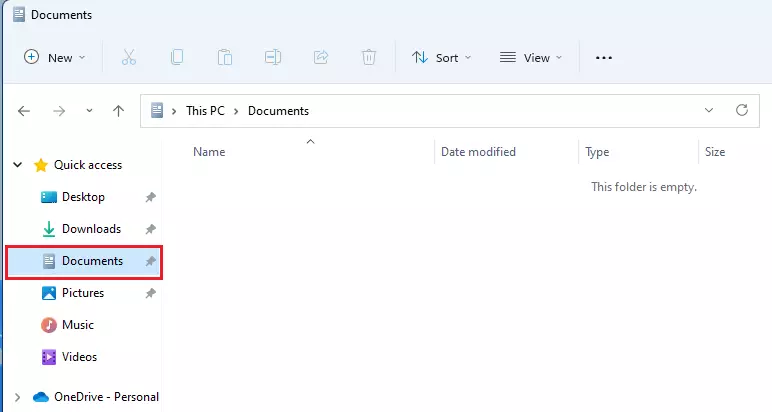
When File Explorer opens, check the left-hand menu. You’ll find “Documents” listed under Quick Access. Click on it to open.
- Look at the left pane of File Explorer and find Quick access.
- Click Documents in that list.
The right side of the window should now show the contents of your Documents folder. If the folder is empty, you may be looking at the wrong account, or the files may have been moved to OneDrive. Both cases are covered further down.
If Documents is not listed under Quick access, someone may have unpinned it. You can also open This PC from the left pane and look for the folder there.
Method 2The Shell Command Shortcut
You can quickly open your Documents folder in Windows 11 using a keyboard shortcut and a special command. This works well when File Explorer is slow to navigate or the Quick access entry is missing.
- Press the Win plus R. The Run dialog box should appear in the lower-left corner of the screen.
- Type the command shown below into the Open box.
- Press Enter or click OK.
Your Documents folder should open in a new File Explorer window. If a different folder opens, or you get an error, the folder’s path may be broken. See the registry section near the end of this guide.
shell:Personal command to jump directly to your folder from anywhere in Windows, even if the folder has been moved to a different drive.Method 3Browse Your User Profile
You can also find the folder by clicking through your computer’s drives. In File Explorer , navigate through your computer’s drives. You’ll typically find it here: 📁C:\
- Open File Explorer and click This PC in the left pane.
- Double-click your C: drive, usually named Local Disk (C:).
- Double-click the Users folder.
- Double-click the folder that matches your account name.
- Double-click Documents.
If you are not sure of your account name, look at the folders inside Users. Your own folder is usually the one with your name on it. Skip any folder called Public.
OneDrive Integration and Missing Folders
When OneDrive is active, it moves your Documents folder into the OneDrive directory. If you stop using OneDrive, the folder may appear to vanish because the system is looking for the old path.
Your files are usually not deleted. They normally stay in the OneDrive folder inside your user profile, and a new empty Documents folder may be created in its place. To check, open your user folder in File Explorer and look inside the OneDrive folder for a Documents folder.
If you find your files there, you have two choices. You can copy them back to the local Documents folder, or you can use the Location tab in the next section to point Documents at the folder that holds your files. Check that all your files are in the new place before you delete anything from the old one.
How to Move Your Documents Folder
Moving your Documents folder to another drive in Windows 11 is a smart way to free up space on your main C: drive. It helps most on a PC with a small SSD and a larger second drive.
Before you start, make sure the other drive is connected and has enough free space for your files. If it is an external drive, the folder will be unavailable whenever the drive is unplugged.
- Open File Explorer and create a new folder on the other drive, for example one named Documents.
- Right-click Documents in the left pane and click Properties.
- Click the Location tab.
- Click Move.
- Browse to the new folder on the other drive, select it, and click Select Folder.
- Click Apply.
- When Windows asks if you want to move all files to the new location, click Yes.
Windows should now copy your files to the new location. This can take a while if you have a lot of data. Wait for it to finish before you close any windows.
To undo the change, go back to the same Location tab and click Restore Default. Then click Apply and move the files back when asked.
Advanced Troubleshooting: Registry Redirection
If your Documents folder path is incorrect or broken in Windows 11, you can fix it by making a small change in the system’s Registry editor. Use this only if the simpler fixes above did not work. A wrong change in the registry can cause problems, so take it slowly.
- Create a restore point first, or export the registry key before you change it, so you can go back if something goes wrong.
- Open the Registry Editor. You need to be signed in with an administrator account.
- Go to the key shown below.
- Find the value for your Documents folder and check that it points to a folder that really exists.
- Correct the path if it is wrong, then close the Registry Editor.
- Sign out and sign back in, or restart your PC, so the change takes effect.
After you sign back in, open File Explorer and click Documents under Quick access. It should now open the correct folder.
Summary
The Documents folder is your main place to store files in Windows 11, and you can find it using a quick command or by looking in your user profile. If the folder seems to be missing, check OneDrive first, since that is the most common cause. If you want to save space on your C: drive, move the folder with the Location tab. Use the registry only when the path is truly broken.
Have a question about this guide?
Answered by AI from this guide. Good questions may be added to this page — please don't include personal details.
Did this guide fix your problem?

About the Author
Richard
Tech Writer, IT Professional
Richard is a writer at Geek Rewind who turns complex IT tasks into clear, step-by-step guides. He draws on years of hands-on experience in system administration and enterprise IT operations, focusing on Windows, Linux and WordPress: the problems people actually run into, and the fixes that work. His server and WordPress guides come from systems he runs himself. Richard builds and maintains the platform behind Geek Rewind, from its Ubuntu servers and Nginx configuration to its custom WordPress plugins. Many new tutorials start with readers' questions, and he's always glad to answer them in the comments.
Very Helpful, Thanks.