How to Access File Explorer Options in Windows 11

File Explorer Options is the built-in settings panel for managing how files, folders and search behave on Windows 11. It lets you show hidden items, reveal file extensions, change click settings and choose which folder File Explorer opens to. You can reach it in two clicks from any File Explorer window.
Microsoft moved most folder settings out of the ribbon in Windows 11, so many people can’t find the panel. This guide covers two ways to open it, then the settings most people want to change, and how to undo them.
Open File Explorer , click the three dots (…) on the command bar, and select Options. Alternatively, search for and open Control Panel , then navigate to Appearance and Personalization, and click File Explorer Options.
Method 1Using the File Explorer Menu
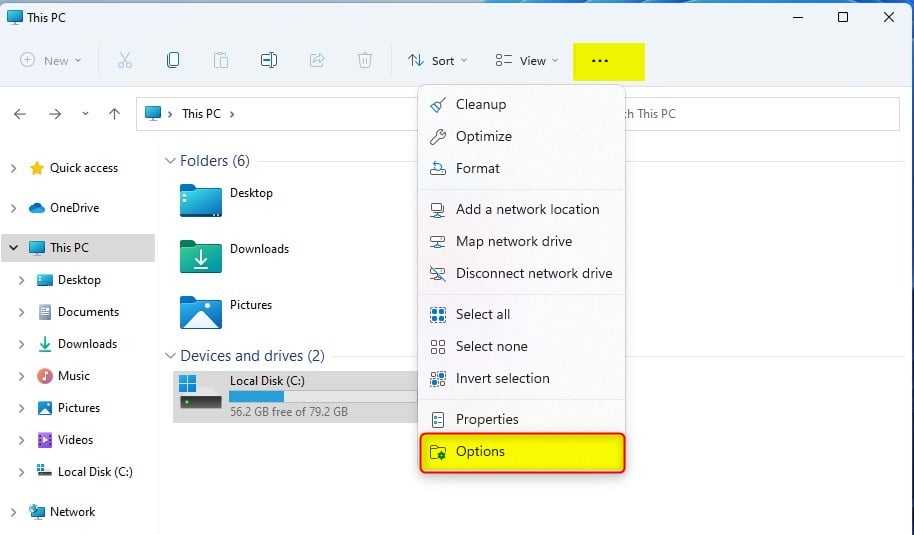
The quickest way to open File Explorer Options is from the File Explorer window itself. Press the Win+E to open File Explorer , click the three-dot menu on the top command bar, and choose Options. The same steps work on Home and Pro.
The steps below show each click.
- Open File Explorer by pressing the Win+E on your keyboard. A File Explorer window opens, usually on Home (also called Quick Access) or This PC. You can also click the folder icon on the taskbar .
- Look at the top command bar and click the See more icon, which looks like three dots ( … ). It is at the right end of the bar. A drop-down menu appears.
- Select Options from the list. It sits near the bottom of the menu. A window titled File Explorer Options opens with three tabs: General, View and Search. On some builds the window is titled Folder Options. It is the same panel.
Method 2Using the Control Panel
The classic Control Panel gives you a second route to the same settings. It is handy when File Explorer won’t open, or when you prefer the old layout. It works on every edition of Windows 11.
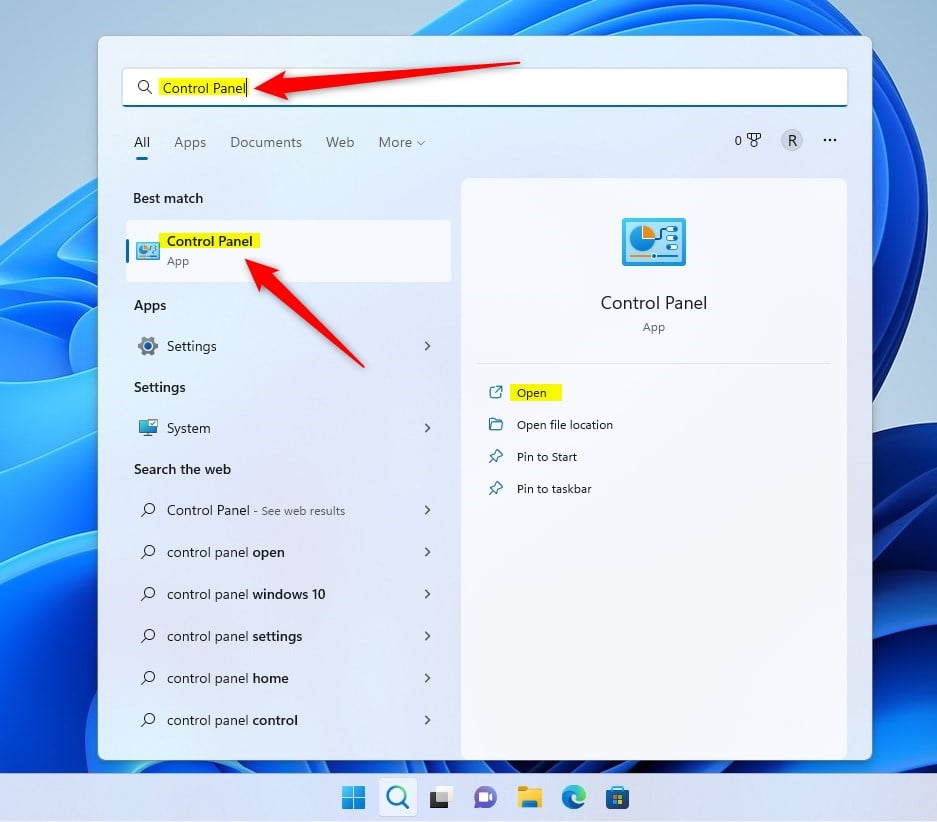
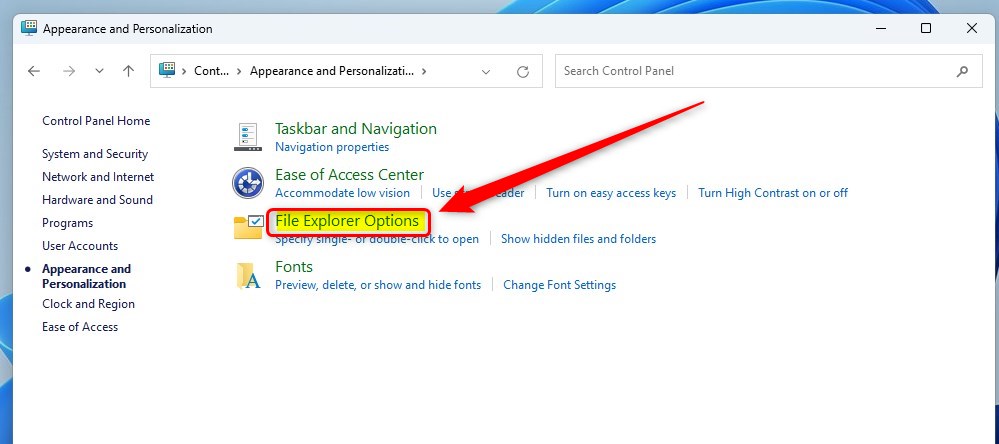
Open the Start menu , search for Control Panel , click Appearance and Personalization, and then select File Explorer Options. The window that opens is the same one you get from the command bar.
- Open the Start menu , search for “Control Panel ,” and open it. The Control Panel window appears. It usually opens in Category view.
- Click on Appearance and Personalization. The page that opens lists several groups of settings, including the one you need. If your Control Panel is set to Large icons or Small icons instead, File Explorer Options is listed directly and you can click it without this step.
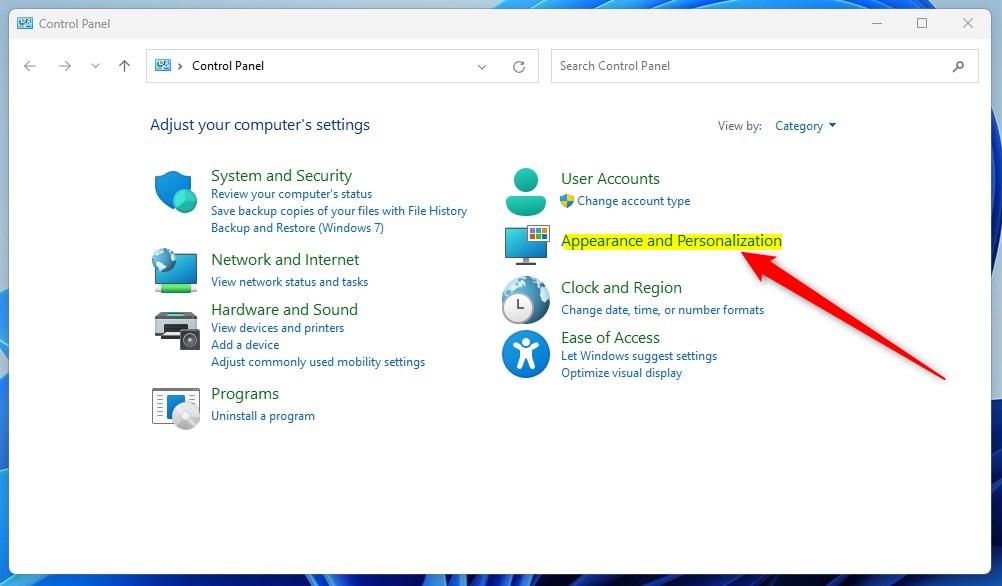
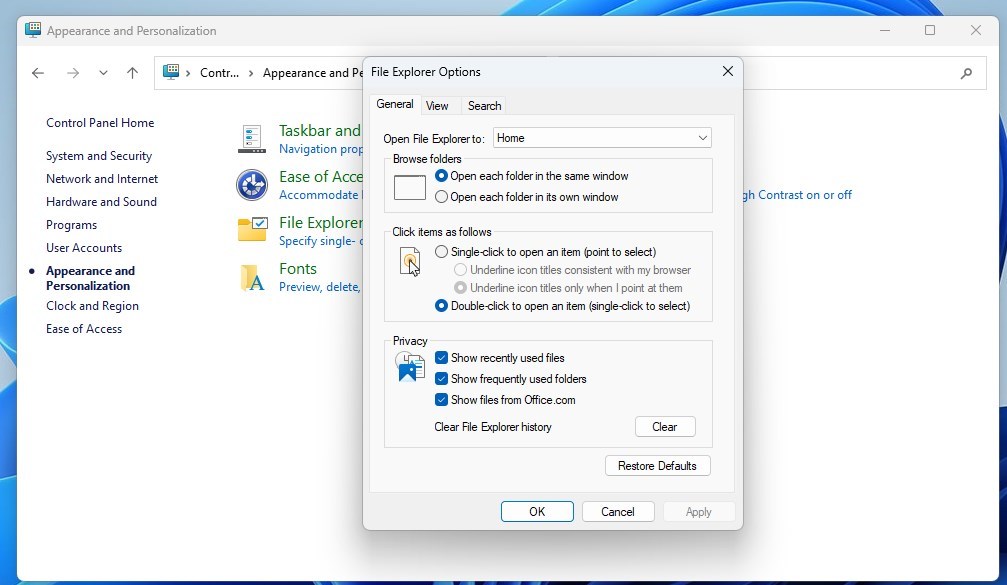
- Click on File Explorer Options. The File Explorer Options window opens on the General tab.
Saving advanced changes in File Explorer options requires administrator privileges. Windows prompts for a password or confirmation whenever necessary, provided the active session has proper rights.
If you sign in with a standard account, enter an administrator’s password when the prompt appears. Without it, the change won’t be saved. Most of these settings apply only to your own account, so changing them doesn’t affect other users on the PC.
Always click Apply or OK when you finish. The change takes effect right away, and you don’t need to restart Windows. If an open File Explorer window doesn’t update, close it and open a new one.
Top 5 Most Useful File Explorer Settings
Several settings deserve attention, starting with those that reveal exact file formats. By default Windows hides the extension on common file types, so a file named report.pdf shows only as “report”. Showing the extension helps you tell similar files apart and spot a suspicious name such as “invoice.pdf.exe”.
- In the File Explorer Options window, click the View tab.
- In the Advanced settings list, find Hide extensions for known file types and clear its check box. File names now show their extensions.
- To see hidden items, find Hidden files and folders in the same list and select Show hidden files, folders, and drives.
- Click Apply, then OK.
To undo either change, return to the same list, reverse the choice and click Apply. The Restore Defaults button on the View tab resets the whole list. If you only need a quick look, the View menu in File Explorer also has toggles for the same two options.
Understanding Quick Access vs. This PC
File Explorer opens to Quick Access by default, showing recent files and frequent folders. Switching the setting to "This PC" forces a static view of drives and folders immediately. This tweak speeds up navigation for frequent storage use.
- In File Explorer Options, stay on the General tab.
- Next to Open File Explorer to:, open the drop-down list.
- Choose This PC.
- Click Apply, then OK. The next File Explorer window you open starts on your drives and folders.
On newer Windows 11 builds, Quick Access is labelled Home, and the drop-down may offer extra choices. To go back, pick the original entry from the same list.
How to Clear File Explorer History
To clear recent file history, open File Explorer Options. Under the General tab, locate the Privacy section. Click the Clear button next to Clear File Explorer history. This action wipes the record of recently accessed files.
Nothing is deleted from your drives. Only the list of recent items is cleared. The same section has check boxes that control whether File Explorer records recent files and frequent folders, so you can turn tracking off if you don't want the list to build up again.
Summary
Folder settings in Windows 11 remain accessible through multiple pathways once the locations become familiar. Using the command bar menu or the Control Panel allows complete customization over privacy and hidden items. Certain modifications demand administrative clearance before applying.
If you ever lose track of a change, open File Explorer Options again and use Restore Defaults on each tab to return to the original behavior.
Have a question about this guide?
Answered by AI from this guide. Good questions may be added to this page — please don't include personal details.
Did this guide fix your problem?

About the Author
Richard
Tech Writer, IT Professional
Richard is a writer at Geek Rewind who turns complex IT tasks into clear, step-by-step guides. He draws on years of hands-on experience in system administration and enterprise IT operations, focusing on Windows, Linux and WordPress: the problems people actually run into, and the fixes that work. His server and WordPress guides come from systems he runs himself. Richard builds and maintains the platform behind Geek Rewind, from its Ubuntu servers and Nginx configuration to its custom WordPress plugins. Many new tutorials start with readers' questions, and he's always glad to answer them in the comments.
[…] Once File Explorer is opened, open the Folder Options. […]
[…] First, open the File Explorer folder options. […]
[…] Another way to show or hide the network folder is to use the File Explorer Folder Option. […]
[…] First, open the File Explorer Folder Options. […]
[…] Once enabled, open File Explorer Folder Options. […]
[…] First, open File Explorer’s Folder Options. […]
[…] Open File Explorer Options: – Press Windows + S on your keyboard. – Type File Explorer Options and click on it when it appears. Learn more about opening File Explorer Options […]
[…] Folder Options lets you change how files and folders open. You can also control what shows up in the navigation […]