How to Search for Files in Windows 11

File search in Windows 11 scans your drives for documents, photos and videos by name, file type, or the text stored inside them. Press Win+S, or click the search box on the taskbar , to open it from anywhere.
File Explorer search also accepts filters. For example, typing date:last tuesday lists files you changed today, and you can narrow results by file size or type in a similar way. This guide covers two methods: the Taskbar search for a quick look across your PC, and File Explorer for searching inside a chosen folder.
Press Win+S, or click the search icon on the Taskbar , then type the file name or a keyword to search your PC. Results appear as you type, and the Best match section lists them. To search one folder instead, open File Explorer , pick a folder such as Documents on the left, and type in the search box at the top right.
Using the Taskbar Search
The Taskbar search is the fastest way to find a file. Click the magnifying glass on the Taskbar and start typing. Windows checks your local files, apps and settings, and can also show web results, so one search covers a lot. Local results depend on what Windows has indexed, which is explained in the last section.
- Click the Search icon (the magnifying glass) on your Taskbar , or press Win+S. A search panel opens with a text box at the top. If your Taskbar shows a search box instead of an icon, click that box.
- Type the name of your document or a keyword. You don’t need the full file name. Results start to appear as you type, so keep typing until the file shows up.
- Look at the Best match section to see your results. Click a file to open it. To open the folder it sits in, right-click it and choose Open file location.
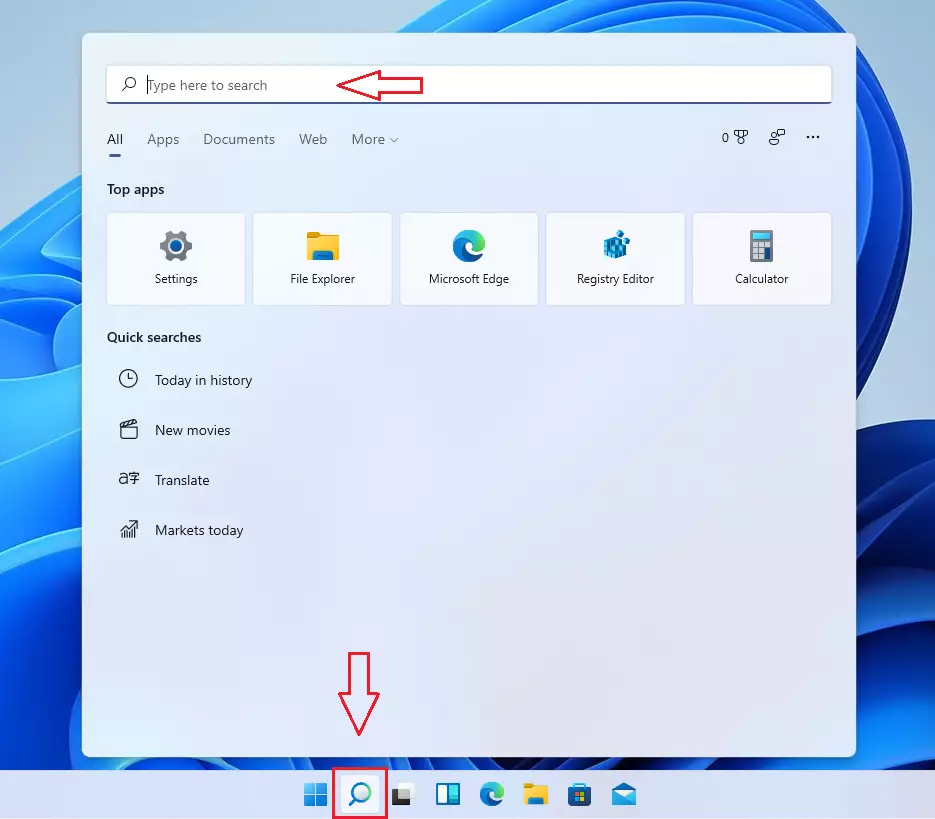
If the icon is missing, press Win+S instead. You can bring the icon back under Settings Personalization Taskbar
The same box also finds settings and apps. Type what you need, such as the name of a program or a setting, and Windows lists the most relevant items first. If the list is crowded, the tabs at the top of the search panel, such as Apps, Documents and Settings, limit the results to one type.
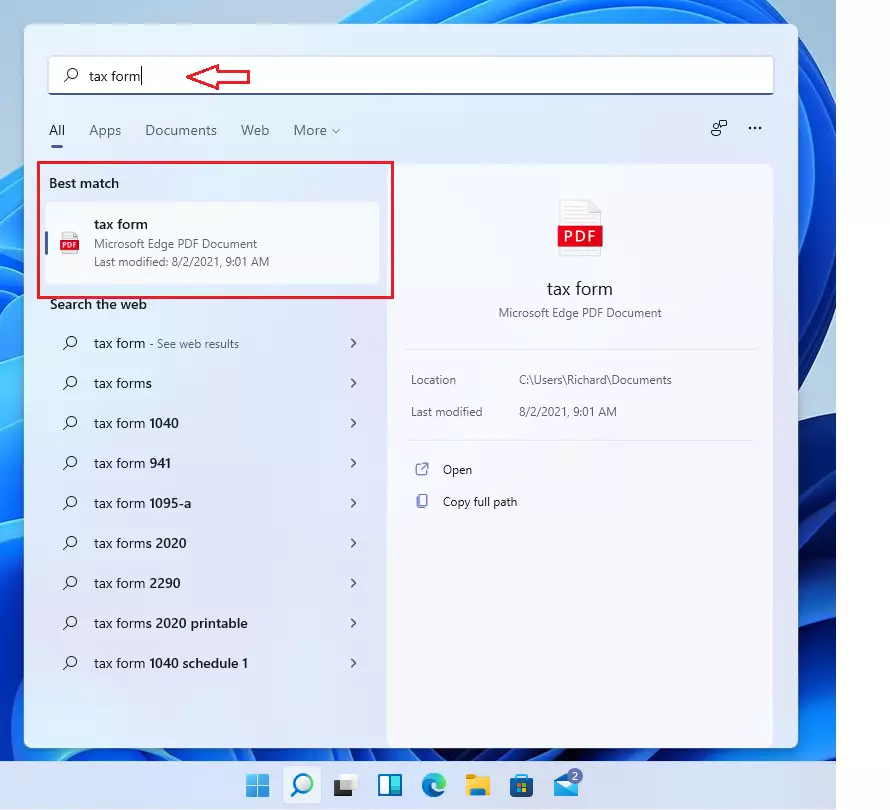
If the file you want is buried under web results or unrelated apps, switch to the Documents tab. You may need to open the More menu to see all the tabs. A more specific keyword also helps, because Windows ranks closer name matches higher.
Searching in File Explorer
Searching in File Explorer looks only inside the folder you choose, plus its subfolders, instead of scanning the whole PC. That makes results shorter and easier to sort through. You open File Explorer, pick a folder such as Documents or This PC, and type your search into the box in the top right corner.
- Open File Explorer from your Taskbar or by right-clicking the Start button and choosing it from the menu. A File Explorer window opens, with a folder list on the left.
- Choose a specific folder on the left side, such as Documents or This PC. Pick This PC to search every drive, or a single folder if you know roughly where the file is. The narrower the folder, the faster the search.
- Type your keyword in the search box located in the top right corner of the window. Results appear in the file list, and a green progress bar runs across the address bar while Windows is still searching. Once it finishes, the list is complete. Clicking in the search box also adds a Search options button to the toolbar, which lets you filter by kind, date modified and size.
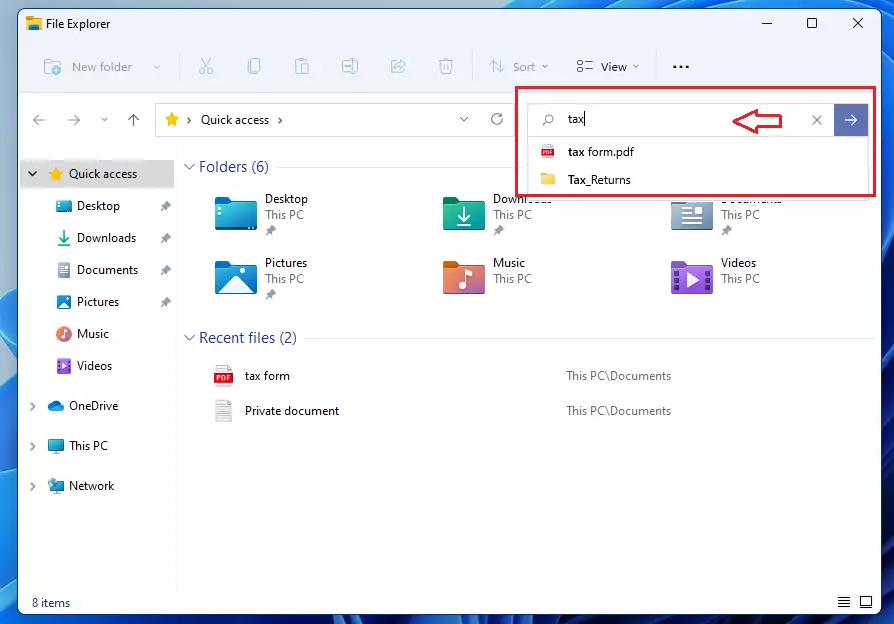
In short: open File Explorer from your Taskbar or by right-clicking the Start button, then choose a specific folder on the left side, such as Documents or This PC. Type your keyword in the search box at the top right. To clear the search and go back to the normal folder view, click the X in the search box.
For more advanced searches, power users can turn to the Command Prompt (a text-based interface), which requires administrator privileges (an account type that can make system-wide changes) to locate files by their exact path. Most people never need this. The Taskbar and File Explorer methods above cover everyday searching.
dir C:\Users\GenericUser\Documents /s /bSummary
Searching for files in Windows 11 is quick once you know which tool to use. Use the Taskbar search for a fast check of your PC and the web. Use File Explorer for a closer look inside a specific folder or drive.
Go to Settings Privacy & security Searching Windows and look at the Find my files setting. Classic indexes only your main personal folders, such as Documents, Pictures, Music and your Desktop. Enhanced indexes the whole PC, which finds more files but uses a bit more disk and battery while it builds the index. You can switch back at any time, and no restart is needed. Keeping your files in sensible folders with clear names also makes every search faster and more accurate.
Have a question about this guide?
Answered by AI from this guide. Good questions may be added to this page — please don't include personal details.
Did this guide fix your problem?

About the Author
Richard
Tech Writer, IT Professional
Richard is a writer at Geek Rewind who turns complex IT tasks into clear, step-by-step guides. He draws on years of hands-on experience in system administration and enterprise IT operations, focusing on Windows, Linux and WordPress: the problems people actually run into, and the fixes that work. His server and WordPress guides come from systems he runs himself. Richard builds and maintains the platform behind Geek Rewind, from its Ubuntu servers and Nginx configuration to its custom WordPress plugins. Many new tutorials start with readers' questions, and he's always glad to answer them in the comments.
I am looking for documents that I have saved on this computer. For some reason Windows 11 was downloaded without my knowledge or request. The documents that I have saved are EXTREMELY important to me. PLEASE explain (in plain English) how I go about getting to my saved folders. I am not tech-know savy and this situation is EXTREMELY frustrating.
[…] Open Windows Search or press the keyboard short Windows key + S. […]
[…] Open Windows Search or press the keyboard short Windows key + S. […]
[…] Windows Search is a built-in feature that allows you to search for documents and app settings from a particular folder or the entire PC. […]
[…] Windows Search is a built-in tool that lets you search your whole computer or specific folders. […]