How to Search Local Files with Windows 11 Copilot

Searching local files with Windows 11 Copilot lets you find documents on your hard drive using typed or spoken prompts. The Copilot app can look through files on your PC by name or keyword, so you don’t have to dig through folders by hand. This feature is available in Copilot app version 1.25034.133.0 and newer.
Microsoft rolls Copilot features out in stages. If you have the right version and still can’t find the file options, check the Microsoft Store for an app update and try again later.
Open Copilot, navigate to Settings, and enable “File search” and “File read” permissions. Then, simply type a natural language query describing the file you need into the Copilot chat window.
Why Use Copilot to Search Files?
Copilot understands everyday speech. You don’t need to remember the exact file name. Describing the file the way you would to a coworker is usually enough. It can search many common formats, including .png, .jpeg, .svg, .pdf, .docx, .xlsx, .csv, .json, and .txt files.
The more detail you give, the better the results. A file type, a topic, or a rough date helps Copilot narrow things down.
What Permissions Do You Need?
Before Copilot can find your documents, you have to turn on two permissions in its settings: File search and File read. Both are off until you enable them. This is deliberate, because Copilot should not look at your files unless you allow it.
The steps below show where to open Copilot’s settings and where these two switches are.
How to Enable File Search in Copilot
- Open the Copilot app on your Windows 11 computer.
- Click on the Settings button in the app.
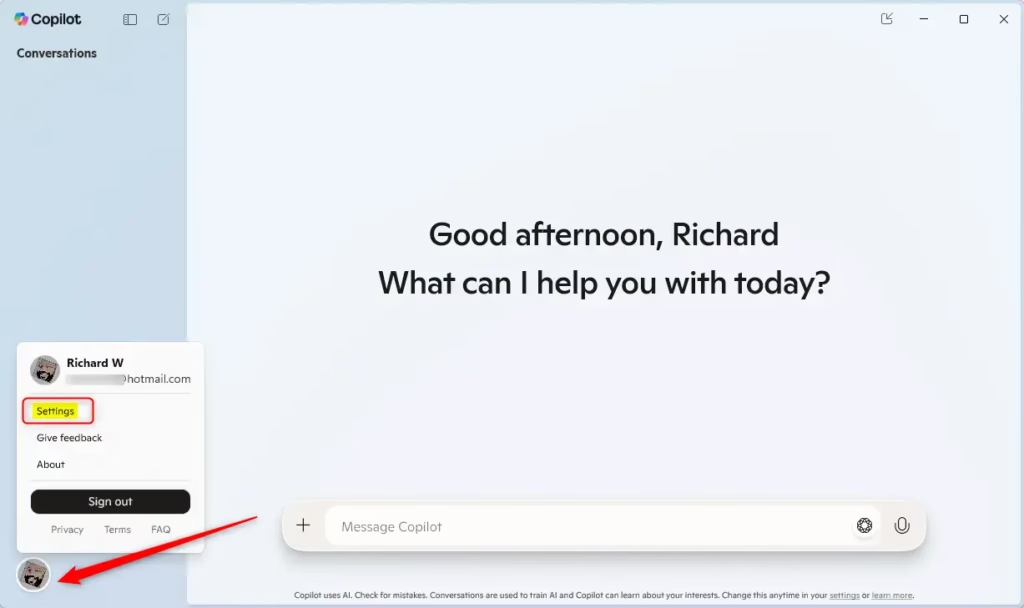
- Look for the Permission settings section.
- Enable File search by toggling it on.
- Enable File read by toggling it on.
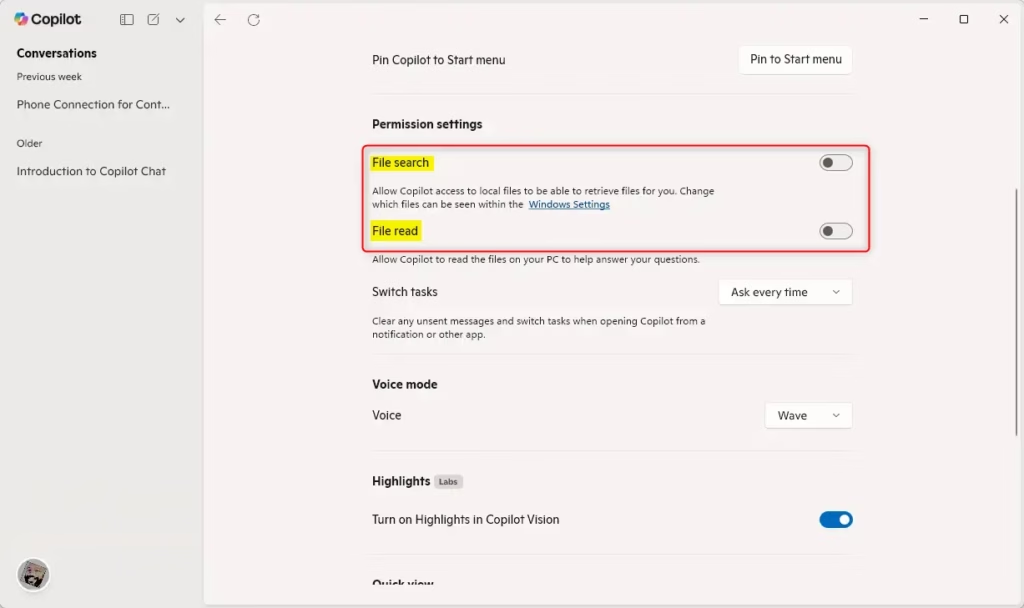
Two settings need to be on for Copilot to read your documents: File search and File read. If you turn on only one, searches may fail or return nothing useful. Check that both toggles show as on before you move to the next section.
You shouldn’t need to restart Windows after changing them. To undo this later, open the same settings page and switch the toggles off. Copilot then stops accessing your files.
How to Search Files Using Copilot
Once both permissions are on, you can search straight away. Here is how:
- Open the Copilot app.
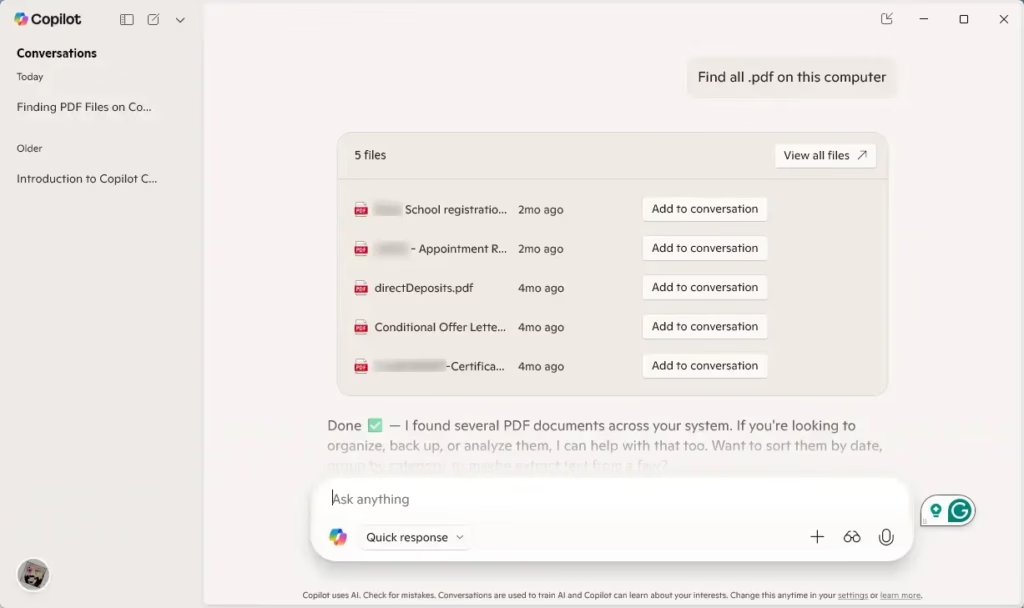
- Click the message box and type your request in everyday words, such as "Find my budget spreadsheet from last month" or "Show me all PDFs about project planning." You can use voice instead of typing if your microphone is set up.
- Press Enter. Copilot searches your PC and lists the files that match.
If the results are off, rephrase the request. Add a file type, a keyword you know is inside the document, or a time frame. If nothing comes back, confirm that both toggles are still on and that the file is in a location Copilot can reach.
Summary
Copilot file search lets you find documents, photos, and spreadsheets on your PC by describing them in plain English. Instead of recalling exact file names or browsing messy folders, you type what you need into Copilot and it looks for the file.
Here is a quick summary of what this gives you:
- Natural Language Search: You can describe files using everyday words instead of remembering exact names.
- Wide File Format Support: The feature works with images, documents, spreadsheets, and many other file types.
- Easy Setup: Enabling file search takes just a few clicks in Copilot Settings.
- Saves Time: Finding files quickly means you spend less time searching and more time working.
- AI-Powered: The AI understands what you want, giving you more accurate results.
File Explorer search is still there when you want to browse a specific folder. Copilot is most useful when you remember what a file is about but not where you saved it.
Have a question about this guide?
Answered by AI from this guide. Good questions may be added to this page — please don't include personal details.
Did this guide fix your problem?

About the Author
Richard
Tech Writer, IT Professional
Richard is a writer at Geek Rewind who turns complex IT tasks into clear, step-by-step guides. He draws on years of hands-on experience in system administration and enterprise IT operations, focusing on Windows, Linux and WordPress: the problems people actually run into, and the fixes that work. His server and WordPress guides come from systems he runs himself. Richard builds and maintains the platform behind Geek Rewind, from its Ubuntu servers and Nginx configuration to its custom WordPress plugins. Many new tutorials start with readers' questions, and he's always glad to answer them in the comments.
No comments yet — be the first to share your thoughts!