How to Access Copilot Conversation History in Windows

Copilot conversation history in Windows 11 saves your past AI chats automatically, so you can look up old questions and answers later. The Copilot app keeps up to 30 days of previous text prompts. You only read and reopen the chats. You don’t need to turn anything on, and nothing needs a restart.
The quickest way to reach them is to open the Copilot app and click the history icon near the top of the screen. The steps below cover the website, the desktop app and the mobile app. Icon placement and layout can shift slightly as Microsoft updates Copilot, so look for the same elements even if they sit in a slightly different spot. In every version, your chats follow your Microsoft account, so use the same account everywhere.
Access your Copilot conversation history by navigating to copilot.com and signing in, or by opening the Copilot app on your desktop or mobile device. Your past conversations will typically appear on the left side of the screen or within the main menu.
How to Find Your Copilot History
Using Copilot on the Web (copilot.com)
If you use Copilot in a web browser, these steps open your Copilot conversation history and let you reread an old chat:
- Open your web browser. Any browser you normally use will do.
- Go to copilot.com. The Copilot page should load.
- Sign in with your Microsoft account. If you are already signed in, you should see your name or account picture, so you can skip this.
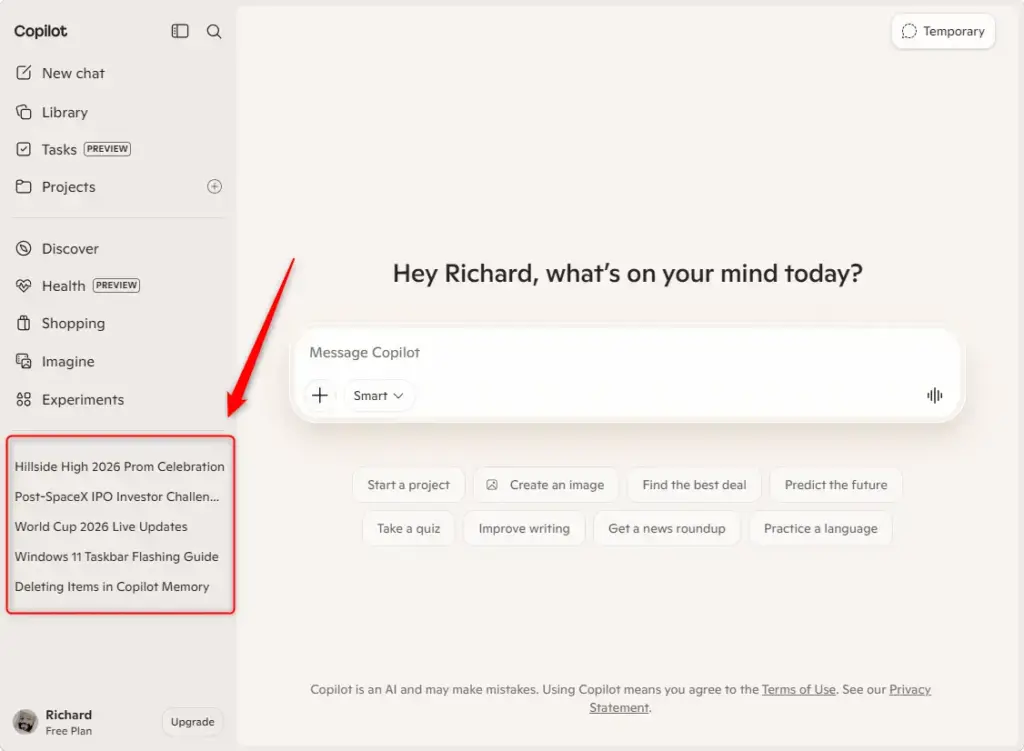
- Check the left side of the screen. Your past conversations are listed there.
- Click a conversation to reopen it. You can then read the full exchange.
If the list is empty, check that you signed in with the same account you used for those chats. Chats started while signed out or under another account will not show up. If the side panel is hidden because your browser window is narrow, make the window wider or look for a menu icon to expand it.
Using Copilot on Windows or macOS
Copilot is also available directly on your computer, and the desktop app works much the same way as the website. These steps show you where your history is in the app:
- Open the Copilot app on your computer. The Copilot window should appear.
- Sign in with your Microsoft account if the app asks. Use the account you used for your earlier chats.
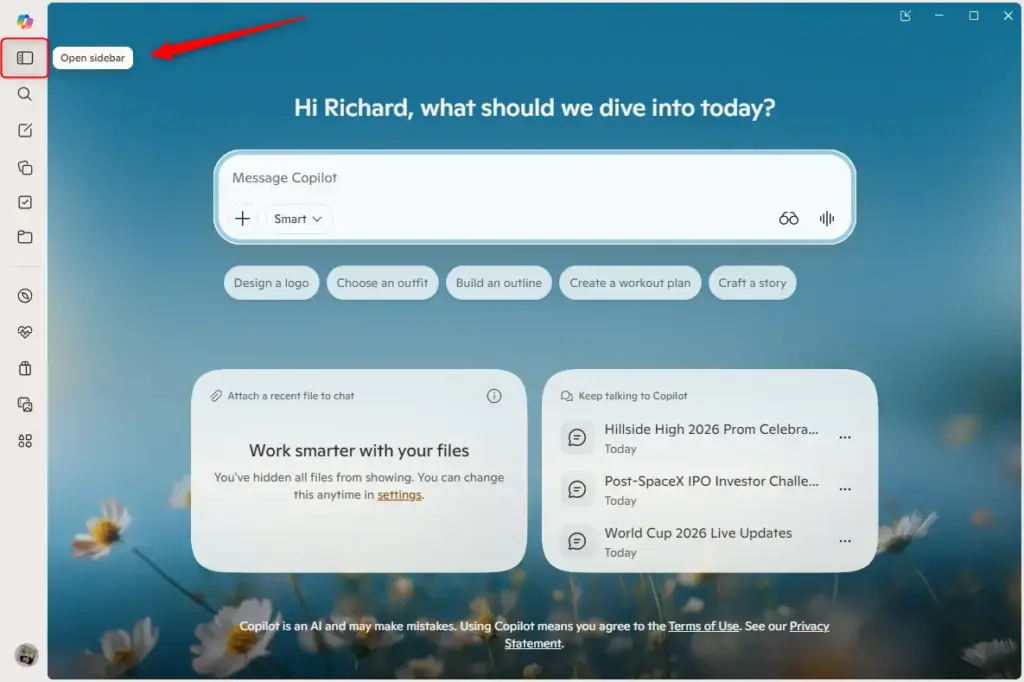
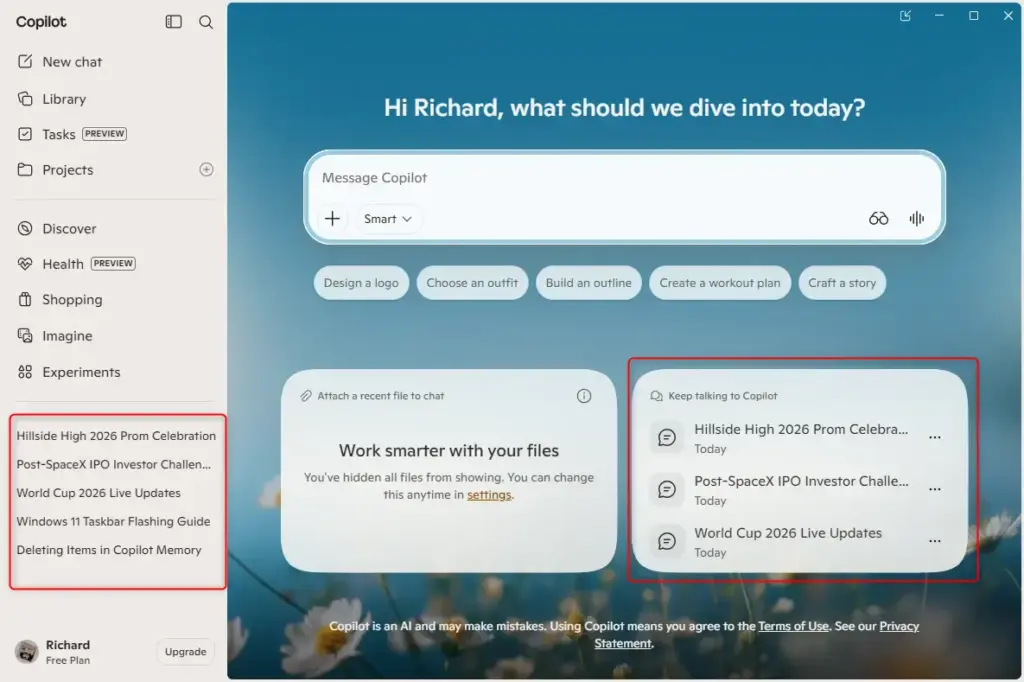
- Check the left side of the Copilot window. Your conversation history should be displayed there. If you don’t see a list, click the history icon near the top of the window instead.
- Select a past conversation to open it. The full chat appears so you can read it.
Remember that the app keeps up to 30 days of previous text prompts. A conversation older than that may no longer be in the list. If your history looks incomplete or missing, check that you are signed in with the right account. You can also update the app through the Microsoft Store, since newer versions can change where history appears.
Using Copilot on Your Phone
You can also find your past chats on your phone, so you can check your Copilot conversation history while away from your computer. The saved chats sit behind the menu icon in the corner of the screen.
- Open the Copilot app on your phone. The main chat screen should appear.
- Sign in with the same Microsoft account you use on your PC. That way you see the same conversations.
- Look for the main menu. It is often shown as an icon with three lines, in a corner of the screen.
- Tap the menu to open it. A panel should slide out.
- Find your conversation history in the menu. Your saved chats are listed there.
- Tap a past chat to open it. The conversation loads so you can read it.
If the menu looks different from what is described here, update the app from your phone's app store, as the layout can change between versions.
Reference:
https://support.microsoft.com/en-us/microsoft-copilot/conversation-history-in-microsoft-copilot
Summary
Copilot saves your conversations so you can find them later. You can reach your history on the web, in the desktop app and on your mobile device. That makes it easy to review past discussions and pick up where you left off. If a conversation is missing, check three things first: that you are signed in with the right account, that the chat is within the 30-day window, and that your app is up to date.
Frequently asked questions
How to find previous Copilot chats?
Open the Copilot app and click the history icon near the top of the window. Your recent chats appear in a list, and clicking one reopens it. Copilot keeps text prompts for up to 30 days, so older chats may no longer show. On copilot.com, sign in with your Microsoft account to see past conversations in the left panel.
How to find Copilot history?
Open the Copilot app and select the history icon near the top of the screen to see your past conversations. On the website at copilot.com, sign in with your Microsoft account and check the left side of the screen. Copilot keeps text prompts for up to 30 days.
How to search Copilot chat history?
Open the history list in the Copilot app or on copilot.com, then type keywords into the search box if one appears. If there is no search box, scroll the list and open the chat by its title. Copilot keeps text prompts for up to 30 days, so older chats may be gone.
Where is my Copilot history?
Your Copilot history is in the Copilot app and on copilot.com. In the app, click the history icon near the top of the window. On the website, sign in with your Microsoft account and look at the left side of the screen, where past conversations are listed. Copilot keeps text prompts for 30 days.
How to see Copilot history?
Open the Copilot app and click the history icon near the top. Your past conversations appear in a list. Select one to read the full exchange. If nothing appears, confirm you are signed in with the same Microsoft account you used before. Copilot keeps text prompts for up to 30 days.
How to find Copilot chat history?
Click the history icon near the top of the Copilot app to open your chat list. On copilot.com, sign in and check the left panel. Choose any chat to reopen it. Only text prompts from roughly the last 30 days are kept, so very old chats may not appear.
Still have a question?
Answered by AI from this guide. Good questions may be added to this page — please don't include personal details.
Did this guide fix your problem?

About the Author
Richard
Tech Writer, IT Professional
Richard is a writer at Geek Rewind who turns complex IT tasks into clear, step-by-step guides. He draws on years of hands-on experience in system administration and enterprise IT operations, focusing on Windows, Linux and WordPress: the problems people actually run into, and the fixes that work. His server and WordPress guides come from systems he runs himself. Richard builds and maintains the platform behind Geek Rewind, from its Ubuntu servers and Nginx configuration to its custom WordPress plugins. Many new tutorials start with readers' questions, and he's always glad to answer them in the comments.
No comments yet — be the first to share your thoughts!