How to Delete Your Entire Copilot Conversation History

Clearing your entire Microsoft Copilot conversation history deletes every past chat log that Copilot has saved since its launch in late 2023. Copilot is Microsoft’s built-in AI helper in Windows 11 that answers questions and writes text. By default, it keeps a record of your chats.
Wiping these old logs protects your privacy and gives you a fresh start. Once you clear the history, future AI responses will not use your past chats for context.
The process takes a few minutes and runs entirely in a web browser. It works the same on Windows 11 Home and Pro, because the history is tied to your account, not to the PC. You don’t need to restart anything afterwards.
Open a web browser and go to the Microsoft privacy dashboard at account.microsoft.com/privacy. Sign in with the account linked to Copilot, scroll to “Copilot app activity history”, and click Del all activity history. Confirm the deletion in the popup—this action cannot be undone.
How to Delete Your Copilot History
Step 1Sign In to Your Microsoft Account
Copilot conversations link directly to a Microsoft Account, so the history lives online with that account and not only on your PC. Deleting it means visiting the Microsoft Account activity page.
Before you start, make sure you know which Microsoft Account you use with Copilot. If you have more than one, check which one is signed in to Windows or to the Copilot app.
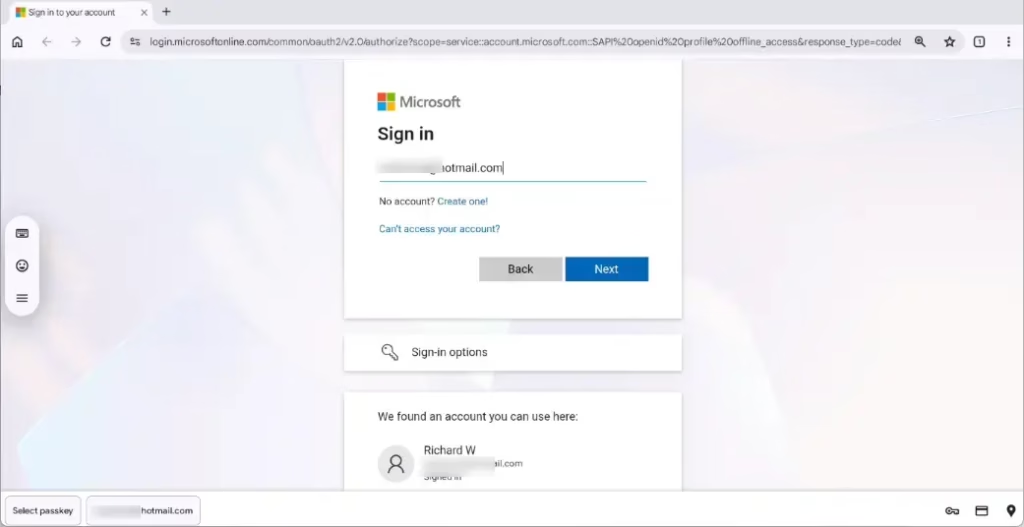
Start by opening the privacy page for your account.
- Open a web browser and head to the Microsoft privacy dashboard.
- Sign in using the same Microsoft Account tied to Copilot. If you are asked for a password, a code or approval on your phone, complete that step.
- Check that the privacy dashboard loads and shows your account name or picture. If it shows the wrong account, sign out and sign in again with the correct one.
If you sign in with a work or school account, your organization may control Copilot data. In that case this page may not show the same options, and you should ask your IT administrator.
Step 2Find Your Copilot Activity History
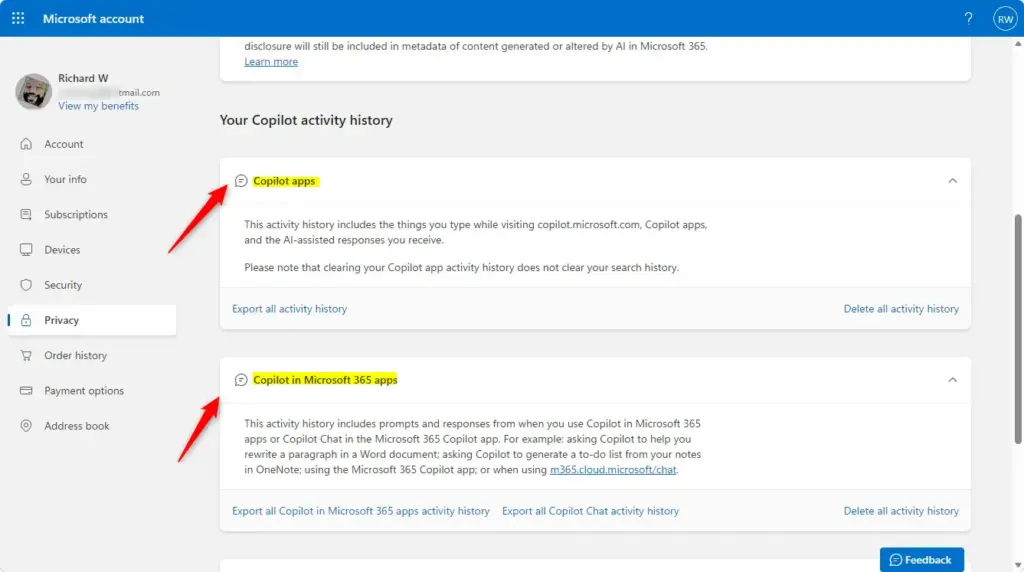
Next, find the Copilot section on the dashboard.
- Scroll down the privacy dashboard page.
- Look for the section labeled “Copilot app activity history”.
- Once you see it, you should find the option to delete your history inside that section.
Microsoft redesigns this page from time to time, so the layout may not match what you see here. On the Microsoft Account privacy page, search for a section like “Copilot app activity history” or another menu mentioning AI or Copilot.
- Scroll the whole page, because the section can sit well below the first screen.
- Click through any menus, tabs or expandable headings, such as activity history or data categories.
- If a section is collapsed, click its heading to expand it.
If you still can't find it, try signing out and back in, or open the page in a different browser. Sometimes a stale page or a browser extension hides parts of it.
Step 3Start the Deletion Process
Now start the deletion.
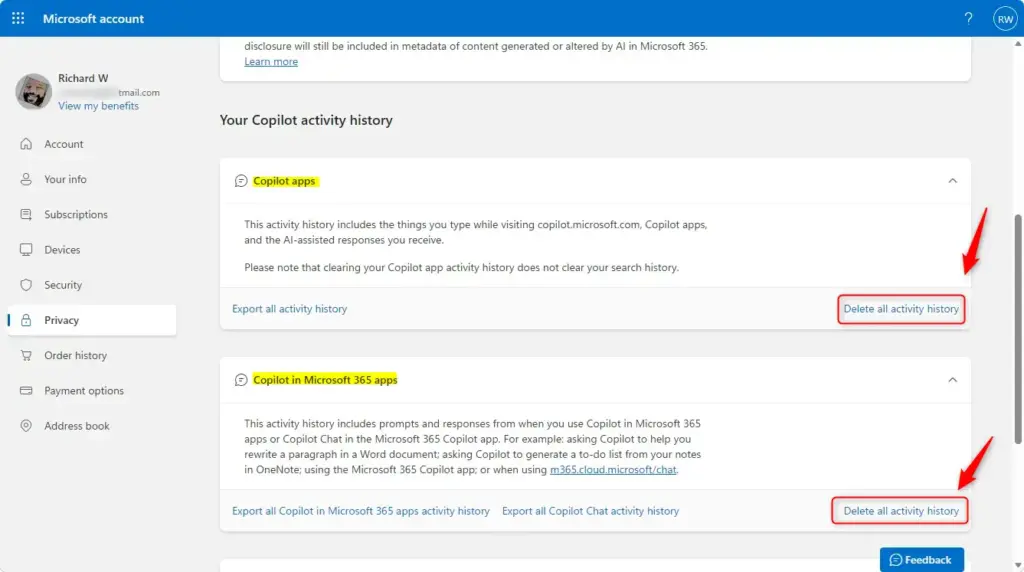
- Go to the “Copilot app activity history” section.
- Click the Delete all activity history button inside that section to remove every past chat.
- Wait for a confirmation box to appear on screen. Do not close the page yet.
If a conversation matters, copy the text somewhere safe before you continue.
Find the "Delete all activity history" button inside the "Copilot app activity history" section. Clicking it removes every past conversation to protect privacy.
If the button is greyed out or missing, the usual reasons are that there is no saved history to delete, that the page has not finished loading, or that your organization manages the account. Refresh the page and check that you are signed in to the right account.
Step 4Confirm Your Choice
To finish the process, you have to confirm the deletion. A confirmation box pops up on your screen.
- Read the message carefully to make sure you want to erase all your past chats.
- Click the Delete or Confirm button to permanently clear everything.
- Wait for the page to show that the deletion is done. It may take a short while for the change to appear everywhere.
There is no undo. Anything you delete here is gone for good.
The confirmation message asks you to verify the deletion of all Copilot activity history. Read the message carefully, then click the confirm option, such as "Delete" or "Confirm." The exact button wording can vary.
To check that it worked, open Copilot afterwards and look at your chat list. Past conversations should no longer appear. If old chats still show up, reload the page or app, or sign out and back in.
Reference:
https://support.microsoft.com/en-us/microsoft-copilot/conversation-history-in-microsoft-copilot
Summary
Erasing your entire Copilot conversation history comes down to three things: signing in to your Microsoft Account, locating the 'Copilot app activity history' section, and confirming the removal.
Because the deletion is permanent, save anything you want to keep first. Copilot will still save new chats from now on, so repeat these steps whenever you want to clear it again.
Frequently asked questions
How to delete Copilot history?
To delete Copilot history, sign in to your Microsoft Account at account.microsoft.com/privacy and open the Copilot activity section. Select the option to clear your Copilot activity, then confirm. This removes saved chats from your account. Deletion is permanent, so copy any text you still need before you start.
How to delete Copilot chat history?
To delete Copilot chat history, go to account.microsoft.com/privacy and sign in with the account you use for Copilot. Find the Copilot chat activity, select the option to clear it, and confirm. The saved chats are removed from your account. This cannot be undone.
How to delete all Copilot chats?
To delete all Copilot chats at once, sign in at account.microsoft.com/privacy and open the Copilot activity section. Choose the option to clear all of your Copilot activity rather than removing chats one by one. Confirm when prompted. Every saved conversation on that Microsoft Account is removed, and this cannot be undone.
How to clear Copilot history?
To clear Copilot history, open account.microsoft.com/privacy in a web browser and sign in. Go to the Copilot activity section and choose the clear option. Confirm when asked. Your saved chats are erased from your Microsoft Account. This cannot be reversed, so save anything you want to keep first.
How to clear Copilot chat history?
To clear Copilot chat history, sign in at account.microsoft.com/privacy with the account you use for Copilot. Open the Copilot activity section, select the option to clear it, and confirm. Past chats are deleted. Deletion is permanent, so save any important conversations before you begin.
How to delete all Copilot chat history?
To delete all Copilot chat history, sign in at account.microsoft.com/privacy and open the Copilot activity section. Select the option to clear all activity, then confirm. Every saved chat on that Microsoft Account is removed. This is permanent, so copy any text you need before you begin.
Still have a question?
Answered by AI from this guide. Good questions may be added to this page — please don't include personal details.
Did this guide fix your problem?

About the Author
Richard
Tech Writer, IT Professional
Richard is a writer at Geek Rewind who turns complex IT tasks into clear, step-by-step guides. He draws on years of hands-on experience in system administration and enterprise IT operations, focusing on Windows, Linux and WordPress: the problems people actually run into, and the fixes that work. His server and WordPress guides come from systems he runs himself. Richard builds and maintains the platform behind Geek Rewind, from its Ubuntu servers and Nginx configuration to its custom WordPress plugins. Many new tutorials start with readers' questions, and he's always glad to answer them in the comments.
No comments yet — be the first to share your thoughts!