How to Enable or Disable Copilot Chat History Personalization

- 11 steps
- Needs administrator rights
Chat history is the Copilot setting that lets Copilot Memory use your earlier chats when it answers. This tutorial shows you how to turn that setting on or off for your Microsoft account on the web, in Microsoft Edge, and in the Copilot app on Windows 11.
Turn Chat history off if you don’t want Copilot to draw on earlier chats. Copilot deletes the memories it built from those chats 30 days after you turn it off. If you turn it back on within those 30 days, Copilot restores the memories.
None of these steps require administrator privileges.
To turn Copilot Chat history personalization on or off, open Copilot Chat settings, select Personalization, then switch Chat history on (the default) or off. In the Copilot app on Windows 11 or at copilot.com, use Chat settings; in Microsoft Edge, select the Copilot Chat icon, then the 3 dots and Chat settings. Turning it off stops Copilot Memory from using past chats.
Option One
Enable or Disable Copilot Chat History Personalization from the Copilot app and web
Use this method if you open Copilot in a browser or in the Copilot app on Windows 11.
- Open the copilot.com site or the Copilot app on Windows 11.
- Sign in to Copilot with your Microsoft account if you aren’t already signed in.
- Open Copilot Chat settings.
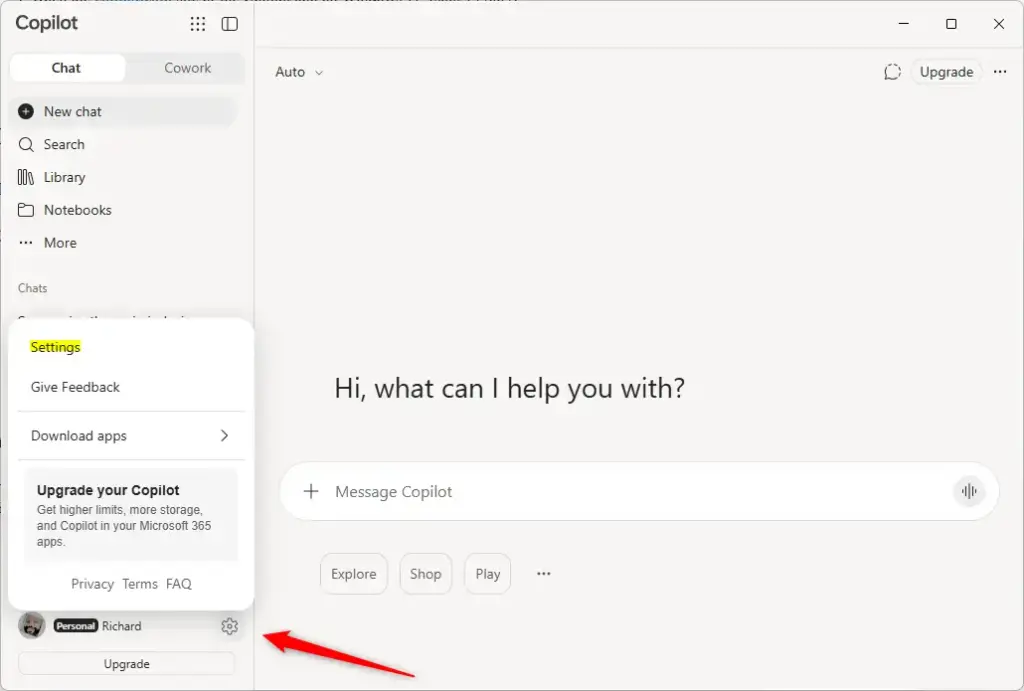
Copilot - Select Personalization on the left side of Chat settings.
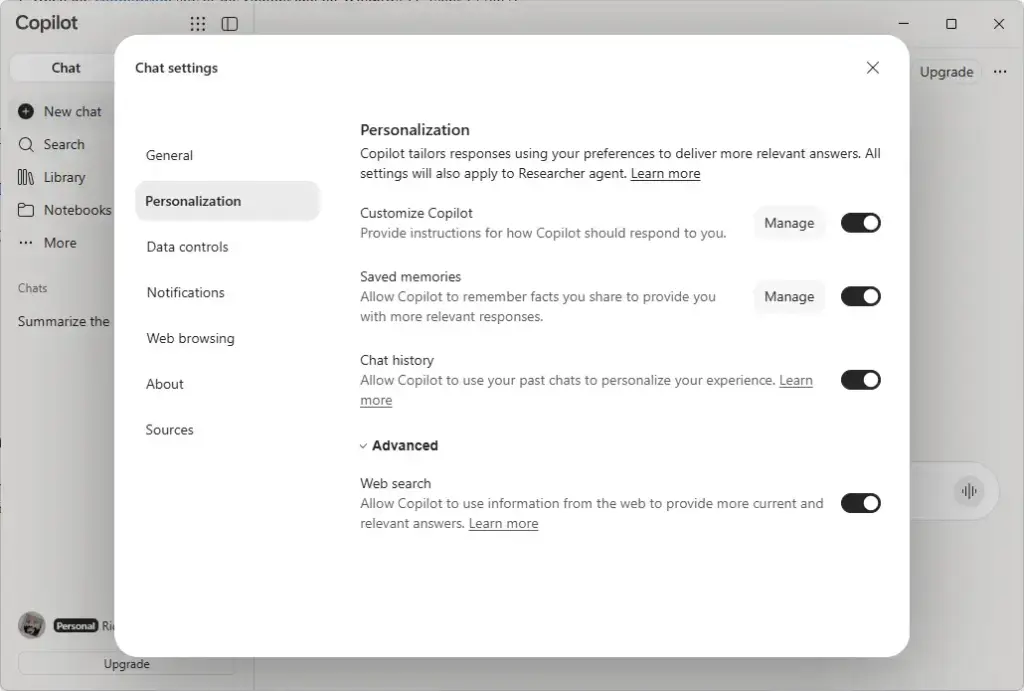
Settings > Personalization - Turn Chat history on (the default) or off.
Option Two
Enable or Disable Copilot Chat History Personalization from Microsoft Edge
Use this method if you use Copilot from the Edge toolbar.
- Open Microsoft Edge.
- Sign in to Microsoft Edge with your Microsoft account if you aren’t already signed in.
- Select the Copilot Chat icon on the toolbar.
- Select the Settings and more (3 dots) button, then select Chat settings.
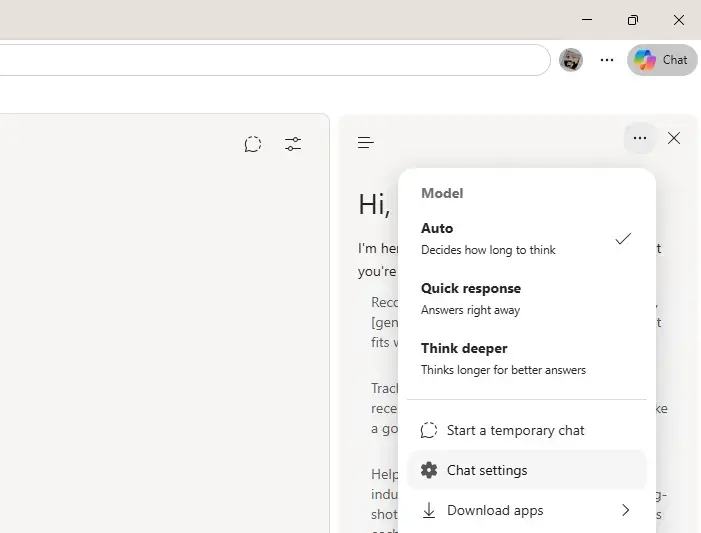
Copilot - Select Personalization in Chat settings.
- Turn Chat history on (the default) or off.
What to do next
Frequently asked questions
How do I delete all chat history in Copilot at once?
Copilot doesn't offer a single button to clear every chat at once, according to this tutorial's source material. To remove conversations, delete them one at a time from your chat list. To stop Copilot from using earlier chats, turn off Chat history in Copilot Chat settings under Personalization.
What are Copilot memories?
Copilot memories are facts and details Copilot builds from your earlier chats. When Chat history is on, Copilot uses these memories to answer your new questions. If you turn Chat history off, Copilot deletes the memories it built from your chats 30 days later.
Where did my Copilot Chat go?
Check that you're signed in to Copilot with the same Microsoft account you used before. Chats are tied to that account. If the chat still doesn't appear, open your chat list and look through earlier conversations, since older chats may be further down.
How to prevent Copilot from saving chats?
Turn off Chat history to stop Copilot from drawing on your earlier chats. Open Copilot Chat settings, select Personalization, and turn Chat history off. Copilot deletes the memories it built from those chats 30 days after you turn it off.
Still have a question?
Answered by AI from this guide. Good questions may be added to this page — please don't include personal details.
Did this guide fix your problem?

About the Author
Richard
Tech Writer, IT Professional
Richard is a writer at Geek Rewind who turns complex IT tasks into clear, step-by-step guides. He draws on years of hands-on experience in system administration and enterprise IT operations, focusing on Windows, Linux and WordPress: the problems people actually run into, and the fixes that work. His server and WordPress guides come from systems he runs himself. Richard builds and maintains the platform behind Geek Rewind, from its Ubuntu servers and Nginx configuration to its custom WordPress plugins. Many new tutorials start with readers' questions, and he's always glad to answer them in the comments.
No comments yet — be the first to share your thoughts!