How to start Temporary Chat with Copilot

A temporary chat with Copilot is a chat that does not use or change Copilot’s memory. Copilot is Microsoft’s AI assistant. You can use it to get answers, make images, or help with your writing.
A temporary chat does not read or save your personal details, which is what Copilot calls memory. It also stays out of your chat history. Once the chat ends, neither you nor Copilot can open it again.
You can start a temporary chat in Windows 11, in Microsoft Edge, and on the web. A personal Microsoft account gives you more. With one, you get chat history, image creation, longer conversations, voice chat, and other Copilot features.
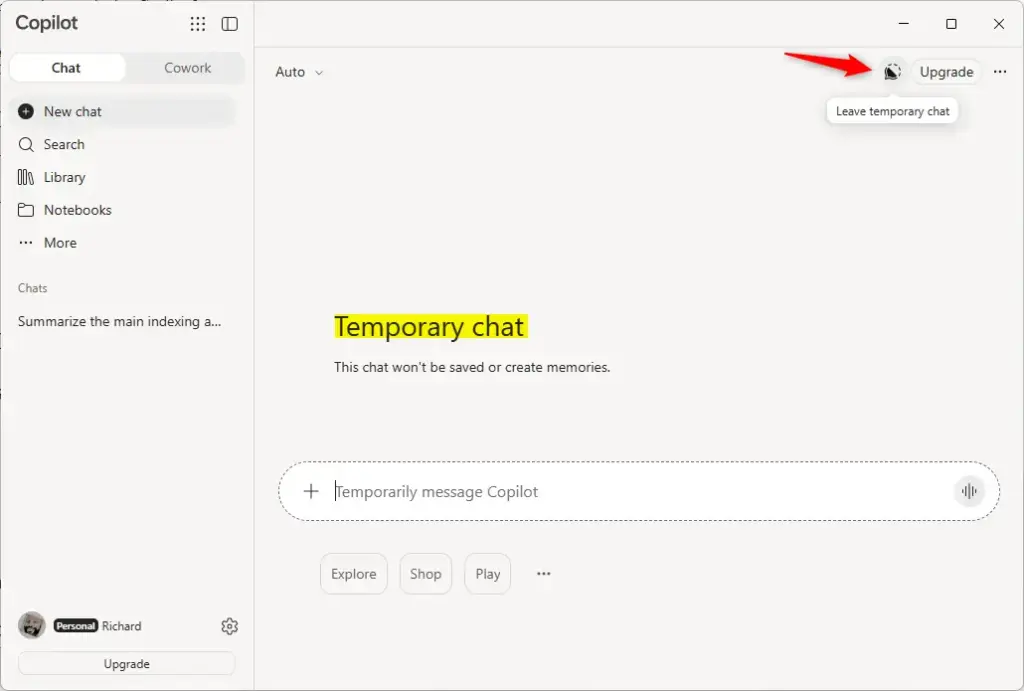
Open copilot.com or the Copilot app on Windows 11, start a new chat, then click or tap the Start a temporary chat button in the top right corner. Copilot won’t use or update your memory, and the chat won’t appear in your chat history. To end it, click Leave temporary chat or quit Copilot.
Option One
Start Temporary Chat with Copilot in Microsoft Edge
- Open the copilot.com site or the Copilot app on Windows 11.
- Start a new chat.
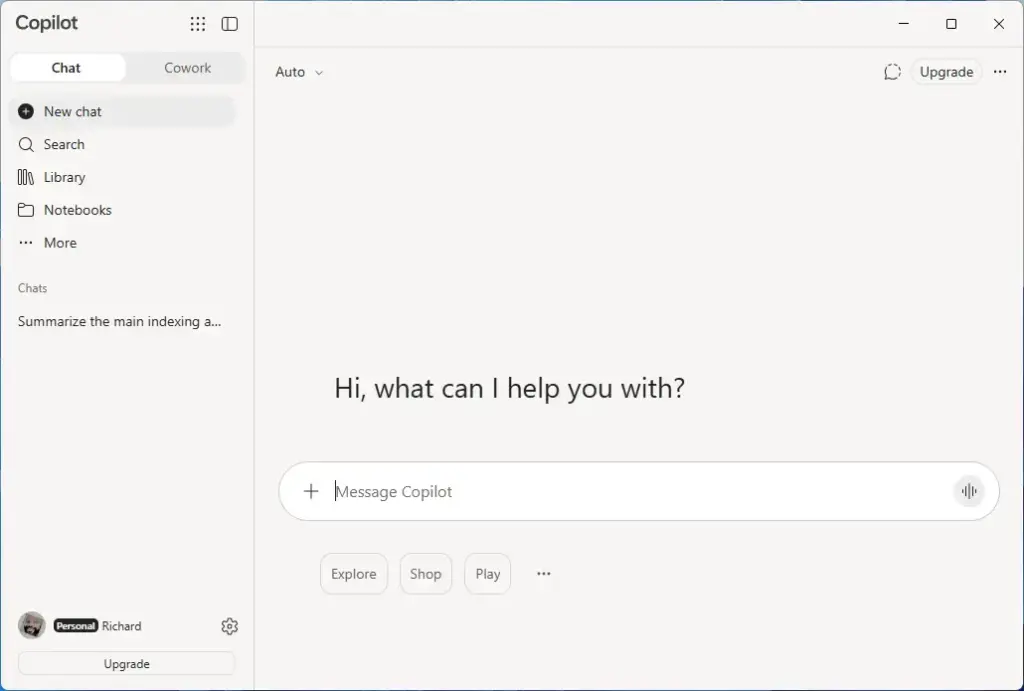
Copilot - Click or tap the Start a temporary chat button in the top right corner.
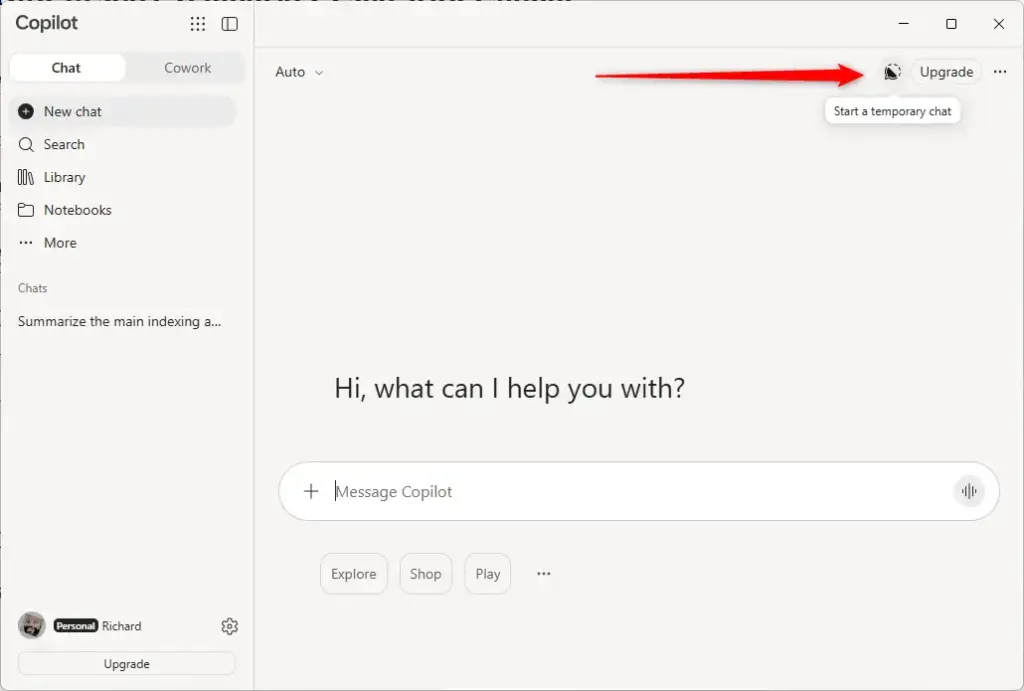
Copilot - Chat with Copilot as you normally would.
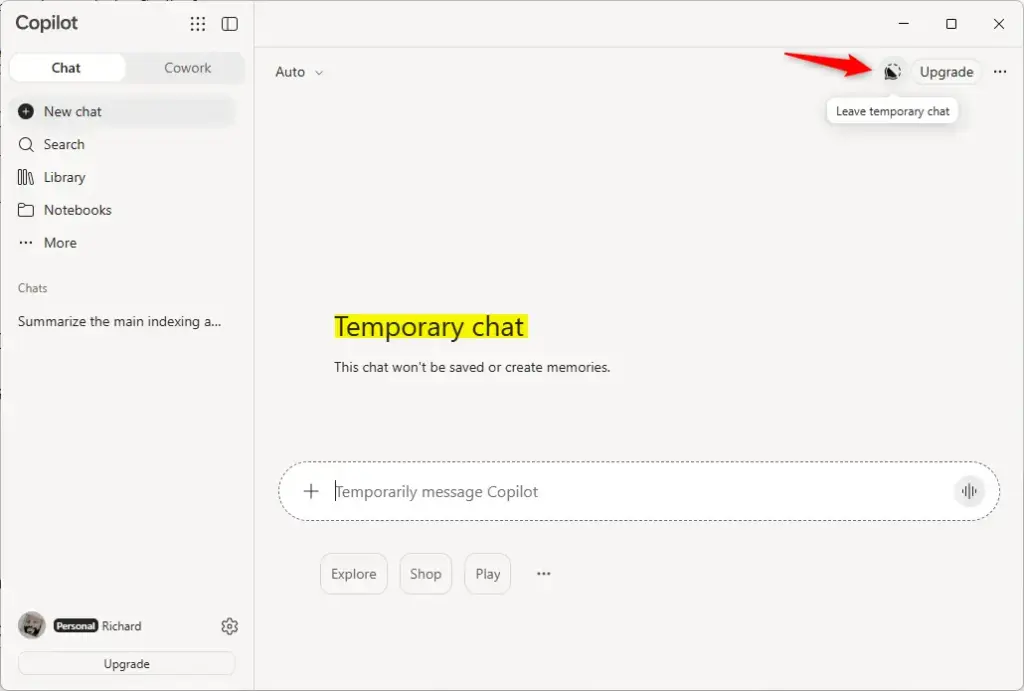
- To end the temporary chat, quit Copilot or click or tap the Leave temporary chat button in the top right corner.
Copilot
Option Two
Start Temporary Chat with Copilot in 🪟 Windows 11 and Web
- Open Microsoft Edge.
- Click or tap the Copilot Chat icon on the toolbar.
Copilot - Start a new chat.
- Click or tap the Settings and more (3 dots) button, then click or tap Start a temporary chat.
- Chat with Copilot as you normally would.
- To end the temporary chat, close Microsoft Edge or click or tap the Leave temporary chat button.
What to do next
Leaving a temporary chat deletes it for good, so save anything you need before you leave. Want Copilot to remember this later? Start a regular chat, which uses your history and memory. To return to chats that use your history and memory, start a new regular chat.
Frequently asked questions
How do I start a new chat on Microsoft Teams?
To start a new chat in Microsoft Teams, open the Chat icon on the left side of the window. Then select the New chat icon at the top of the chat list, which looks like a pencil on a square. Add the people you want to message in the To box, type your message, and press Enter.
What can Copilot Chat do?
Copilot Chat answers questions and explains topics in plain language. It can summarize long documents or web pages, draft emails and letters, brainstorm ideas, and help plan trips or meals. It can also create images, check your writing, and help with code. Answers can be wrong, so check anything important.
Does Outlook email have a chat feature?
Outlook does not have its own instant messaging feature. Chat runs through Microsoft Teams, which works alongside Outlook. Outlook may show a Chat or Teams button in its left bar, depending on your account. If you do not see one, open the Microsoft Teams app and sign in with the same account.
How to download Copilot Chat conversation?
Copilot Chat does not offer a clear download option in every version, so save the chat as a PDF instead. Open the chat, press Ctrl+P, choose Save as PDF as the printer, and click Save. Temporary chats cannot be reopened after you leave, so save them before you close the chat.
Still have a question?
Answered by AI from this guide. Good questions may be added to this page — please don't include personal details.
Did this guide fix your problem?

About the Author
Richard
Tech Writer, IT Professional
Richard is a writer at Geek Rewind who turns complex IT tasks into clear, step-by-step guides. He draws on years of hands-on experience in system administration and enterprise IT operations, focusing on Windows, Linux and WordPress: the problems people actually run into, and the fixes that work. His server and WordPress guides come from systems he runs himself. Richard builds and maintains the platform behind Geek Rewind, from its Ubuntu servers and Nginx configuration to its custom WordPress plugins. Many new tutorials start with readers' questions, and he's always glad to answer them in the comments.
No comments yet — be the first to share your thoughts!