How to Enable or Disable Copilot Chat Saving in Windows 11


Controlling whether Windows 11 saves your Copilot chats keeps your AI history private across devices. This guide shows where the setting is and how to switch it on or off.
Open the Copilot app, click your profile picture at the top right, then select Settings Chat. Check or uncheck “Automatically save chats” to turn saving on or off. Your choice applies to new conversations straight away, with no restart needed. Past chats stay saved until you delete them yourself.
Why use this feature?
Copilot chat saving keeps a record of your AI conversations. Because the history is tied to your account, you can open past chats on any device you’re signed into. That helps if you want to pick up an earlier conversation or look up an answer Copilot gave you last week.
You change it inside the Copilot app, so you won’t find it in the Settings app.
What happens when you are done?
It does not remove what is already there. Past chats stay until you delete them yourself. In short, the setting decides whether your chat history is kept or discarded once you finish using the assistant.
Pressing Win+C opens the built-in chatbot. Recent updates let you resize and move the window like any desktop app. The icon is also pinned to the Taskbar, so you can launch Copilot from there if the shortcut does nothing on your PC. Which launch method works can depend on your Windows and Copilot app version.
How to change your chat saving settings
You change the chat history setting inside the Copilot app preferences. You don’t need to restart Windows afterwards, because this is an app setting and not a system change.
- First, open the Copilot app. The Copilot window should now be on your screen.
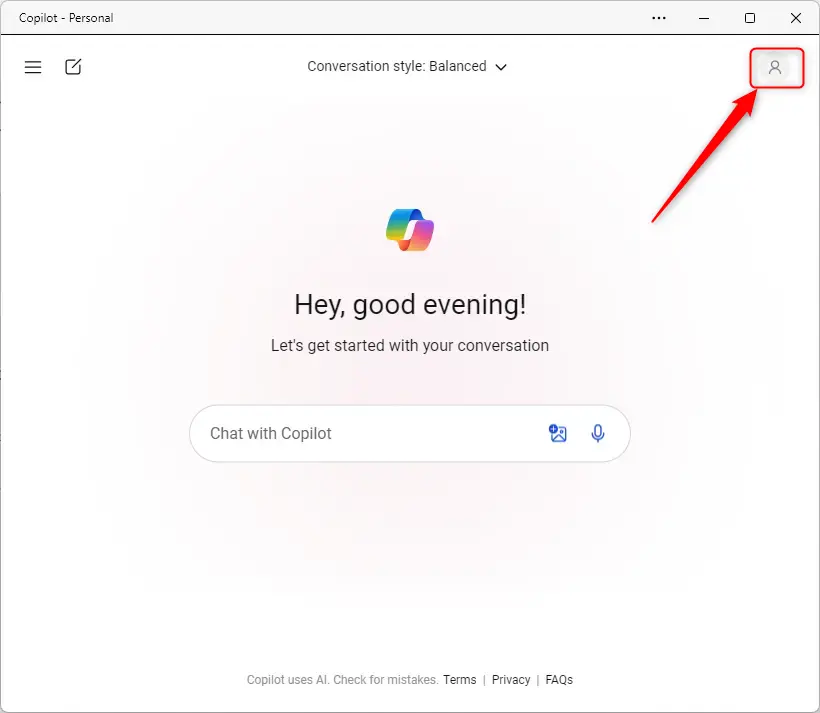
- Click your profile picture, or the Sign in icon if you aren’t signed in yet, at the top right corner of the Copilot window. A menu should open. If you only see Sign in, sign in first. Chat history is linked to your account, so the saving option may not appear without it.
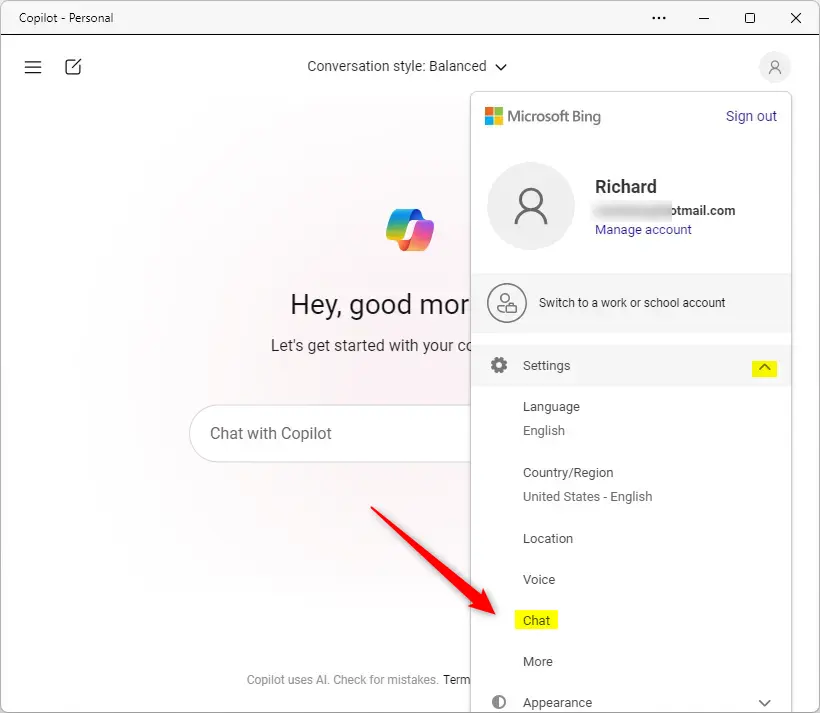
- Select Settings from the menu. The Copilot settings page should open.
- Click Chat. The chat options should now be shown.
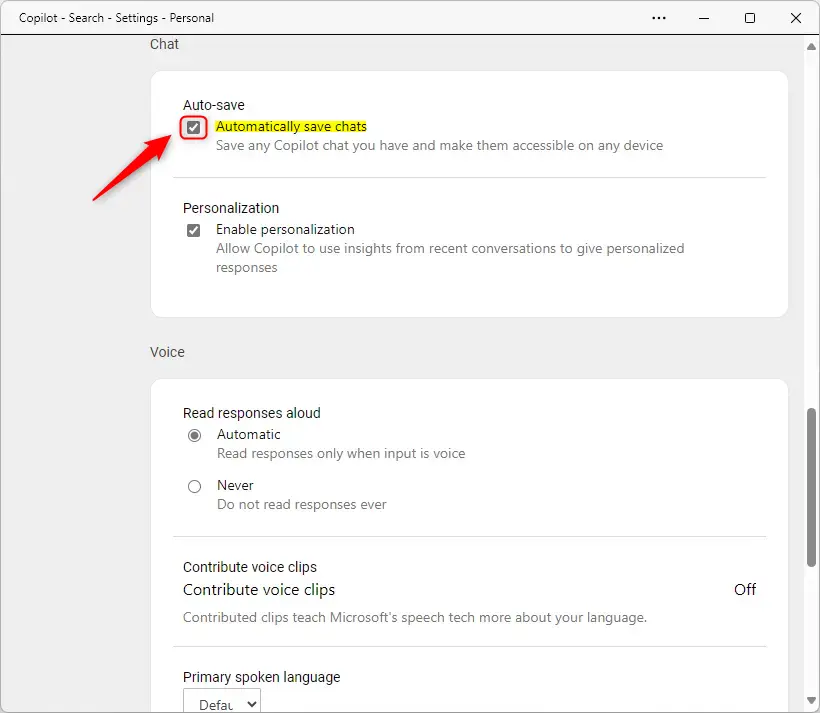
On the Chat settings page, look for the box labeled Automatically save chats. This one box controls whether your conversations are stored.
- To turn it on: Check the box. New conversations will be saved to your account.
- To turn it off: Uncheck the box. New conversations will no longer be saved.
To undo the change at any time, come back to this page and set the box the other way. If you don't see the box, the labels may be different in your version of the Copilot app. Check that the app is up to date through the Microsoft Store, and make sure you are signed in.
That completes the process. Your choice applies to new chats from now on. Remember that unchecking the box does not delete earlier conversations, so remove those separately if you want them gone.
Summary
By default, Copilot chat saving in Windows 11 lets you see past conversations on any device. Turning it off adds an extra layer of privacy, which is useful on a shared PC or if you simply don't want a history of your questions kept.
Have a question about this guide?
Answered by AI from this guide. Good questions may be added to this page — please don't include personal details.
Did this guide fix your problem?

About the Author
Richard
Tech Writer, IT Professional
Richard is a writer at Geek Rewind who turns complex IT tasks into clear, step-by-step guides. He draws on years of hands-on experience in system administration and enterprise IT operations, focusing on Windows, Linux and WordPress: the problems people actually run into, and the fixes that work. His server and WordPress guides come from systems he runs himself. Richard builds and maintains the platform behind Geek Rewind, from its Ubuntu servers and Nginx configuration to its custom WordPress plugins. Many new tutorials start with readers' questions, and he's always glad to answer them in the comments.
No comments yet — be the first to share your thoughts!