How to Clear Recent Activity in Windows 11 Copilot

Clearing recent activity in Windows 11 Copilot removes your past chats from the built-in AI assistant. Copilot normally keeps those conversations for up to 30 days. Copilot is an AI helper that answers questions and writes text. On many Windows 11 setups you open it with the Win+C shortcut or the Copilot icon on the taskbar .
Deleting this saved history stops anyone else who uses your PC from reading your old chats. It also keeps personal details you typed into a prompt out of sight. You can do it in a few clicks from the Copilot panel. This guide also covers deleting history from your Microsoft account online, for a more complete cleanup.
Access Copilot, click the “Recent activity” clock icon, select an item, and click “Delete”. For a full history removal, visit the Microsoft Privacy Dashboard and sign in to manage your activity history.
Why Clear Copilot Recent Activity?
Copilot keeps your prompts and its replies so you can pick up a conversation later. That is handy, but the history can hold names, addresses, work details or draft text you would rather not leave behind. Clearing it keeps your personal information private and removes clutter from your chat list. It matters most on a shared PC, or before you hand a device to someone else.
Personal vs. Enterprise Accounts
Before you start, check which kind of account you sign in to Copilot with. The steps depend on it. A Personal Microsoft Account is the free account you use for Outlook.com, Xbox or a home PC. An Enterprise (Work or School) Account is issued by an employer or school and is managed by an IT department.
To see which one you use:
- Open Settings Accounts Your info You should see the account name and email address you are signed in with.
- Open Settings Accounts Access work or school. If a work or school account is listed, your organization may control how Copilot stores and clears history.
You can be signed in to Windows with one account and to Copilot with another. Check the account shown inside the Copilot panel as well.
How to Clear Copilot Recent Activity
To clear Copilot recent activity in Windows 11, open the assistant from your taskbar and delete your past chats from the history list. Clearing recent activity keeps your conversations private and removes old prompts you no longer need. You open your chat history and delete unwanted threads one by one.
Copilot is updated often, so the layout and button names can differ slightly from the steps below. If you do not see a button described here, look for a similar icon or menu near the top of the panel. No restart is needed, and deleted chats cannot be restored, so check each one before you remove it.
- Open Windows Copilot by clicking its icon on the taskbar , or by pressing the Win+C on your keyboard. The Copilot panel should appear on screen. If the shortcut does nothing, use the taskbar icon instead, because the shortcut depends on your Windows and Copilot version.
- Look at the top right corner of the Copilot sidebar. Click the Recent activity button, which looks like a small clock. A list of your earlier conversations should open.
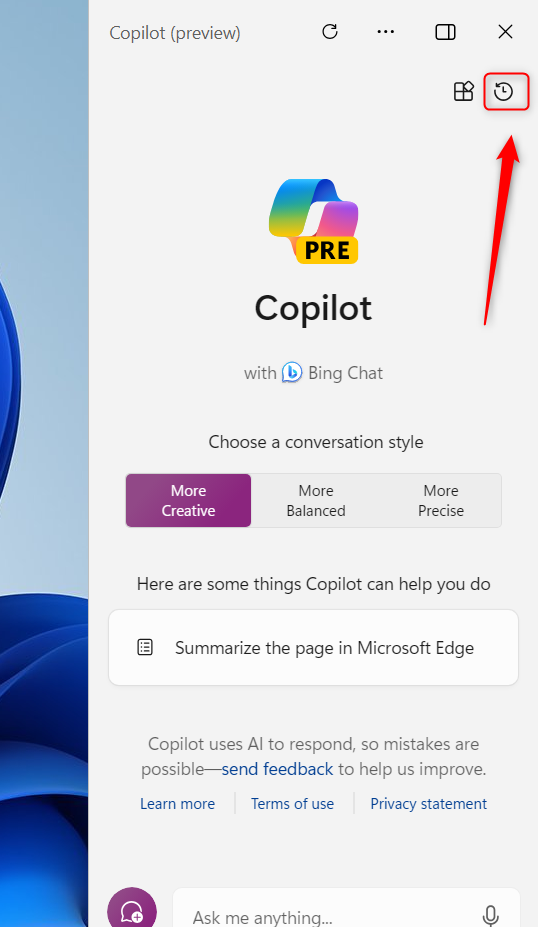
Copilot recent activity button in Windows 11 - Look through the list of your previous chats. Select the activity you want to remove. If the list is long, scroll down, because older chats appear further down.
- Click the Delete button to remove that item from your history. The chat should disappear from the list. If Copilot asks you to confirm, confirm the deletion.
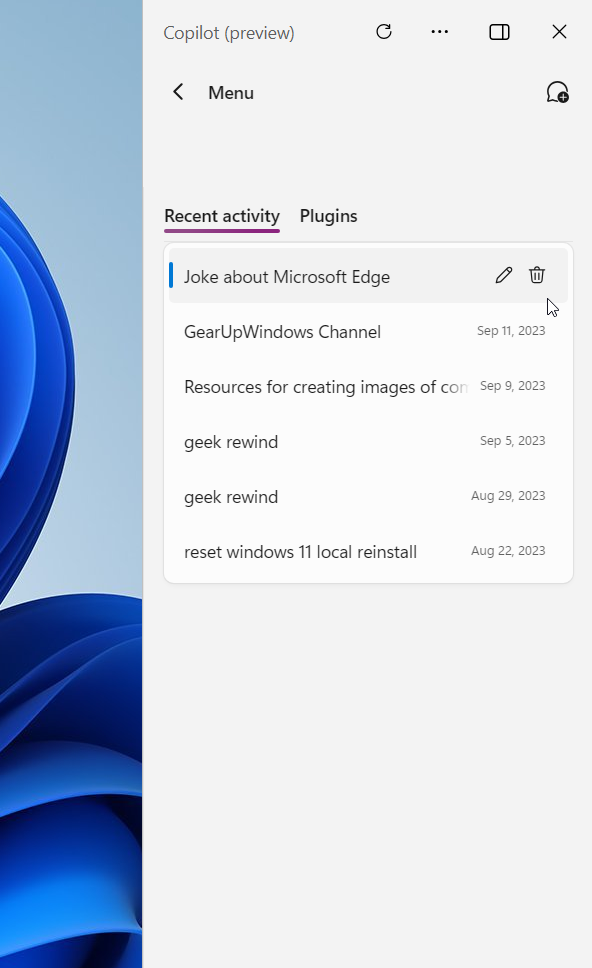
Copilot recent activity delete or edit
Managing GitHub Copilot Chat History
GitHub Copilot Chat is a different product from Windows Copilot. It runs inside developer tools such as VS Code, and its history is stored separately from your Windows Copilot chats. Clearing one does not clear the other.
- Open the chat history in your editor’s Copilot Chat view.
- Right-click the session you want to remove.
- Choose the delete option. The session should disappear from the list.
Menu wording can vary between versions of the extension, so look for the delete or remove entry if the label differs.
Using the Microsoft Privacy Dashboard
Deleting chats in the panel clears what you see on this PC. For a complete cleanup, use your Microsoft account online. This is the most effective way to make sure the data is wiped from Microsoft servers, and it covers your Copilot prompt history across all devices.
- Visit the Microsoft Privacy Dashboard in a web browser.
- Sign in with the same account you use for Copilot.
- Go to the Activity history section. You should see the activity stored for your account.
- Find the Copilot entries and delete or clear them, following the options shown on the page.
This route is for personal Microsoft accounts. Work and school accounts are usually managed by the organization, so you may not see the same options. The page layout can change, so look for the closest matching labels if something has moved.
Troubleshooting Enterprise Restrictions
If you can't find the option to clear Copilot recent activity, it's likely due to Enterprise restrictions managed by your IT department. Organizations can limit or control how Copilot history is kept and who can delete it. In that case, the delete button may be missing or greyed out, and you will need to ask your IT administrator.
If you use a personal account and still don't see the option, work through these checks:
- Make sure you are signed in to Copilot. Some history features are hidden when you are signed out.
- Check that the account in the Copilot panel is the one you expect, as described in the account section above.
- Update Windows and the Copilot app, because the buttons and menus change between versions.
- Try the online Activity history page, which works even if the panel has no delete button.
Summary
Managing your Copilot history helps keep your digital life private, whether you use a personal or work account. Clear chats in the panel for a quick tidy-up, and use your Microsoft account's activity history page when you want a full cleanup. It is worth repeating now and then, since new chats are saved as you use Copilot.
Have a question about this guide?
Answered by AI from this guide. Good questions may be added to this page — please don't include personal details.
Did this guide fix your problem?

About the Author
Richard
Tech Writer, IT Professional
Richard is a writer at Geek Rewind who turns complex IT tasks into clear, step-by-step guides. He draws on years of hands-on experience in system administration and enterprise IT operations, focusing on Windows, Linux and WordPress: the problems people actually run into, and the fixes that work. His server and WordPress guides come from systems he runs himself. Richard builds and maintains the platform behind Geek Rewind, from its Ubuntu servers and Nginx configuration to its custom WordPress plugins. Many new tutorials start with readers' questions, and he's always glad to answer them in the comments.
[…] Windows starts, Pin or Unpin the Copilot side panel, Resize the Copilot side panel, delete chat history in Copilot, create a desktop shortcut, hide the sidebar, use your phone with Copilot, enable […]