How to Unlink Devices from Your Microsoft Account

Unlinking a device from your Microsoft account removes its connection to your profile and stops it from using services like the Microsoft Store. Your Microsoft account lets you link up to 10 devices at the same time, so clearing out old hardware keeps your device list accurate.
Cleaning up this list matters when you sell, trade, or give away an old PC, laptop, or tablet. Removing old hardware also frees up a spot when you buy a new device. The job takes a few minutes. The order matters, though, so read the notes before each step and don’t skip the local sign-out.
To unlink a Microsoft account device, first sign out of your Microsoft account in Windows Settings on that computer, then sign in to the Microsoft account devices page in a browser, find the device by name, and select Remove. The device stops receiving Microsoft Store licences, but your files stay where they are.
Why Unlink Microsoft Account Devices?
You might need to unlink a device if you hit the 10-device limit for app downloads or want to improve your account security. Unlinking frees up a spot for new hardware and ensures only current gadgets connect to Microsoft data.
It is also worth doing when a device has been lost or stolen, or when it is simply gone from your life and you don’t want it listed on your account. A short, accurate list makes it easier to spot a device you don’t recognize.
What Happens When You Unlink a Device?
Unlinking a device from a Microsoft account causes it to lose app store licenses, though a factory reset does not happen automatically. The device continues to function, though the account no longer ties to it for app updates, allowing a new owner to use it.
In practice, that means the PC still boots and runs. Apps you got through your account may stop updating or working there. Your files stay exactly where they are. If you change your mind, signing in to the device with the same Microsoft account links it again.
Before You Begin: Back Up Your Data
Back up your important files to an external drive or cloud storage before you unlink your device. Removing a device from an account leaves personal data intact, so backups protect information when selling or donating hardware.
Then open the backup on another computer and check that the files really are there. Do this before you reset or hand over the device, because a reset cannot be undone.
Removing vs. Signing Out
Signing out of Windows removes an account from the current session. Removing a device from the Microsoft account security dashboard is a different action. It deletes the device's record from Microsoft's servers. Always sign out of the account in Windows Settings before you remove the device from the online portal.
The two actions are independent. If you only do the online removal, the account is still signed in on the computer. If you only sign out locally, the device still shows in your list online. You need both.
How to Unlink Microsoft Account Devices
- Visit the Microsoft Store device management page.
- Sign in with your credentials.
- Locate the device you wish to remove.
- Click Unlink.
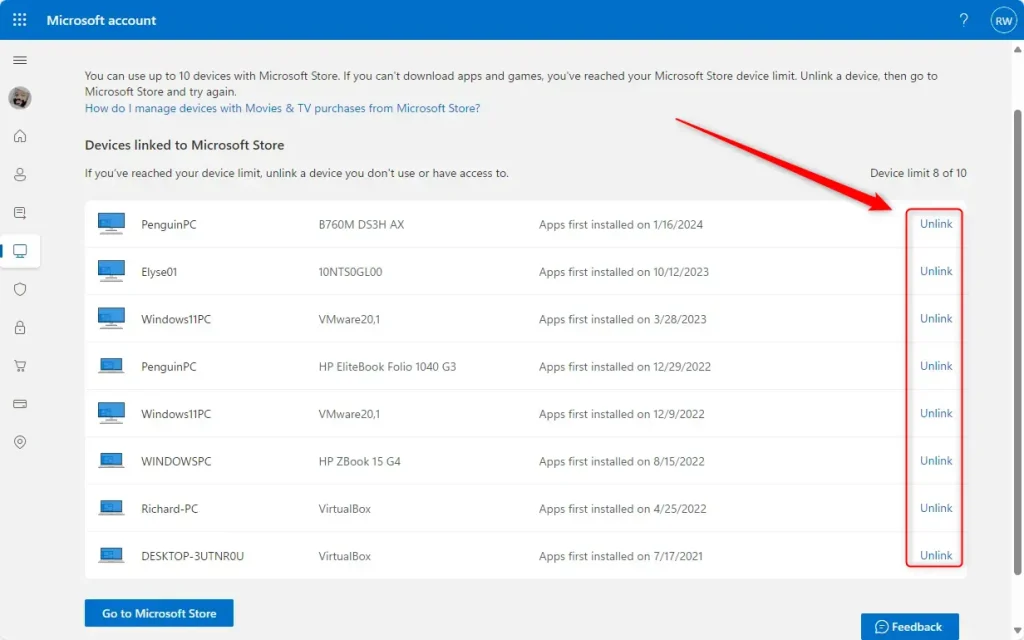
- Confirm the action by clicking Unlink again.
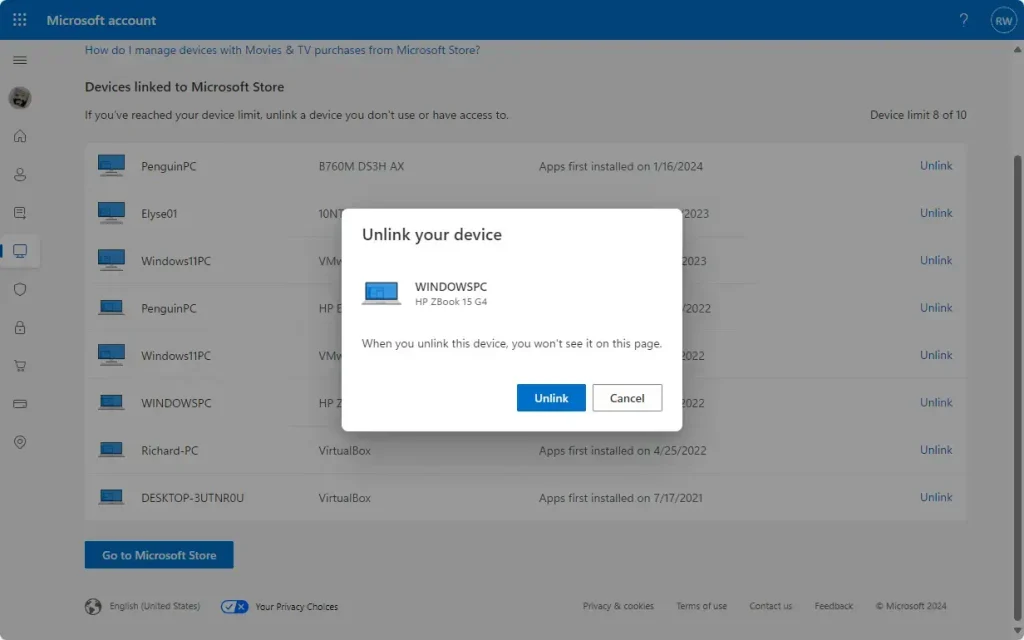
To unlink Microsoft account devices you no longer use or own, visit the Microsoft management portal and remove them from your list. Work through the steps below.
- Open the Microsoft account devices page in a web browser, on any computer or phone.
- Sign in with the Microsoft account that the device is linked to. You should see a list of the devices on your account.
- Find the device you want to get rid of. Check the device name, and the model if it is shown, so you don't pick the wrong one.
- Click the remove option for that device and confirm when asked. After the page refreshes, the device should no longer be in the list.
If the device does not disappear right away, reload the page after a minute or two. If you remove the wrong device by mistake, signing in to it again with your account adds it back.
Security Implications: Selling or Losing Devices
Selling or losing a device means you should think about security before you unlink the account. Features like Remote Lock or Find My Device can help if the device is lost or stolen. To check that Find My Device is on for a PC you still have, go to Settings Privacy & security Find my device
Unlinking alone does not protect your data if someone has your password or can get into the device. So the account has to come off the device first. Sign out or remove the account in Windows, then unlink it online. For a PC you are giving away, also reset it, as covered below.
Troubleshooting Device Removal
If you run into an error, try these steps. Work through them in order, and check the device list again after each one.
- Clear your browser cache and cookies.
- Use a different web browser.
- Check the Microsoft support page for service outages.
- Ensure you are not trying to remove the device you are currently using.
Summary
Unlinking devices helps you stay within the 10-device limit and keeps your account secure. Back up your data and sign out of the account locally before you remove hardware from the Microsoft dashboard. This keeps your personal information private when you sell a computer or lose one.
Does removing a device from my account factory reset it?
Removing a device from a Microsoft account does not factory reset it. The action only disconnects it from app store licenses. To erase all personal data and prepare the hardware for a new owner, you need to run a full factory reset through Windows Settings. On Windows 11, go to Settings System Recovery and use the Reset this PC option, then choose to remove everything. Back up first, because the reset deletes your files, apps and settings.
Does removing a device from my account factory reset it?
No, removing a device from a Microsoft account does not factory reset it. The process only severs the link between the account and the device regarding app store licenses. Erasing personal data requires performing a full factory reset through the Windows Settings menu before handing hardware to someone else.
Can the new owner of my laptop access my Microsoft account after I remove it?
If you only unlink the device online, the new owner may still be able to use your Microsoft account on it. To prevent that, also remove the user account directly in Windows Settings, or reset the PC.
To check which accounts are on the machine, open Settings Accounts. Remove your account there and confirm that it no longer appears. A reset is the safest option when the laptop is leaving your hands.
Can the new owner of my laptop access my Microsoft account after I remove it?
Removing a device from the online dashboard does not automatically sign users out of local Windows user profiles. Preventing unauthorized access demands manually removing user accounts from Windows settings or performing a factory reset. Always verify that accounts are fully removed from devices before transferring ownership.

No comments yet — be the first to share your thoughts!