Move Microsoft Store Apps to Another Drive in Windows 11

Moving Microsoft Store apps to another drive in Windows 11 frees up space on your C: drive without uninstalling your games or losing saved data. Windows does the transfer for you. It works for apps and games downloaded from the Microsoft Store, and the target can be a second internal drive or an external SSD.
The short version: open Settings, go to Apps, open the installed apps list, and pick the app to move. Freeing space on C: keeps the PC responsive and stops low-disk warnings while you play games or run heavy programs. Below you’ll find which apps qualify, the exact steps, and the limits to know about before you start.
To move Microsoft Store apps to another drive in Windows 11, open Settings , click Apps, then Apps & features, find the app you want to move, click the three dots next to it, select Move, choose the destination drive from the dropdown, and click Move. The app must be from the Microsoft Store; traditional desktop programs cannot be moved this way.
What kinds of apps can you move?
The built-in move feature only works for Microsoft Store apps. These are the games and utilities you download from the Store app that comes with Windows 11. Traditional desktop programs that use their own installers, such as Google Chrome or Spotify, cannot be moved from Settings. To put one of those on another drive, you have to uninstall it and reinstall it, choosing the new location if the installer offers that option.
- Microsoft Store apps: Apps you get from the Microsoft Store (like games, utilities, or other programs). These can be moved to another drive.
- Standalone apps: Programs you install using their own installers (like Google Chrome or Spotify). These usually cannot be moved this way.
Even among Store apps, not every title offers a move option. Some apps are tied to the system, and some games are set up by their publisher in a way that blocks it. If an app has no Move option, that is the usual reason.
Where are Microsoft Store apps stored?
By default, Store apps are saved on your Windows (C:) drive inside special system folders like WindowsApps and Packages. You can move them to another drive, internal or external (a USB drive or SD card, for example), as long as it is formatted with NTFS.
Windows manages them, and moving files around manually can break the app. Use the Settings method below instead.
How to move Microsoft Store apps to another drive in 🪟 Windows 11
You can move a Store app to a different drive from the Windows 11 Settings app, with no uninstall needed. The steps are the same on Windows 11 Home and Pro. Before you start, make sure the destination drive is connected and formatted as NTFS. Also close the app you plan to move.
- Open Settings. Click the Start button (the Windows icon on the taskbar), then click Settings. You can also press Windows key + I. The Settings window opens with a list of categories on the left.
- Click Apps in the left menu. The Apps page opens on the right.
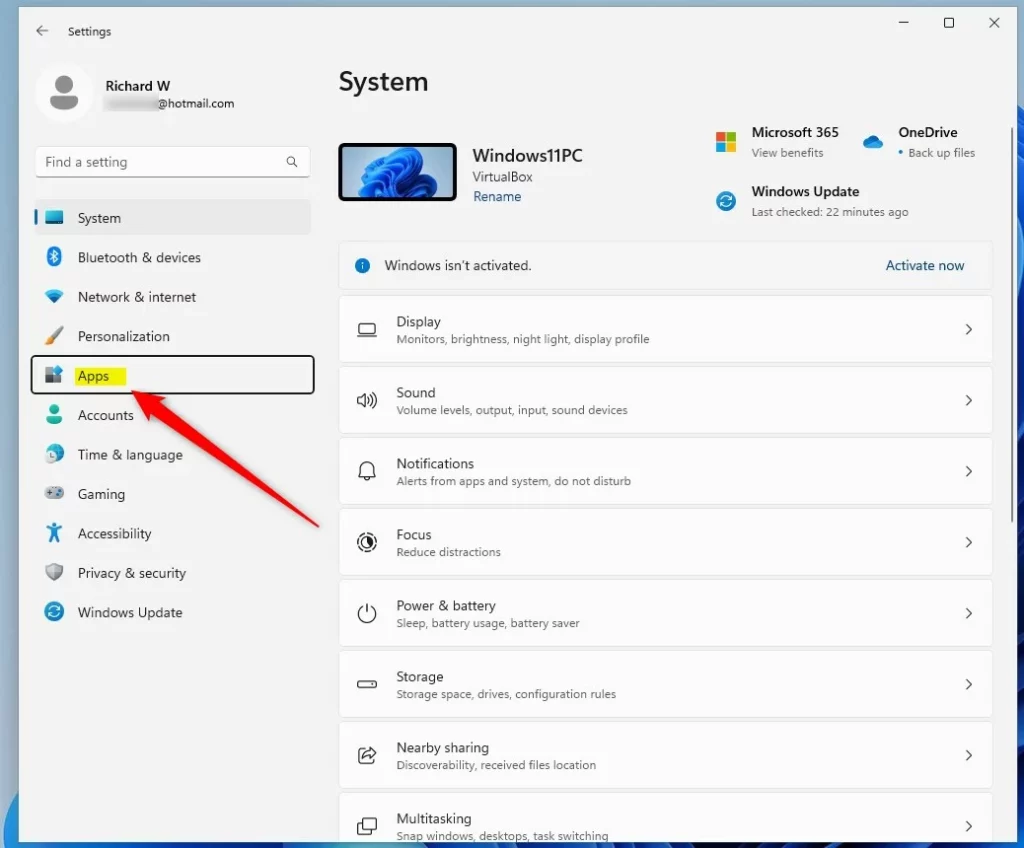
windows 11 settings apps on menu - Click the Apps & features tile on the right. On newer Windows 11 builds this page may be named Installed apps. It is the same list of everything on the PC.
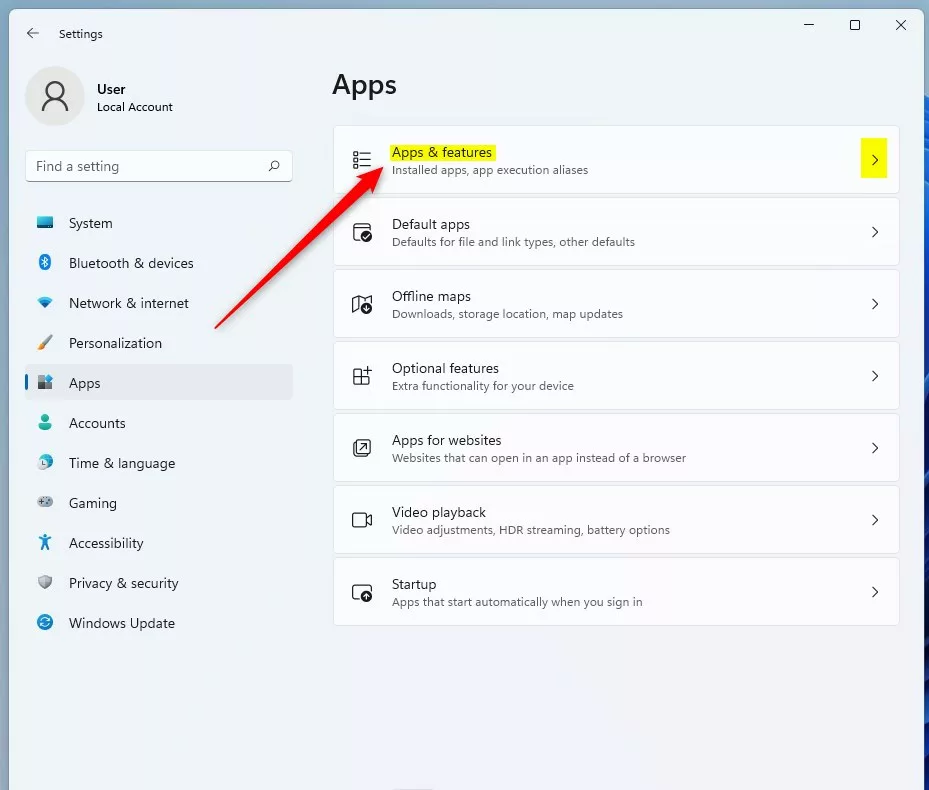
windows 11 apps and features tile - Find the app you want to move. Scroll the list, or type the app name in the search box at the top of the list.
- Click the three dots (⋮) next to the app, then select Move. If you only see Modify or Uninstall, the app can't be moved. That is normal for standalone programs and for some Store apps.
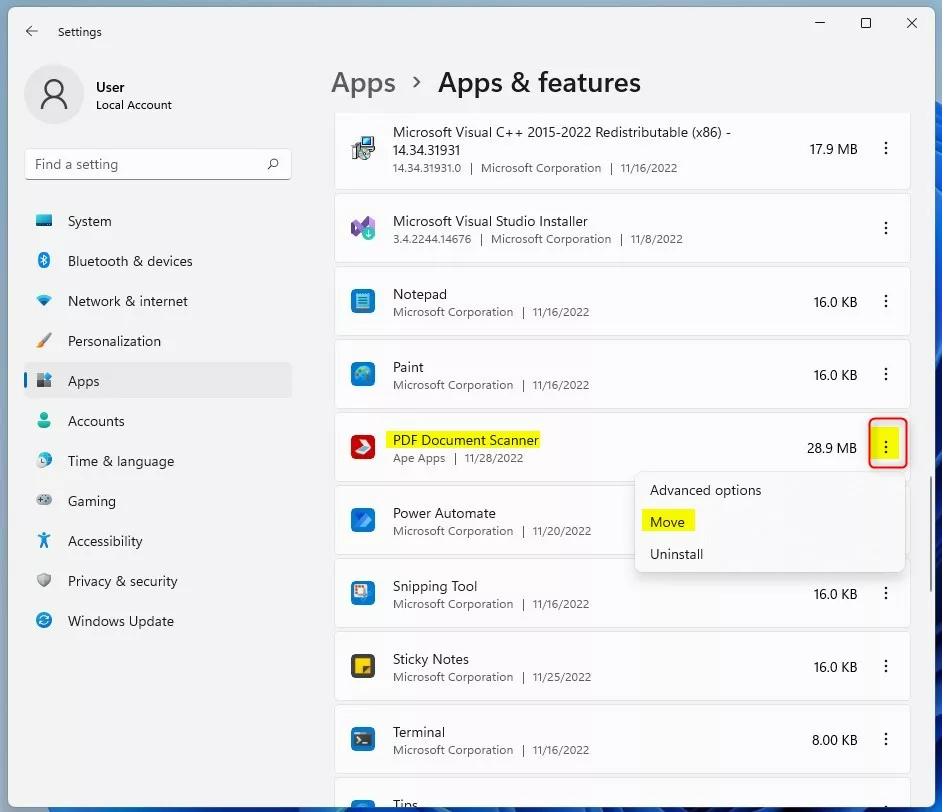
windows 11 app move command to another drive - Choose the new drive. A small window opens and tells you the app is currently on your C: drive. Click the drop-down menu, pick the destination drive, then click Move. If your drive isn't listed, check that it's connected and formatted as NTFS.
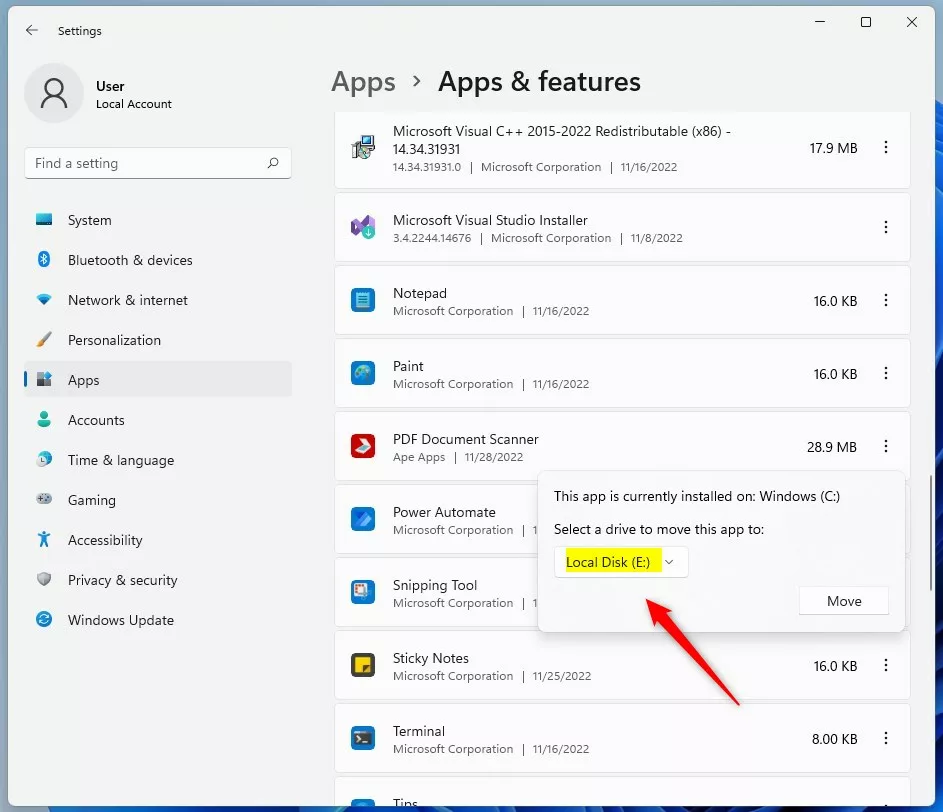
windows 11 app move command to another drive select location - Wait for the move to finish. Windows creates two folders named
WindowsAppsandWpSystemon the new drive to hold the app files. Large games can take several minutes, so leave the window alone until the Move button is available again. No restart is needed.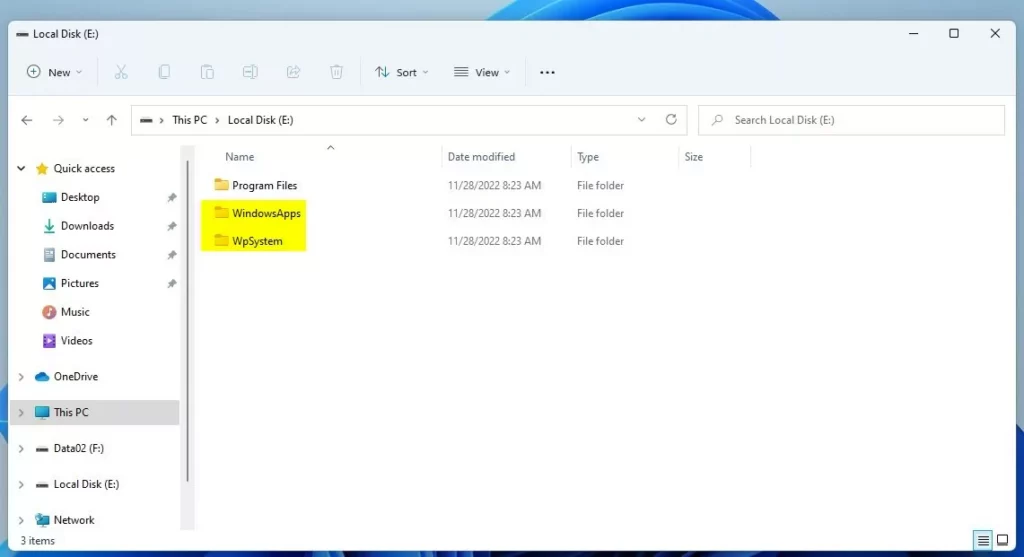
windows 11 store app moved to another drive
That's it! Your app now runs from the new drive, freeing up space on your main drive.
To undo the move, repeat the same steps and choose the C: drive as the destination. Launch the app once afterward to confirm it opens and your saved data is still there.
Why move apps to another drive?
- Free up space on your main system drive (C:), which helps your PC run better.
- Use a larger or faster drive for apps. Big games are the best candidates, since they take the most space.
- You can move apps to internal or external drives formatted with NTFS.
Additional tips:
- You can only move apps installed from the Microsoft Store this way.
- External drives like USB sticks or SD cards must be NTFS (not FAT32 or exFAT) to move apps.
- If you remove the drive with the moved app, the app will not work until you reconnect it.
External drives must stay plugged in for the moved programs to work. If you disconnect the drive, the apps on it stop working until you plug it back in. For that reason, an external drive is best for apps you use occasionally, and a permanent internal drive suits the ones you rely on every day.
Have a question about this guide?
Answered by AI from this guide. Good questions may be added to this page — please don't include personal details.
Did this guide fix your problem?

About the Author
Richard
Tech Writer, IT Professional
Richard is a writer at Geek Rewind who turns complex IT tasks into clear, step-by-step guides. He draws on years of hands-on experience in system administration and enterprise IT operations, focusing on Windows, Linux and WordPress: the problems people actually run into, and the fixes that work. His server and WordPress guides come from systems he runs himself. Richard builds and maintains the platform behind Geek Rewind, from its Ubuntu servers and Nginx configuration to its custom WordPress plugins. Many new tutorials start with readers' questions, and he's always glad to answer them in the comments.
No comments yet — be the first to share your thoughts!