How to Disable App Installations on Non-System Drives in Windows 11

Prevent apps from installing or moving to non-system drives in Windows 11 to keep your main storage clean.
Prevent app installations on non-system drives by enabling the “Disable installing Windows apps on non-system volumes” setting in Group Policy Editor or by setting the RestrictAppToSystemVolume DWORD to 1 in the Registry Editor. These actions restrict app installations to your system drive.
Why Control Where Apps Install?
You can control where apps install on Windows 11 so your main drive doesn’t fill up. Apps from the Microsoft Store install on your C: drive by default. Windows also lets you pick another drive for new apps, or move an installed app to a different drive. That helps with storage, but on shared or managed PCs you may want to stop it.
You can block it with either Group Policy or the Registry Editor. Group Policy is easier to read and undo, but it is only in Windows 11 Pro, Enterprise and Education. On Windows 11 Home, use the Registry method.
One limit to know before you start: this policy only affects packaged apps, meaning Microsoft Store apps and other MSIX/AppX packages. Traditional Win32 installers (EXE or MSI files) can still install to other drives. To block those, use other controls such as AppLocker or NTFS permissions on the target folders or drives.
Method 1Disable Installing Apps Using Group Policy
The Local Group Policy Editor lets you block app installs on non-system drives for the whole PC. Once the policy is on, new packaged apps install only on the system drive. Follow these steps to open the editor and set the policy. You need an administrator account.
- Click Start, type “Edit group policy”, and open the result. The Local Group Policy Editor opens. If nothing shows up, you are probably on Windows 11 Home, which doesn’t include this editor. Use the Registry method below instead.
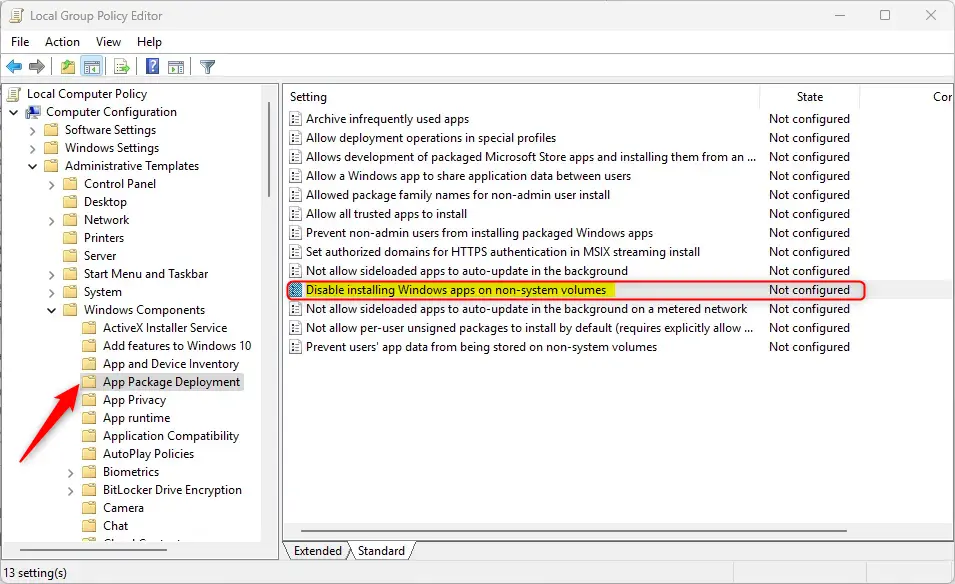
- In the left pane, go to Computer Configuration Administrative Templates Windows Components App Package Deployment
- In the right pane, find Disable installing Windows apps on non-system volumes and double-click it. A settings window opens.
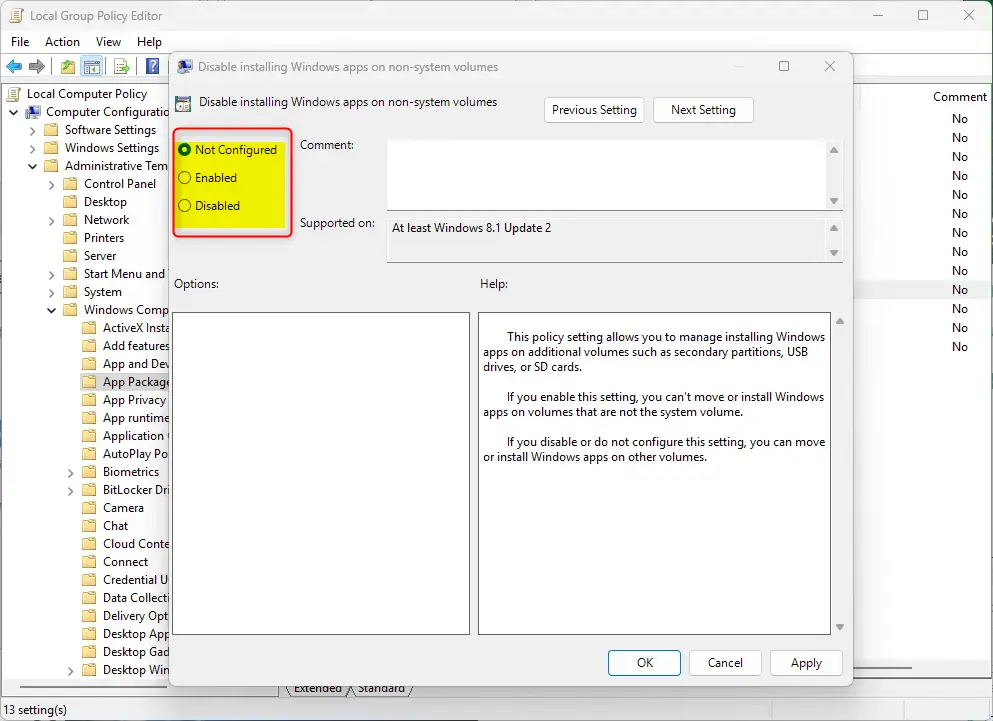
- Choose one of these three options:
- Not Configured (default) – Apps can be moved or installed on other drives.
- Enabled – Apps cannot be moved or installed on drives other than the system drive.
- Disabled – Apps can be moved or installed on other drives.
- To block installs on other drives, select Enabled, then click OK to save your changes. The window closes and the policy’s state in the list changes to Enabled.
To undo the change later, open the same policy and set it back to Not Configured. If the change doesn’t seem to take effect, restart the PC.
Method 2Disable Installing Apps Using Registry Editor
The Registry Editor is the other way to stop apps from installing on non-system drives. It works on every edition of Windows 11, including Home. It makes the same change as the Group Policy setting, but you create the value yourself, so work carefully.
Another way to prevent installing apps on non-system drives is to use the Windows Registry Editor.
A wrong edit in the registry can cause problems that are hard to trace.
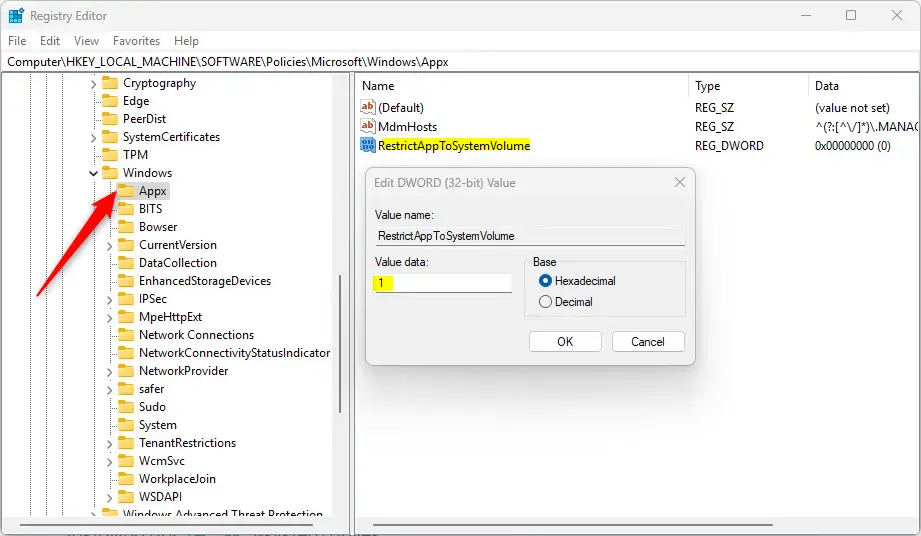
- Open the Windows Registry with administrator rights and navigate to this key:
Computer\HKEY_LOCAL_MACHINE\SOFTWARE\Policies\Microsoft\Windows\Appx - In the left pane, right-click the Appx key and select New, then DWORD (32-bit) Value. A new value appears in the right pane with its name ready to edit. If the Appx key doesn't exist, create it first by right-clicking its parent key and choosing New Key.
- Name the new DWORD
RestrictAppToSystemVolume. - Double-click
RestrictAppToSystemVolumeto open it. In the Value data box, type1to prevent installing apps on non-system drives, then click OK. The value now shows that number in the right pane.
What Happens When You Enable This Setting?
When you set RestrictAppToSystemVolume to 1, you prevent users from installing or moving apps to any drive except the system drive (usually C:).
This also affects the Settings app. Normally, users can go to Settings System Storage Advanced storage settings Where new content is saved and choose which drive new apps are saved to. With this policy in place, that option is blocked, so users can't point new apps at another drive from there.
Remember the scope: the restriction covers Store and MSIX packaged apps only. Standard EXE and MSI installers can still write to other drives. If you need to stop those too, use AppLocker to control which installers can run, or set NTFS permissions on the other drives or folders so standard users can't write to them.
How to Restore Default Behavior
To allow users to install apps on non-system drives again, delete the RestrictAppToSystemVolume value you created above. Right-click the value in the Registry Editor, select Delete, and confirm.
You may need to restart your computer for your changes to take effect.
Summary
To stop apps from installing on drives other than your main system drive in Windows 11, use either the Group Policy editor or the Registry Editor. Both methods keep new Store apps on the system drive. Remember that Win32 installers are not covered.
- Two App Types: Apps come from the Microsoft Store or from standalone installers. The policy only covers the Store (packaged) kind.
- Default Behavior: Apps install on the C: drive, but users can move them to other drives.
- Group Policy Method: Use the Local Group Policy Editor to disable installations on non-system drives. Set the option to Enabled. This needs Windows 11 Pro, Enterprise or Education.
- Registry Method: Modify the Windows Registry to restrict app installations to the system volume. Create a DWORD named
RestrictAppToSystemVolumeand set its value to1. - Settings Option Blocked: The Where new content is saved option under Settings System Storage Advanced storage settings is blocked while the policy is on.
- Other Controls: To block EXE and MSI installers on other drives, use AppLocker or NTFS permissions.
- Backup First: Always back up your registry or create a System Restore point before making changes.
- Reboot Required: You may need to restart your computer for changes to take effect.
Did this guide fix your problem?

About the Author
Richard
Tech Writer, IT Professional
Richard is a writer at Geek Rewind who turns complex IT tasks into clear, step-by-step guides. He draws on years of hands-on experience in system administration and enterprise IT operations, focusing on Windows, Linux and WordPress: the problems people actually run into, and the fixes that work. His server and WordPress guides come from systems he runs himself. Richard builds and maintains the platform behind Geek Rewind, from its Ubuntu servers and Nginx configuration to its custom WordPress plugins. Many new tutorials start with readers' questions, and he's always glad to answer them in the comments.
No comments yet — be the first to share your thoughts!