How to Check Your Drive’s Storage Space in Windows 11

Checking your drive’s storage space in Windows 11 shows you how much room is left on your hard drives and solid-state drives. Windows shows exact totals for drives of any size, including 1000 GB (1 TB) or larger, in File Explorer and in the Settings app.
Check your storage now and then. A drive that is nearly full slows down Windows, and updates may fail when there is no room to install them. If you spot large files or bloated apps early, you can clean them up before they cause trouble.
Open File Explorer with Win+E, click This PC, and look under Devices and drives to see free and total space for each drive with a usage bar. Or press Win+I, go to System Storage to see a detailed breakdown by category like Apps, Documents and Temporary files.
Option 1Check Storage Using File Explorer
File Explorer is the quickest method. It also works for external drives and USB sticks.
- Press Win+E to open File Explorer .
- Click This PC in the left pane. Under Devices and drives you will see each drive with a usage bar and a line such as “120 GB free of 476 GB”. The bar turns red when a drive is nearly full.
- Right-click the drive you want to check (usually C:) and select Properties. On Windows 11 you may need to click Show more options first, depending on your build.
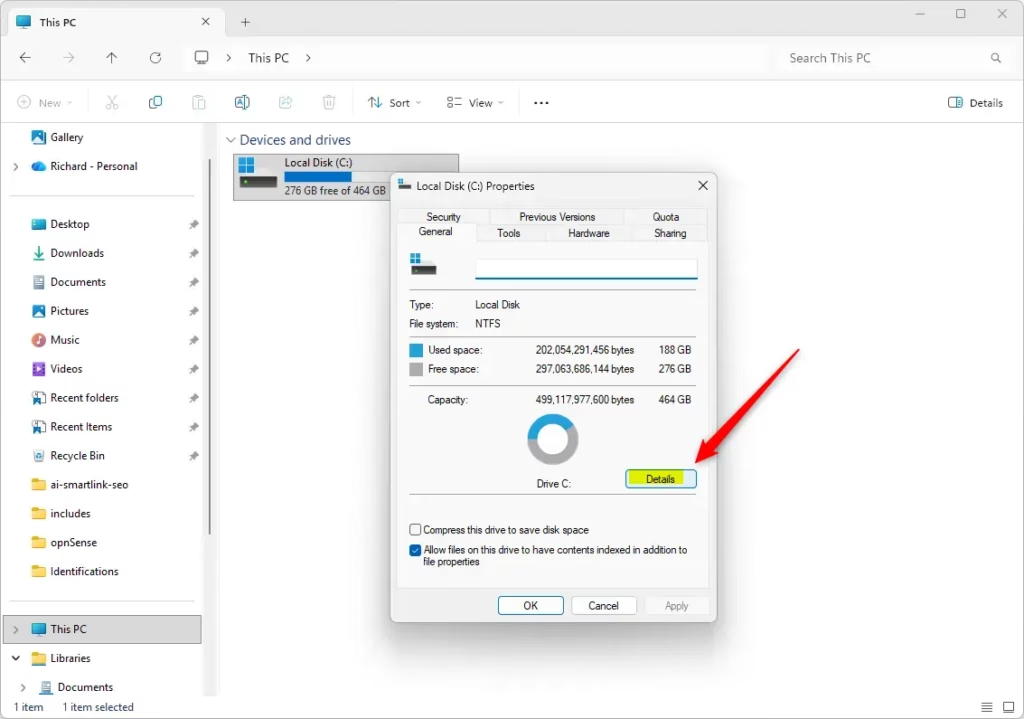
- On the General tab, read the Used space, Free space and Capacity figures. The pie chart shows the same split.
- Click Disk Cleanup if you want to remove temporary files, the Recycle Bin contents and similar items from that drive. Tick the categories you want to delete, then click OK.
- For a breakdown by category (Apps, Documents, Pictures and so on), use the Settings method below. The Properties window only shows the totals.
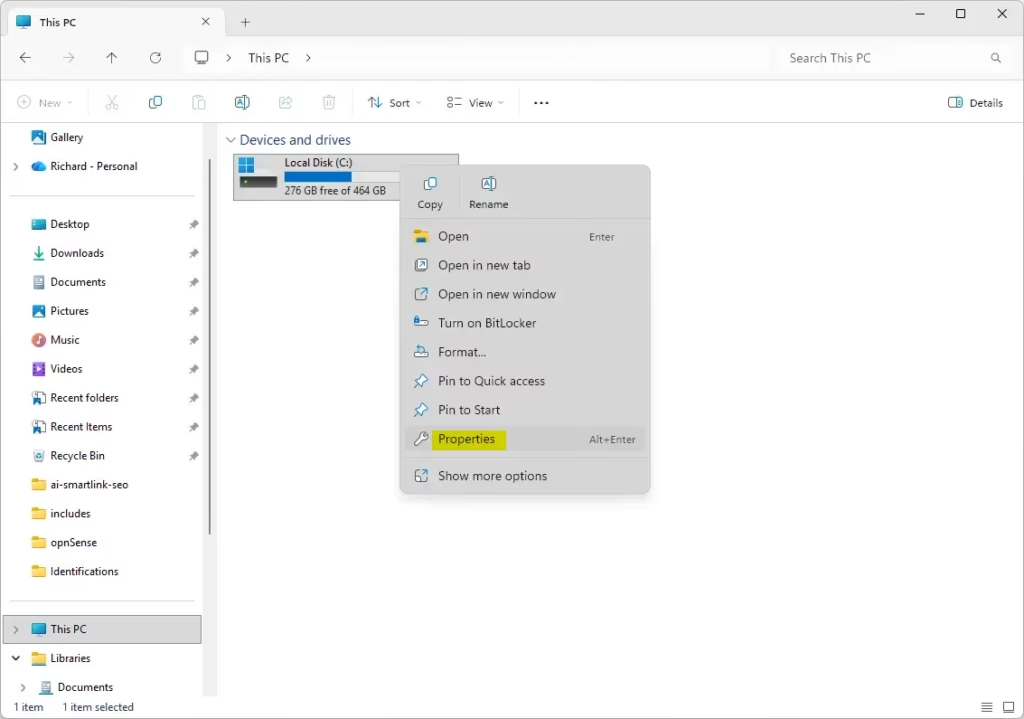
File Explorer lets you check storage in Windows 11 without opening the Settings app. You can see free space on your main drive or on external drives in a few clicks. If a drive is missing from This PC, it is probably not connected or has no drive letter assigned.
Option 2Check Storage in Windows Settings
The Settings app is the best place to see what is actually using your space.
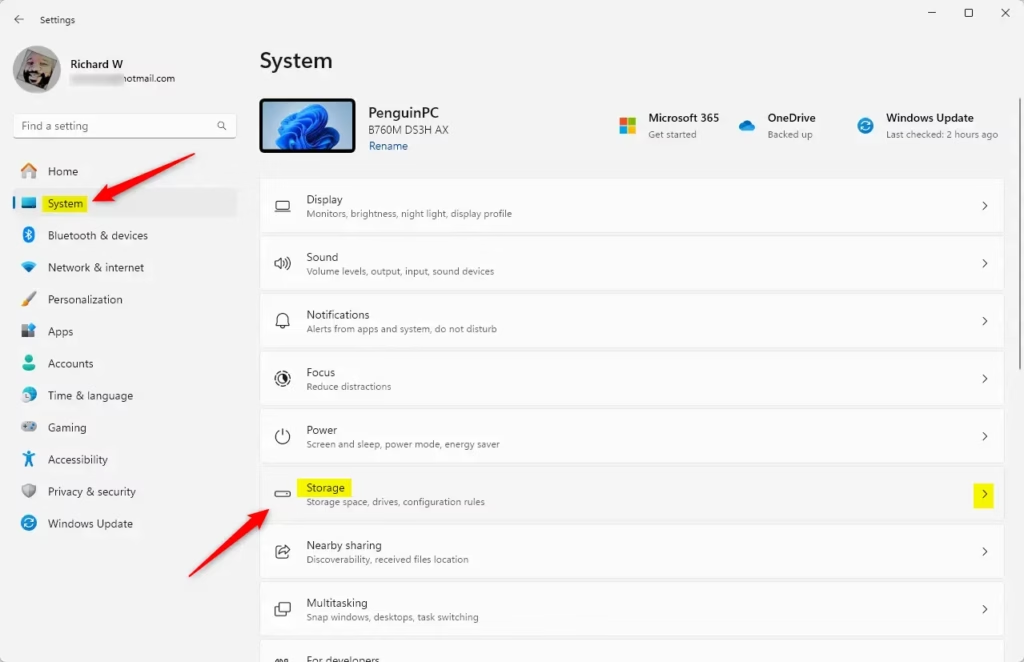
- Press Win+I to open Settings .
- Go to System Storage At the top you will see your system drive with the space used and the total size. Below it is a list of categories such as Apps & features, Temporary files and Documents. Click Show more categories if you do not see them all.
- ⚙️ Admin Required: Settings does not normally ask for permission just to view storage. If a User Account Control (UAC) box appears, click Yes to continue. On a work or school PC you may need an administrator’s password.
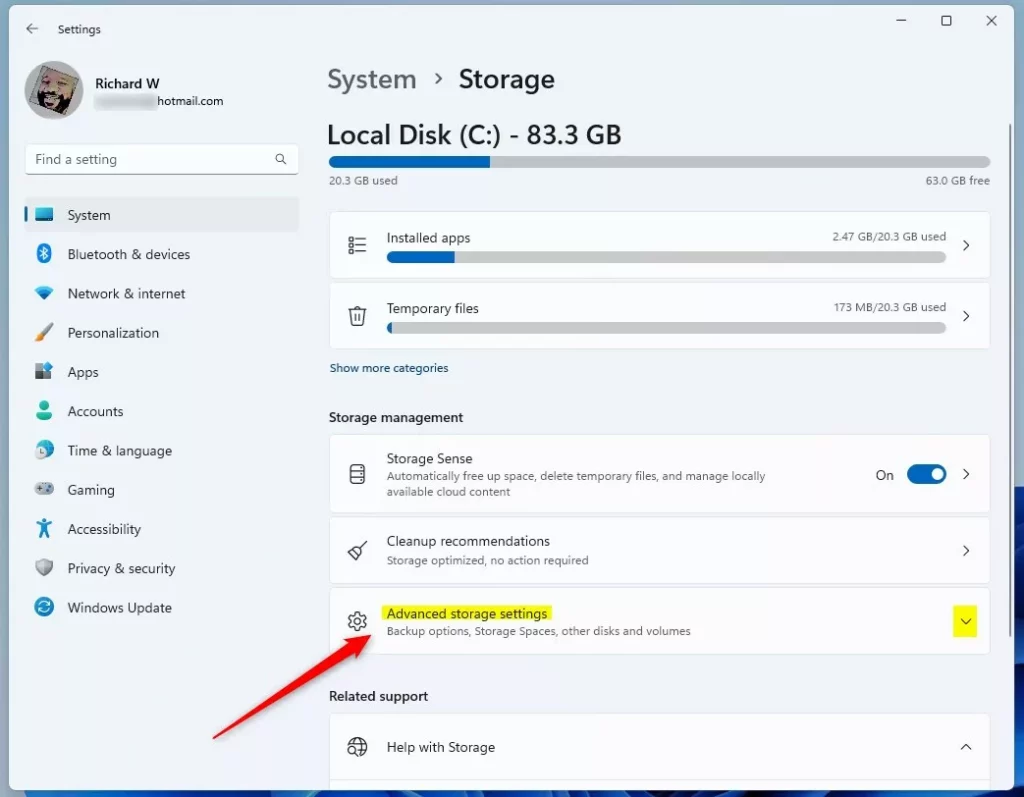
- Scroll down and click Advanced storage settings to expand it.
- Select Storage used on other drives. Windows lists your other internal and connected drives.
- Click the drive you want to check.
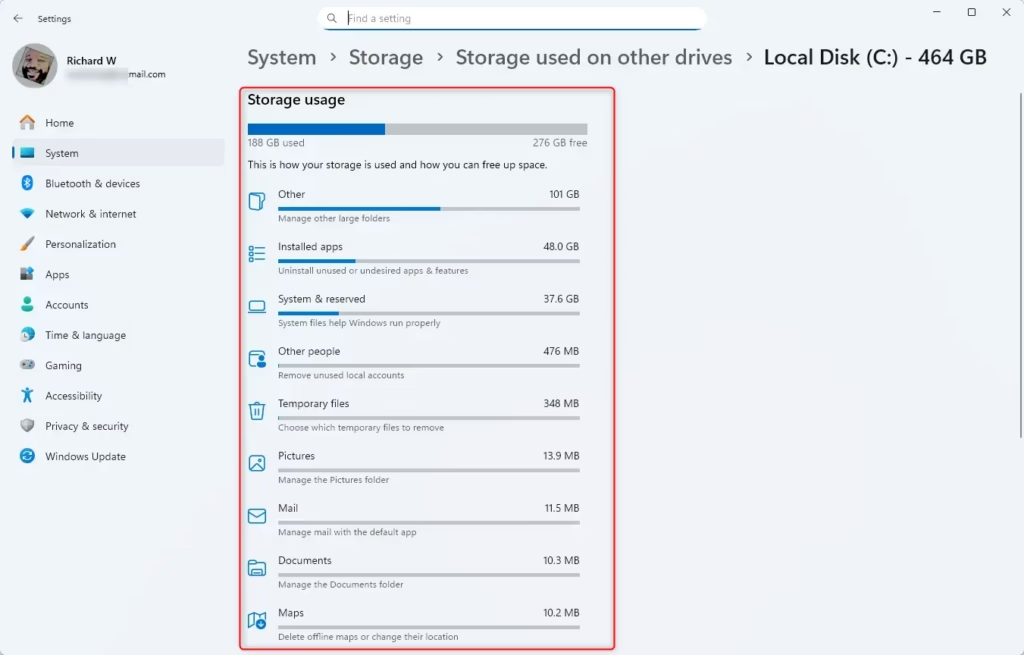
- Review the detailed view of what is using space on that drive. Click a category to see more detail and to remove files or apps you no longer need.
- You can also open Storage settings directly with this link: Open Storage Settings
You can turn it off again on the same page. Check what a category contains before you delete it. Deleted files may not be recoverable.
Windows Settings gives you a detailed breakdown, so you can see which files take up the most room on your drive. It sorts your disk space into categories like apps, temporary files and documents, which makes cleanup easier. No restart is needed after deleting files, though the figures may take a moment to refresh.
Option 3See Your System Drive Storage Quickly
The About page gives a very quick summary of your system drive.
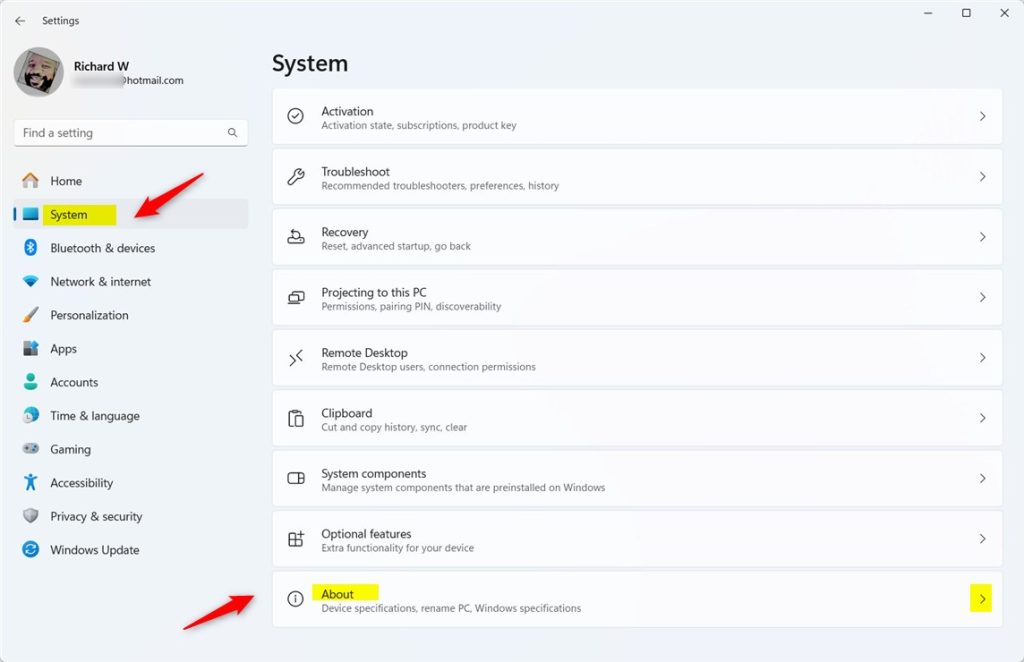
- Open Settings by pressing Windows key + I.
- Go to System About
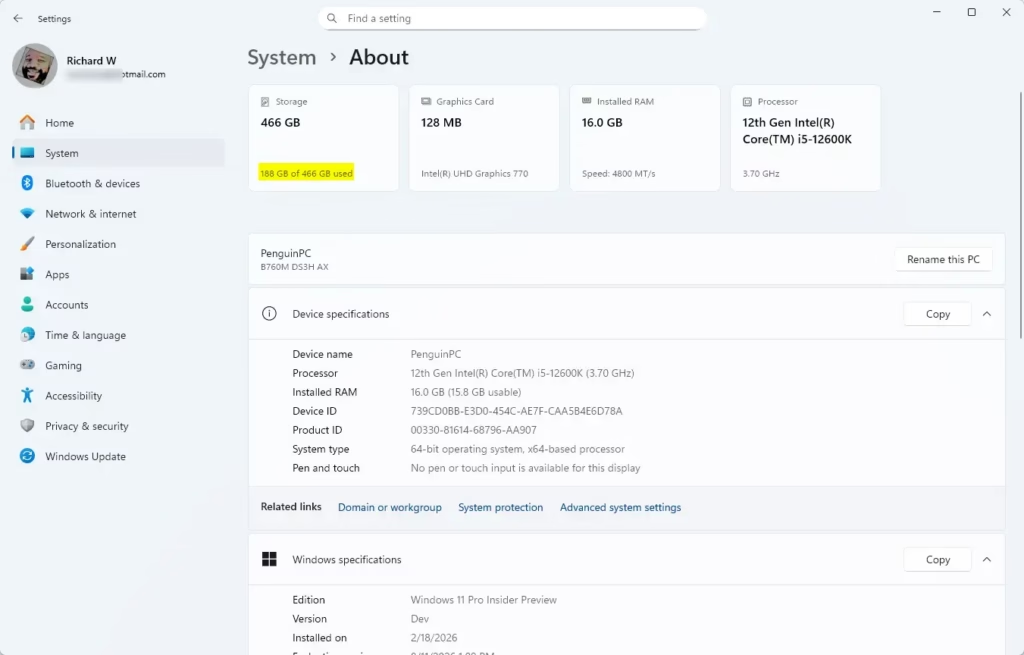
- Look at Device specifications near the top. On recent Windows 11 builds, the Storage line shows the total size and how much is used on your system drive (usually C:).
- If you don't see a Storage line, your build doesn't show it here. Use the Settings or File Explorer method above instead.
- Quick access: Open About Settings
Use File Explorer or the Storage page to check other drives.
Summary
Checking storage Windows 11 takes only a few seconds through either File Explorer or the main Settings app. Knowing how much free space you have left helps you catch full drives early and keeps your computer running fast.- Knowing how your storage is used helps you keep your PC clean and fast.
- Windows 11 makes it easy to check storage either from File Explorer or Settings.
- Regularly clearing out old files and apps frees up space and improves performance.
- Use the built-in tools to safely manage storage without extra software.
- Try these steps anytime you want to see what's taking up space and keep your computer running great!
Have a question about this guide?
Answered by AI from this guide. Good questions may be added to this page — please don't include personal details.
Did this guide fix your problem?

About the Author
Richard
Tech Writer, IT Professional
Richard is a writer at Geek Rewind who turns complex IT tasks into clear, step-by-step guides. He draws on years of hands-on experience in system administration and enterprise IT operations, focusing on Windows, Linux and WordPress: the problems people actually run into, and the fixes that work. His server and WordPress guides come from systems he runs himself. Richard builds and maintains the platform behind Geek Rewind, from its Ubuntu servers and Nginx configuration to its custom WordPress plugins. Many new tutorials start with readers' questions, and he's always glad to answer them in the comments.
No comments yet — be the first to share your thoughts!