How to Move User Folders in Windows 11 to Another Drive

Moving user folders in Windows 11 lets you shift your Documents, Pictures, and Videos from your main C: drive to a secondary drive to free up space. Windows stores these personal files in 📁C:\
Relocating these folders stops your primary drive from filling up. Windows automatically saves all new files to the new location once the move finishes. You don’t need to restart the PC, and you can undo the change later (the steps below show how).
Open File Explorer , right-click the folder you want to move, such as Videos, and select Show more options, then Properties. On the Location tab, click Move…, choose a folder on another permanent drive such as 📁E:\
How to move user folders in 🪟 Windows 11
You can move the common folders Documents, Downloads, Pictures, Music, Videos, and Desktop to a different drive. This frees up space on your primary C: drive. Only these personal folders have a Location tab. Other folders don’t, so you can’t use this method on them.
Before you start, check three things:
- The other drive is a permanent one, such as a second internal drive or a separate partition. Avoid USB sticks and external drives. If the drive isn’t connected, Windows can’t find your files.
- The other drive has enough free space for everything in the folder you are moving.
- If OneDrive backs up your Desktop, Documents, or Pictures folders, the path will start with 📁C:\
Users\ instead. Turn off that folder backup in OneDrive before you move the folder. Otherwise the two can conflict.YourUsername\ OneDrive
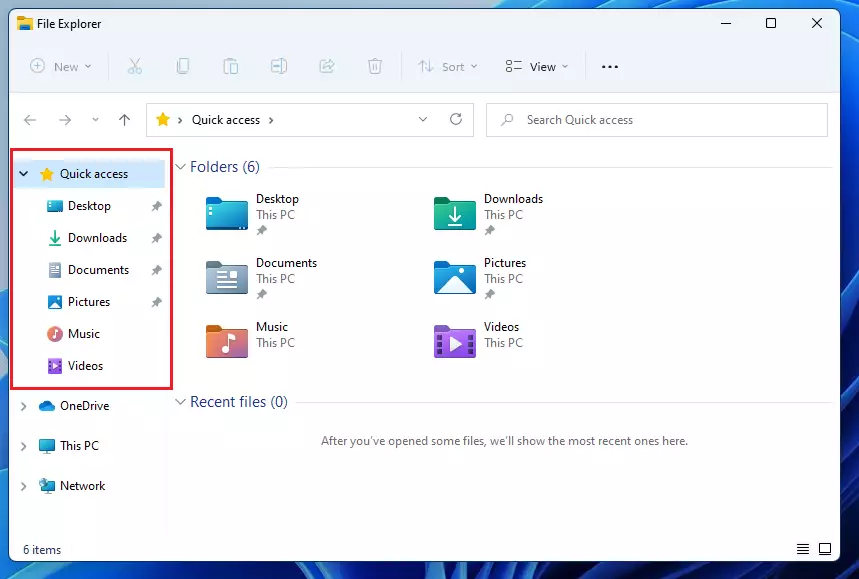
- Open File Explorer and look at the folders under “This PC” or “Quick Access.” You should see your personal folders listed, such as Documents, Pictures, and Videos.
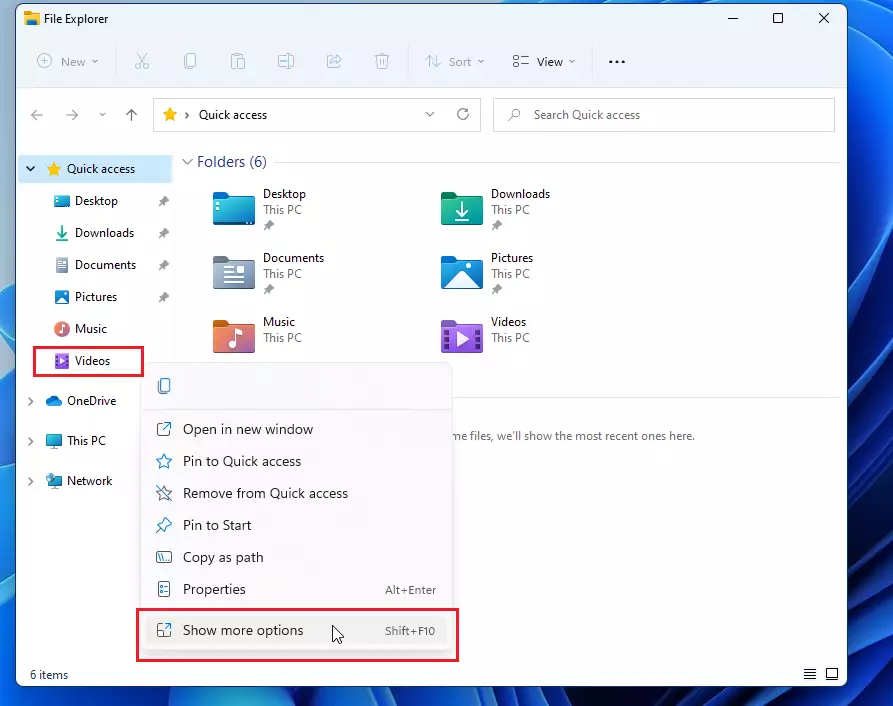
- Right-click the folder you want to move, like your Videos folder, and then select Show more options. The classic, longer right-click menu opens.
You can also select the folder and press Alt+Enter to open Properties directly.
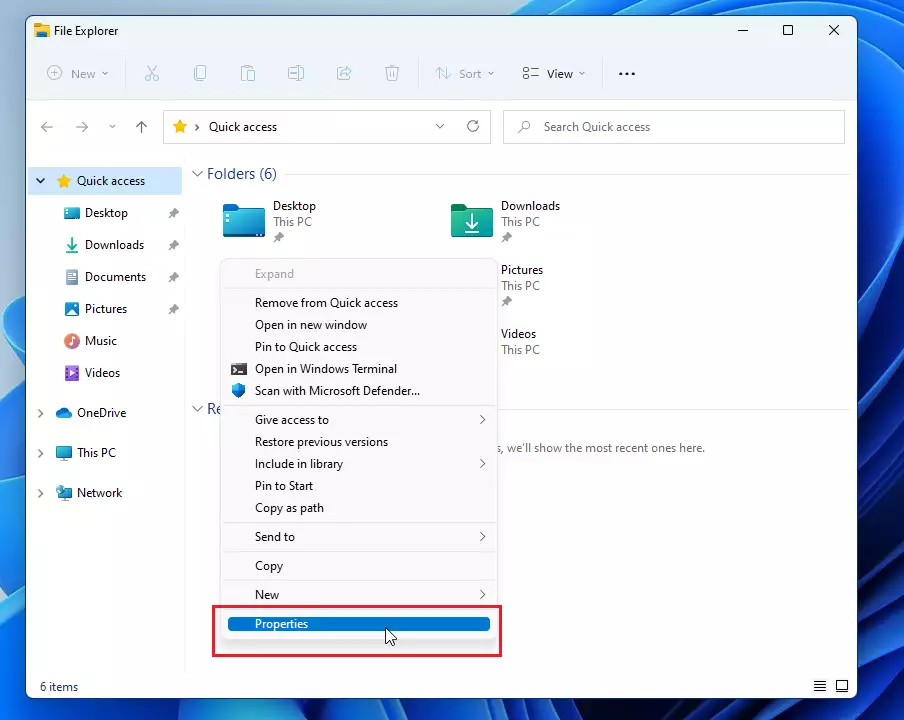
- Click Properties from the menu. A properties window for that folder opens.
- Go to the Location tab. You’ll see the current location, like 📁C:\
Users\ .Username\ Videos
If you don’t see a Location tab, the folder isn’t one of the personal folders listed above, or you opened the wrong item. Go back and check that you right-clicked the folder itself, not a file inside it.
- Click the Move... button. A folder browser opens.
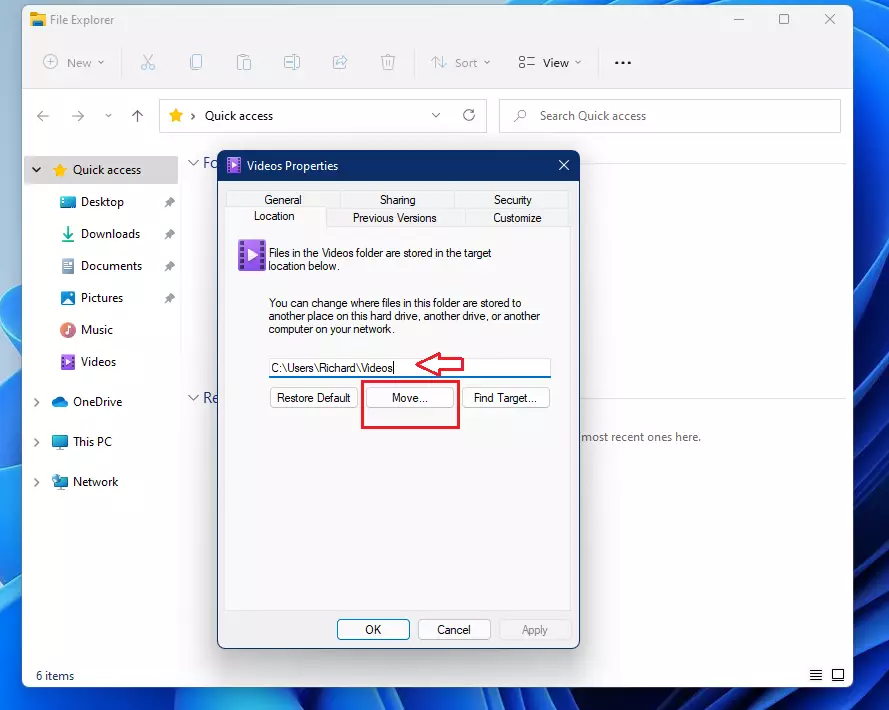
- Browse to the other drive and select the new folder for your files (e.g., E:\NewFolder\Videos).
If the folder doesn't exist yet, use New folder in the browser window to create it. A dedicated folder per category keeps things tidy. Avoid pointing a folder at the root of a drive, because that mixes your files with everything else on it.
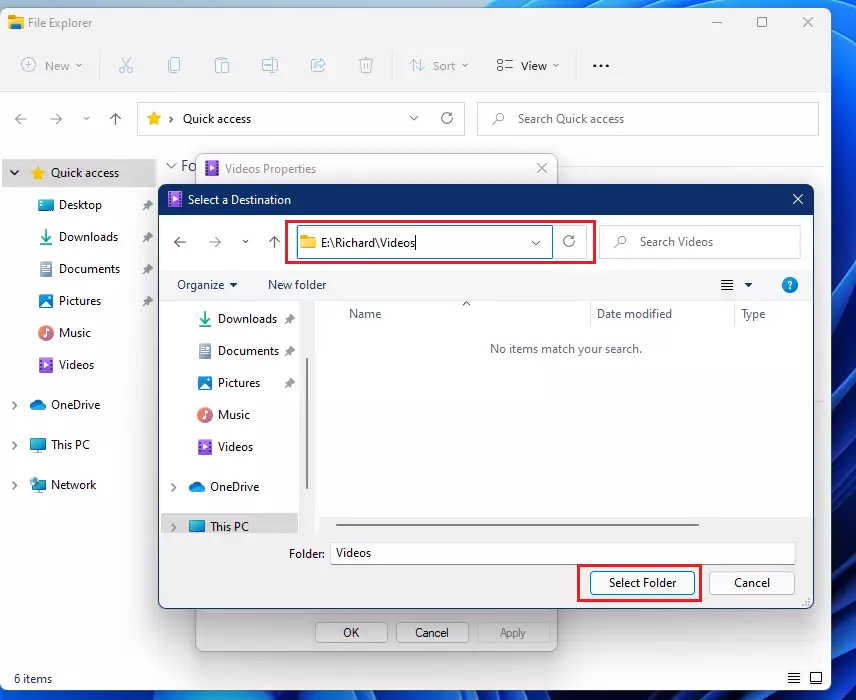
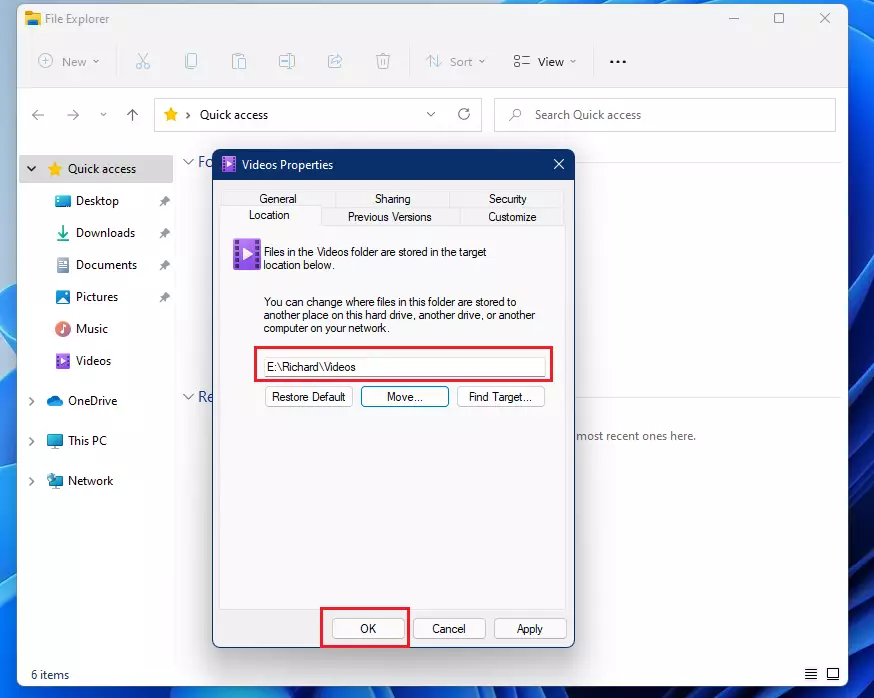
- Click Select Folder, then click OK. The new path now shows on the Location tab. If you see Apply instead and OK is not accepted, click Apply.
- Windows will ask if you want to move all files to the new location. Click Yes to confirm.
Choose Yes unless you have a reason not to. If you click No, Windows only points the folder at the new place. Your existing files stay on C: and you would have to move them by hand.
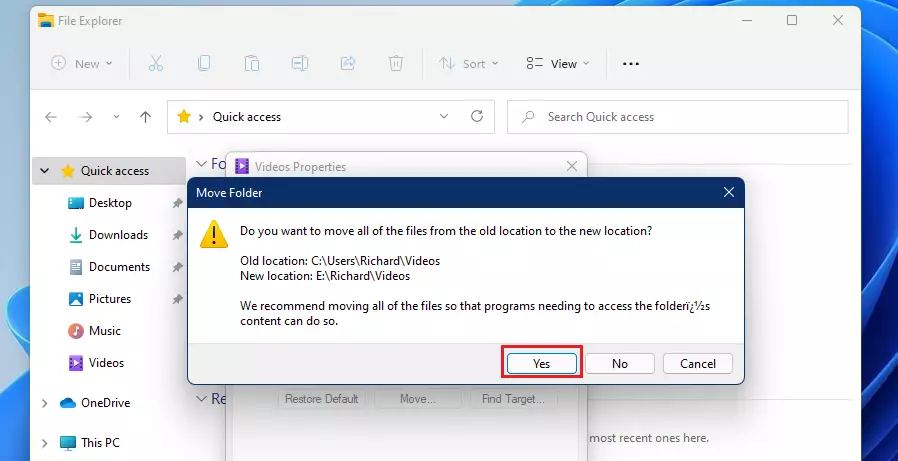
Depending on how many files you have, this might take a few minutes. Don't unplug the drive or shut down the PC while it works. Once finished, your computer will automatically use the new location for that folder.
To check, open the folder from File Explorer and look at the path in the address bar. It should now show the other drive. Repeat the steps for any other folder you want to move.
To undo the move, open the same Location tab and click Restore Default, then click OK. Windows offers to move the files back to C:\Users\YourUsername.
Summary
- Moving folders helps free up space on your main C: drive.
- Use the Properties menu in File Explorer to change a folder's Location. Choose Yes when Windows offers to move the existing files.
- This process is safe and keeps your files organized while improving system performance. Use a permanent drive, and click Restore Default if you want to go back.
Relocating these directories keeps the main system drive lean, and it leaves more room for Windows, apps, and updates. Back up the new location the same way you backed up the old one, so your files stay protected.
Was this guide helpful?

About the Author
Richard
Tech Writer, IT Professional
Richard is a writer at Geek Rewind who turns complex IT tasks into clear, step-by-step guides. He draws on years of hands-on experience in system administration and enterprise IT operations, focusing on Windows, Linux and WordPress: the problems people actually run into, and the fixes that work. His server and WordPress guides come from systems he runs himself. Richard builds and maintains the platform behind Geek Rewind, from its Ubuntu servers and Nginx configuration to its custom WordPress plugins. Many new tutorials start with readers' questions, and he's always glad to answer them in the comments.




I think it wouilde be better to move this text;
“To move the Video folder, right click on the Videos folder and select Properties”
from above the first screenshot, to under this screenshot.
*would*
BTW: I just select all iconed folders and use Ctrl+x (cut) & Ctrl+v (paste).
This way Windows remembers the permanent move of these locations.
doesn’t. work.
System complains about system folders not being able to be moved.
I get this response: Can’t move the folder because there is a folder in the same location that can’t be redirected. Access is denied.
Though the drive is empty and has been partitioned, formatted, and all that by windows.
Try a full RESTART. Shutdown no longer does a complete and proper shutdown, writing all the system changes and reinitializing everything.
It’s because “quick start” or “fast startup,” or whatever it’s called, is active. You can turn it off, but expect the first bootup from scratch to be a bit slower because it actually cleans up and restarts everything. A bit slower startup is well worth it to me to avoid taking the chance of a muddled-up, confused system.
Whenever you make system changes, especially something major, like relocating system folders, a restart is a good idea. Otherwise, I can see how the OS can become quite muddled after awhile.