How to Optimize Windows 11 for Gaming Performance

Optimizing Windows 11 for gaming means cutting back the background work and visual extras that compete with your game for memory and processor time. Windows 11 runs a lot of services, startup apps and update checks by default. On a capable PC you will barely notice them. On a mid-range or older machine they show up as stutter and lower frame rates.
This guide covers Game Mode, hardware-accelerated GPU scheduling, graphics driver settings, startup programs, a few background features and two advanced tweaks. Plan on about 10 minutes for the basics. Results vary by hardware and game, so change a few things at a time and test a game after each change. That way you know what actually helped.
Open Settings System Display Graphics, click Change default graphics settings, toggle Hardware-accelerated GPU scheduling On, and restart. Then open your GPU control panel (NVIDIA Control Panel or AMD Adrenalin) and set the power profile to maximum performance or Gaming mode. Disable Windows Indexing and startup apps via Settings Apps Startup to free CPU and memory for games.
Step 0Create a System Restore Point
A system restore point is a snapshot of your system files, drivers and registry settings. If a tweak causes problems, you can roll back to this point. It does not touch your personal files, so it is not a replacement for a real backup. Make one before you change anything else. It takes about a minute.
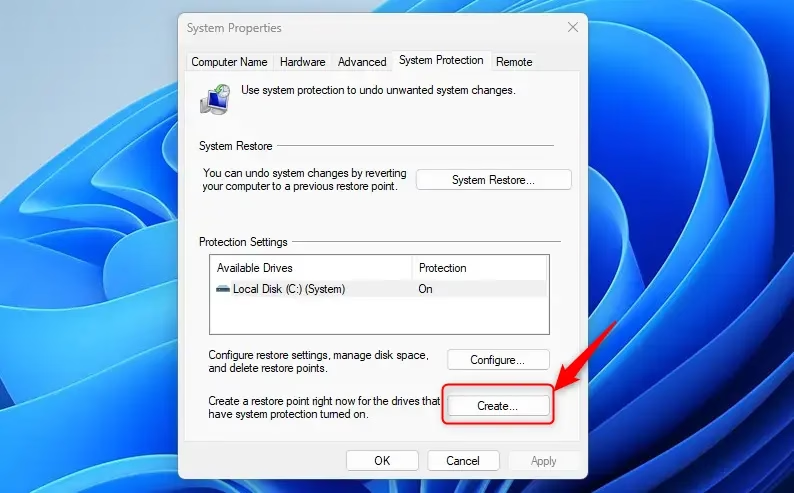
- Press the Win and type Create a restore point. The System Properties window should open on the System Protection tab.
- Select the result and check the Create button. If it is greyed out, system protection is off for your system drive. Select the drive under Protection Settings, click Configure, choose Turn on system protection, and click OK. The Create button should now be available.
- Click Create.
- Give it a name like “Before Gaming Optimization” and click Create. A progress window appears, then a message saying the restore point was created successfully.
To undo later, open the same System Protection tab and click System Restore. Then pick this restore point. Windows restarts during the restore.
1Enable Hardware-Accelerated GPU Scheduling
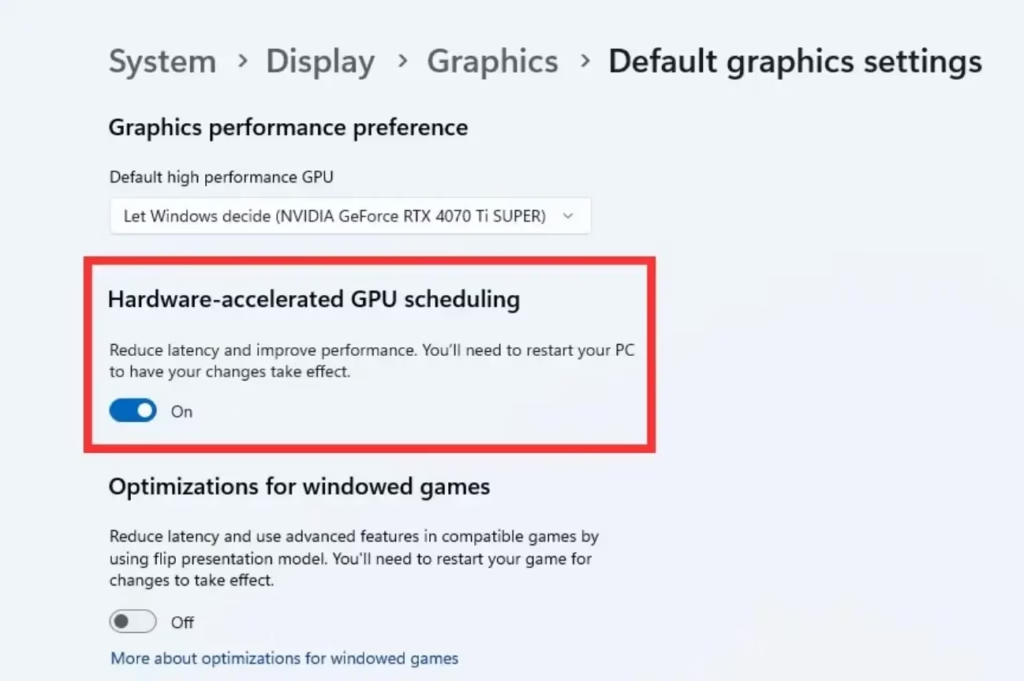
Hardware-Accelerated GPU Scheduling (a feature that lets your graphics card manage its own memory) can reduce input lag and improve frame time stability. The gain depends on the game and the GPU, and in some titles you will see little difference. It is quick to try and quick to reverse.
- Open Settings System Display Graphics.
- Click Change default graphics settings. You should see a list of options, including the scheduling toggle.
- Toggle Hardware-accelerated GPU scheduling to On.
- Restart your PC to apply changes. The setting does not take effect until you do.
If the toggle is missing, your graphics card or driver probably does not support it. Install the latest driver from NVIDIA, AMD or Intel and check again. To undo the change, set the toggle back to Off and restart.
2GPU-Specific Control Panel Settings
Your graphics card's control software lets you tell the GPU to favor performance over power saving. That can reduce stuttering and raise frame rates without any hardware upgrade. Open the software from the system tray, find the performance or power profile, and set it for gaming as shown below.
- NVIDIA: Open NVIDIA Control Panel Manage 3D settings. On the Global Settings tab, set Power management mode to Prefer maximum performance, then click Apply.
- AMD: Open AMD Adrenalin Software Performance Tuning. Ensure the profile is set to Gaming.
If you cannot find the control panel in the system tray, make sure the graphics driver is installed. On a laptop, these settings make the GPU run hotter and drain the battery faster, so switch back to the default or an optimal power mode when you are not gaming.
3Granular OS UI Settings
Windows 11 runs a number of interface features and background services that use memory and CPU time while you play. Turning off the ones you do not need frees up a little more headroom. These are small gains individually, and they matter most on PCs with limited RAM or a slower processor. Each of the changes below is reversible.
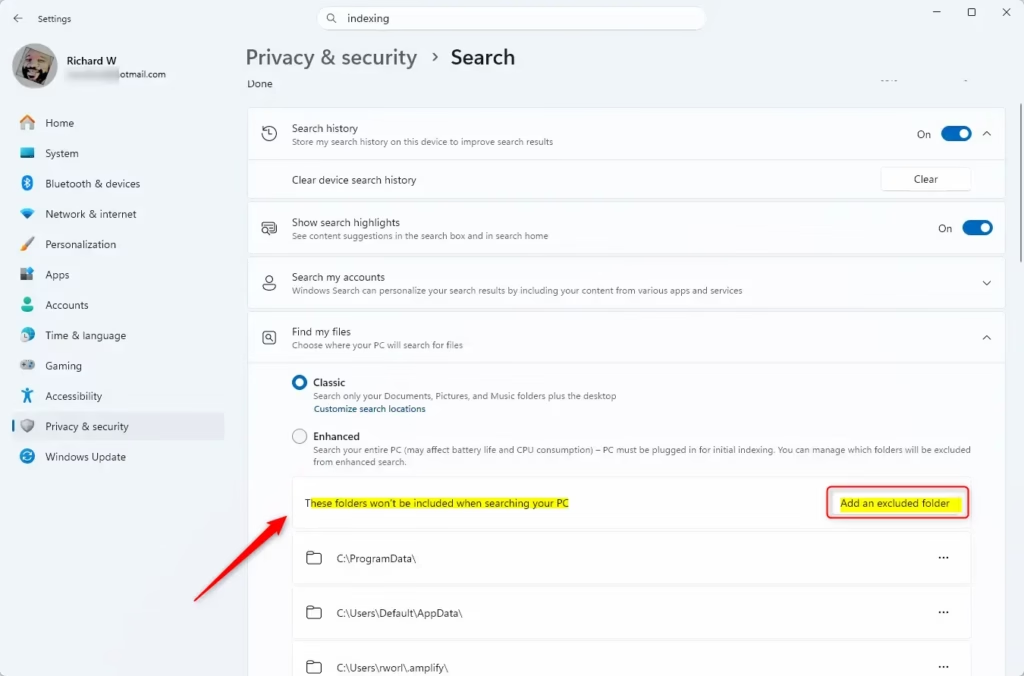
- Indexing: Press the Windows Key, search for Indexing Options, and open it. Click Modify, then uncheck folders you do not need to search often. Search still works afterwards, but it may be slower in the folders you removed. Re-check them to undo.
- Notifications: Go to Settings System Notifications. Turn Do not disturb on to silence all pop-ups while you play, or turn off alerts for specific apps in the list below it. Note that Do not disturb is what silences notifications when it is switched on.
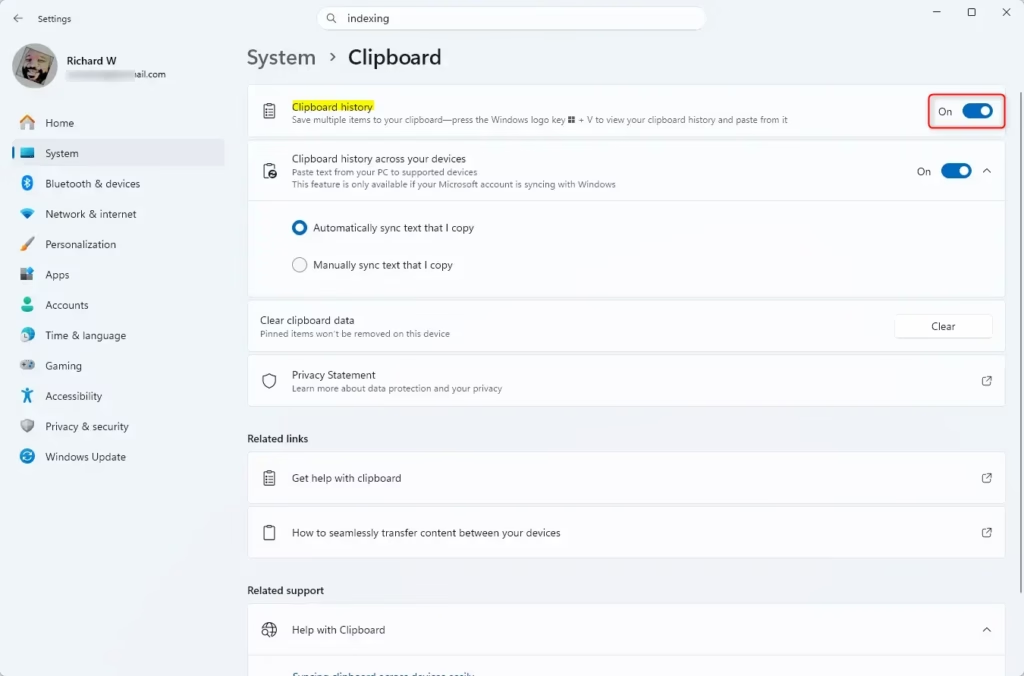
- Clipboard: Go to Settings System Clipboard and turn off Clipboard history if you do not use it. It is off by default on most installs, so it may already be off.
- Visual effects: Go to Settings Accessibility Visual effects and turn off Transparency effects and Animation effects. This makes the desktop feel plainer but takes some load off the system.
4Registry Edits for Gaming
Registry edits for gaming. These are advanced tweaks, and admin privileges are required. They adjust how Windows shares CPU time and network capacity with background processes, so that games get a larger share. A wrong edit in the registry can cause problems, so make sure you created the restore point at the start of this guide before going further.
HKEY_LOCAL_MACHINE\SOFTWARE\Microsoft\Windows NT\CurrentVersion\Multimedia\SystemProfile
In the registry key listed above, change NetworkThrottlingIndex to ffffffff and SystemResponsiveness to 0. Write down the original values before you change them so you can put them back. Restart the PC afterwards so the new values are applied. To undo, enter the original values again, or use your restore point.
5Disable Virtualization-Based Security (VBS)
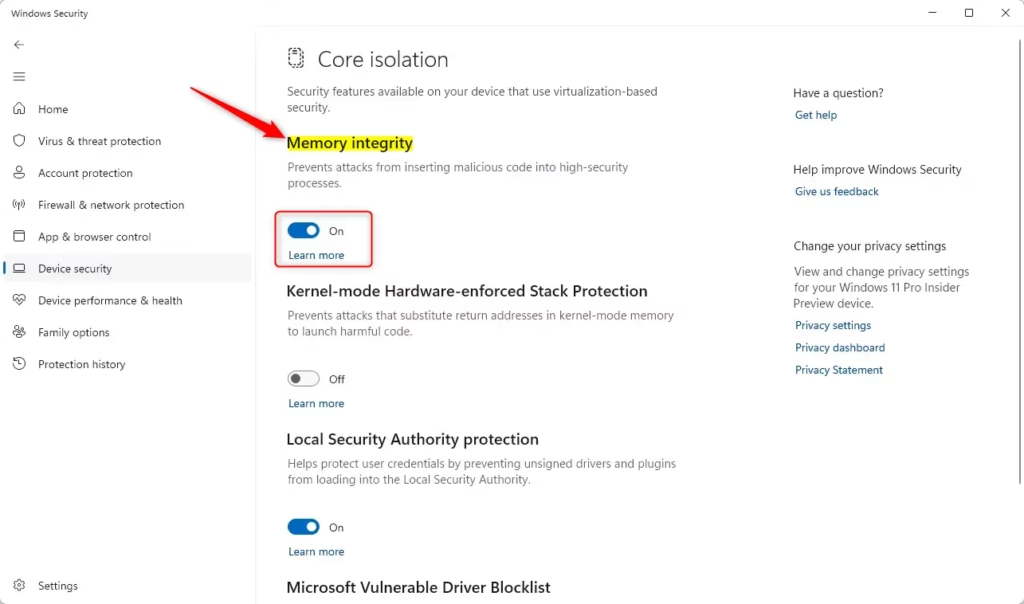
Memory integrity, a feature of Core Isolation, is part of it. Turning it off makes games run faster on some systems, but it also removes a layer of protection against malicious drivers. Only do this on a PC where you are careful about what you install.
- Search for Core Isolation in the Windows search bar and open the result. The Core isolation page in Windows Security should open.
- Toggle Memory integrity to Off. Approve the User Account Control prompt if it appears. If the toggle is greyed out, your PC may be managed by an organization or policy, and you will not be able to change it.
- Restart your computer. The change only takes effect after the restart.
To undo, switch Memory integrity back to On and restart. Windows may warn that an incompatible driver is blocking it, so update or remove that driver first.
Summary
Optimizing Windows 11 for gaming performance means reducing background tasks and ensuring your system runs smoothly, leading to a better gaming experience. Start with the safe changes, such as GPU scheduling, driver settings and notifications. Only use the registry and Core Isolation tweaks if you need the extra speed and understand the trade-offs. Test a game after each change, and keep your restore point in case you need to go back.
Frequently asked questions
What are the big 3 in gaming?
The big 3 in gaming typically refers to PlayStation, Xbox, and Nintendo — the major console manufacturers. On PC, it often means high-end graphics cards from Nvidia, AMD, and Intel, or the three biggest gaming platforms: Steam, Epic Games Store, and Xbox Game Pass.
Is 32GB RAM overkill for 🪟 Windows 11?
32GB RAM is more than most people need for Windows 11 gaming. 16GB handles nearly all modern games smoothly. Go for 32GB only if you stream while gaming, run heavy editing software alongside games, or play heavily modded titles that demand extra memory.
How do I make my PC computer run faster?
Disable startup programs in Task Manager, turn off visual effects in Settings, enable Storage Sense to clear junk files, and close background apps. Update drivers, run Disk Cleanup, and disable unnecessary Windows services. Restart your PC. These steps free up memory and processing power.
Does 🪟 Windows 11 have better performance for gaming?
Windows 11 offers modest gaming improvements over Windows 10 through DirectStorage (faster game loading) and improved GPU scheduling. The gains are noticeable mainly on high-end systems with new graphics cards. For most players, the difference is small unless you optimize settings specifically for gaming.
Still have a question?
Answered by AI from this guide. Good questions may be added to this page — please don't include personal details.
Did this guide fix your problem?

About the Author
Richard
Tech Writer, IT Professional
Richard is a writer at Geek Rewind who turns complex IT tasks into clear, step-by-step guides. He draws on years of hands-on experience in system administration and enterprise IT operations, focusing on Windows, Linux and WordPress: the problems people actually run into, and the fixes that work. His server and WordPress guides come from systems he runs himself. Richard builds and maintains the platform behind Geek Rewind, from its Ubuntu servers and Nginx configuration to its custom WordPress plugins. Many new tutorials start with readers' questions, and he's always glad to answer them in the comments.
No comments yet — be the first to share your thoughts!