How to Perform Point-in-Time Restore of Windows 11

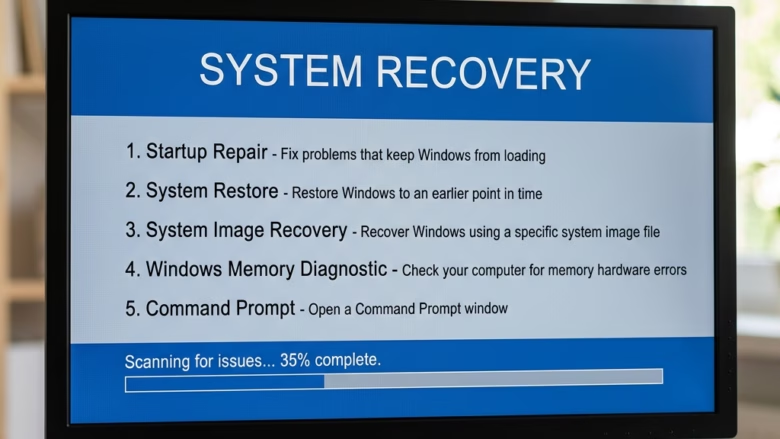
Open Settings System Recovery, click Restart now under Advanced startup, select Troubleshoot Reset this PC Point-in-time restore, choose your snapshot date, and confirm. Windows rolls back to that snapshot, replacing system files and settings while permanently removing anything created after that date.
What is Point-in-time Restore?
Windows 11 includes a feature called Point-in-time restore, which acts as a safety net for your computer. It rolls the system back to an earlier working date using a saved copy of your files, known as a snapshot.
It is similar in purpose to System Restore, but it is a separate feature. You run it from the Windows Recovery Environment, so it still works when Windows no longer boots normally.
Why use Point-in-time Restore?
Point-in-time restore lets the operating system return to a stable state if something goes wrong after a change. Unstable software or a broken driver can leave a PC crashing, looping at startup, or unusable. This method undoes those recent changes without a full Windows reinstallation.
Try it when a problem started right after an install or update, and you know roughly when the system last worked. If the problem has been there for weeks, check that a snapshot older than the problem exists before you rely on this.
What happens when you use it?
Applications and personal files created after that snapshot date will be lost permanently. The computer restarts automatically once the restore has finished applying changes.
Do this even if you think the files are safe. There is no simple undo once the restore completes.
Comparison: System Restore vs. Point-in-time Restore
| Feature | System Restore | Point-in-time Restore |
|---|---|---|
| Scope | System files/registry | Full system state |
| Speed | Moderate | Fast |
| Retention | Variable | Fixed 72 hours |
Prerequisites and Configuration
This feature requires Windows 11 build 26220.7271 or later. To check your build, press Win+R, type winver, and read the build number in the dialog. If your build is older, or the option is missing from the recovery menu, the feature is not available on that PC yet.
Network administrators can adjust these recovery settings from the command line. You also need enough free disk space to hold the snapshots. If the drive is nearly full, snapshots may not be kept.
Managing Snapshots with VSSAdmin
You can manage Windows 11 restore snapshots with VSSAdmin (the Volume Shadow Copy Service administrative command-line tool) from the Command Prompt. It lets you review the available recovery points before you commit to a restore. You need an elevated prompt, because VSSAdmin refuses to run without administrator rights.
- Open the Start menu and type
cmd. - Right-click the result and select Run as administrator. If User Account Control asks for permission, approve it. An elevated command window opens.
- To list current snapshots, type the following command and press Enter:
vssadmin list shadows
The output lists each snapshot with its creation time. Use those dates to decide which recovery point you want later.
- To check storage usage, type this command and press Enter:
vssadmin list shadowstorage
The output shows how much space the snapshots use and how much is allocated to them.
Storage Implications and Risks
Active snapshots consume dedicated storage on the local drive. If the drive runs low on space, Windows purges older recovery points automatically. That means the restore point you want may disappear if you let free space run out.
Keep the PC on a steady power source during the restore. On a laptop, plug in the charger first. A power loss midway can corrupt system files and leave Windows unbootable.
Step-by-Step Guide
You run the restore from the recovery environment, not from the desktop. If Windows still starts, the usual way in is to hold Shift while you click Restart from the Start menu power options. You can also go through Settings System Recovery and use Restart now next to Advanced startup. If Windows fails to start several times in a row, it usually opens the recovery environment on its own.
- Boot to Advanced Startup (WinRE). The blue recovery menu appears.
- Click Troubleshoot. The advanced options screen opens.
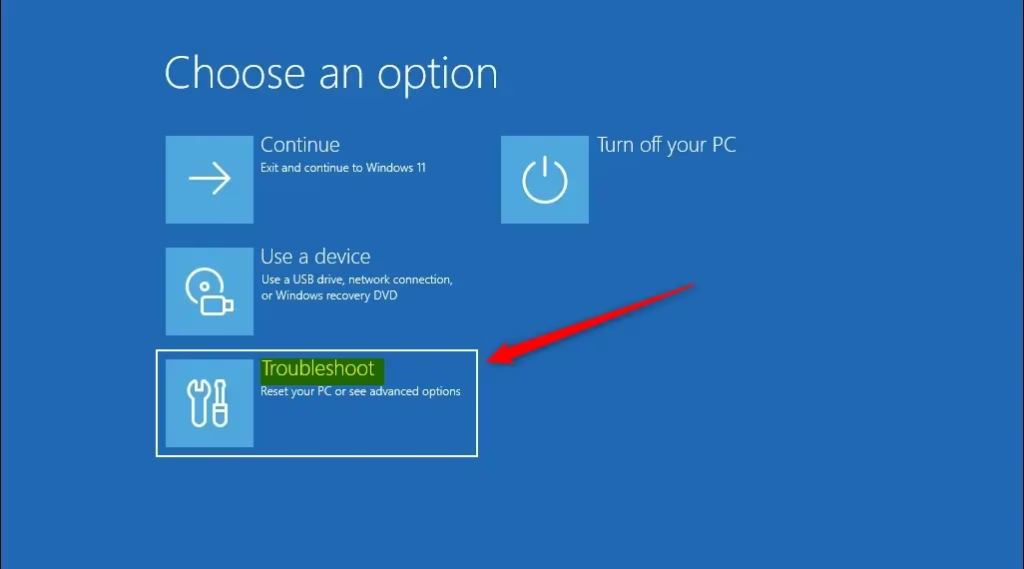
- Click Point-in-time restore. If the option is missing, your build is probably older than the one required, or the feature is not enabled on this PC. If the drive is protected by BitLocker, you may be asked for the recovery key first, so have it ready.

- Select an available restore point and click Continue to accept the risks. Choose the most recent snapshot from before your problem began. Going further back than necessary costs you more files and settings.
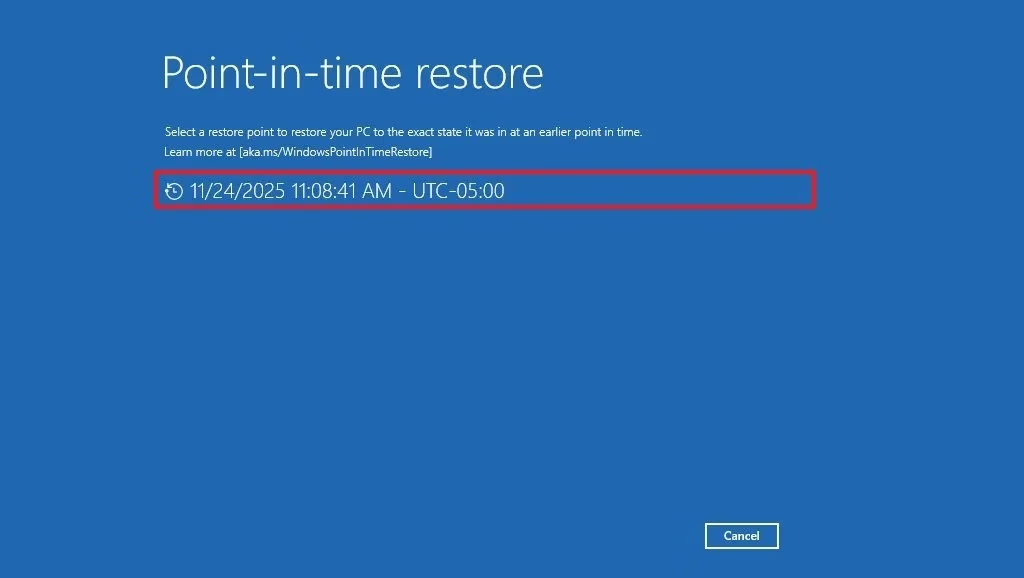
- Click Restore to begin.
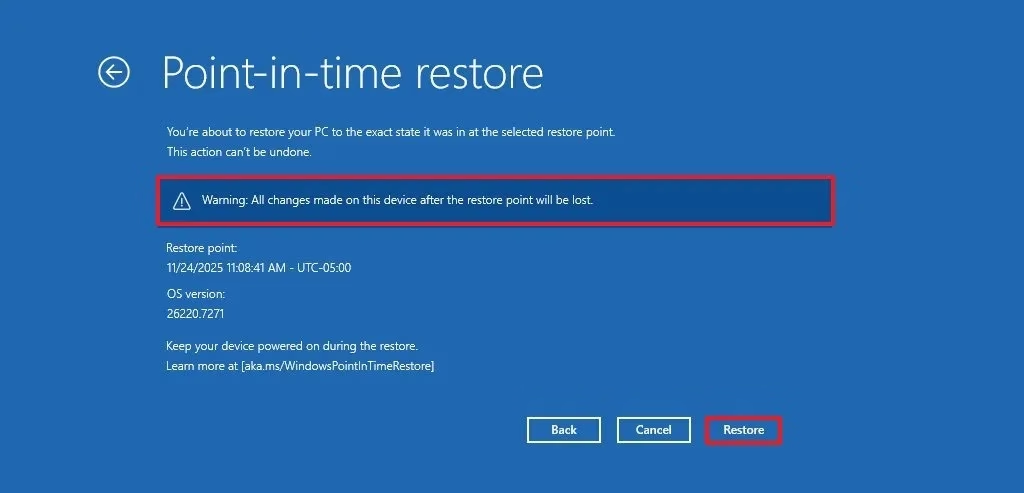
- Wait for the process to finish. The PC restarts automatically. Do not turn it off or unplug it while it works, even if progress seems slow.
Summary
When Windows starts again, check that the original problem is gone. Then reinstall any programs you added after the snapshot date and restore your backed-up files. Do not reinstall the software or driver that caused the trouble until you have a fixed version.
Point-in-time restore in Windows 11 resolves critical computer failures by rolling back to an earlier, stable state using VSS snapshots.
References:
Point-in-time restore for Windows
Scalable Windows Resiliency with new recovery tools - Windows IT Pro Blog
Enable or Disable Hidden Feature Flags in Windows 11
Have a question about this guide?
Answered by AI from this guide. Good questions may be added to this page — please don't include personal details.
Did this guide fix your problem?

About the Author
Richard
Tech Writer, IT Professional
Richard is a writer at Geek Rewind who turns complex IT tasks into clear, step-by-step guides. He draws on years of hands-on experience in system administration and enterprise IT operations, focusing on Windows, Linux and WordPress: the problems people actually run into, and the fixes that work. His server and WordPress guides come from systems he runs himself. Richard builds and maintains the platform behind Geek Rewind, from its Ubuntu servers and Nginx configuration to its custom WordPress plugins. Many new tutorials start with readers' questions, and he's always glad to answer them in the comments.
[…] 0: Create a System Restore […]