How to Apply a Restore Point from Windows RE on Windows 11

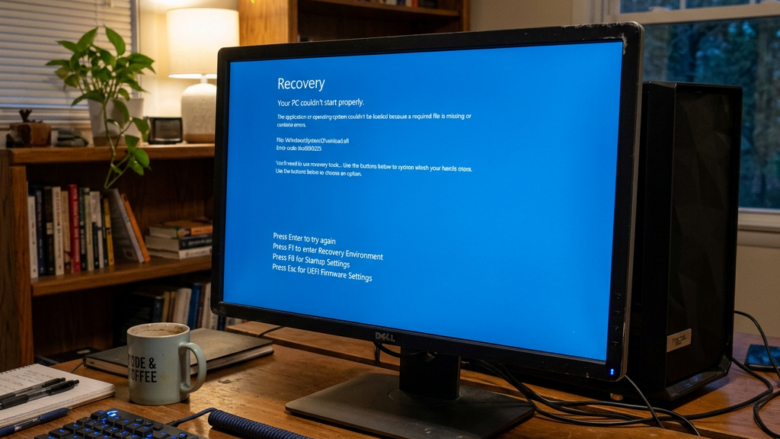
Boot into Windows Recovery Environment by holding Shift while clicking Restart in Settings System Recovery, or by force-shutting down during startup three times. Select Troubleshoot Advanced options System Restore, choose your restore point, and confirm. Your system rolls back to that date; personal files stay intact.
Getting into the Windows Recovery Environment (Windows RE)
The Windows Recovery Environment (Windows RE) is a small, separate troubleshooting system stored on your drive. It loads before the main copy of Windows, so it still works when your desktop is completely inaccessible because of a serious error. From it you can reach Startup Repair, Startup Settings, Command Prompt, uninstalling updates, and System Restore.
Why do we need Windows RE?
Running System Restore from inside Windows requires a working desktop. If a bad driver, update, or app stops Windows from reaching the sign-in screen, you can’t do that. Windows RE lets you run the same restore without the desktop, so it is the tool to use after a boot failure.
If System Protection was turned off on the system drive, there will be nothing to restore, and you will need another repair option such as Startup Repair or a reset.
What happens when you enter Windows RE?
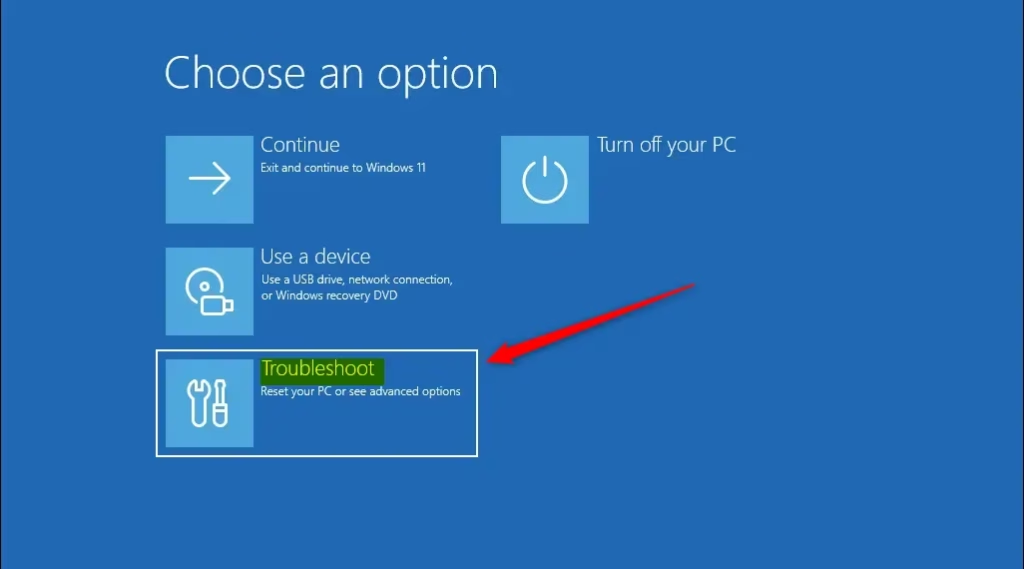
When you enter Windows RE, you see a blue screen titled “Choose an option”. It has buttons such as Continue, Troubleshoot, and Turn off your PC. It looks very different from the normal Windows desktop, and you can use the mouse or keyboard, though on some PCs the mouse or touch input only works after the screen has fully loaded.
Nothing is changed just by entering Windows RE. Your files and settings stay as they are until you pick a repair option and confirm it.
Method 1If Your PC Boots, But Windows Doesn't Load Correctly
- Open Settings in Windows. Pressing the Windows key + I is the quickest way. Use this method only if you can still sign in; if you can't, skip to the next method.
- Click on System. The System settings page opens.
- Scroll down and click on Recovery. You will see a list of recovery options.
- Under "Recovery options," find Advanced startup and click Restart now. Save and close your open work first, because the PC restarts right away or after a short prompt.
- Your PC will restart and show the blue "Choose an option" screen. If you see it, you are in Windows RE. As a shortcut for next time, you can hold the Shift key while you click Restart on the Start menu or the sign-in screen to get to the same place.
Method 2If Your PC Won't Boot at All
Use this method when your computer fails to load the desktop normally. Windows is designed to start Automatic Repair after it detects repeated failed startups. You trigger it by manually interrupting startup, which forces Windows to open its repair menu so you can run system recovery tools.
On a laptop, plug in the charger before you begin, and expect the process to take a few minutes in total.
- Turn on your PC. Wait for the manufacturer logo to appear and go away.
- As soon as you see the Windows logo or the spinning dots, press and hold the power button to turn it off. Hold it for about 10 seconds, until the screen goes dark and the PC is fully off.
- Repeat this process two more times. Each time, cut the power only after the Windows logo or spinning dots appear, not during the manufacturer logo.
- On the third time you turn your PC on, let it start normally. Windows should go into the "Automatic Repair" screen, which may first say "Preparing Automatic Repair" or "Diagnosing your PC". From there, you can access Windows RE. If a screen says Automatic Repair couldn't repair your PC, click Advanced options to reach the "Choose an option" screen. If it doesn't appear, repeat the process.
Applying a Restore Point from Windows RE
It undoes recent driver changes, bad updates, or broken apps that stop Windows from starting. Your personal files, such as photos, documents, and music, are not touched.
Before you start, keep in mind that apps and drivers installed after the restore point will be removed, and apps you uninstalled after that date may come back. Choose the most recent restore point from before the problem began.
- On the "Choose an option" screen, click on Troubleshoot. The "Troubleshoot" screen opens.
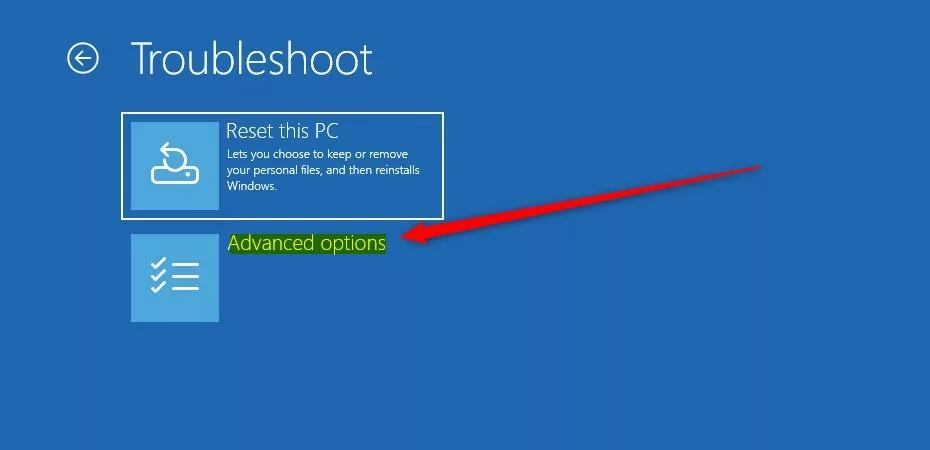
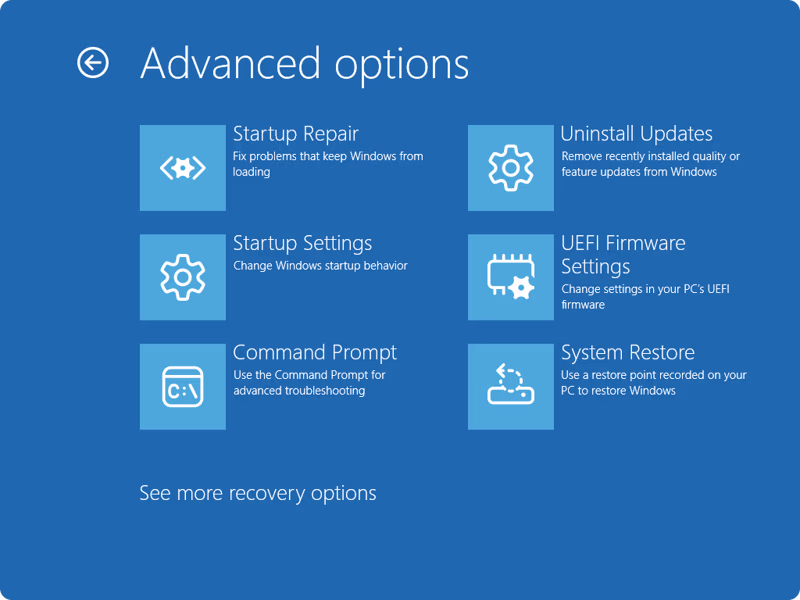
- On the "Troubleshoot" screen, click on Advanced options. This screen gives you access to more tools for fixing your computer, such as Startup Repair, Command Prompt, and Uninstall Updates.
- On the "Advanced options" screen, click on System Restore. This is the option that lets you go back to an earlier time. The PC may restart briefly before the next screen appears.
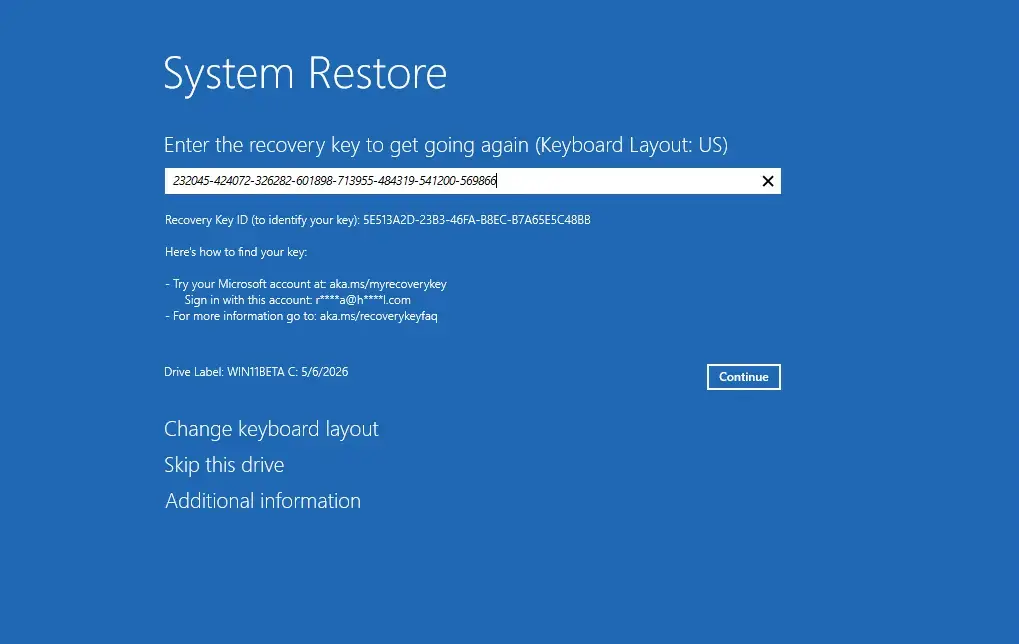
- Admin Access Required: Windows might ask you to choose an account. Pick your user account and type in your password if you have one. If you don't have a password, just click "Continue." The account must be an administrator account. If you use a Microsoft account, enter that account's password or PIN as prompted. On some PCs with device encryption or BitLocker, Windows RE may also ask for the recovery key before it continues.
- You will see the System Restore wizard. Click Next. The wizard may offer a recommended restore point, but you can pick a different one on the next screen.
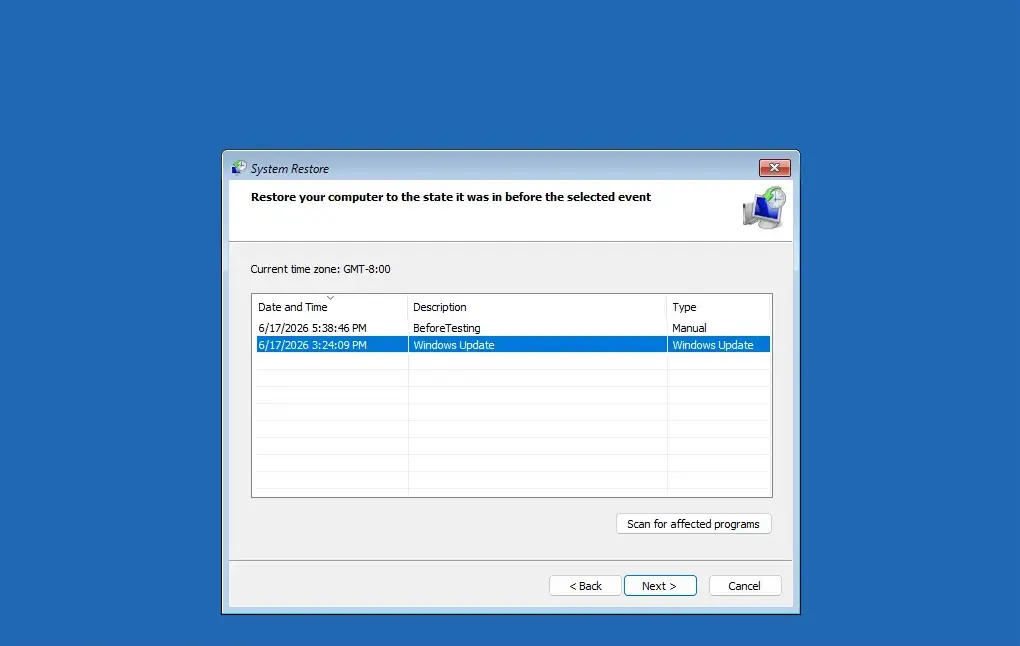
- Windows will show you a list of restore points. These are like saved snapshots of your system. Each one shows a date, a time, and a description such as "Windows Update" or "Installed driver". Select the one you want. If the list is empty, System Protection was not turned on, and System Restore can't help with this problem. If you see a Show more restore points option, use it to see older ones.
- Optional but Recommended: Before you continue, click the Scan for affected programs button. This shows you which programs and drivers might be removed or restored. This helps you understand what will change. Wait for the scan to finish, and note anything important on the list.
- After checking the affected programs, click Close if needed to return to the list, then click Next.
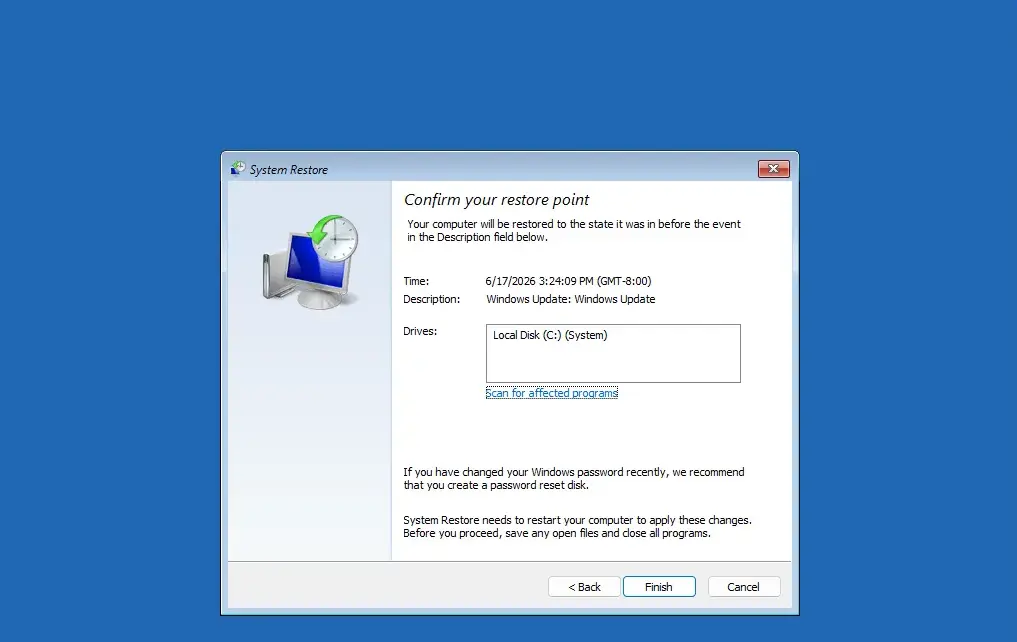
- On the final screen, look carefully at the restore point you chose, including its date and the drive it will restore. When you are sure, click Finish. Windows asks for one more confirmation, so click Yes to start. Once the restore starts, don't interrupt it.
- Your computer will restart and begin applying the restore point. This might take 15 minutes or more than an hour. You'll see a progress bar. Don't turn off the PC, and keep a laptop plugged in. The bar can look stuck for a long time and that is normal.
- When the restore is done, your computer will restart again. If it worked, Windows should start normally and may show a message that System Restore completed successfully. Your system will be back to how it was at the time of the restore point. You can then try using your programs to see if the problem is fixed. If the restore fails or the PC still won't boot, go back into Windows RE and try an older restore point, or use Startup Repair from the same Advanced options screen.
Reference:
https://support.microsoft.com/en-us/windows/system-restore-a5ae3ed9-07c4-fd56-45ee-096777ecd14e
Summary
Use System Restore from the Windows Recovery Environment (Windows RE) to fix problems that stop your Windows 11 computer from starting normally by returning it to an earlier working state. You can reach Windows RE from Settings if Windows still loads, or by interrupting startup three times if it doesn't. Pick the newest restore point from before the trouble began, check the affected programs, and let the process finish without interruption. Your personal files stay untouched, but programs and drivers installed after the restore point will need to be reinstalled.
Have a question about this guide?
Answered by AI from this guide. Good questions may be added to this page — please don't include personal details.
Did this guide fix your problem?

About the Author
Richard
Tech Writer, IT Professional
Richard is a writer at Geek Rewind who turns complex IT tasks into clear, step-by-step guides. He draws on years of hands-on experience in system administration and enterprise IT operations, focusing on Windows, Linux and WordPress: the problems people actually run into, and the fixes that work. His server and WordPress guides come from systems he runs himself. Richard builds and maintains the platform behind Geek Rewind, from its Ubuntu servers and Nginx configuration to its custom WordPress plugins. Many new tutorials start with readers' questions, and he's always glad to answer them in the comments.
… liked this!