Adjust What Happens When You Close the Laptop Lid in Windows 11

- 3 ways to do it
- Needs administrator rights
Windows 11 lets you choose what your laptop does when you close the lid. You can pick Do nothing, Sleep, Hibernate or Shut down. You can set a different choice for when the laptop runs on battery and when it is plugged in.
To change it, open Settings and go to System, then Power & battery. You can also use Control Panel and open Power Options. The new choice takes effect straight away, so you do not need to restart.
These lid settings work the same way on Windows 11 Home, Pro, Enterprise and Education. Changing the lid action does not need administrator rights. Adding Hibernate to the list does need them, and that step is marked below.
You change what closing the laptop lid does in Settings System Power & battery under Lid, power & sleep button controls. Set the Closing the lid will make my PC action separately for On battery and Plugged in, choosing Do nothing, Sleep, Hibernate or Shut down. The change applies immediately, and no administrator rights are needed. Control Panel under Power Options works on every Windows 11 edition.
What Each Lid Action Does
Knowing what each option does helps you pick the right one for how you use the laptop.
- Do nothingWindows keeps running when you close the lid. Apps, downloads and music continue, and an external monitor stays active. This is the option for docked use.
- SleepWindows pauses everything in a low-power state and keeps your session in memory. Opening the lid or pressing a key wakes it in seconds. This is the default on most laptops.
- HibernateWindows saves your session to the drive and powers off completely. It uses almost no battery and takes longer to resume than Sleep. Hibernate is a good choice for a laptop you close and leave for a day or more.
- Shut downWindows closes your apps and powers off. Unsaved work is lost if an app does not close cleanly.
Each action can be set differently for On battery and Plugged in. A common pairing is Do nothing when plugged in at a desk and Sleep or Hibernate on battery, so a laptop in your bag does not drain itself.
Before You Start
A few things decide which options you see on screen.
- Lid options only appear on devices that Windows detects as having a lid. Desktop PCs do not show them. If you are on a laptop and the options are missing, see the troubleshooting section below.
- Hibernate may not be in the list. Windows hides it when hibernation is turned off. The section “Add Hibernate to the Lid Options” shows how to bring it back.
- Your laptop may have manufacturer power software. Utilities from some manufacturers can have their own lid or power controls. If your setting does not stick, check whether such a utility is installed.
Method 1Change the Lid Action in the Settings App
This is the quickest route. The Settings app has a lid control in recent versions of Windows 11. If you do not see it on your PC, use Method 2 instead.
Step 1Open Power & Battery Settings
You start at the page that holds all power options.
- Right-click the Start button and select Settings.

Windows 11 Start menu with Settings gear icon highlighted. - Select System in the left pane.
- Select Power & battery.
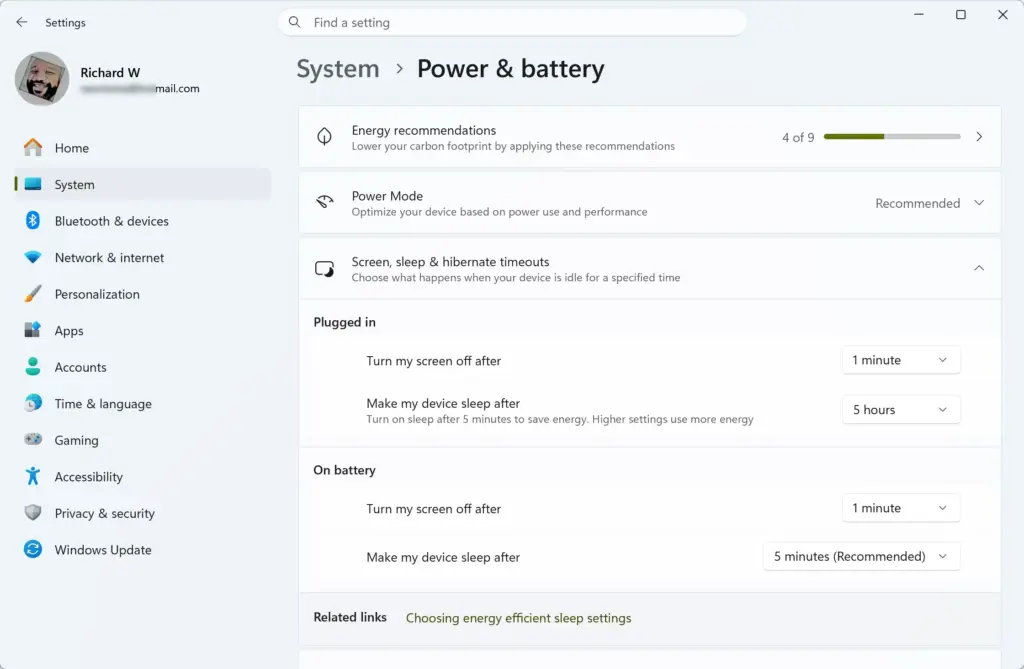
You should now see battery usage, a Screen, sleep, & hibernate timeouts section and, on a laptop, a Lid, power & sleep button controls section.
Step 2Choose What Closing the Lid Does
This step sets the action itself.
- Select Lid, power & sleep button controls to expand it.
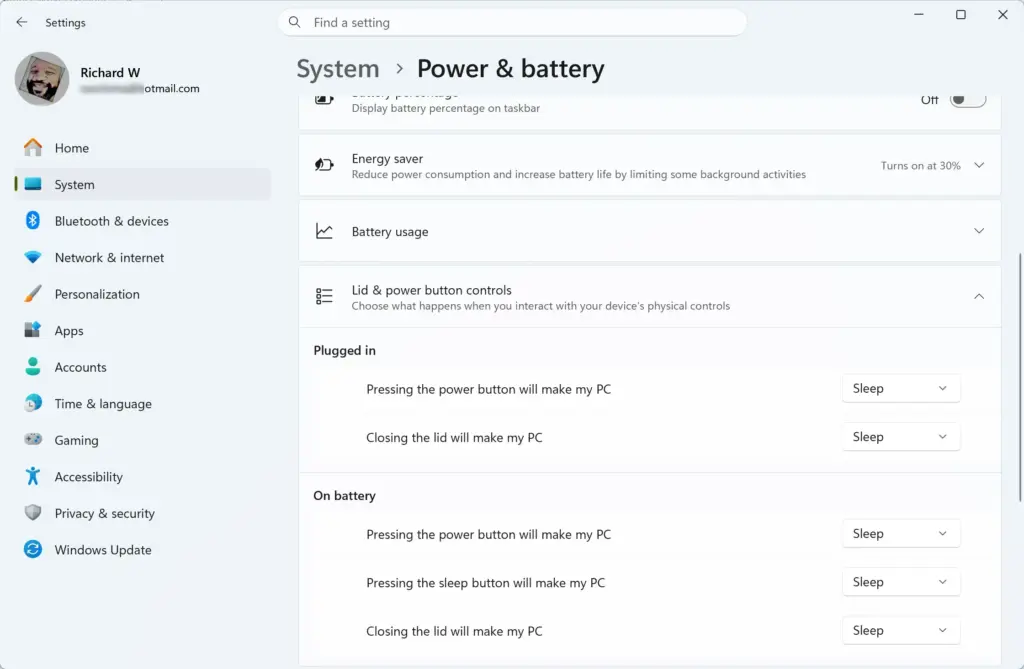
- Find the Closing the lid will make my PC row.
- Open the drop-down for On battery and pick an action.
- Open the drop-down for Plugged in and pick an action.
The change applies as soon as you choose it. There is no Save button. Close the lid and open it again to test.
If Lid, power & sleep button controls is missing, your laptop may not report a lid sensor, or your build of Windows 11 may not include it. Use Method 2, which works on every version.
Method 2Change the Lid Action in Control Panel
Control Panel has had this setting for many Windows versions and still carries it in Windows 11. Use it if the Settings app does not show the lid controls.
Step 1Open Power Options
You open the classic power page that holds the lid setting.
- Click Start, type Control Panel and press Enter.
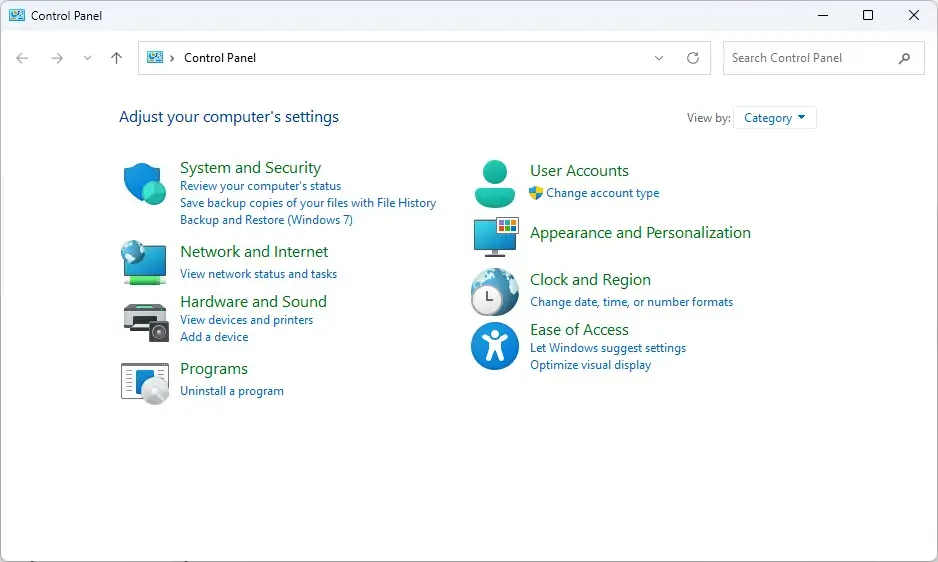
Windows 11 Control Panel dashboard showing power options. - Select Hardware and Sound. If your Control Panel is set to icon view, skip to the next step.
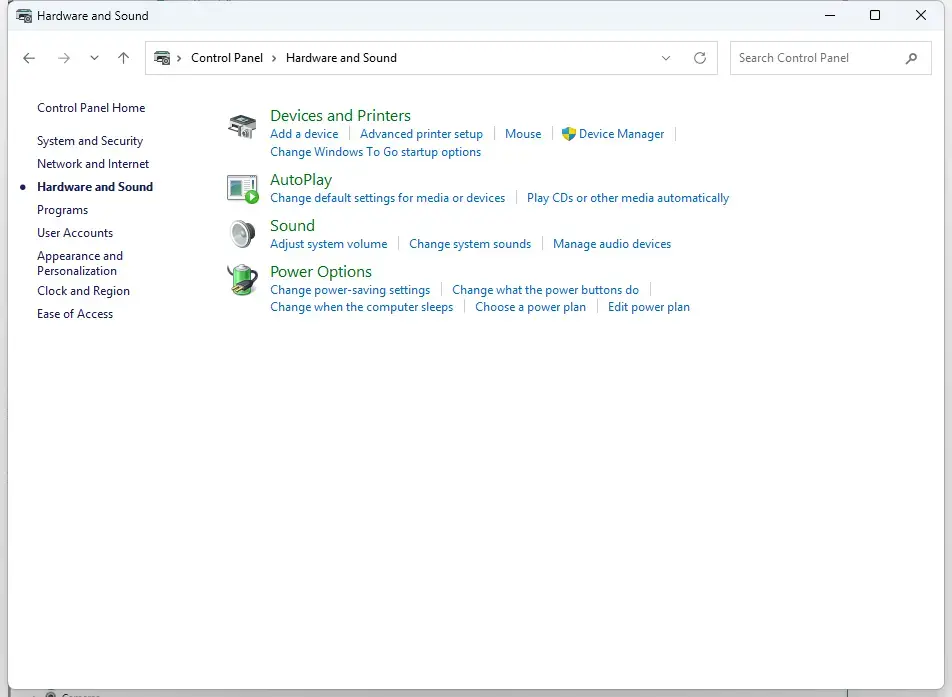
Control Panel › Hardware and Sound - Select Power Options.
You should see your power plans, such as Balanced, with a list of links in the left pane.
Step 2Open the Lid Settings
- Select Choose what closing the lid does in the left pane.
The System Settings page opens. It has a Power and sleep buttons and lid settings section with a When I close the lid row. The row has two columns, On battery and Plugged in.
Step 3Pick an Action and Save
- Open the On battery drop-down in the When I close the lid row and choose Do nothing, Sleep, Hibernate or Shut down.
- Open the Plugged in drop-down and choose an action.
- Click Save changes at the bottom of the window.
If you close the window without clicking Save changes, nothing changes. This is the most common reason people say the setting “didn’t work” in Control Panel.
Method 3Change the Lid Action in Advanced Power Settings
This route changes the same action, but it belongs to the specific power plan you are editing. Use it if you run more than one plan and want a different lid action for each.
- Open Power Options in Control Panel as described in Method 2.
- Click Change plan settings next to the plan you want to edit.
- Click Change advanced power settings.
- In the Power Options dialog, expand Power buttons and lid.
- Expand Lid close action.
- Set On battery and Plugged in to the actions you want.
- Click Apply, then OK.
The dialog shows the same four actions as the other methods. If a lid-related entry is missing here, the device probably does not report a lid to Windows.
Use the Laptop With the Lid Closed and an External Monitor
To keep working on an external monitor with the lid shut, you need two things: a lid action of Do nothing, and a display mode that sends the picture to the external screen.
- Connect the external monitor, keyboard and mouse. Make sure the monitor is powered on and showing the Windows desktop.
- Set Plugged in to Do nothing using Method 1 or Method 2. Leave On battery alone unless you also run the docked setup unplugged.
- Press the Win plus P to open the projection menu.
- Choose Extend or Second screen only.
- Close the lid.
The external monitor should stay on and respond to the keyboard and mouse. If it goes blank, open the lid and check that the projection menu is not set to PC screen only. That mode sends nothing to the external display.
Second screen only turns off the laptop’s built-in display, so the lid is irrelevant while you work. Extend keeps the built-in display active as a second desktop, which has no use once the lid is closed. If you plan to use the laptop this way every day, Second screen only is the cleaner choice.
Sleep settings still apply while the lid is closed. If the PC goes to sleep after a few minutes of inactivity, the external monitor goes dark with it. Set the timeouts under Settings System Power & battery Screen, sleep, & hibernate timeouts if that is not what you want.
Add Hibernate to the Lid Options
If Hibernate is not in the drop-down, Windows has hibernation switched off. You turn it back on from the same System Settings page in Control Panel. This step needs administrator rights.
- Open Control Panel Hardware and Sound Power Options Choose what closing the lid does.
- Click Change settings that are currently unavailable. This link has a shield icon. Select Yes if a User Account Control prompt appears, or enter an administrator password.
- Scroll to Shutdown settings. The greyed-out options now become editable.
- Tick the Hibernate checkbox.
- Click Save changes.
Reopen the When I close the lid drop-downs. Hibernate should now be listed.
If the Hibernate checkbox is missing, you can turn hibernation on from the command line. This also needs administrator rights.
- Right-click Start and select Terminal (Admin). Select Yes at the prompt.
- Type the following command and press Enter:Code
powercfg /hibernate on
The command prints nothing when it succeeds. Go back to the lid settings and check that Hibernate now appears.
If the Lid Settings Are Missing or Don’t Work
These are the usual causes, in the order worth checking.
The Lid Options Don’t Appear at All
Windows only shows the lid row when it detects a lid switch. A desktop PC and some all-in-one or tablet-style devices do not have one. On a laptop, a missing lid row can mean a chipset or firmware problem. Check your manufacturer’s support page for updated chipset drivers and BIOS (the firmware that starts the PC)., so check your manufacturer’s support page for updated chipset drivers (the software that connects the main processor board to the rest of the computer’s hardware) and BIOS (the firmware that starts the PC).
Sleep or Hibernate Is Not Available
To see which sleep states your PC supports, open Terminal and run this command. Administrator rights are not required.
powercfg /aWindows lists the sleep states that are available and gives a reason for each one that is not. If hibernation is off, the output says so, and the steps in the previous section turn it on. If the output blames the firmware or a driver, the fix has to come from the manufacturer, not from a Windows setting.
The Setting Changes Back or Is Ignored
Check three things:
- Confirm you clicked Save changes if you used Control Panel.
- Check whether you edited the active power plan. Under Power Options, the plan with the filled radio button is the active one. A plan you edit but do not select changes nothing on your PC right now.
- Check whether a manufacturer power utility is installed. If it is, look in that app’s settings for a lid or cover option.
The Laptop Wakes Up in Your Bag
This usually means the lid action is set to Do nothing, or the lid sensor is not registering the close. Set On battery to Sleep or Hibernate and test again. If it still wakes, the lid sensor on your laptop may be at fault, and the manufacturer is the next call.
Undo the Change
To go back to the original behaviour, reopen the lid settings in either Settings or Control Panel and set both On battery and Plugged in to Sleep. Sleep is the usual default on laptops, but your manufacturer may have set a different one.
- Open Control Panel Hardware and Sound Power Options.
- Click Change plan settings next to the active plan.
- Click Restore default settings for this plan.
- Click Yes to confirm.
What to Do Next
Test the new lid action once before you rely on it. Close the lid, wait a few seconds, then open it and confirm the PC does what you chose. If you set Do nothing for docked use, also check that the laptop stays cool and does not drain the battery when unplugged.
A laptop that stays awake with the lid closed can be used by anyone nearby. Our post on how to automatically lock your computer after inactivity in Windows 11 covers locking the session when you step away. Our post on how to automatically lock your computer after inactivity in Windows 11 covers locking the session when you step away.
Frequently asked questions
How to keep your computer on when you close the lid?
Set the lid action to Do nothing. Open Settings, go to System, then Power & battery, and find the lid settings. Change When I close the lid to Do nothing for both On battery and Plugged in. Windows keeps running with the lid shut, so apps and downloads continue. On battery, this drains the battery faster.
How to lock 🪟 Windows 11?
Press Win+L to lock Windows 11 right away. Your apps stay open, and the sign-in screen appears. To lock with the mouse, select the Start button, click your account picture, then choose Lock. Enter your PIN or password to get back in.
Will my computer continue to update if I close the lid?
Usually not. If the lid action is Sleep or Hibernate, Windows pauses, and updates wait until you wake it. If the lid action is Do nothing, the laptop stays on, and updates can download and install. Some newer laptops with Modern Standby (a low-power mode) may download updates while asleep.
How to turn on laptop with lid closed 🪟 Windows 11?
Windows 11 cannot turn on a laptop from fully off when the lid is closed. If the laptop is asleep, open the lid or press the power button to wake it. Some laptops start when the lid opens if a BIOS or UEFI setting, such as Power on when lid is opened, is turned on. Check your laptop's manual for that option.
Still have a question?
Answered by AI from this guide. Good questions may be added to this page — please don't include personal details.
Did this guide fix your problem?

About the Author
Richard
Tech Writer, IT Professional
Richard is a writer at Geek Rewind who turns complex IT tasks into clear, step-by-step guides. He draws on years of hands-on experience in system administration and enterprise IT operations, focusing on Windows, Linux and WordPress: the problems people actually run into, and the fixes that work. His server and WordPress guides come from systems he runs himself. Richard builds and maintains the platform behind Geek Rewind, from its Ubuntu servers and Nginx configuration to its custom WordPress plugins. Many new tutorials start with readers' questions, and he's always glad to answer them in the comments.
No comments yet — be the first to share your thoughts!