Find All Control Panel Items in Windows 11

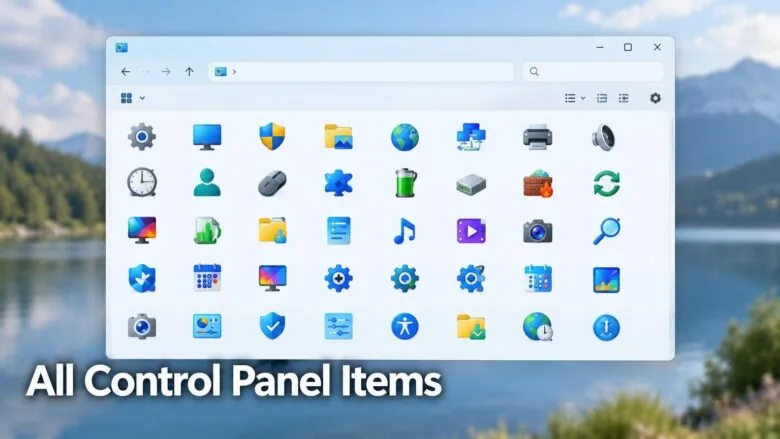
- 27 steps
- Needs administrator rights
Control Panel in Windows 11 lists the old-style settings tools, such as Device Manager and Programs and Features. By default, it groups these tools under headings, so many of them stay out of sight. To see every item at once, change the View by setting from Category to Large icons or Small icons.
Category view hides most items behind group headings, so you may not see them on the first screen. The icon views show every item in one alphabetical list. This is the quickest fix for most people.
This article covers that method and three others. You will learn a one-line shortcut that opens the full list directly, a folder that gathers every item in one place, and a PowerShell command that saves the list to a file. It also explains why your list may look different from someone else’s.
To see all Control Panel items in Windows 11, open Control Panel and change the View by setting from Category to Large icons or Small icons. Category view groups items under headings and hides many of them. The icon views list every item alphabetically in one window. You can also type Control Panel\All Control Panel Items into File Explorer’s address bar.
Open Control Panel in 🪟 Windows 11
Windows 11 still includes Control Panel, but Start and the taskbar do not show it by default. Pick whichever of these routes you prefer. None of them needs administrator rights.
Open it from Start search
- Select the Search box on the taskbar, or press the Win.
- Type Control Panel.
Windows 11 Control Panel dashboard showing power options. - Select Control Panel under Best match.
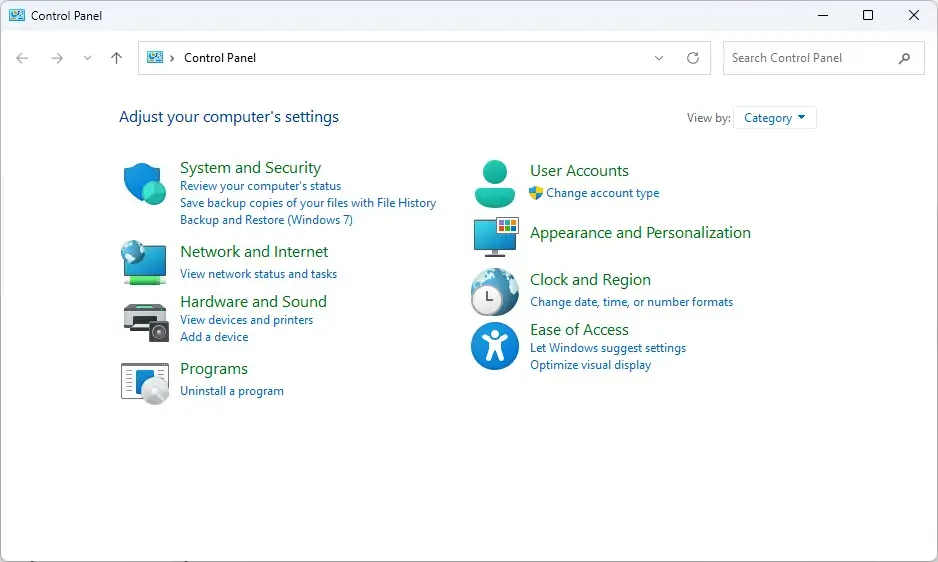
The Control Panel window opens. If this is the first time you have opened it, it usually shows Category view, with headings such as System and Security and Network and Internet.
Open it from the Run box
This route is quicker if you keep your hands on the keyboard.
- Press Win+R to open the Run dialog.

Run dialog - Type
controland press Enter.
Control Panel opens in whichever view you used last. You can run the same command from a Command Prompt or PowerShell window.
Show all Control Panel items in one list
Category view is Control Panel’s default. It groups tasks, not items, so many items never appear on the first screen. Changing the view fixes that.
Switch to Large icons or Small icons
- Open Control Panel using either method above.
- Find the View by drop-down in the top-right corner of the window, above the item list.
- Select the drop-down and choose Large icons or Small icons.
The window now shows every item as its own icon, sorted alphabetically by name. Large icons is easier to read at a glance. Small icons fits more items on screen without scrolling, which suits a long list.
Windows remembers your choice. The next time you open Control Panel, it uses the same view.
If the View by drop-down is missing, you are probably in a narrow window or a view that sits inside another window (an embedded view). Maximize the window and check again. If the drop-down is still missing, use the address bar route in the next section.
Search for a single item
If you know roughly what you want but not where it sits, use the search box in the top-right corner of the Control Panel window. Type a word such as mouse or sound and press Enter. Control Panel lists matching items and tasks. Clear the box to go back to the full list.
Open the full item list directly
Use the File Explorer address bar
File Explorer treats Control Panel as a folder, so you can type its path.
- Press Win+E to open File Explorer.
- Select the address bar (the box at the top of File Explorer that shows the current folder path), or press Ctrl+L.
- Type the following path and press Enter:Code
Control Panel\All Control Panel Items
The window now lists every Control Panel item in the current view. This is the same location that appears at the top of many Control Panel windows, which is where the phrase “all Control Panel items” comes from.
Use a shell command in the Run box
A shell command is a special address that opens a built-in Windows location. This one opens the All Control Panel Items folder.
- Press Win+R.
- Type the following and press Enter:Code
shell:::{21EC2020-3AEA-1069-A2DD-08002B30309D}
The All Control Panel Items window opens. Copy the command exactly, including the three colons and the braces. If Windows shows a “can’t find” error, a character is missing or mistyped.
Gather every item in one folder with God Mode
God Mode is the common name for a special folder that lists Control Panel items and tasks together in one long, grouped list. It is not a hidden admin mode, and it does not change any permissions. It is a different way of viewing the same settings. It gives you one flat list you can scroll or search, and it is the quickest of the four methods.
Creating the folder does not need administrator rights, and you can undo it by deleting the folder.
- Right-click an empty area of the desktop and select New Folder. On Windows 11, New is in the right-click menu directly.
- Replace the default name New folder with the following text, then press Enter:Code
GodMode.{ED7BA470-8E54-465E-825C-99712043E01C}
The folder name disappears and the icon changes to a Control Panel icon. Open it to see a long list of settings, grouped under headings such as Administrative Tools, Power Options and Network and Sharing Center. Use the search box at the top of the folder to find an entry.
If you see a plain folder named GodMode with no icon change, the text after the dot did not save. Delete the folder and create it again, copying the name exactly. Leave no spaces before or after it.
To remove God Mode, right-click the folder and select Delete. Nothing else on your PC changes.
Export the list of Control Panel items with PowerShell
This method uses the Get-ControlPanelItem command. It exists in Windows PowerShell 5.1, which comes with Windows 11. It is not available in the newer PowerShell 7, so open the blue Windows PowerShell, not a PowerShell 7 window.
List the items in a PowerShell window
- Select the Search box on the taskbar and type Windows PowerShell.
- Select Windows PowerShell under Best match. You do not need to run it as administrator.
- Type the following command and press Enter:PowerShell
Get-ControlPanelItem | Sort-Object Name | Format-Table Name, Category -AutoSize
PowerShell prints a table of item names and their categories. If you see an error saying the term Get-ControlPanelItem is not recognized, you are in PowerShell 7, or another program that runs PowerShell but does not include this command. Close the window and open Windows PowerShell from Start.
Save the list to a file
The next command writes the list to a CSV file (a plain-text table that opens in Excel) on your desktop.
- In the same Windows PowerShell window, type the following command and press Enter:PowerShell
Get-ControlPanelItem | Select-Object Name, CanonicalName, Category | Export-Csv "$env:USERPROFILE\Desktop\ControlPanelItems.csv" -NoTypeInformation - Open the ControlPanelItems.csv file from your desktop.
The file has one row per item. The CanonicalName column holds the item’s internal name, which you can use in scripts. The window of Control Panel itself remains the reference. The command’s output can differ slightly from what you see on screen.
Find the .cpl files behind classic items
Many older Control Panel items are stored as .cpl files (Control Panel applets). To list the ones that sit in the System32 folder, run this command in PowerShell:
Get-ChildItem C:\Windows\System32\*.cplNot every item has a .cpl file. Many are built in as shell items and will not appear in this list. Treat the output as a partial list of the classic applets.
Open individual items from the Run box
Once you have the full list, you may want to open a single item without browsing. Several classic items have a short command you can type in the Run dialog (Win+R):
appwiz.cplopens Programs and Features.ncpa.cplopens Network Connections.powercfg.cplopens Power Options.sysdm.cplopens System Properties.main.cplopens Mouse Properties.intl.cplopens Region.timedate.cplopens Date and Time.inetcpl.cplopens Internet Properties.
Some older commands now open the Settings app instead of a Control Panel window, because Microsoft has moved those pages. If a command lands you in Settings, that item no longer lives in Control Panel.
Make Control Panel easier to reach
If you open Control Panel often, add a shortcut so you do not have to search every time.
Pin Control Panel to the taskbar or Start
- Select the Search box and type Control Panel.
- Right-click Control Panel under Best match.
- Select Pin to taskbar or Pin to Start.
The Control Panel icon now appears on the taskbar or in the Start menu’s pinned area. To remove it later, right-click the icon and select Unpin from taskbar or Unpin from Start.
Add a Control Panel icon to the desktop
- Open Settings Personalization Themes.
- Scroll down to Related settings and select Desktop icon settings.
- In the Desktop Icon Settings window, select the Control Panel check box.
- Select Apply, then OK.
A Control Panel icon appears on your desktop. Open the same window and clear the check box to remove it.
Why your list looks different from someone else’s
The All Control Panel Items list is not identical on every PC. Three things change it.
Installed software and drivers add items
Some apps and hardware drivers add their own Control Panel entries. Audio, graphics and printer software are common examples. A PC with those drivers installed shows items that a fresh Windows install does not. Uninstalling the app or driver usually removes its entry.
Some items have moved to Settings
Microsoft keeps moving options into the Settings app. In some cases, the Control Panel item still opens, but it points you to Settings. In other cases, the item is gone. This is why a tutorial written for an older Windows version may name an item that you cannot find. Search the Settings app for the setting name if Control Panel does not list it.
Names differ between 🪟 Windows 11 versions
In current Windows 11 builds, the tools folder in Control Panel appears as Windows Tools. Earlier builds, including the first release of Windows 11, labeled it Administrative Tools. If you cannot find one, look for the other name.
🪟 Windows 11 Home and Pro
Control Panel works the same way in Home and Pro for the steps in this article. A few items that appear on Pro, such as BitLocker Drive Encryption management, may be missing or limited on Home, because the feature itself differs by edition.
Work or school PCs can block Control Panel
On a managed PC, an administrator can restrict Control Panel. If you open it and see a message that the operation was cancelled due to restrictions in effect on this computer, the restriction comes from your organization. Only your IT department can change it. On a personal PC that has never been managed, this message is unusual and is worth raising with whoever last set up the PC.
If this didn’t work
If Control Panel does not open at all, try the control command in the Run box, which bypasses search. If an item you need is missing from the list, search for it in the Settings app, because it may have moved there. To go further, the closest next task is changing individual settings from the items you now see, such as Power Options or Programs and Features, using the .cpl shortcuts above.
Frequently asked questions
How do I get to all Control Panel items?
Open Control Panel, then set View by to Large icons or Small icons. Every item appears in one alphabetical list instead of being hidden under category headings. For a shortcut, press Win+R, type shell:ControlPanelFolder, and press Enter to open the full list directly.
How do I access the Classic Control Panel in 🪟 Windows 11?
Windows 11 has no separate classic version. Control Panel is the classic tool itself. Type Control Panel in the Start search box and select it. You can also press Win+R, type control, and press Enter. Neither method needs administrator rights.
Where is the Control Panel stored in 🪟 Windows 11?
Control Panel is a program file named control.exe in the System32 folder. Its full location is 📁C:\
Why are all the icons not showing in my 🪟 Windows 11 taskbar?
Taskbar icons are usually hidden in the overflow area or turned off in Settings. Select the up arrow in the taskbar corner to check. To show an icon again, open Settings, select Personalization, then Taskbar, and expand Other system tray icons. Turn on the app you want.
Still have a question?
Answered by AI from this guide. Good questions may be added to this page — please don't include personal details.
Did this guide fix your problem?

About the Author
Richard
Tech Writer, IT Professional
Richard is a writer at Geek Rewind who turns complex IT tasks into clear, step-by-step guides. He draws on years of hands-on experience in system administration and enterprise IT operations, focusing on Windows, Linux and WordPress: the problems people actually run into, and the fixes that work. His server and WordPress guides come from systems he runs himself. Richard builds and maintains the platform behind Geek Rewind, from its Ubuntu servers and Nginx configuration to its custom WordPress plugins. Many new tutorials start with readers' questions, and he's always glad to answer them in the comments.
No comments yet — be the first to share your thoughts!