Find Power Options in Control Panel in Windows 11

Power Options is the classic page for managing power plans, sleep timers and the power button. A power plan is a saved group of settings for sleep, display and performance. To open the power options control panel , press Win+R, type powercfg.cpl, and press Enter.
Windows 11 also has a newer page at Settings System Power & battery It covers fewer options, so the Control Panel version is still the one to use for power plans, lid actions and advanced settings. This post shows two ways to reach it, what each part does, and what to check when an option is missing.
To open Power Options in Windows 11, press Win+R, type powercfg.cpl, and press Enter. The Power Options window opens in Control Panel , where you change power plans, sleep timers and power button actions. You can also open Control Panel from the taskbar search and select System and Security, then Power Options.
Open Power Options with the Run box
The Run box is the fastest way to open the power options control panel , and it works the same on Windows 11 Home and Pro. These steps take you straight to the Power Options window.
- Press Win+R. The Run box opens in the lower-left corner of the screen.

Run dialog - Type
powercfg.cplin the Open field. This is the file name of the Power Options page. - Press Enter. The Control Panel window opens at Power Options, with your current power plan selected.
If nothing opens, check the spelling. The name has no spaces, and the part after the dot is cpl, not cp1.
Open Power Options from Control Panel
This route opens Control Panel first and then the Power Options page, which helps if you want to see where the page sits among the other settings. The steps below end at the same window as the Run box method.
- Select the Search icon on the taskbar . The search panel opens.
- Type Control Panel in the search box. The Control Panel app appears at the top of the results.
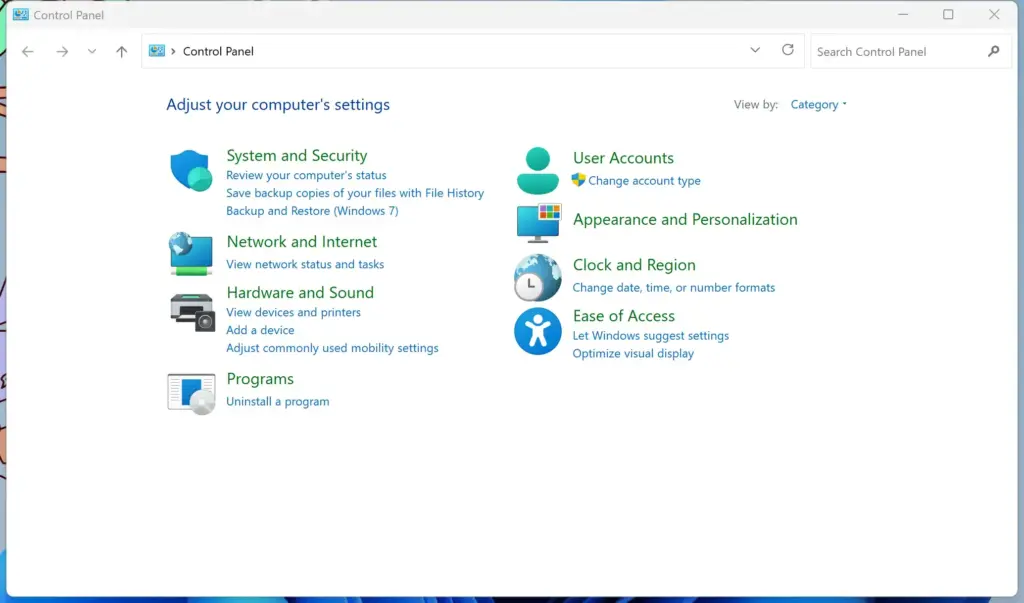
Control Panel - Select Control Panel to open it. The window opens in Category view by default.
- Select System and Security. A page with groups such as Security and Maintenance and Power Options appears.
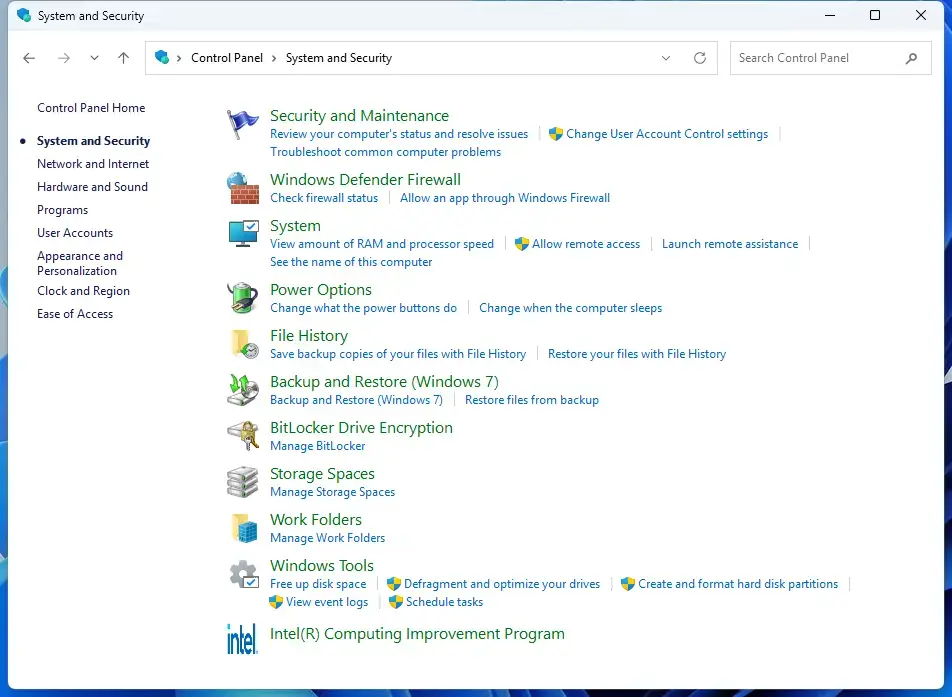
Control Panel › System and Security - Select Power Options. The power plan list opens.
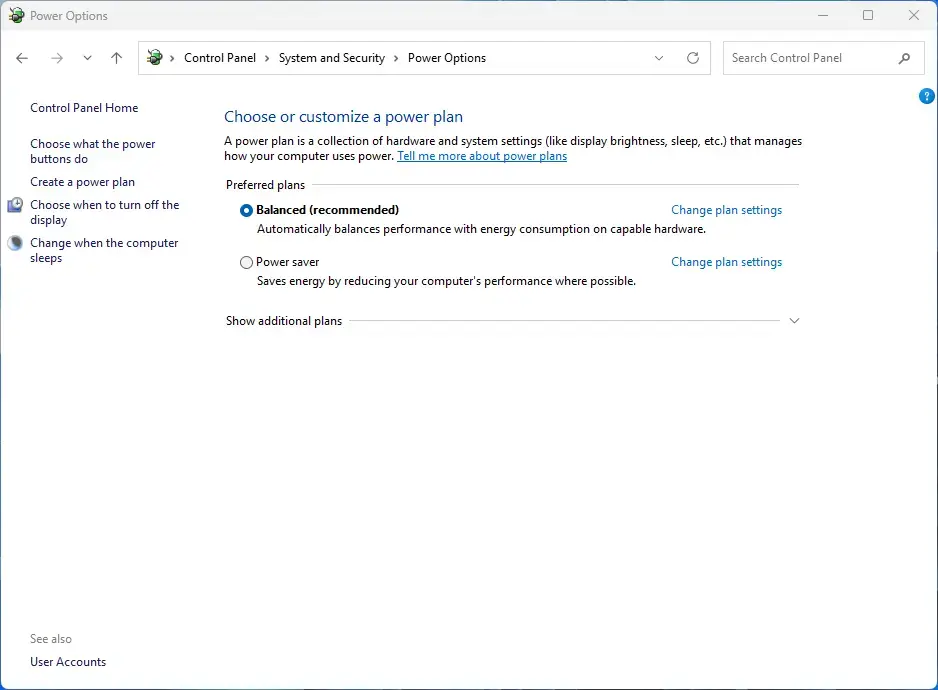
Control Panel › System and Security › Power Options
Control Panel remembers your last view. If it opens with rows of small icons instead of categories, Power Options is listed directly. Select it there. To get icons yourself, open the View by menu in the top-right corner and choose Large icons or Small icons.
What the Power Options window shows
The centre of the window lists your power plans. Balanced is the default on most PCs. Other plans, such as Power saver or High performance, may sit behind a Show additional plans arrow.
The left pane holds the main links. These are Choose what the power buttons do, Create a power plan, and Choose when to turn off the display. Laptops also show Choose what closing the lid does. Desktops do not, because they have no lid.
Change settings in Power Options
Once the window is open, three tasks cover most needs: picking a plan, setting the sleep and display timers, and choosing what the power button does. Each task below has its own short list.
Choose a power plan
A power plan decides how aggressively your PC saves energy or favours speed. This step switches the active plan, and the change applies at once.
- Open Power Options using either method above.
- Select the arrow next to Show additional plans if you want to see more than one plan. Extra plans appear below the first.
- Select the circle next to the plan you want. The selected circle fills in, and Windows uses that plan immediately.
You do not need to restart. If the arrow is missing, your PC offers only one plan. The section on missing options below explains why.
Change when the display turns off and the PC sleeps
Sleep is a low-power state. It keeps your open work in memory, so the PC wakes in seconds. These steps set how long the PC waits before the display turns off and before it sleeps.
- Select Change plan settings next to your active plan. The Edit Plan Settings page opens.
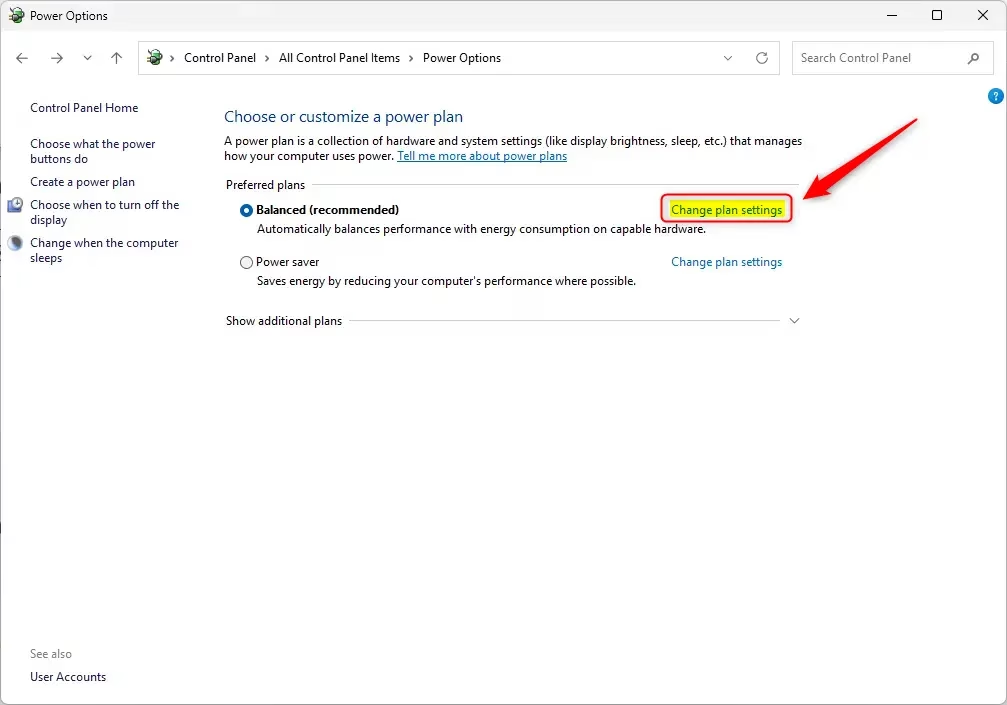
- Open the Turn off the display list and choose a time. Laptops show two columns, On battery and Plugged in. Set each one.
- Open the Put the computer to sleep list and choose a time. Choose Never to stop the PC from sleeping on its own.
- Select Save changes. The window returns to the plan list, and the new timers apply straight away.
Set the display time to be shorter than or equal to the sleep time. Otherwise the display stays on until the PC sleeps anyway.
Choose what the power buttons and lid do
This page controls what happens when you press the power button, press the sleep button or close the lid. The page opens without special rights, but changing the shutdown options at the bottom needs administrator privileges.
- Select Choose what the power buttons do in the left pane. The System Settings page opens.
- Open each When I press the power button list and choose an action. Options include Do nothing, Sleep, Hibernate and Shut down. Laptops also show a When I close the lid list.
- Select Change settings that are currently unavailable to edit the Shutdown settings section. This step requires administrator privileges. Approve the User Account Control prompt, or enter an administrator password if asked.
- Tick or clear the boxes you want, such as Turn on fast startup (recommended) or Hibernate. The boxes become active after you approve the prompt.
- Select Save changes. The settings apply immediately, with no restart.
Hibernate saves what is open to the hard drive and then turns the PC off completely. It appears in the Start menu power options only after you tick its box here.
Open advanced power settings
Advanced settings control items such as hard disk timeout, USB selective suspend (which powers down idle USB devices) and what happens at low battery. These settings apply only to the plan you have selected, so change them only if you know what each one does.
- Select Change plan settings next to the active plan.
- Select Change advanced power settings. A small Power Options dialog opens with a tree of categories.
- Expand a category with the plus sign and change the value.
- Select OK. The settings save to the selected plan.
Add a shortcut so you can find it faster
If you open this page often, a desktop shortcut saves the trip through menus. The shortcut points at the same Power Options page as the Run box.
- Right-click an empty spot on the desktop. A context menu appears.
- Choose New Shortcut. The Create Shortcut wizard opens.
- Type
control powercfg.cplin the location box. - Select Next, name the shortcut Power Options, and select Finish. The shortcut icon appears on the desktop.
Double-click the shortcut to test it. It should open the same window you saw earlier. To pin it to Start, right-click the shortcut and choose Show more options Pin to Start.
If Power Options is missing or limited
Power Options behaves differently depending on the hardware, the Windows 11 build and who manages the PC. These are the common cases.
Win + X opens Settings, not Control Panel
In Windows 11, right-clicking the Start button (or pressing Windows + X) shows a Power Options entry. That entry opens the Settings app at the Power & battery page, not the Control Panel page. Use the Run box method when you need the classic window.
Only the Balanced plan appears
Many newer laptops and tablets use a power model called Modern Standby, which keeps the PC lightly connected while it sleeps. On these devices, Windows often hides the plan list and shows only Balanced. Use the Power mode menu in Settings System Power & battery to pick between Best power efficiency, Balanced and Best performance instead. Not every PC lists all three modes, so what you see depends on the device.
The Hibernate box is missing
If Hibernate does not appear under Shutdown settings, hibernation is switched off on the PC. Turn it back on from a Command Prompt that you run as administrator (a window with the extra rights needed to change system settings). This step requires administrator privileges.
- Select Search, type Command Prompt, and choose Run as administrator.
- Select Yes when the User Account Control prompt appears. This is the Windows message that asks you to confirm an action that needs administrator rights. A black window opens.
- Type
powercfg /hibernate onand press Enter. The command returns to the prompt without a message when it works. - Reopen Power Options and go to Choose what the power buttons do. The Hibernate box should now appear.
If you see an error instead, your hardware or driver may not support hibernation. Updating the chipset or graphics driver from the PC maker's support page sometimes fixes that.
Settings are greyed out or lock themselves
Greyed-out options usually mean you lack administrator rights, or an organisation manages the PC. Work and school PCs often apply rules through Group Policy (a Windows feature that lets administrators set rules for many PCs). When a rule controls an option, Windows disables it, and your change will not stick.
Ask your IT team to adjust the rule. On a personal PC, sign in with an administrator account and try again.
The Control Panel window fails to open
If Control Panel shows an error when you run powercfg.cpl, a restriction may be blocking it. Try the Settings route instead. Open Settings System Power & battery, which covers screen and sleep timers on most PCs.
Undo your changes
Power plan edits are reversible, and no restart is needed. These steps put one plan back to the way Windows shipped it.
- Open Power Options and select Change plan settings next to the plan you edited.
- Select Change advanced power settings. The advanced dialog opens.
- Select Restore plan defaults.
- Select Yes to confirm, then select OK. The plan returns to its default values.
This removes every custom plan you created, so run it only if you want a clean slate. Then open Command Prompt as an administrator and run powercfg /restoredefaultschemes. This step requires administrator privileges.
What to do next
Open Power Options now and check that your sleep timers match how you use the PC, especially on a laptop where the On battery column differs from Plugged in. A major Windows 11 feature update or a laptop maker's power utility can change plan settings later, so revisit this page if sleep behaviour changes on its own. If you want a setup of your own, Create a power plan in the left pane lets you build one from an existing plan.
Have a question about this guide?
Answered by AI from this guide. Good questions may be added to this page — please don't include personal details.
Did this guide fix your problem?

About the Author
Richard
Tech Writer, IT Professional
Richard is a writer at Geek Rewind who turns complex IT tasks into clear, step-by-step guides. He draws on years of hands-on experience in system administration and enterprise IT operations, focusing on Windows, Linux and WordPress: the problems people actually run into, and the fixes that work. His server and WordPress guides come from systems he runs himself. Richard builds and maintains the platform behind Geek Rewind, from its Ubuntu servers and Nginx configuration to its custom WordPress plugins. Many new tutorials start with readers' questions, and he's always glad to answer them in the comments.
No comments yet — be the first to share your thoughts!