Schedule Your PC to Shut Down Automatically in Windows 11

Power & sleep settings shut down the screen and put the PC to sleep, but they cannot switch Windows 11 off at a set time. To schedule a real shutdown, create a task in Task Scheduler that runs the shutdown command at the time you choose. For a one-off shutdown, run shutdown /s /t 3600 from the Run box to switch off after one hour.
Windows 11 labels the old “Power & sleep” page as Power & battery (Settings System Power & battery). Its timers handle display and sleep only. Task Scheduler is the built-in Windows tool for running programs at set times, and it works on both Windows 11 Home and Pro.
This post covers both methods, the sleep timers for comparison, and what to check when a scheduled shutdown does not run.
Windows 11 cannot schedule a shutdown from Power & battery settings, because those timers only turn off the screen and put the PC to sleep. To shut down at a set time, create a task in Task Scheduler that runs shutdown /s. For a one-off shutdown, open the Run box and type shutdown /s /t 3600 to switch off after one hour.
What the Power & Battery Settings Can and Cannot Do
Open Settings System Power & battery and you will find timers for the screen and for sleep. Neither one shuts down Windows. Knowing the difference saves you from setting a timer and finding the PC still running in the morning.
Sleep, hibernate and shut down are different states
Sleep keeps your session in memory and uses a small amount of power. The PC wakes in seconds. Hibernate saves your session to disk and powers off, but Windows restores that session when you turn the PC back on. Neither state closes your apps.
A shutdown closes your apps and Windows itself. After a shutdown, the PC uses almost no power. Only the power supply and the motherboard (the main circuit board that connects the PC’s parts) still draw a little power while plugged in. If you want that, use one of the scheduling methods below.
Set the screen and sleep timers
If sleep is enough for you, these steps set when the screen turns off and when the PC sleeps. This is the closest the Power & battery page gets to a shutdown schedule.
- Open Settings by pressing Windows + I.

- Select System. The System page opens with the list of settings on the right.
- Select Power & battery. On older Windows 11 builds this page is the one that contains the sleep timers.
- Expand Screen, sleep, & hibernate timeouts. On earlier builds this section is called Screen and sleep.
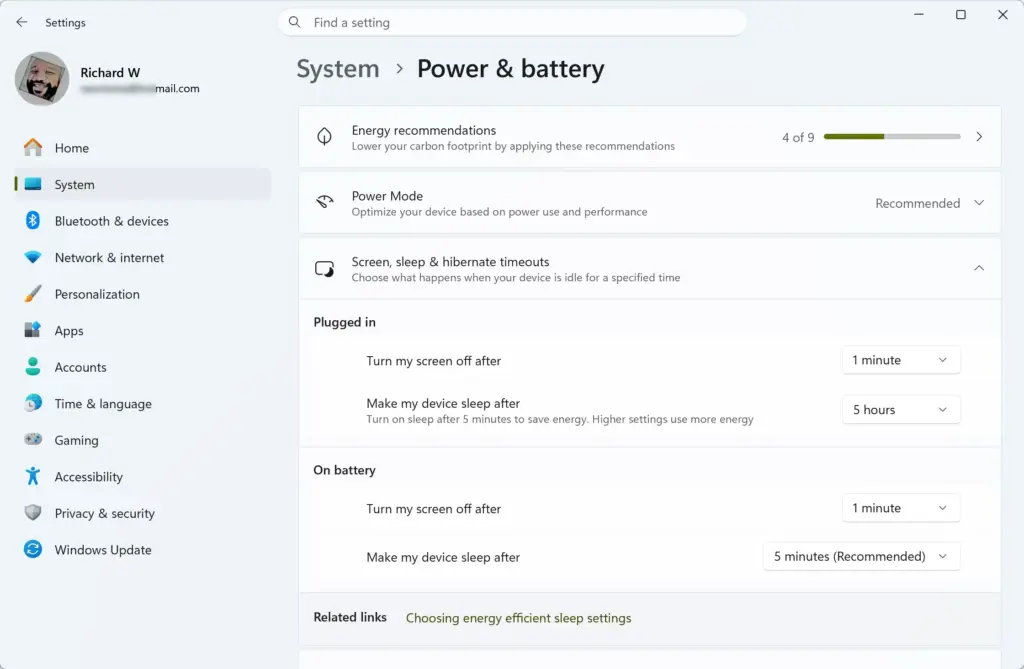
- Choose a time next to When plugged in, put my device to sleep after. A desktop PC shows only the plugged-in options. A laptop also shows the On battery power options.
To undo this, return to the same page and set the timers to the values you used before, or choose Never.
Choose the Right Shutdown Method
Pick the method by how often you want the PC to shut down.
- Every night or on certain days: use Task Scheduler. The task stays in place until you delete or disable it.
- Once, after a delay: use the
shutdowncommand with a timer. It is useful when you leave a large download or a video render running.
Schedule a Daily Shutdown with Task Scheduler
Task Scheduler runs a program at a time you set, and the program here is Windows' own shutdown tool. The task below shuts the PC down every day. A later step shows how to limit it to certain days.
Before you start
If an app has unsaved work, Windows normally stops the shutdown and shows a screen listing the app that is blocking it. Do not add /f to the command unless you accept losing unsaved data, because /f forces apps to close without asking.
The steps use /s (shut down) and /t 60 (wait 60 seconds first). The delay gives you time to cancel if you are still at the PC.
Create the shutdown task
The steps below set up a daily shutdown, so your PC switches itself off at the same time each day.
- Open Task Scheduler from the Start menu. Type Task Scheduler and select the top result. If a User Account Control prompt asks for administrator permission, select Yes.
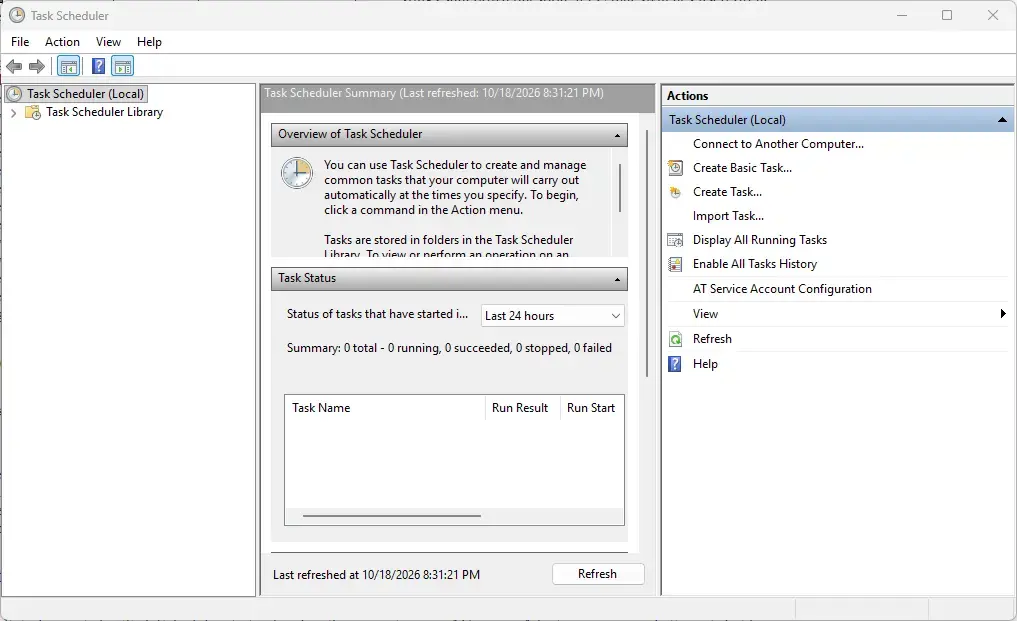
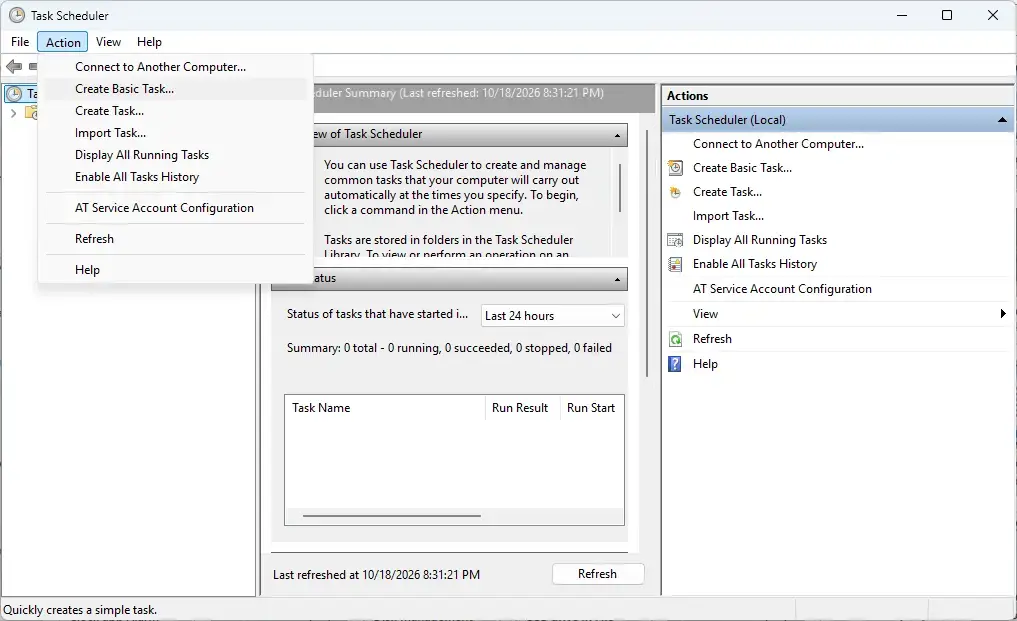
- Select Create Basic Task in the Actions pane on the right. The Create Basic Task Wizard opens.
- Type a name in the Name box, for example Nightly shutdown. The Description box is optional.
- Select Next. The Task Trigger page asks how often the task runs.
- Select Daily. For specific days only, such as weekdays, select Weekly instead and tick the days on the next page.
- Select Next. The page now asks for a start date and time.
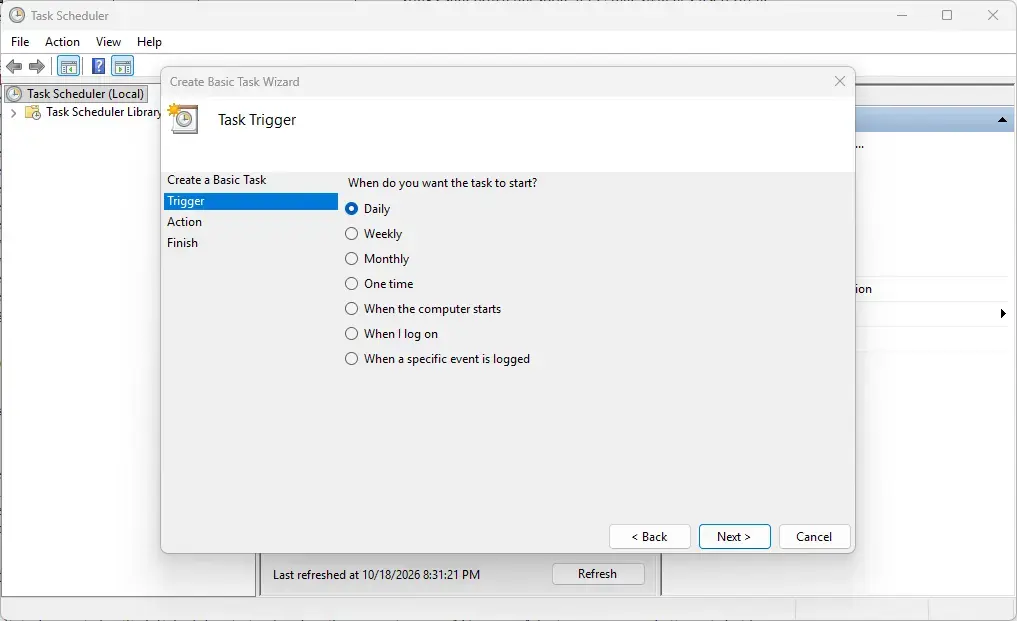
- Set the Start time to when you want the PC to shut down. Leave Recur every at 1 days for a daily shutdown.
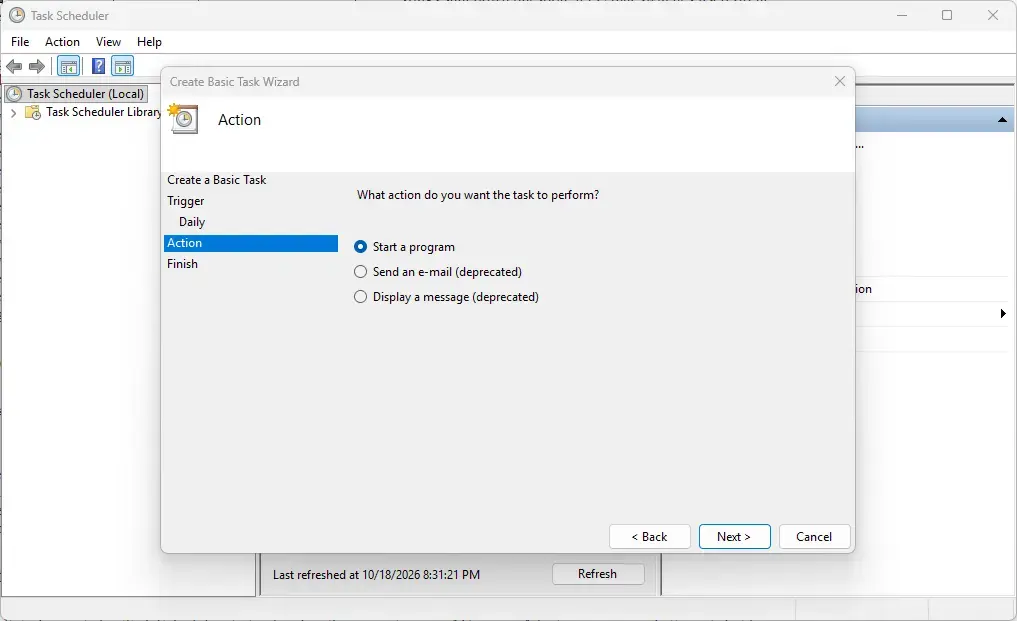
- Select Next. The Action page opens.
- Select Start a program, then select Next. The Start a Program page opens.
- Type
shutdownin the Program/script box. Leave the Start in (optional) box empty. - Type
/s /t 60in the Add arguments (optional) box. Arguments are extra instructions that tell the program what to do. - Select Next. The Summary page lists the name, trigger and action.
- Select Finish. Task Scheduler adds the task and closes the wizard. If you see an error, check that you typed
shutdownas the program and the arguments in the correct boxes.
Test the task
Testing starts the real shutdown, so save your work first. If you change your mind, you can cancel the countdown within the 60 seconds.
- Select Task Scheduler Library in the left pane. Your new task appears in the middle list.
- Right-click the task and select Run. Windows shows a warning that the PC will shut down shortly.
- To check the whole process, let the countdown finish. Otherwise, press Windows + R, type
shutdown /aand press Enter to stop it.
Make the task run on a laptop
AC power means mains power from the wall socket. A laptop running on battery at shutdown time skips the task. Change that setting if you want the shutdown to run on battery too.
- Double-click the task in Task Scheduler Library. The task's Properties window opens.
- Select the Conditions tab.
- Clear Start the task only if the computer is on AC power. Clearing it lets the task run on battery.
- Select the Settings tab and tick Run task as soon as possible after a scheduled start is missed. This runs the shutdown when the PC was asleep or off at the scheduled time and wakes later.
- Select OK. The Properties window closes and Task Scheduler saves your changes.
Consider the trade-off in the last option before you choose it. If the PC wakes at 9 a.m. after missing a 1 a.m. shutdown, it can shut down soon after you start work. Leave it cleared if that would annoy you.
Shut down when you are signed out
A basic task runs only while you are signed in to Windows. If you sign out each night but leave the PC on, the task does not run. Open the task's Properties, stay on the General tab and select Run whether user is logged on or not.
Windows asks for your account password when you select OK. A Microsoft account uses the same password you sign in with. An account with no password may not work with this option.
Shut Down Once After a Set Time
The shutdown command with a timer needs no setup. It creates no task, so there is nothing to delete later. The timer counts in seconds, so 1800 is half an hour, 3600 is one hour and 7200 is two hours.
Start a one-off timer
- Press Windows + R. The Run dialog opens.
- Type
shutdown /s /t 3600in the Open box. Replace 3600 with the number of seconds you want. - Select OK. Windows shows a notification that the shutdown is scheduled. Nothing else changes on screen.
Windows closes your apps when the timer ends, and it also warns you shortly before. Save your work before you leave the PC.
Cancel a one-off timer
Press Windows + R, type shutdown /a and press Enter. The /a command cancels a pending shutdown. This works only while the countdown is running.
If the Scheduled Shutdown Does Not Run
Most failures come from the conditions around the task, not from the command. Check these in order.
- The PC was asleep or off at the set time. A sleeping PC does not run the task unless you enabled the missed-start option described above.
- A laptop was on battery. Clear Start the task only if the computer is on AC power on the Conditions tab.
- You were signed out. Set the task to Run whether user is logged on or not.
- An app blocked the shutdown. Windows shows a screen naming the app. Save your work and close it, or accept that the shutdown will wait. Adding
/fcloses apps without saving, which can lose data. Save your work first, then decide. - The task did not run. Open Task Scheduler Library, select the task and look at the Last Run Result column. A result of The operation completed successfully means the task ran, so the cause lies elsewhere.
If the Task Scheduler window shows nothing in the middle pane, select Task Scheduler Library in the left pane first.
Change or Remove the Schedule
Task Scheduler keeps the task until you remove it, so a forgotten task can shut down your PC at a bad time. To change the time, double-click the task in Task Scheduler Library and open the Triggers tab. Select the trigger, select Edit, change the time and select OK.
To pause the schedule without losing the task, right-click it and select Disable. To remove it, right-click the task and select Delete, then select Yes when Windows asks you to confirm.
What to Do Next
Your PC now switches off at the time you set, so check the task's Last Run Result the next morning to confirm it ran. To restart the PC on a schedule instead, repeat the Task Scheduler steps and type /r /t 60 in the arguments box. The /r option restarts the PC rather than shutting it down. A major Windows update does not normally remove tasks, but check the Task Scheduler Library after one.
Have a question about this guide?
Answered by AI from this guide. Good questions may be added to this page — please don't include personal details.
Did this guide fix your problem?

About the Author
Richard
Tech Writer, IT Professional
Richard is a writer at Geek Rewind who turns complex IT tasks into clear, step-by-step guides. He draws on years of hands-on experience in system administration and enterprise IT operations, focusing on Windows, Linux and WordPress: the problems people actually run into, and the fixes that work. His server and WordPress guides come from systems he runs himself. Richard builds and maintains the platform behind Geek Rewind, from its Ubuntu servers and Nginx configuration to its custom WordPress plugins. Many new tutorials start with readers' questions, and he's always glad to answer them in the comments.
No comments yet — be the first to share your thoughts!