Change Your Device Region in Windows 11

- 24 steps
- Needs administrator rights
- Includes a restart or sign-out
The device setup region is the country or region you chose when you first set up Windows 11. You change it in Settings Time & language Language & region by picking a new entry under Country or region. The change takes a minute, applies to your user account straight away, and needs no reset or reinstall.
Windows uses this setting to decide which content, local services and defaults it offers you.
To change your device setup region in Windows 11, open Settings, select Time & language, then Language & region. Under Region, open the Country or region drop-down list and pick your new country. Windows saves it straight away, with no reset or reinstall needed. Your Time zone and Regional format stay as they are unless you change them separately.
What the device setup region controls
During first-time setup, Windows 11 asks “Is this the right country or region?” Your answer appears under Country or region in Settings. Windows and some apps read it to tailor local content, such as which apps and prices the Microsoft Store shows.
Three settings sit close together and people often mix them up:
- Country or region is the location Windows and apps use to tailor local content and services. This is the device setup region.
- Regional format controls how Windows displays dates, times, numbers and currency. It can differ from your country.
- Time zone controls the clock. It is a separate setting under Settings Time & language Date & time, and changing your region does not change it.
The system locale is a fourth setting. It controls the language that older programs use for text. It decides which language older, non-Unicode programs (programs written before modern text standards, which store letters in an older format) use to display text. You rarely need it, but a section below covers it.
Before you start
Changing Country or region applies to your own user account, so a standard account can do it. The steps are the same on Windows 11 Home and Windows 11 Pro. Only the system locale change in the later section needs administrator rights.
If your employer or school manages this PC, an administrator may control this setting. The section on missing or greyed-out options covers that case.
How to change the device setup region in 🪟 Windows 11
Use the steps below to change the device setup region. This is the Country or region setting Windows set when you first set up the PC.
- Open Settings. Press the Win+I, or right-click Start and select Settings. The Settings window opens on the System page.

Windows 11 Start menu search panel for opening OpenSSH Client settings - Select Time & language. It is in the left-hand list of categories. The right-hand pane shows Date & time, Language & region and other pages.

Settings › Time & language - Select Language & region. The page lists your preferred languages at the top, then a Region section further down.
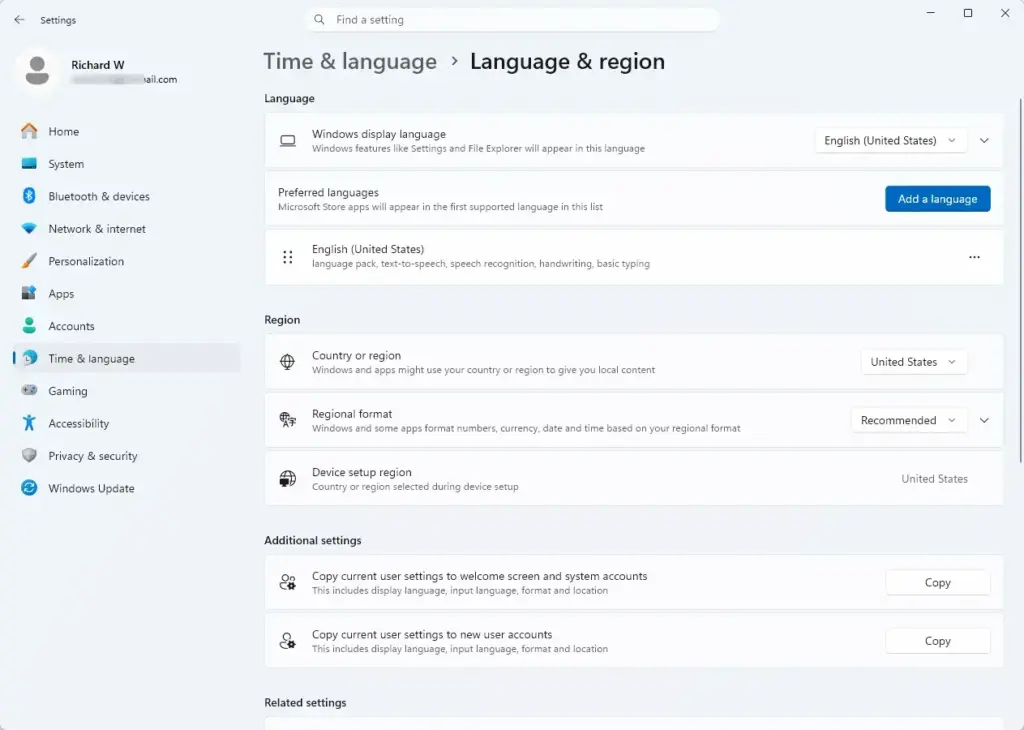
Settings › Time & language › Language & region - Scroll down to the Region section. It contains Country or region and Regional format. The country shown now is your current device setup region.
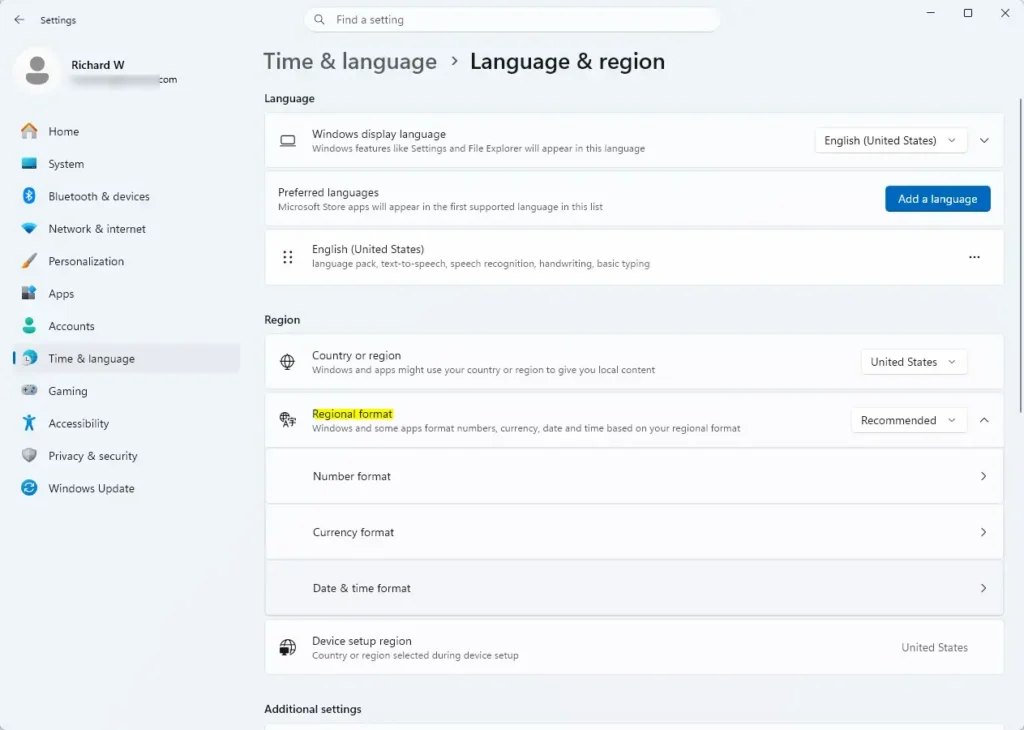
- Open the Country or region drop-down list. A scrollable list of countries and regions appears, in alphabetical order.
- Select your new country or region. You can type the first letters of the name to jump to it. The list closes and the new name shows in the box.
- Close Settings. Windows saves the change as soon as you pick the country, so no Apply or OK button is needed.
- Restart the PC if an app still shows the old region. A restart is not required for the setting itself, but it clears up apps that read the region only when they start.
What you should see afterwards
Reopen Settings Time & language Language & region. The Country or region box shows the country you chose. Open the Microsoft Store next. It may take a moment to refresh, and it can show different apps, prices or currency for the new region.
If the Microsoft Store or another app still shows the old region, close it fully and open it again. Signing out of Windows and back in also forces apps to reread the setting.
Change the regional format as well
Moving to a new country often means you also want local date, time and currency styles. The Regional format setting controls those. Changing Country or region does not always update Regional format, so check that setting yourself.
These steps set the regional format so dates, times, numbers and currency display in the style of your new country.
- Open Settings Time & language Language & region. Scroll to the Region section.
- Open the Regional format drop-down list. The list shows Recommended formats, which match your display language, followed by other formats.
- Select the format you want. The name appears in the box, and a small preview of the date and time style can appear in the section.
- Select the arrow to the right of Regional format if you want to adjust details. The section expands to show the calendar, first day of week, short and long date, and short and long time.
- Select Change formats to pick individual values, such as the first day of the week or the date style. Choose each value from its drop-down list.
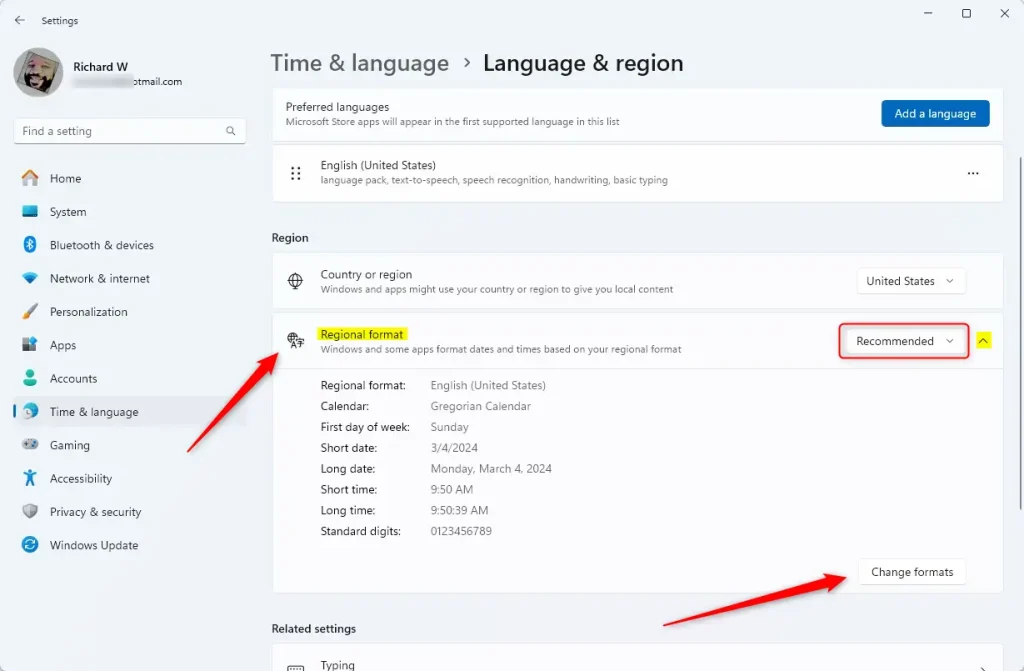
The new formats show in File Explorer, in Settings and in apps that follow the Windows setting. Some apps keep their own format and ignore this one.
Change the system locale for older programs
Skip this section unless an older program shows garbled text, such as question marks or boxes instead of letters. The system locale tells Windows which language to use for non-Unicode programs. It does not change your region.
- Open Settings Time & language Language & region. Scroll to the bottom of the page.
- Select Administrative language settings under Related settings. The Region dialog box opens.
- Select the Administrative tab. It is the second tab in the dialog.
- Select Change system locale under Language for non-Unicode programs. A User Account Control prompt appears if you are not already an administrator. Enter administrator credentials or select Yes.
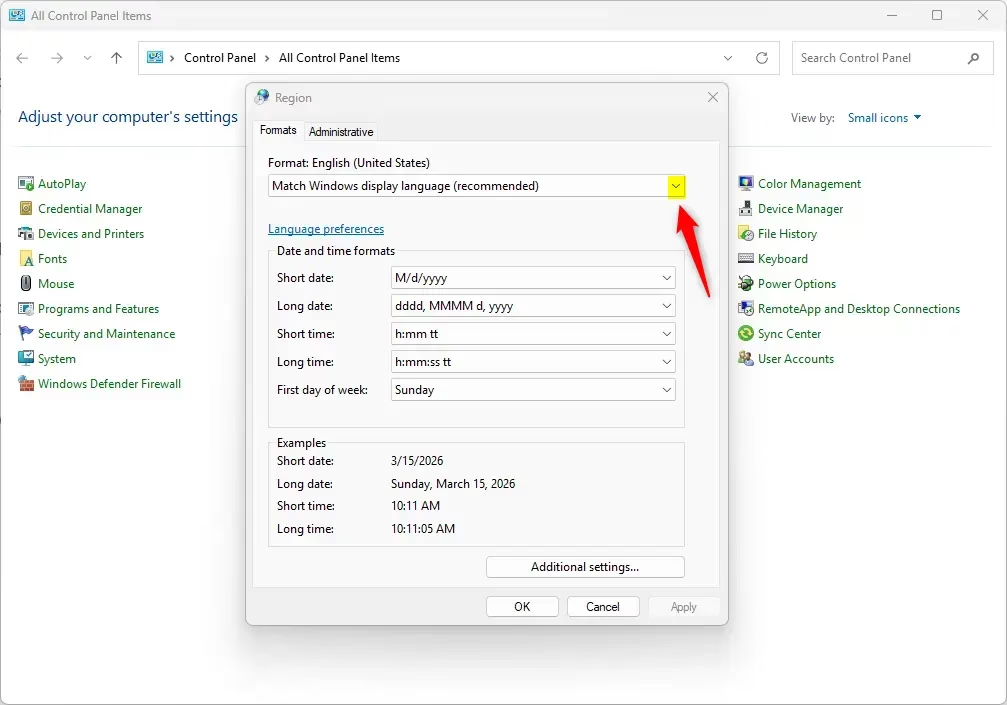
Control Panel - Choose a language from the Current system locale list. Leave the Unicode UTF-8 check box as it is unless a specific app’s support page tells you to change it.
- Select OK. Windows asks you to restart.
- Select Restart now. After the PC starts again, open the older program and check whether its text displays correctly.
Copy the region settings to the Welcome screen and new accounts
The settings above change your account only. Other accounts, the sign-in screen and any account created later keep the old settings unless you copy yours across. This step needs administrator privileges.
- Open the Region dialog from Settings Time & language Language & region > Administrative language settings.
- Select the Administrative tab, then select Copy settings under Welcome screen and new user accounts. The Welcome screen and new user account settings window opens.
- Check the boxes for Welcome screen and system accounts and New user accounts, depending on what you need.
- Select OK, then select OK again to close the Region dialog.
The sign-in screen then uses your formats the next time you start or lock the PC. Accounts you create from now on start with the same settings.
If the region option is missing, greyed out or does not stick
The setting is greyed out or managed by your organization
On a work or school PC, an administrator can lock the region. Settings then shows a message such as “Some settings are managed by your organization,” or the drop-down list does not respond. You cannot override this from a standard account. Ask your IT team to change the policy or the region for you.
You changed the region but an app still shows the old one
Some apps read the region once and store it. Close the app from Task Manager (the tool that lists running programs, opened with Ctrl+Shift+Esc), then open it again. If it still shows the old region, sign out of Windows and back in, then restart the PC.
Many apps keep their own region setting inside the app. Check the app’s own settings page if Windows shows the right country and the app does not.
The Microsoft Store shows the wrong content or prices
The Microsoft Store follows the Country or region setting, but it can take time to refresh. Close the Store, reopen it and wait a moment. If your account has a billing address in another country, the Store may still offer limited choices. Windows does not edit your Microsoft account profile when you change the region, so account details stay as they were.
The clock or date format looks wrong
A new region does not move the clock. Open Settings Time & language Date & time and set the Time zone yourself, or turn on Set time zone automatically if you want Windows to choose it. If dates still use the wrong style, revisit Regional format in the earlier section.
The region reverts after a restart or sign-in
If the region goes back to the old value, a management policy or a sync from another device is usually the cause. On a work PC, an administrator may have a rule that sets the region again at sign-in. On a personal PC, check that you changed the setting while signed in to the account you actually use.
How to undo the change
Changing Country or region is fully reversible. Open Settings Time & language Language & region, open the Country or region list and select your original country. The same applies to Regional format.
If you changed the system locale, repeat the system locale steps and choose the previous value. Windows asks for another restart. If you copied settings to the Welcome screen and new accounts, repeat the copy once you have restored your original settings.
What to do next
Check the time zone under Settings Time & language Date & time, since the region change does not touch it. If you also want to add a display language or a keyboard layout for the new country, use the same Language & region page and select Add a language. If an app still shows the old region after a restart, look for a region or country option inside the app itself.
Have a question about this guide?
Answered by AI from this guide. Good questions may be added to this page — please don't include personal details.
Did this guide fix your problem?

About the Author
Richard
Tech Writer, IT Professional
Richard is a writer at Geek Rewind who turns complex IT tasks into clear, step-by-step guides. He draws on years of hands-on experience in system administration and enterprise IT operations, focusing on Windows, Linux and WordPress: the problems people actually run into, and the fixes that work. His server and WordPress guides come from systems he runs himself. Richard builds and maintains the platform behind Geek Rewind, from its Ubuntu servers and Nginx configuration to its custom WordPress plugins. Many new tutorials start with readers' questions, and he's always glad to answer them in the comments.
No comments yet — be the first to share your thoughts!