Check Whether Your Hard Drive Is an HDD or SSD in Windows 11

A hard disk drive (HDD) stores data on spinning magnetic platters, while a solid-state drive (SSD) stores it on flash memory chips with no moving parts. To check which one your PC has in Windows 11, open Defragment and Optimize Drives and read the Media type column.
The answer takes under a minute, and you do not need administrator rights to read it. This post also covers three other ways to check: Task Manager , the Settings app and PowerShell. It explains why Windows sometimes shows a blank or wrong drive type.
Knowing the drive type tells you whether a slow PC is held back by its storage. It also tells you which maintenance tasks apply, because HDDs and SSDs need different care.
To check whether your drive is an HDD or SSD in Windows 11, open Defragment and Optimize Drives and read the Media type column beside your main drive, usually (C:). It shows Hard disk drive or Solid state drive.
HDD vs SSD: What You Are Looking For
An HDD has a motor, spinning platters and a read/write head, much like a small record player. It is cheaper per gigabyte, but slower, and it can click or hum under load. Most laptops and desktops sold before the mid-2010s used one as the main drive.
An SSD has no moving parts, so it starts Windows faster, opens apps sooner and runs silently. SSDs come in several forms.
A SATA SSD looks like a laptop hard drive. An M.2 SSD is a small card that plugs directly into the motherboard. NVMe (a fast connection standard for SSDs) is the type of M.2 drive found in most newer PCs.
Some drives mix both. A hybrid drive (SSHD) is an HDD with a small amount of flash memory added as a cache (a fast store that holds files you use often). Windows reports these as HDDs, which is correct because the main storage still spins.
Check Whether Your Hard Disk Drive Is an HDD or SSD With Defragment and Optimize Drives
This tool lists every drive in your PC and labels each one as either a hard disk drive or a solid state drive. The following steps show you how to read that label.
- Click Start. The Start menu opens with the search box ready for typing.

- Type defrag in the search box. Defragment and Optimize Drives appears at the top of the results.
- Click Defragment and Optimize Drives to open it. A window titled Optimize Drives opens.
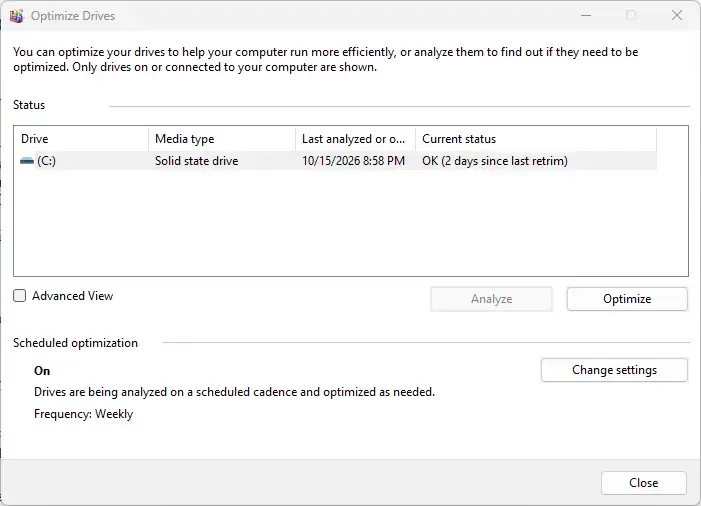
- Find the Media type column in the drive list. It sits between the Drive and Last run columns.
- Read the entry beside your main drive, usually (C:). It says Hard disk drive or Solid state drive.
- Close the window without clicking anything else. Opening the tool changes nothing on your system.
If the list shows several rows, each row is a separate drive or partition (a section of a drive). A PC with a small SSD for Windows and a large HDD for files shows one of each. Two rows can also be two partitions on the same physical drive, and both then show the same media type.
If the Media Type Column Is Blank or Looks Wrong
The Media type column reads what the drive reports to Windows. USB flash drives and some external drives often show nothing useful there. Removable drives may not appear in the list at all.
If the Media type entry is blank, reads Unknown, or the drive is missing, use one of the other methods below. Task Manager and PowerShell read the drive type through a different route and can give a clearer answer.
The label describes the virtual disk, not the physical drive on the host.
Other Ways to Check Your Drive Type
Each of these methods reports the same information. Use one if Defragment and Optimize Drives does not list your drive, or if you want a second opinion.
Check Drive Type in Task Manager
Task Manager shows the drive type next to live activity figures. This suits you if you are already checking why a PC feels slow.
- Press Ctrl + Shift + Esc. Task Manager opens.
- Click More details if you see only a short list of apps. The full window appears with a row of tabs.
- Click the Performance tab. The left pane lists CPU, Memory and one or more disks.
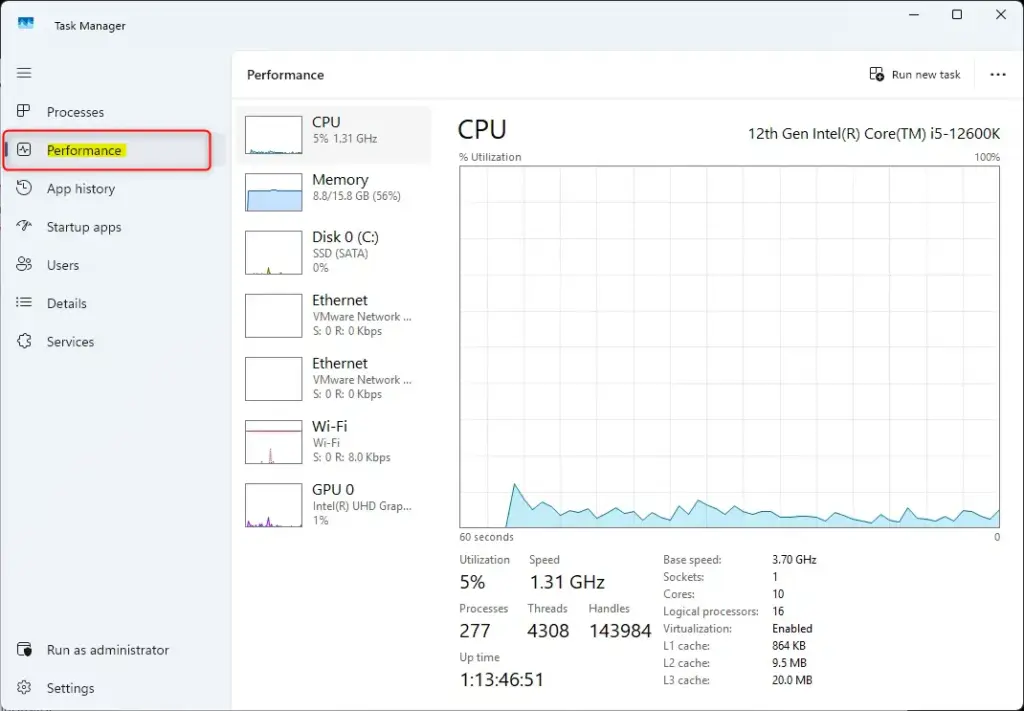
Performance tab selected in Windows 11 Task Manager. - Click Disk 0 (C:), or whichever disk you want to check. A graph and a block of figures appear on the right.
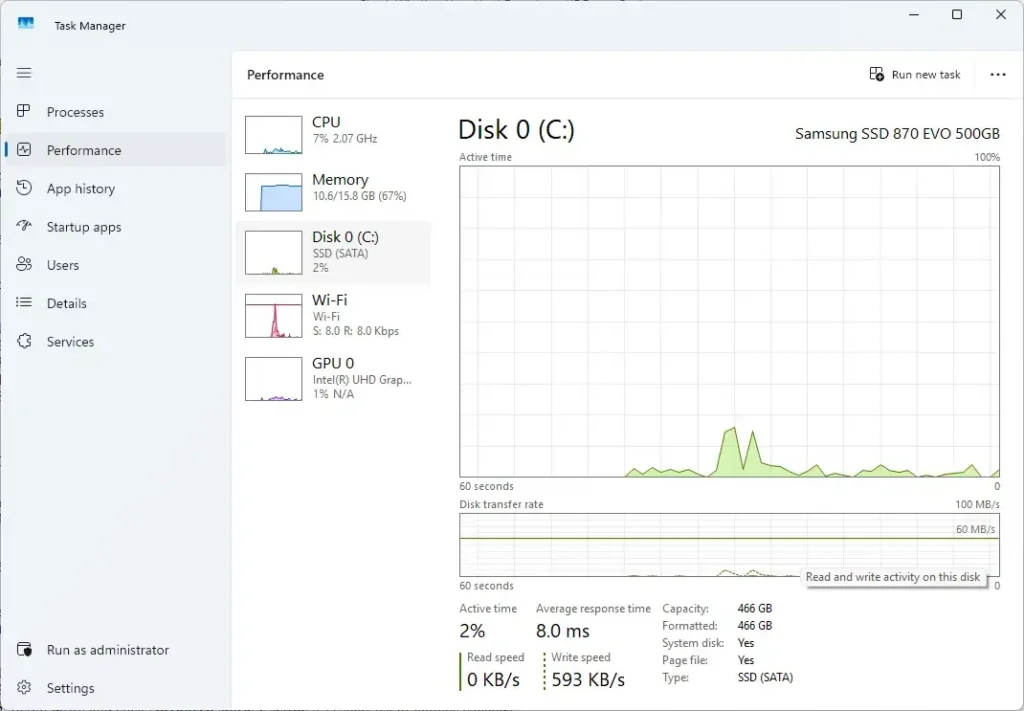
- Read the Type entry below the graph. It shows HDD or SSD, sometimes with the connection type, such as SSD (NVMe).
The disk model name appears in the top-right corner of the same panel. Keep it in mind, because it is useful if you need to confirm the type later.
If the Disk entries are missing from the left pane, scroll down. On a PC with several drives, the list is long and the disks sit below CPU, Memory and Wi-Fi or Ethernet.
Check Drive Type in Settings
Recent builds of Windows 11 show drive details in the Settings app. Use this method if you also want to see capacity and health status for each drive.
- Open Settings by pressing Windows + I. The Settings window opens.
- Go to Settings System Storage The page shows how much space your drives use.
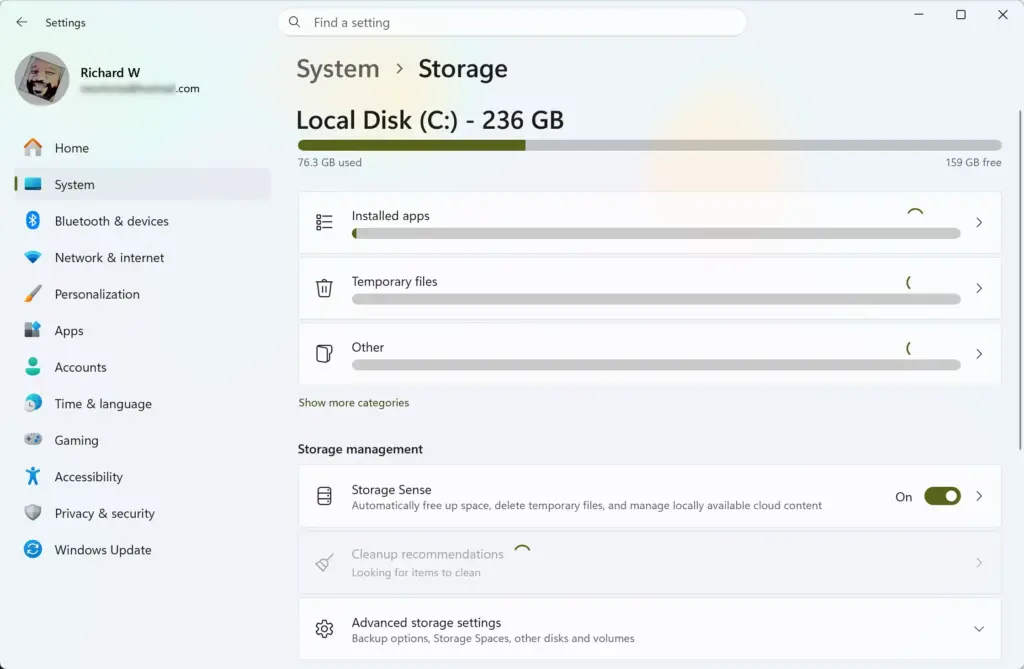
Settings › System › Storage - Scroll down and click Advanced storage settings. A short list of options expands.

windows storage advanced storage settings - Click Disks & volumes. Each physical disk in your PC appears with its volumes listed under it.
- Click Properties beside the disk you want to check. A details page opens.
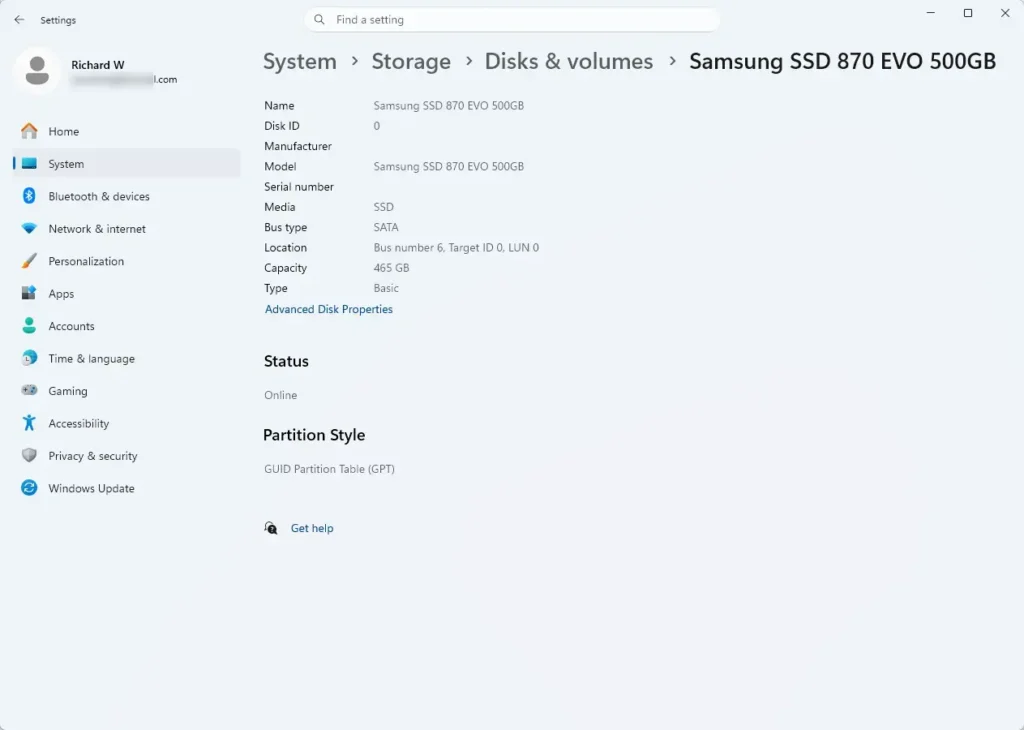
- Look for the drive type on that page. It reads HDD or SSD where Windows can identify it.
If Disks & volumes is missing, your Windows 11 build is older than the one that added it. Run Windows Update, or use Task Manager or Defragment and Optimize Drives instead.
Check Drive Type With PowerShell
PowerShell (a command-line tool built into Windows) can list every physical disk with its media type in one table. This is the most direct method when a graphical tool gives a blank answer.
Administrator privileges (permission to change system settings) may be needed for this method. If you see an access denied message, close the window and open Terminal (Admin) again.
- Right-click Start, and a menu of system tools opens.
- Click Terminal (Admin) in that menu. Windows asks for permission to continue.
- Click Yes in the User Account Control prompt. A Terminal window opens with a PowerShell prompt.
- Type the command below and press Enter.PowerShell
Get-PhysicalDisk | Format-Table FriendlyName, MediaType, BusType, SizeA table appears with one row per physical disk.
- Read the MediaType column. It shows HDD, SSD or Unspecified.
The BusType column shows how the drive connects. SATA and NVMe are internal connections, while USB marks an external drive. A value of Unspecified in MediaType means Windows could not identify the technology, so move on to the model-name check below.
Confirm the Type From the Drive Model Name
The drive model name is the most reliable evidence when software gives a vague answer. The manufacturer's product page states the technology plainly.
- Right-click Start, then click Device Manager. The Device Manager window opens.
- Double-click Disk drives. The list expands to show each drive by model name.
- Note the model name, for example a string of letters and numbers printed beside a brand name.
- Search the web for that exact model name. The manufacturer's page or a retailer listing states whether it is an HDD or SSD.
Names that include SSD, NVMe or M.2 point to a solid-state drive. A name containing HDD, Barracuda or a rotational speed such as 5400 or 7200 points to a hard disk drive. Treat these as clues and confirm with the product page.
Why Windows Can Show the Wrong Drive Type
Windows reports what the drive or its controller tells it. Several setups give misleading or empty answers.
- Hardware RAID (a setup that combines several drives into one) or a storage controller (the chip that manages the drives). The controller can present several physical drives as one disk, and Windows may label that disk as an HDD or leave it unspecified.
- Virtual machines. The virtual disk is often labelled as a hard disk drive, whatever the host uses.
- USB enclosures and adapters. Some adapters hide the drive's real type. An SSD in a cheap enclosure can appear as unspecified.
- Hybrid drives (SSHD). These report as HDD because the main storage is a spinning platter.
- PCs with two drives. Many laptops pair a small SSD with a larger HDD. Check the row for the drive you care about, not just the first one.
If two methods disagree, trust the model-name check. It does not depend on how a controller or adapter reports the drive.
What the Result Means for Maintenance
The Optimize button does the maintenance, and it works differently on each drive type. Know what it does for your drive before you click it.
On an HDD, Optimize runs defragmentation. This rearranges scattered pieces of files so the read/write head moves less. It can speed up a drive that has run for years.
Windows 11 does this on its own schedule and does not defragment SSDs the old way. Leave the scheduled optimization turned on, and do not use a third-party defragmenter on an SSD.
Checking the drive type changes nothing on your PC, so there is nothing to undo. If you opened Optimize by accident, nothing runs until you select a drive and click Optimize.
What to Do Next
If the check shows a hard disk drive and your PC feels slow, replacing it with an SSD is the biggest speed upgrade available for most older machines. Before buying, find out which connection your PC uses, using the model name and the BusType value above. If the drive is an SSD and the PC is still slow, look at Task Manager's Performance tab for memory or CPU pressure instead.
Have a question about this guide?
Answered by AI from this guide. Good questions may be added to this page — please don't include personal details.
Did this guide fix your problem?

About the Author
Richard
Tech Writer, IT Professional
Richard is a writer at Geek Rewind who turns complex IT tasks into clear, step-by-step guides. He draws on years of hands-on experience in system administration and enterprise IT operations, focusing on Windows, Linux and WordPress: the problems people actually run into, and the fixes that work. His server and WordPress guides come from systems he runs himself. Richard builds and maintains the platform behind Geek Rewind, from its Ubuntu servers and Nginx configuration to its custom WordPress plugins. Many new tutorials start with readers' questions, and he's always glad to answer them in the comments.
No comments yet — be the first to share your thoughts!