How to Enforce BitLocker Encryption on Removable Drives


BitLocker encryption for removable drives is a security feature built into Windows 11 Pro, Enterprise, and Education. It scrambles the data on USB sticks and external hard drives so nobody can read it without a password or recovery key. If you enforce the policy, the encryption type for every external drive is set by you, not by whoever plugs the drive in. That protects sensitive files if a drive is lost or stolen.
You can set this up with the built-in Local Group Policy Editor or with the Registry Editor. Windows 11 Home does not include the Local Group Policy Editor, so use Pro, Enterprise, or Education for the policy method. Home also cannot turn on BitLocker for removable drives, so there is little point in enforcing it there.
One thing to know first: the setting in this tutorial controls which type of encryption BitLocker uses (full or used space only). It does not, on its own, force people to encrypt a drive. The section on the Group Policy method covers the extra setting that does that.
Enforce BitLocker encryption for removable drives by opening Group Policy Editor and navigating to Computer Configuration Windows Components BitLocker Drive Encryption Removable Data Drives. Double-click “Enforce drive encryption type on removable data drives” and select your desired encryption method. Save the changes and restart your computer.
What Is BitLocker and Why Use It?
BitLocker removable drive encryption is a built-in Windows security feature. It scrambles the data on USB drives and external hard disks so nobody can read the files without the correct password or recovery key. If you lose a thumb drive or someone steals your external hardware, your documents, photos, and work files stay unreadable.
BitLocker can protect removable drives, fixed data drives, and the operating system drive. The main Windows drive can unlock automatically at startup using a TPM (Trusted Platform Module, a dedicated security chip that aids encryption). Removable drives have no TPM to rely on, so they unlock with a password, a smart card, or a recovery key instead.
Understanding Encryption Types
When someone turns on BitLocker for a removable data drive, the setup wizard asks them to pick an encryption type. There are two choices, described below. The policy in this tutorial lets you make that choice for them.
Full encryption locks down the entire drive, including free space. It takes longer on large drives. It is the safer choice for drives that have held sensitive files before, because deleted data that is still sitting in free space gets encrypted too.
Used space only encryption protects only the sectors that hold active data. It finishes much faster, and it works well for new or freshly formatted drives. New data you add later is encrypted as you write it.
Why Enforce an Encryption Type?
The Enforce drive encryption type on removable data drives policy setting governs how BitLocker behaves on external storage. Administrators use it to apply one standard encryption method across an organization or a single workstation. When the setting is on, the wizard no longer asks the user which type to use.
Method 1Using Group Policy Editor
Group Policy Editor (a tool for managing system rules) lets you enforce the encryption type through a visual menu. The steps below set the type. To also require that every USB drive is encrypted before anyone can write files to it, you need one more policy, which is covered in Step 5.
- Click the Start button and type Edit group policy.
- Click Edit group policy in the results. This opens the Local Group Policy Editor.
If nothing shows up, you are probably on Windows 11 Home, which does not include this tool. Use the Registry Editor method later in this tutorial instead.
Step 2: Navigate to BitLocker Settings
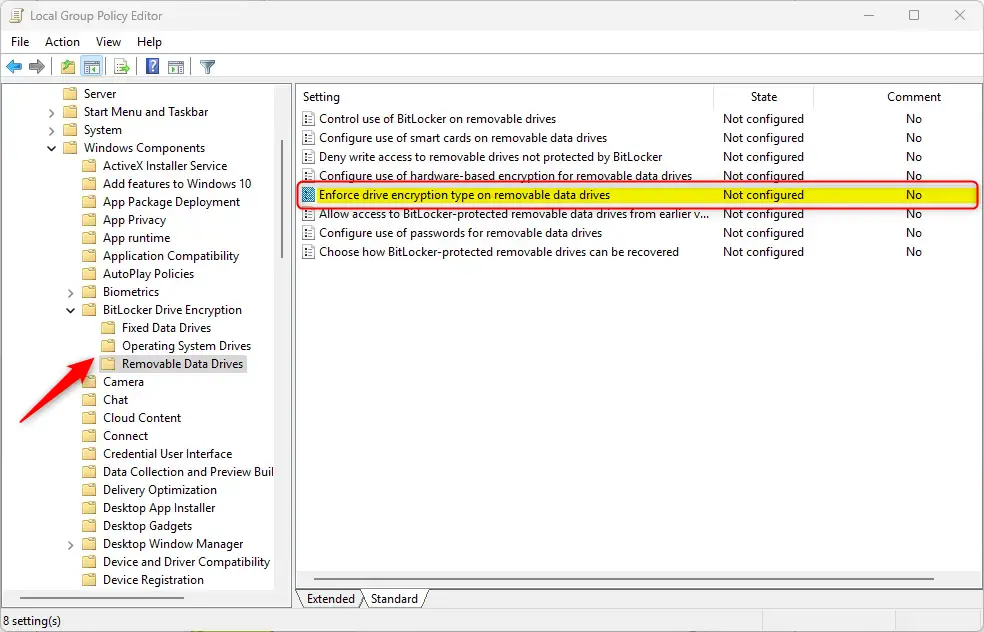
In the left panel, expand each folder in this path: Computer Configuration Administrative Templates Windows Components BitLocker Drive Encryption Removable Data Drives. Click the last folder, Removable Data Drives, and its settings appear in the right panel. The same path is listed below.
- Computer Configuration
- Administrative Templates
- Windows Components
- BitLocker Drive Encryption
- Removable Data Drives
Step 3: Find the Encryption Policy
- In the right panel, find Enforce drive encryption type on removable data drives. If the list is long, click the Setting column header to sort it by name.
- Double-click the setting.
Its configuration window opens, with the options Not Configured, Enabled, and Disabled at the top left.
Step 4: Choose Your Encryption Type
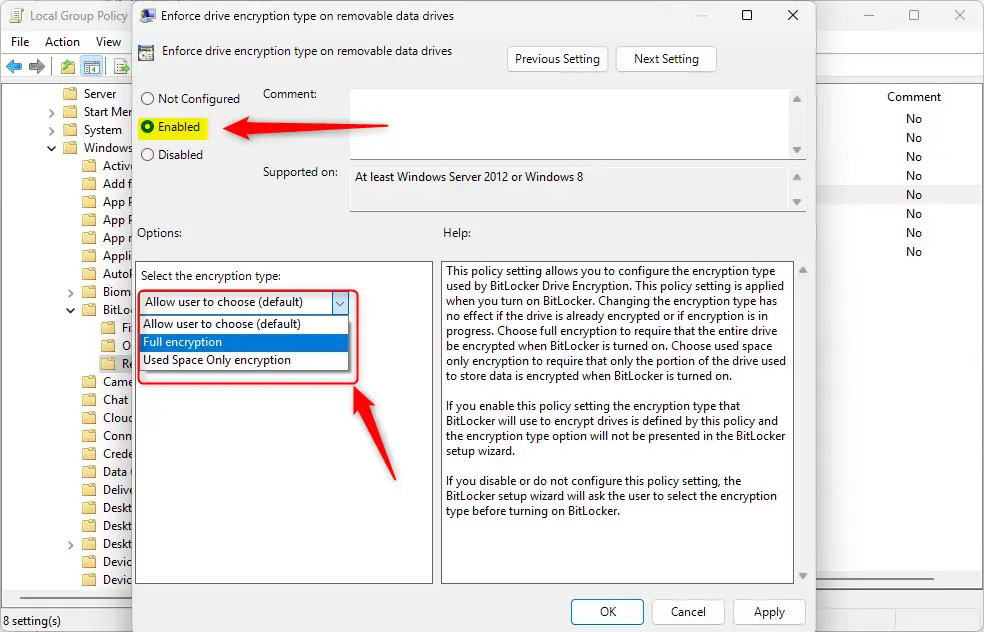
The configuration window gives you three choices. Only Enabled actually enforces a type.
- Not Configured (default) – Works like Disabled. BitLocker will ask users which encryption type to use. Pick this to undo your change later.
- Enabled – BitLocker uses the type you choose below. Users won't see the option to pick a type in the wizard. After selecting Enabled, use the drop-down under the Options heading to choose either Full encryption or Used Space Only encryption.
- Disabled – BitLocker setup will keep asking users to pick the encryption type.
Step 5: Save and Restart
- Click OK to save the change. The window closes, and the setting now shows as Enabled in the right panel.
- Restart the computer so the new policy is applied for certain. Group Policy also refreshes in the background, but a restart removes any doubt.
The policy only affects drives that are encrypted after it takes effect. A drive that already has BitLocker turned on keeps its current encryption type.
To require encryption before anyone can save files, open the same Removable Data Drives folder and double-click Deny write access to removable drives not protected by BitLocker. Set it to Enabled and click OK. Unencrypted USB drives then open read-only.
Method 2Using Registry Editor %%FLAG_ADMIN%%
Registry Editor (a database holding low-level Windows settings) is an alternative way to enforce the encryption type. You write the rule directly into the system configuration. Use it when you cannot use the policy editor. Be careful, because incorrect registry changes can cause system problems. Export a backup of the key first with File Export if it already exists.
- Click Start and type Registry Editor.
- Right-click the result and select Run as administrator.
- Click Yes if User Account Control asks for permission.
The Registry Editor window opens, with the registry tree on the left.
Step 2: Navigate to the BitLocker Key
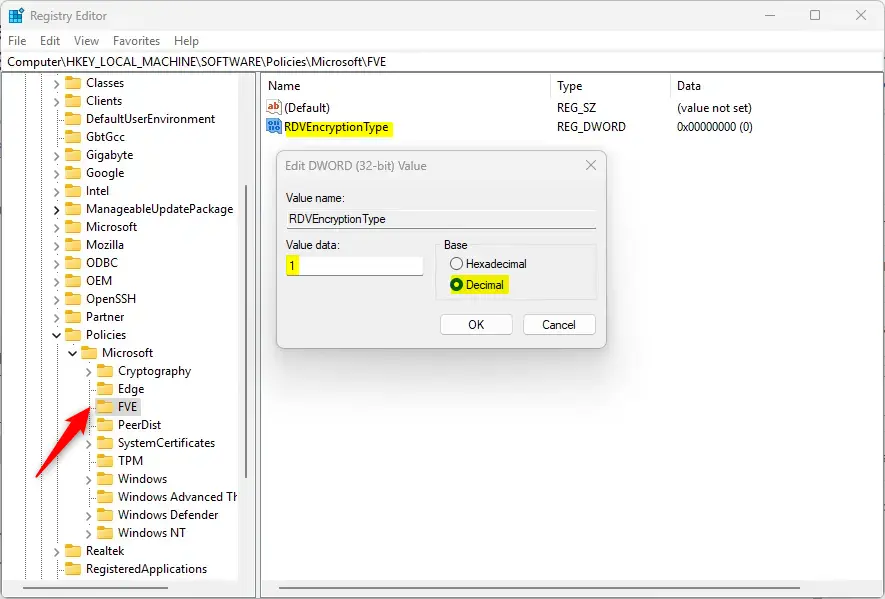
The Windows Registry is a central database for computer settings. BitLocker policies are stored under HKEY_LOCAL_MACHINE\SOFTWARE\Policies\Microsoft\FVE. Expand the folders in the left pane one at a time until you reach that key. Settings here control BitLocker for removable drives, so external storage can meet your organization's security standards.
If the FVE key is missing, no BitLocker policy has been set on this computer yet. Right-click the Microsoft key, select New Key, and name it FVE.
Computer\HKEY_LOCAL_MACHINE\SOFTWARE\Policies\Microsoft\FVEStep 3: Find or Create the Encryption Type Setting
Look in the right-hand pane for RDVEncryptionType. If it is there, double-click it to open its properties window, where you set the encryption method for removable drives.
If the entry is missing, create it:
- Right-click an empty space in the right pane.
- Select New DWORD (32-bit) Value.
- Name the new value RDVEncryptionType and press Enter.
- Double-click the new value to open its properties window.
Step 4: Set the Encryption Value
In the Value data box, enter one of these numbers. Leave Base set to Hexadecimal, since 1 and 2 are the same in either base.
- 1 – Enforces full encryption on removable drives
- 2 – Enforces used space only encryption on removable drives
Step 5: Save and Restart
- Click OK to save the value. It now appears in the right pane with the number you entered.
- Close Registry Editor.
- Restart the computer to enforce the change.
As with the Group Policy method, this only applies to drives you encrypt afterward. Drives that already have BitLocker on keep their current type.
How to Undo These Changes
To give users their choice back, delete the RDVEncryptionType value and restart the computer. To delete it, right-click the value in Registry Editor, select Delete, and click Yes to confirm. If you used Group Policy, set the policy back to Not Configured instead.
Summary
BitLocker removable drive encryption keeps your sensitive files safe by locking external USB storage behind a password or recovery key. You can set the encryption type that applies to those drives with either the Group Policy Editor or the Registry Editor. Choose whichever tool you are more comfortable using.
- Group Policy Editor – Best for everyday users who prefer a visual interface. It needs Windows 11 Pro, Enterprise, or Education.
- Registry Editor – A direct way to change settings in Windows' database. Back up the key first and edit with care.
Both methods support choosing full encryption or used space only encryption. Once applied, BitLocker enforces the selected type automatically whenever someone encrypts a removable drive. Rebooting the machine finalizes the change. To block writes to unencrypted drives, also enable the Deny write access to removable drives not protected by BitLocker policy.
Was this guide helpful?

About the Author
Richard
Tech Writer, IT Professional
Richard is a writer at Geek Rewind who turns complex IT tasks into clear, step-by-step guides. He draws on years of hands-on experience in system administration and enterprise IT operations, focusing on Windows, Linux and WordPress: the problems people actually run into, and the fixes that work. His server and WordPress guides come from systems he runs himself. Richard builds and maintains the platform behind Geek Rewind, from its Ubuntu servers and Nginx configuration to its custom WordPress plugins. Many new tutorials start with readers' questions, and he's always glad to answer them in the comments.



No comments yet — be the first to share your thoughts!