How to Encrypt USB Drives in Windows 11 with BitLocker

BitLocker To Go is a built-in security tool in Windows 11 Pro, Enterprise and Education. It scrambles the files on USB flash drives and external hard drives so no one can open them without your password. If you lose the drive or someone steals it, your personal photos, tax forms and work documents stay unreadable.
You cannot turn on BitLocker on Windows 11 Home, because Home lacks the encryption tools. To check your edition, go to Settings System About and look under Windows specifications. Home can usually still unlock and open a drive that was encrypted on a Pro PC, as long as you have the password. Once your drive is plugged in, the setup takes a few clicks from the File Explorer right-click menu .
Right-click the USB drive in File Explorer under This PC and choose Turn on BitLocker. Choose Use a password, then back up the 48-digit recovery key before encrypting. BitLocker To Go requires Windows 11 Pro, Enterprise or Education; Windows 11 Home cannot turn it on. Back up your files first, since encryption rewrites the whole drive.
Step 1Get Your Drive Ready
Back up your files before you encrypt the drive. Encryption rewrites the whole drive. If the process is interrupted, for example by a power cut or by pulling the drive out, you could lose data. A copy on another disk removes that risk.
- Plug your USB drive or external hard drive into your computer.
- Open the drive in File Explorer and select the files you want to keep.
- Copy them to a folder on your main hard drive.
- Open the copied folder and check that the files are there and open correctly.
Don’t skip the last check. A backup you haven’t tested isn’t much of a backup.
Step 2Find and Turn On BitLocker
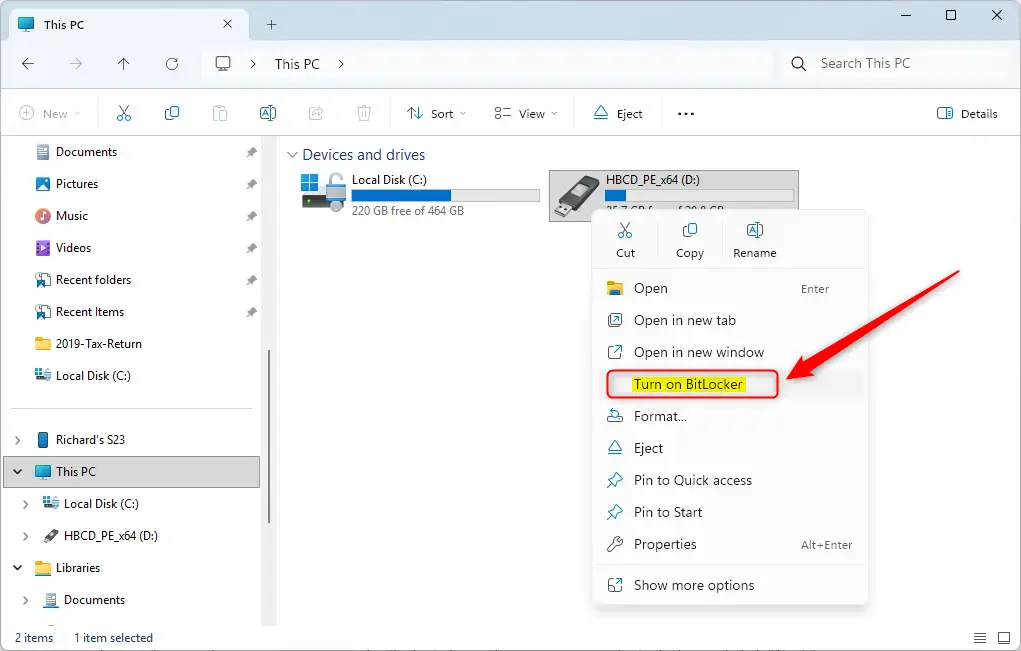
Next, find your drive and start the BitLocker wizard from File Explorer .
- Open File Explorer . Press the Win+E, or click the folder icon on your taskbar .
- Click This PC in the left sidebar. File Explorer lists every drive connected to your computer.
- Find the USB drive or external hard drive you want to encrypt.
- Right-click the drive. A menu appears.
- If you don’t see BitLocker in the menu, click Show more options. The Windows 11 right-click menu is shortened, and BitLocker is often in the full classic menu.
- Click Turn on BitLocker. The BitLocker setup wizard opens and briefly shows a message that it is starting.
Your Windows 11 edition may not support it, which is the case on Home. Or the drive may be formatted in a way BitLocker cannot use. BitLocker works with most common formats, including NTFS, FAT16, FAT32 and exFAT. On a work PC, an administrator can also restrict BitLocker through policy. If so, ask your IT team.
To see how a drive is formatted, right-click it in File Explorer and choose Properties. The file system is shown on the General tab.
Step 3Choose How to Unlock Your Drive
The wizard now asks how you want to unlock the drive. Whatever you pick here is what you will use every time you plug the drive into a computer. The wizard offers two options:
- Use a password: This is the most common choice. You create a password and enter it whenever you connect the drive and want to open your files. Make it strong: at least 8 characters, with a mix of letters, numbers and symbols.
- Use a smart card: If your workplace uses smart cards, you may see this option. You insert your smart card and enter its PIN to unlock the drive. If you don't have a smart card reader, ignore it.
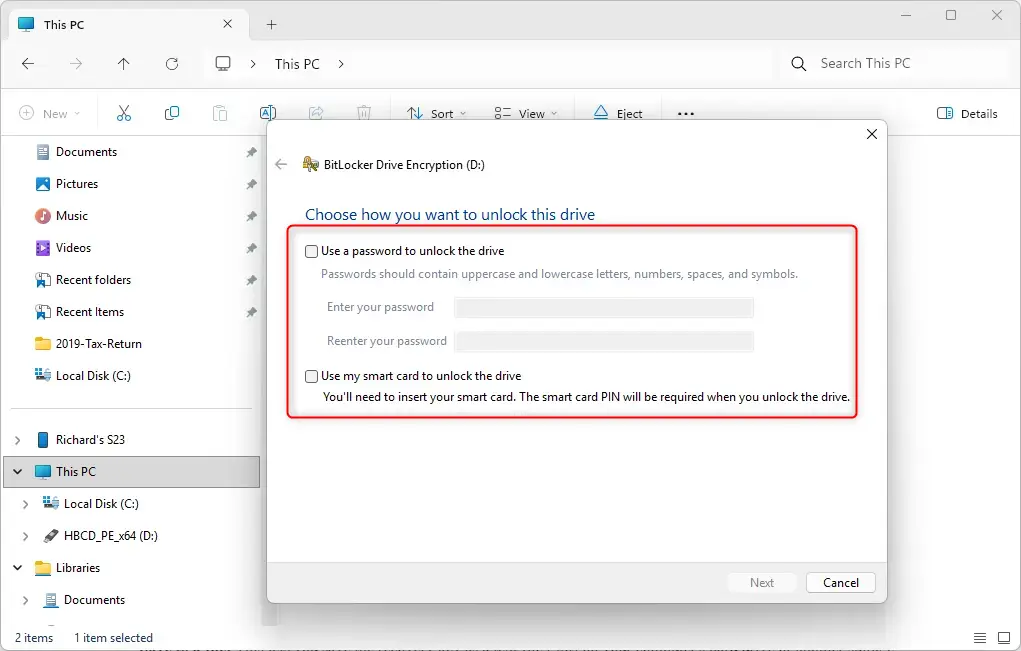
For most personal users, a password is the best choice.
- Tick the password option.
- Type your password in the first box, then type it again in the second box to confirm it.
- Click Next. The wizard moves on to the recovery key.
If you forget your BitLocker password, you cannot get your files back with the password alone. Write the password down and keep it somewhere very safe, or use one of the backup methods in the next step. A password manager also works well.
Step 4Back Up Your Recovery Key – This is Crucial!
The recovery key is a long, 48-digit number. It unlocks the drive if you forget your password. Windows 11 will not let you finish the setup until you back it up in at least one place.
The wizard offers several backup options. Choose at least one, and ideally two:
- Save to your Microsoft account: This is the easiest option if you sign in to Windows 11 with a Microsoft account. It may not appear if you use a local account. The key is uploaded to your account online, and you can read it from any web browser at account.microsoft.com/devices/recoverykey.
- Save to a file: This saves the key as a text file (.txt). You choose the location. Do NOT save it to the drive you are encrypting, because you would need the key to reach the file that holds the key. Pick your main hard drive or a different storage device, and use a folder you will remember.
- Print the recovery key: This sends the key to your printer. Store the paper copy somewhere secure, such as a safe or a locked filing cabinet.
After the backup is done, click Next.
If you lose both your password and your recovery key, your data is gone for good. For most people, saving the key to their Microsoft account is the safest choice. A second copy as a printout or a file on another device is even better.
Step 5Choose How Much to Encrypt
Now choose how much of the drive to encrypt.
- Encrypt used disk space only: This is faster and encrypts only the part of the drive that holds data right now. It suits a new drive, or one that has never held sensitive files.
- Encrypt entire drive: This encrypts every bit of space, used or not. It is the more secure option, especially if the drive once held sensitive data that you deleted. Deleted files can sometimes be recovered from free space, and this option covers that space too. It takes longer, but it is the one I recommend.
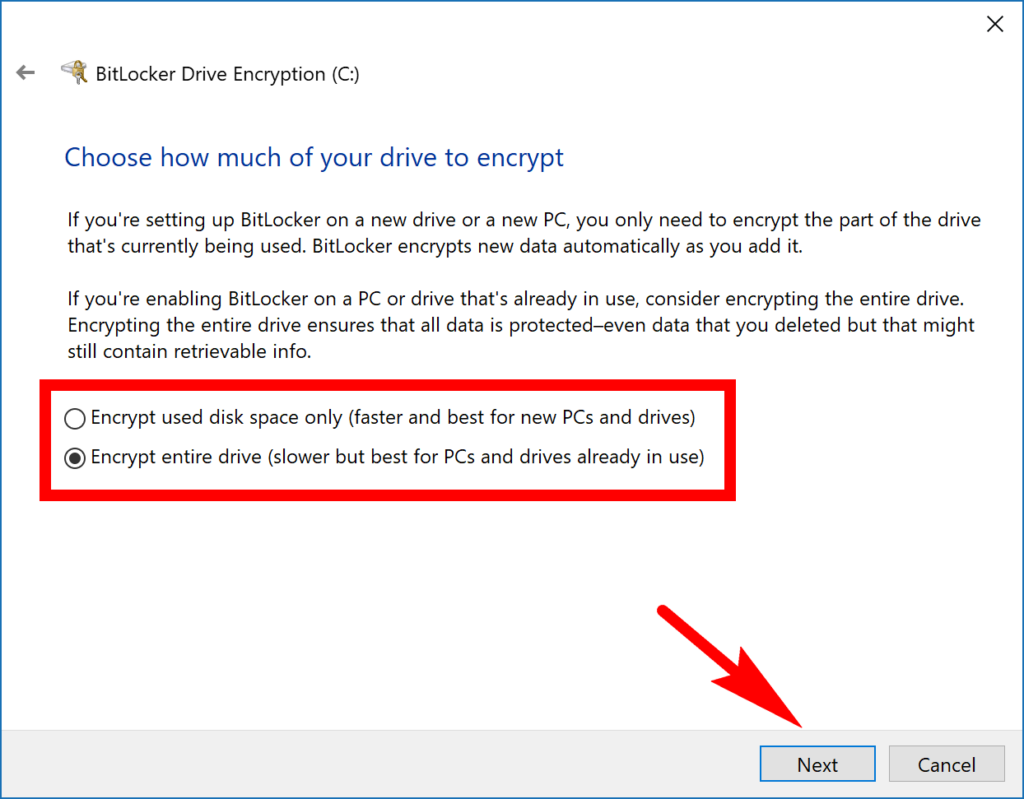
- Select Encrypt entire drive for the best security.
- Click Next.
Step 6Select the Encryption Mode
The next page asks which encryption mode to use. Pick the one that matches the computers you will plug the drive into most often.
- New encryption mode (XTS-AES): This is the modern, stronger method. Choose it if you will use the drive only with Windows 10 or Windows 11 computers.
- Compatible mode (AES-CBC): This is an older method. It lets the drive be read on older versions of Windows, such as Windows 7 or 8. If you only use the drive with your current Windows 11 PC, New encryption mode is the better choice.
Select the mode that fits how you will use the drive, then click Next.
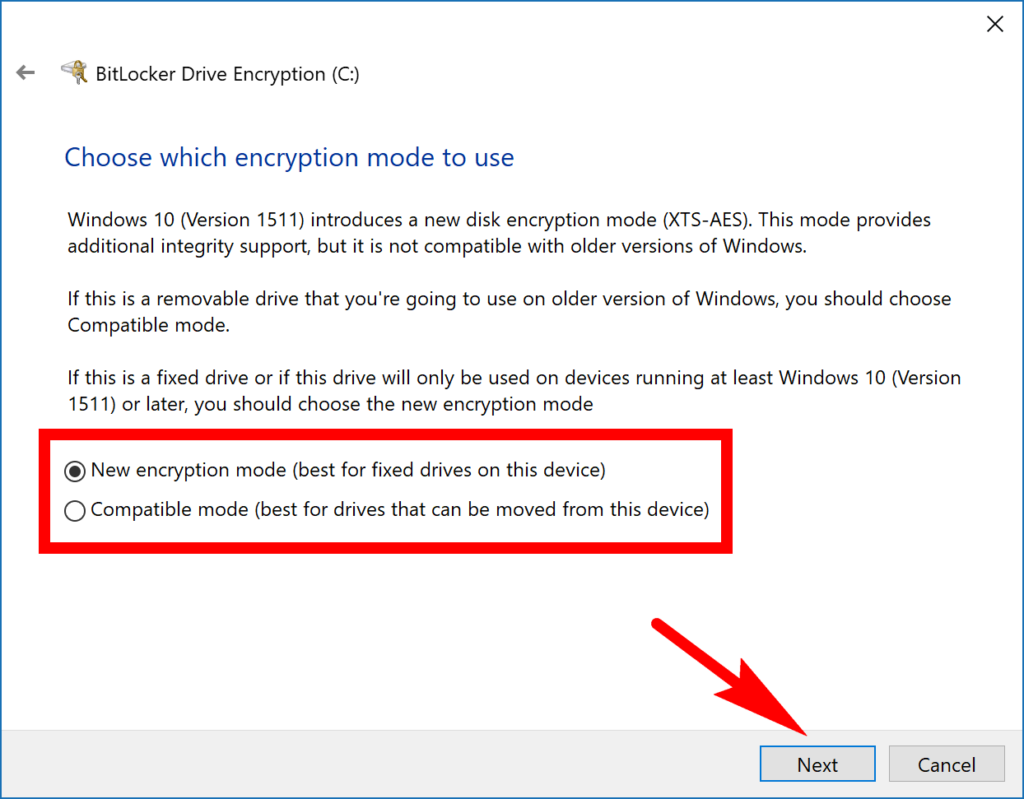
Note: You might not see this page. Most users don't, and in that case BitLocker chooses the encryption method automatically. You can just continue to the next step.
Step 7Start the Encryption Process
The last page of the wizard lets you review your choices.
- Check that the settings match what you chose.
- Click Start encrypting. A progress window appears with the encryption status and the estimated time remaining.
Encryption can take anywhere from a few minutes to several hours. It depends on the drive's size, how fast the drive is, and how much data is on it. Encrypting the entire drive takes longer than encrypting used space only.
Tip: You can keep using your computer while BitLocker works in the background. Don't remove the drive or shut down your PC until it finishes. If you must stop early, click Pause in the progress window first and resume later.
Step 8Encryption Complete!
When encryption finishes, Windows shows a confirmation message. Click Close. Your USB drive or external hard drive is now encrypted with BitLocker.
In File Explorer, a small padlock icon now appears on the drive. It shows that BitLocker protects it. The next time you connect the drive to any computer, Windows asks for the password you created.
If you ever want to remove the protection, right-click the drive and look for a BitLocker management option. You can use it to turn BitLocker off, which decrypts the drive. Decrypting takes about as long as encrypting did, and you need your password to do it.
Summary
To open the drive on another computer, connect it and follow these steps:
- Open File Explorer and click This PC.
- Double-click the locked drive. A prompt asks for your password.
- Type your password and click Unlock. The drive opens and you can use your files as normal.
Windows may offer an option to unlock the drive automatically on that PC. Only turn it on for a computer you own and trust. If you forget the password, use your recovery key instead.
Was this guide helpful?

About the Author
Richard
Tech Writer, IT Professional
Richard is a writer at Geek Rewind who turns complex IT tasks into clear, step-by-step guides. He draws on years of hands-on experience in system administration and enterprise IT operations, focusing on Windows, Linux and WordPress: the problems people actually run into, and the fixes that work. His server and WordPress guides come from systems he runs himself. Richard builds and maintains the platform behind Geek Rewind, from its Ubuntu servers and Nginx configuration to its custom WordPress plugins. Many new tutorials start with readers' questions, and he's always glad to answer them in the comments.



[…] can protect external, fixed, and operating system drives using BitLocker. When you enable BitLocker to protect the […]
[…] can protect external, fixed, and operating system drives using BitLocker. When you enable BitLocker to protect the […]
[…] can protect external, fixed, and operating system drives using BitLocker. When you enable BitLocker to protect the […]
[…] can protect external, fixed, and operating system drives using BitLocker. When you enable BitLocker to protect the […]
[…] can protect external, fixed, and operating system drives using BitLocker. When you enable BitLocker to protect the […]
[…] can protect external, fixed, and operating system drives using BitLocker. When you enable BitLocker to protect the […]
[…] can protect external, fixed, and operating system drives using BitLocker. When you enable BitLocker to protect the OS […]
[…] can protect external, fixed, and operating system drives using BitLocker. When you enable BitLocker to protect the […]
[…] can protect external, fixed, and operating system drives using BitLocker. When you enable BitLocker to protect the […]
[…] External drives like USB sticks […]
[…] External drives like USB sticks […]