Deny Write Access to Unprotected Drives in Windows 11

Denying write access to unprotected drives in Windows 11 stops you from saving files to a drive that is not encrypted with BitLocker. BitLocker is the built-in Windows tool that scrambles the data on a drive so only authorized people can read it. The restriction helps prevent sensitive work files from ending up on a plain USB flash drive or portable hard drive that anyone can open.
You turn it on with the Local Group Policy Editor, a console for changing advanced system settings. It is included in Windows 11 Pro, Enterprise and Education, but not in Home. Once the policy is active, Windows makes any unencrypted drive read-only. You can still open and copy files from it, but you can’t save or change anything on it.
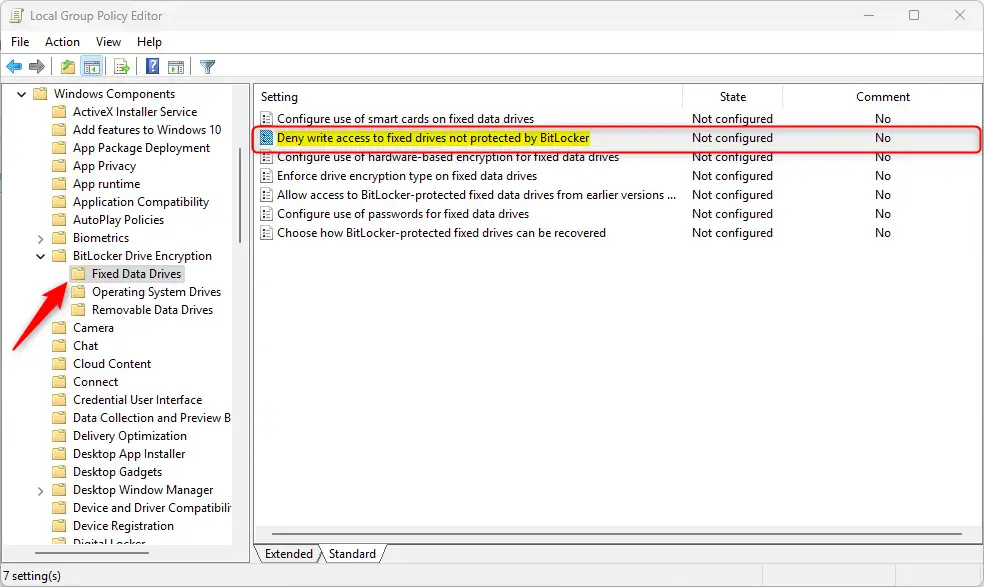
Open the Local Group Policy Editor and navigate to Computer Configuration Administrative Templates Windows Components BitLocker Drive Encryption Fixed Data Drives. Double-click “Deny write access to fixed drives not protected by BitLocker” and set it to Enabled. Restart your computer.
Why Block Writing to Unprotected Drives?
BitLocker is a built-in Windows tool that protects your files by encrypting your drives. On a BitLocker drive, only people who can unlock it (with a password, smart card or recovery key) can open and change the files. By blocking write access to unencrypted drives, you protect your data from accidental copies onto unsafe media and from the security risks that come with it.
What Drives Can BitLocker Protect?
- External drives (like USB sticks and portable hard drives)
- Internal fixed drives (extra disks or partitions inside your PC)
- Your main Windows system drive
When BitLocker is turned on for your Windows system drive, it can unlock automatically when you start your PC if the computer has a TPM (Trusted Platform Module), the security chip that stores the encryption keys. Windows 11 requires a TPM 2.0 chip, so most PCs that run it already have one. You sign in as usual and never see a separate BitLocker prompt for the system drive.
What Happens When You Block Unprotected Drives?
Windows lets you set a rule that blocks writing (saving or changing files) on fixed drives that don’t have BitLocker protection. With the rule on, your computer only allows changes on drives that are encrypted. Unencrypted fixed drives become read-only.
Removable drives such as USB sticks have their own, separate policy setting. The fixed-drive rule described here does not cover them.
Method 1Using Group Policy Editor
The Local Group Policy Editor is the easiest way to apply this rule, because you pick the setting from a list and don't edit the registry by hand. It is available on Windows 11 Pro, Enterprise and Education. If you are on Home, skip to the Registry Editor method further down.
- Click the Start button and type
Edit group policy. Click the result to open the Local Group Policy Editor. If nothing appears, you are probably on Windows 11 Home, which doesn't include this tool. - In the left panel, follow this path:
Computer Configuration > Administrative Templates > Windows Components > BitLocker Drive Encryption > Fixed Data Drives. Click each folder to expand it. The policy settings appear in the right panel. - In the right panel, find and double-click
Deny write access to fixed drives not protected by BitLocker. A settings window opens with three options at the top left. - Choose one of these options:
- Not Configured (default) – Same as Disabled below. Windows doesn't enforce any rule.
- Enabled – Blocks writing to drives without BitLocker. Those drives will be read-only. Pick this one to turn the restriction on.
- Disabled – Allows writing to all fixed drives, with or without BitLocker.
- Click OK to save your choice. The window closes and the setting's state in the right panel changes to match what you picked.
- Restart your computer to apply the changes. After the restart, try saving a file to an unencrypted fixed drive. Windows should refuse. Before you restart, save your work and make sure no important files need to be written to that drive.
Here's a screenshot of the setting:
To undo the change, open the same policy, choose Not Configured or Disabled, click OK and restart. Writing to unencrypted drives works again.
Method 2Using Registry Editor
The Registry Editor lets you apply the same rule by adding a DWORD value in Windows 11. Use this method if your edition has no Local Group Policy Editor. Be careful: a wrong change in the registry can cause problems. Before you start, you can back it up in Registry Editor with File Export. Open it as an administrator so you are allowed to save the change.
- [ADMIN REQUIRED] Open Registry Editor as an administrator:
- Click Start, type
regedit, right-click it and selectRun as administrator. If a User Account Control prompt appears, click Yes.
- Click Start, type
- Go to this location:
HKEY_LOCAL_MACHINE\SOFTWARE\Policies\Microsoft\FVE. You can paste the path into the address bar at the top of the Registry Editor, or expand the folders in the left pane one by one. - Look for a value named
FDVDenyWriteAccessin the right pane. - If it doesn't exist, right-click on the empty space, select
New > DWORD (32-bit) Value, and name itFDVDenyWriteAccess. The new value appears in the right pane with the name you typed. - Double-click
FDVDenyWriteAccessand set its value to1to block writing on unprotected drives. - Click OK and close the Registry Editor.
- Restart your computer to make the change take effect.
If you want to allow writing again on unprotected drives, delete the FDVDenyWriteAccess entry or set its value to 0. Then restart your computer so the change applies.
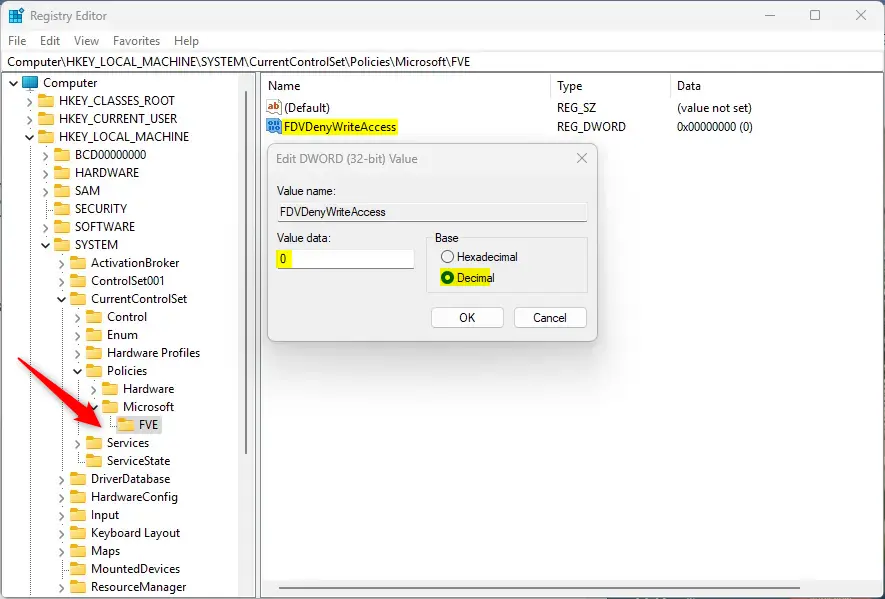
Here is the value as it should look in the Registry Editor once you have set it.
Summary
Setting up BitLocker to deny write access to unprotected drives is a simple way to keep your data safer. Windows will not let you change files on a drive that BitLocker doesn't protect. Use the Local Group Policy Editor if you have Pro or Enterprise, and the Registry Editor if you don't. Either way, restart afterward and test with a spare drive to confirm the rule works.
Have a question about this guide?
Answered by AI from this guide. Good questions may be added to this page — please don't include personal details.
Did this guide fix your problem?

About the Author
Richard
Tech Writer, IT Professional
Richard is a writer at Geek Rewind who turns complex IT tasks into clear, step-by-step guides. He draws on years of hands-on experience in system administration and enterprise IT operations, focusing on Windows, Linux and WordPress: the problems people actually run into, and the fixes that work. His server and WordPress guides come from systems he runs himself. Richard builds and maintains the platform behind Geek Rewind, from its Ubuntu servers and Nginx configuration to its custom WordPress plugins. Many new tutorials start with readers' questions, and he's always glad to answer them in the comments.
No comments yet — be the first to share your thoughts!