How to Remove Unused BitLocker Recovery Keys

BitLocker recovery keys are backup passwords that Windows 10 and 11 can save to your Microsoft account. You use one to unlock your PC if the system stops working or BitLocker can’t verify that it’s you. Removing unused keys from your account stops you from mixing up current keys with old ones when you need to fix a locked drive.
Go to the BitLocker recovery keys page on the Microsoft website and sign in. Find the key you wish to remove, click the three-dot “More options” button next to it, and then click “Delete.” Confirm the deletion to remove the key from your account.
Old keys build up every time you reinstall Windows or set up device encryption on a new laptop. Cleaning out these dead entries leaves only the keys for your active drives and keeps your Microsoft account tidy. BitLocker can protect these kinds of drives:
- External drives like USB sticks
- Fixed drives inside your computer
- Your main Windows drive (where your system is installed)
When BitLocker runs on the operating system drive, a security chip called TPM (Trusted Platform Module) usually unlocks it automatically at startup. You don’t have to enter a password on every boot. The recovery key only comes into play when something goes wrong, such as a firmware update, a hardware change or a forgotten PIN.
Setup routines prompt you to save a recovery key. This backup unlocks the drive if the normal methods fail or the hardware reports errors. You can save the key in several places:
- In your Microsoft account online
- On a USB flash drive
- As a printed paper copy
Be careful here. If you lose the recovery key and the PC won’t boot, your only option is a Windows reset or clean installation, which erases the stored files. Never delete a key unless you are sure it no longer matches an encrypted drive you care about.
Wiping or resetting an encrypted device makes its old recovery key obsolete. The same goes for a drive you have reformatted or a laptop you have sold. Those keys serve no purpose, and you can safely remove them.
How to Delete BitLocker Recovery Keys from Your Microsoft Account
You remove old keys from the cloud on the Microsoft page where your recovery keys are stored. Doing this after you sell a laptop or swap out parts cleans up your profile. It also means your account only lists keys for devices you still use.
Before you start, work out which key is which. Each entry shows details such as the device name, a key ID and when it was saved. If you're unsure, check the key ID against the one on a BitLocker recovery screen or in your own records. Delete only the entries you can match to a wiped, sold or reinstalled device.
- Go to the BitLocker recovery keys page on the Microsoft website.
- Sign in with your Microsoft account email and password if asked. You should now see a list of the recovery keys saved to your account.
- Find the key you want to delete. Check the device name, key ID and date to be sure it's the right one.
- Click the More options button (it looks like three dots) next to that key. A small menu opens.
- Click Delete. A confirmation prompt appears.
- Confirm that you want to delete the key when asked.
The management page appears online like this:
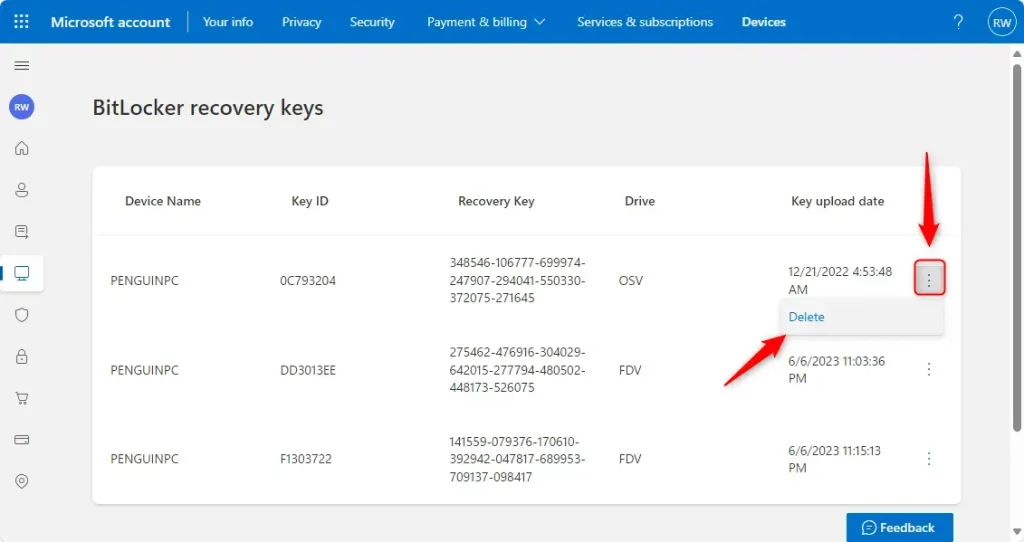
Locate the target recovery key, click the three dots, and select the delete option.
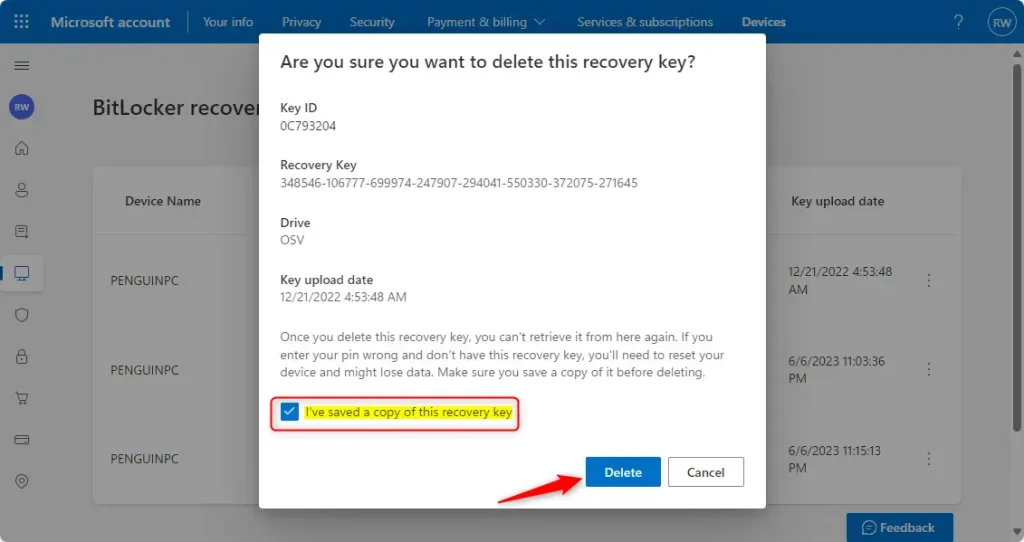
Confirm the deletion prompt. The recovery key disappears from the account permanently, and there is no undo. If you delete a key by mistake and the drive is still encrypted, you can back up a new key from that PC through its BitLocker settings. That only works while you can still sign in to the machine, so don't count on it.
Note that this page only covers keys saved to a personal Microsoft account. Keys for a work or school PC are usually stored by your organization, so ask your IT admin to manage those.
Summary
Deleting outdated BitLocker recovery keys keeps your Microsoft account tidy and makes the right key easier to find when you need it. Follow the steps above, check each entry before you confirm, and leave alone any key that belongs to a drive that is still encrypted.
Was this guide helpful?

About the Author
Richard
Tech Writer, IT Professional
Richard is a writer at Geek Rewind who turns complex IT tasks into clear, step-by-step guides. He draws on years of hands-on experience in system administration and enterprise IT operations, focusing on Windows, Linux and WordPress: the problems people actually run into, and the fixes that work. His server and WordPress guides come from systems he runs himself. Richard builds and maintains the platform behind Geek Rewind, from its Ubuntu servers and Nginx configuration to its custom WordPress plugins. Many new tutorials start with readers' questions, and he's always glad to answer them in the comments.



No comments yet — be the first to share your thoughts!