How to Suspend and Resume BitLocker in Windows 11


BitLocker is the Windows tool that encrypts your drive so nobody can read your files without the right key. That protection can get in the way when you update the system BIOS or swap hardware, because BitLocker may see the change and demand your recovery key at the next boot. Suspending BitLocker in Windows 11 pauses protection for one restart or for a set number of restarts. You can finish your maintenance without waiting hours to decrypt the whole drive and encrypt it again afterwards.
You can pause protection from Control Panel or from Windows Terminal, and you can resume it from Control Panel , File Explorer or Windows Terminal. On the operating system drive, Windows turns protection back on automatically after the next reboot. You can also resume it by hand as soon as your work is done.
Edition note: the BitLocker management pages described here are part of Windows 11 Pro, Enterprise and Education. Windows 11 Home usually has only a simpler Device encryption switch, so the Suspend protection option may be missing there.
Navigate to Control Panel , then BitLocker Drive Encryption, and click “Suspend protection” or “Resume protection” for your desired drive. Alternatively, use PowerShell commands like manage-bde -protectors -disable C: to suspend or manage-bde -protectors -enable C: to resume.
Why Suspend BitLocker?
Hardware swaps, firmware (BIOS/UEFI) updates and operating system upgrades are the usual reasons to pause disk protection. Suspend BitLocker before you start, finish the work, then confirm protection is back on. Do not leave the drive unprotected longer than you have to.
What Happens When You Suspend BitLocker?
While BitLocker is suspended, the volume is not shielded. Windows keeps the data encrypted on disk but stores the key in the clear, so anyone with access to the drive can read it. How protection comes back depends on the type of drive:
- Operating system drive: protection turns back on automatically after specific system triggers, usually the next restart.
- Secondary (data) drives: they stay suspended until you resume them manually, even across reboots.
How to Suspend or Resume BitLocker in Windows
Method 1Using Control Panel
- Open open the Control Panel and go to System and Security BitLocker Drive Encryption You should see a list of your drives and their BitLocker status.
- Find the drive you want to suspend under Operating system drive. A drive that is protected shows BitLocker on. If you see BitLocker off instead, there is nothing to suspend.
- Click the Suspend protection link next to that drive. If the link is missing, check that you are signed in with an administrator account and that your edition of Windows 11 supports BitLocker management.
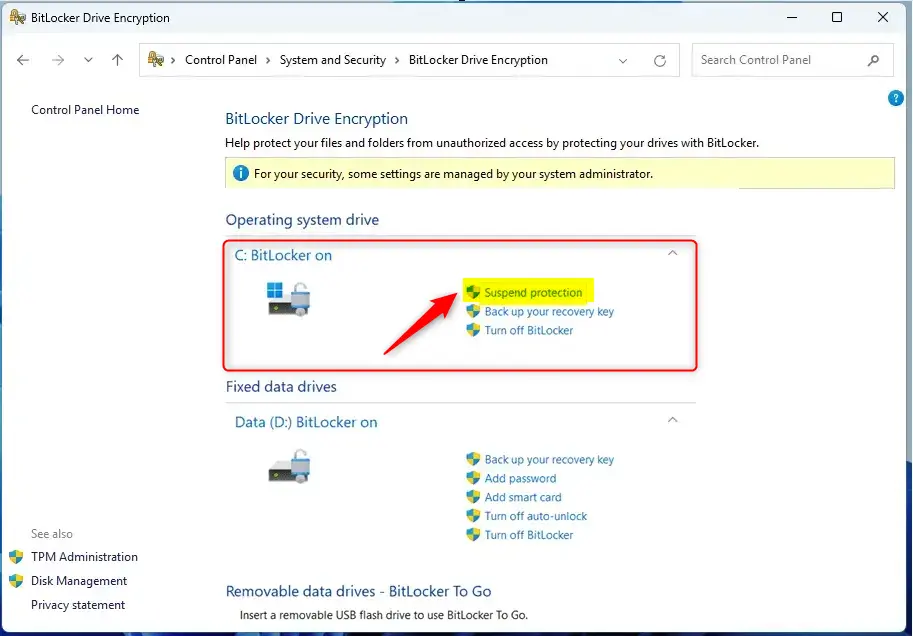
- Read the pop-up window that appears, then click Yes to confirm. The drive status changes to suspended, and the link next to the drive now reads Resume protection.
To suspend BitLocker from Control Panel , open the BitLocker Drive Encryption settings and click the Suspend protection link next to your drive. This turns off protection temporarily, so you can change hardware or install updates without triggering recovery screens. Protection turns back on automatically when you restart your computer. If you are not finished after one restart, suspend it again or use the PowerShell method below to set a higher restart count.
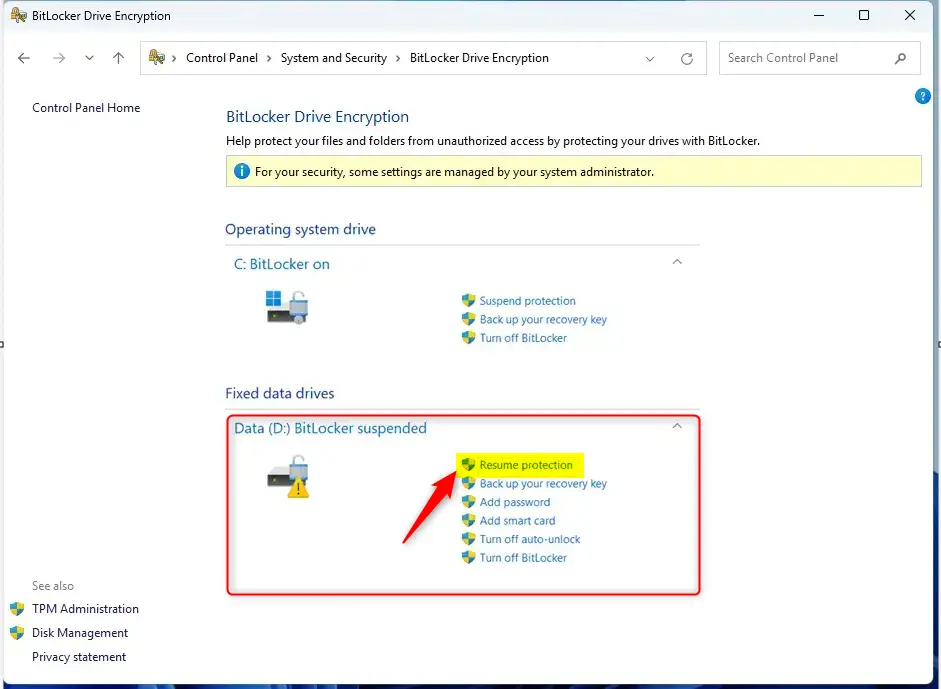
Secondary drives stay unprotected even after you restart the computer. To secure the data again, you have to turn protection back on yourself.
How to Resume BitLocker Using Control Panel
- Follow the same path as before: Control Panel System and Security BitLocker Drive Encryption
- Click Resume protection for the drive you want to protect again. The link goes away and the drive shows BitLocker on once protection is active.
Method 2Using File Explorer
- Open File Explorer and click This PC so your drives are listed.
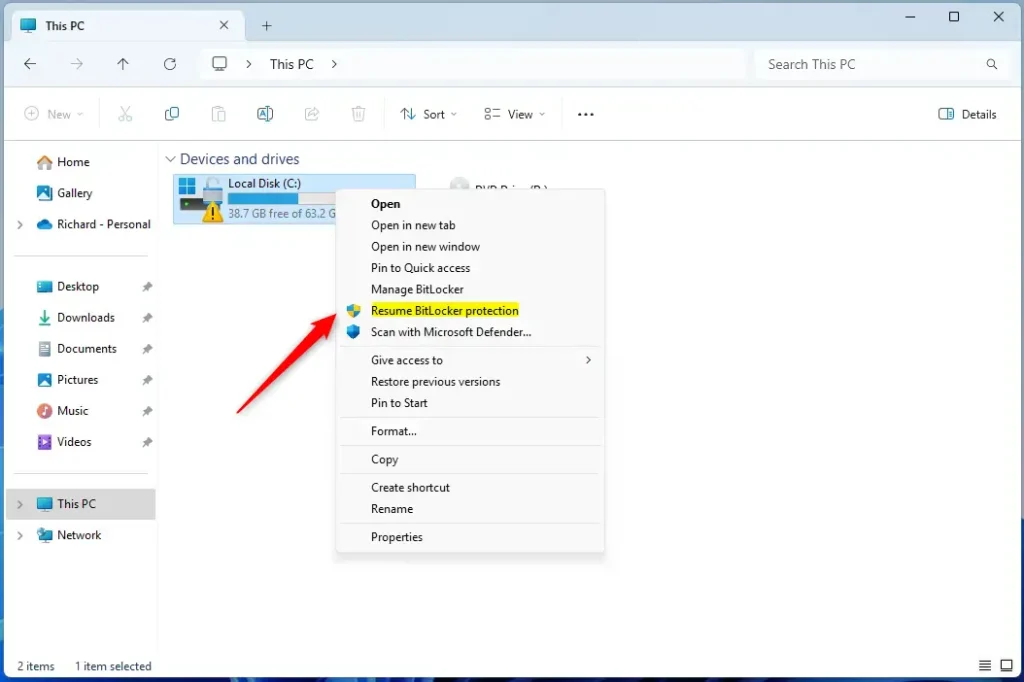
- Right-click the drive you want to resume.
- Select Show more options. This opens the classic context menu, which is where the BitLocker entries live in Windows 11. Holding Shift while you right-click opens the same menu directly.
- Click Resume BitLocker protection in the menu. If the entry is not there, the drive is probably already protected, or BitLocker is not enabled on it.
How to Suspend or Resume BitLocker Using PowerShell
Windows PowerShell gives you more control over BitLocker, including how many restarts the suspension lasts. You need administrator rights for these commands to work. If you see an access denied error, the window was not opened as administrator.
- Open Windows Terminal as administrator and select the PowerShell tab. Right-clicking the Start button and choosing Terminal (Admin) is the quickest way. Click Yes if User Account Control asks for permission.
Suspend BitLocker for One Drive
Run the command below in the administrator window. Before you press Enter, replace the placeholder shown here:
[drive_letter]Use the letter of the volume you want to suspend, followed by a colon. If you are not sure which letter that is, check This PC in File Explorer first.
manage-bde -protectors -disable <drive letter>:Example:
manage-bde -protectors -disable C:Resume BitLocker for One Drive
Run this command in the same administrator window and press Enter. If PowerShell returns to the prompt or prints the volume details without an error, the command worked.
manage-bde -protectors -enable C:Suspend BitLocker for All Drives
Run this command next and press Enter. Read any error message in red before moving on, as it usually names the problem, such as a wrong drive letter or a missing administrator token.
Get-BitLockerVolume | Suspend-BitLockerResume BitLocker for All Drives
Run this command and press Enter. You can check the result afterwards in Control Panel, where the drive status should match what you just did.
Get-BitLockerVolume | Resume-BitLockerSuspend BitLocker for Your Main Drive with Restart Limits
You can keep BitLocker suspended on your main drive for more than one restart by adding a counter to the PowerShell command. Open PowerShell as an administrator and type Suspend-BitLocker -MountPoint "C:" -RebootCount followed by a number between 0 and 15. Protection stays paused through that many reboots. This helps when an update needs several restarts to finish.
Suspend-BitLocker -MountPoint "C:" -RebootCount <restarts #>Replace <restarts #> with a value from 0 to 15. This number sets how many reboots happen before BitLocker turns itself back on. Keep it as low as the job allows.
Example:
Suspend-BitLocker -MountPoint "C:" -RebootCount 0Setting the count to 0 keeps the drive unprotected until you resume it manually. Only use 0 if you will remember to turn protection back on yourself, because Windows will not do it for you.
Summary
BitLocker Drive Encryption is the built-in Windows tool that scrambles your files so others cannot read them. Sometimes you need to turn it off temporarily during hardware upgrades or system updates. Suspending BitLocker leaves your data unprotected until you restart your computer or turn protection back on manually. Doing this first helps stop Windows from locking you out of your own device with a recovery key prompt.
Suspending BitLocker helps during major hardware swaps or software migrations. Installing memory modules or upgrading to version 23H2 are common cases that call for a temporary suspension. Firmware and BIOS updates are another good reason, since they can change the measurements BitLocker uses to decide whether the system is trusted.
What happens when suspended? The volume stays unprotected until protection resumes. Boot drives usually turn protection back on automatically, while secondary drives need you to resume them by hand.
You can manage BitLocker states through Control Panel, File Explorer or PowerShell. Administrators often prefer PowerShell because it lets you set the restart count and is easy to script across several machines.
Important reminder: Re-enable BitLocker protection as soon as you finish the maintenance work. Then check the drive status once more to confirm it shows protection is on.
Was this guide helpful?

About the Author
Richard
Tech Writer, IT Professional
Richard is a writer at Geek Rewind who turns complex IT tasks into clear, step-by-step guides. He draws on years of hands-on experience in system administration and enterprise IT operations, focusing on Windows, Linux and WordPress: the problems people actually run into, and the fixes that work. His server and WordPress guides come from systems he runs himself. Richard builds and maintains the platform behind Geek Rewind, from its Ubuntu servers and Nginx configuration to its custom WordPress plugins. Many new tutorials start with readers' questions, and he's always glad to answer them in the comments.




No comments yet — be the first to share your thoughts!