How to Check BitLocker Drive Status on Windows 11


The quickest check is in the Settings app . These steps use Windows 11 and take about a minute.
- Press the Windows key and type Settings.
- Select the Settings app from the results.
- Follow the steps in the Settings section below to read your drive encryption status.
Open Settings , go to Privacy & security, and click Device encryption to see whether your drive is protected. If that option is missing, search for Manage BitLocker in the Start menu to open the Control Panel view instead.
Understanding BitLocker and Device Encryption
It relies on a hardware security chip (the TPM) to store the encryption keys safely. Without that chip’s cooperation, or the recovery key, the drive stays unreadable.
Know the difference between standard BitLocker and Device Encryption, because it decides which screens you will see. Device Encryption is a streamlined version found on most modern Windows 11 devices, including Home editions. It is switched on automatically when the hardware supports it. Full BitLocker, with its management console and per-drive controls, is reserved for Pro, Enterprise, or Education editions.
If a menu below is missing on your PC, the edition or the hardware is usually the reason, not a fault.
How to Check BitLocker Status via Settings
The Settings app is the fastest way to confirm drive protection without opening any advanced tools. You only need to look at one screen.
- Open the Settings app.
- Go to Privacy & security.
- Click Device encryption. The page shows whether encryption is on and offers a switch to turn it on or off.
- If you do not see this option, type Manage BitLocker into the Start menu search bar and open the result. This opens the BitLocker Drive Encryption page in Control Panel .
The Device encryption entry is missing when the PC does not support it, or when the edition uses the full BitLocker console instead. The Control Panel route is the one to use on Pro, Enterprise and Education.
This screen confirms whether the operating system is protecting the disk. In Control Panel, each drive is listed with its own status, and the indicator reads On or Off. Check every drive listed. The system drive can be protected while a data drive is not.
Do not do it just to test the screen. If you do turn it off by mistake, switch it back on from the same page.
Checking Status with Command Line (Admin Required)
The command line gives more detail than Settings, including the encryption method and how far encryption has progressed. You need an elevated terminal for this.
- Right-click the Start button.
- Choose Terminal (Admin) or Command Prompt (Admin). Depending on your build, only one of these may be listed.
- Click Yes if User Account Control asks for permission. A terminal window opens with administrator rights.
- Type the following command, which is manage-bde -status, and press Enter:
manage-bde -status
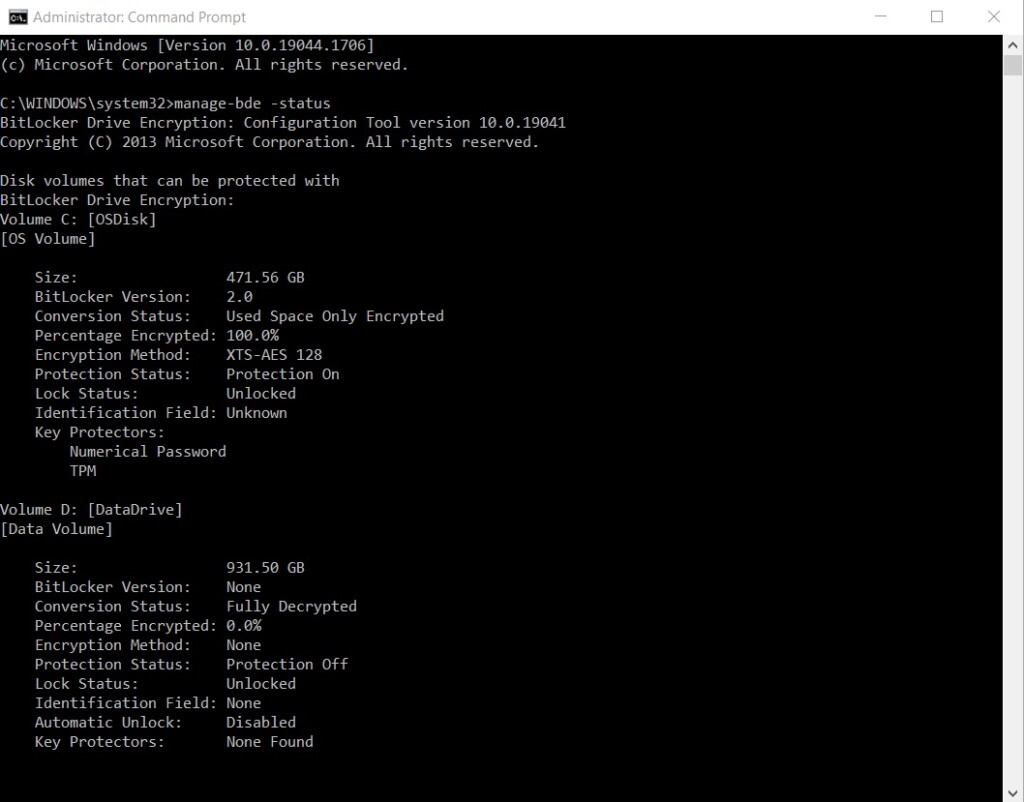
The command prints a report for every drive on the PC. If you only care about one drive, use this command instead:
manage-bde -status C:
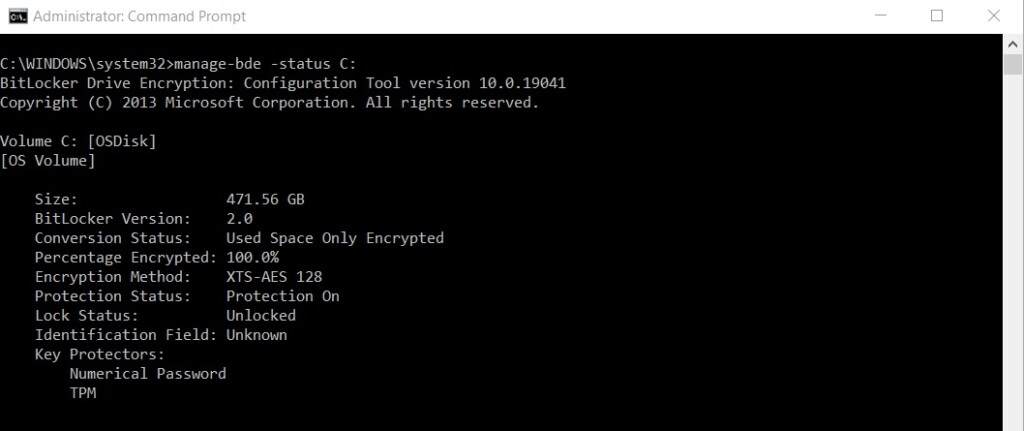
If the command fails with an access error, the terminal is not elevated. Close it and reopen it from the Start button menu using the Admin option.
This utility shows the exact encryption method and tells you whether the drive is fully protected. Look at these lines in the report:
- Conversion Status shows whether the drive is fully encrypted, or still being encrypted or decrypted.
- Percentage Encrypted shows progress. Anything below 100% means the job is not finished.
- Encryption Method shows the algorithm in use.
- Protection Status shows whether protection is on or off. A drive can be fully encrypted but have protection suspended, for example during some updates. Resume protection if you see that.
Detailed reports also include the Recovery Key ID for tracking purposes. Compare that ID with the one you have stored when you need to find the right recovery key.
Using PowerShell to Verify Encryption
PowerShell is a command-line tool designed for IT professionals, and it can verify drive encryption status as well. It is handy when you want output you can filter or script. Like manage-bde, it needs administrative privileges.
- Right-click the Start button and choose Terminal (Admin). Windows Terminal opens PowerShell by default on current Windows 11 builds. If it opens Command Prompt instead, open a PowerShell tab from the drop-down arrow in the tab bar.
- Confirm the User Account Control prompt.
- Run this command:
Retrieving a lost BitLocker recovery key involves visiting the official Microsoft recovery key portal. This portal grants access to the 48-digit numerical password required to unlock a locked drive.
Summary
You should see one entry per volume, with its encryption and protection state. If the command is not recognized, check that you are on a Windows edition that includes BitLocker management tools. Home editions may not have them.
Checking BitLocker status in Windows 11 confirms your stored data is guarded against unauthorized access. Whether you use Settings or the command line, make sure every drive you care about reports as protected. Also confirm that you know where your recovery key is kept.
Was this guide helpful?

About the Author
Richard
Tech Writer, IT Professional
Richard is a writer at Geek Rewind who turns complex IT tasks into clear, step-by-step guides. He draws on years of hands-on experience in system administration and enterprise IT operations, focusing on Windows, Linux and WordPress: the problems people actually run into, and the fixes that work. His server and WordPress guides come from systems he runs himself. Richard builds and maintains the platform behind Geek Rewind, from its Ubuntu servers and Nginx configuration to its custom WordPress plugins. Many new tutorials start with readers' questions, and he's always glad to answer them in the comments.


No comments yet — be the first to share your thoughts!