How to Recover Deleted Mobile Device Files from Windows 11 File Explorer

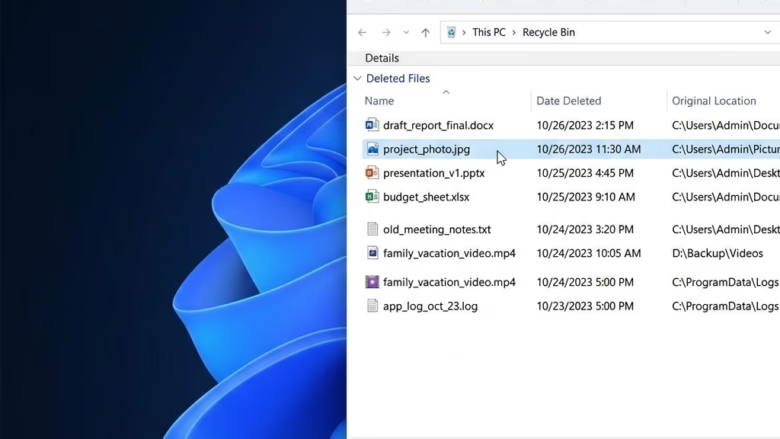
You can recover deleted mobile device files from Windows 11 File Explorer once your Android phone is connected to your PC. The Link to Windows feature makes the phone’s storage show up in File Explorer much like a regular USB drive. Before you start, know that there are two places a deleted file can be sitting, and you should check the right one first.
Most Android phones keep deleted files in a temporary holding space, such as the Trash or Recently Deleted folder inside apps like Google Photos or Samsung Gallery. If you deleted the file on the phone itself, open that app first and restore the item from there. This works within 30 days of deletion. If you deleted the file from the phone through File Explorer on your PC, the rest of this tutorial applies.
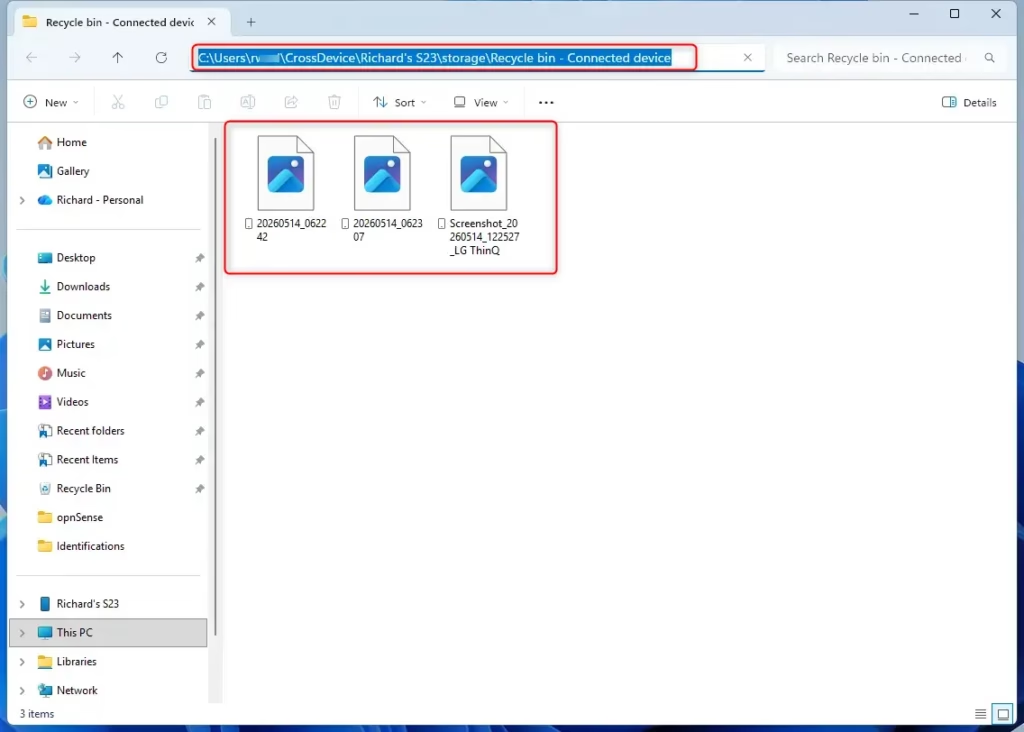
Connect your Android phone to your PC via USB cable or Link to Windows. Open File Explorer , select your phone in the navigation pane, and open the “Recycle bin – Connected device” folder. Right-click the deleted file and choose Restore to return it to its original location. Files remain recoverable for 30 days.
Access your phone’s “Recycle bin”
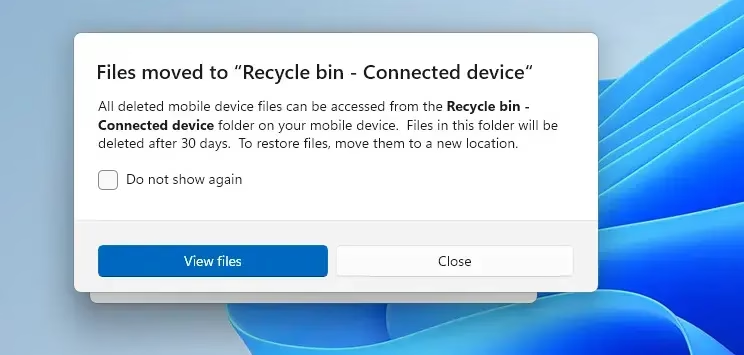
When you delete files from an Android phone using Windows 11 File Explorer , they do not go to your computer’s main Recycle Bin . They go to a separate folder called “Recycle bin – Connected device”. They stay there until you clear them out or restore them. This is why checking the PC’s regular Recycle Bin often turns up nothing.
To get to that folder:
- Connect the phone to your PC. If you use a USB cable, set the phone’s USB mode to file transfer when it asks. Otherwise, use the Link to Windows connection.
- Open File Explorer and select your phone in the navigation pane. You should see the phone’s storage listed like any other drive.
- Look for the “Recycle bin – Connected device” folder in the phone’s listing. You should see it appear alongside the phone’s normal folders.
This folder is hidden by design. It only appears when you view the phone through Windows 11 File Explorer . Standard file management apps on the phone usually keep it out of sight, so you will not find it by browsing on the phone. If you cannot see it, check that you are looking at the phone from the PC and that your Windows 11 is fully updated. The feature may not be available on older builds.
Locate the deleted file within the Recycle Bin
Open the “Recycle bin – Connected device” folder. It lists the recently deleted items removed from the phone.
Use the file names to recognise items at a glance. The extensions also tell you the format. For example, .jpg is a picture and .docx is a document. If the list is long, sort or scan by name and type to find what you need before you restore anything.
Restore the file to its original location (or a new one)
Once you have found the file, you can put it back where it came from, or send it somewhere new.
- Right-click the file inside the "Recycle bin – Connected device" folder.
- Choose Restore to return the file to the folder it left. The file should disappear from the Recycle bin folder and be back in its original location.
- Choose Move to instead if you want it somewhere else. Pick a new folder on your phone or PC storage when prompted.
Transferring the recovered file back to the PC is also an option. After restoring, open the original folder on the phone and confirm the file opens properly. If you picked the wrong location with Move to, you can simply move the file again from its new folder.
Understand the time limit for recovery
You have to recover your files within that window using File Explorer. Once the 30 days pass, the files disappear permanently.
If you realise you made a mistake, act quickly. Do not wait to see whether you really need the file.
If you miss it, there is little chance of getting the file back through File Explorer. Check what you have selected before you press the delete key, especially when deleting in bulk.
Reference:
Summary
To recover deleted phone files in Windows 11 File Explorer, open the "Recycle bin – Connected device" folder and restore your items within 30 days. This built-in feature works as a safety net for accidental deletions when you manage your phone's storage from a PC.
Check the "Recycle bin – Connected device" folder first. It gives you a 30-day grace period to recover files you deleted by accident.
If that does not work, check the phone's own recovery features, such as the Trash or Recently Deleted folder in your gallery app. You can also look through your phone backups or try trusted third-party recovery software. Together these methods give you the best chance of getting important data back.
Have a question about this guide?
Answered by AI from this guide. Good questions may be added to this page — please don't include personal details.
Did this guide fix your problem?

About the Author
Richard
Tech Writer, IT Professional
Richard is a writer at Geek Rewind who turns complex IT tasks into clear, step-by-step guides. He draws on years of hands-on experience in system administration and enterprise IT operations, focusing on Windows, Linux and WordPress: the problems people actually run into, and the fixes that work. His server and WordPress guides come from systems he runs himself. Richard builds and maintains the platform behind Geek Rewind, from its Ubuntu servers and Nginx configuration to its custom WordPress plugins. Many new tutorials start with readers' questions, and he's always glad to answer them in the comments.
No comments yet — be the first to share your thoughts!