Recover Files After Ransomware Locks Them in Windows 11

- 34 steps
- Needs administrator rights
Recovering files after ransomware in Windows 11 means stopping the infection, finding a clean copy of your data, and rebuilding the PC before you restore anything. Ransomware is malware that encrypts your files and demands payment to restore access. It rarely leaves the originals readable, so the quickest reliable route is a Microsoft Defender Offline scan followed by a restore from OneDrive or File History.
This guide covers that route first, then the fallback options: free decryptors, Previous Versions, and Windows File Recovery. Steps that need administrator rights are flagged.
Recover files after ransomware locks them in Windows 11 by first disconnecting the PC from your network, then running a Microsoft Defender Offline scan from Windows Security to remove the infection. Once the malware is gone, restore clean copies from OneDrive or File History. Windows 11 has no built-in decryptor, so restoring from backup is the most reliable route.
What Ransomware Recovery Can and Cannot Do
Windows 11 has no built-in tool that decrypts files locked by ransomware. Recovery means one of three things: decrypting with a free tool made for your specific ransomware, restoring an older copy from a backup, or undeleting originals the ransomware removed.
Backups are the most reliable of the three. A free decryptor (a tool that recovers locked files without a payment) exists only for some ransomware families, and undeleting often fails because the ransomware overwrites the originals.
Paying the ransom does not guarantee a working key. It also marks you as someone who pays, which can make you a target for further attacks. This guide does not cover payment.
What You Need Before You Start
- A second device that is not infected, such as a phone or another PC, for research and password changes.
- A spare USB or external drive that you do not mind wiping. Use it only for this recovery, not as your normal backup drive.
- Your backup source, if you have one: OneDrive, a File History drive, or another backup. Leave backup drives unplugged for now.
Steps to Recover Files After Ransomware Locks Them in 🪟 Windows 11
Follow these steps to recover files after ransomware locks them in Windows 11, in the order shown. Where a step starts with “Skip if”, it applies only to some setups.
- Disconnect the PC from every network. Unplug the Ethernet cable and turn on Airplane mode in quick settings (press Win+A). This stops the ransomware from reaching shared drives and stops OneDrive from syncing encrypted files over your good copies. If you cannot disconnect it, shut the PC down. The taskbar network icon changes to an airplane when you are offline.
- Unplug all external drives and USB sticks. Ransomware encrypts every drive it can reach, including backup drives. Leave them disconnected until the PC is clean.
- Photograph the ransom note with your phone. Capture the full text, any contact address, and the new file extension added to your locked files, such as .locked. Do not click links in the note or reply to it.
- Change your key passwords from the clean device. Start with your email and Microsoft account, then banking and work accounts. Some ransomware also steals saved passwords before it encrypts files.
- Identify the ransomware on the clean device. Search for ID Ransomware, a free site that matches a ransom note or file extension to a known ransomware family. Enter the note text and extension. Upload a sample file only if the site asks for one.
- Check for a free decryptor at nomoreransom.org. No More Ransom is a joint project by law enforcement and security companies that lists free decryption tools. If your ransomware family has one, download it on the clean device and keep it for step 14. If it does not, continue. A decryptor may appear later.
- Open Windows Security. Select Start, type Windows Security, and press Enter. If the app will not open, see the troubleshooting section below.
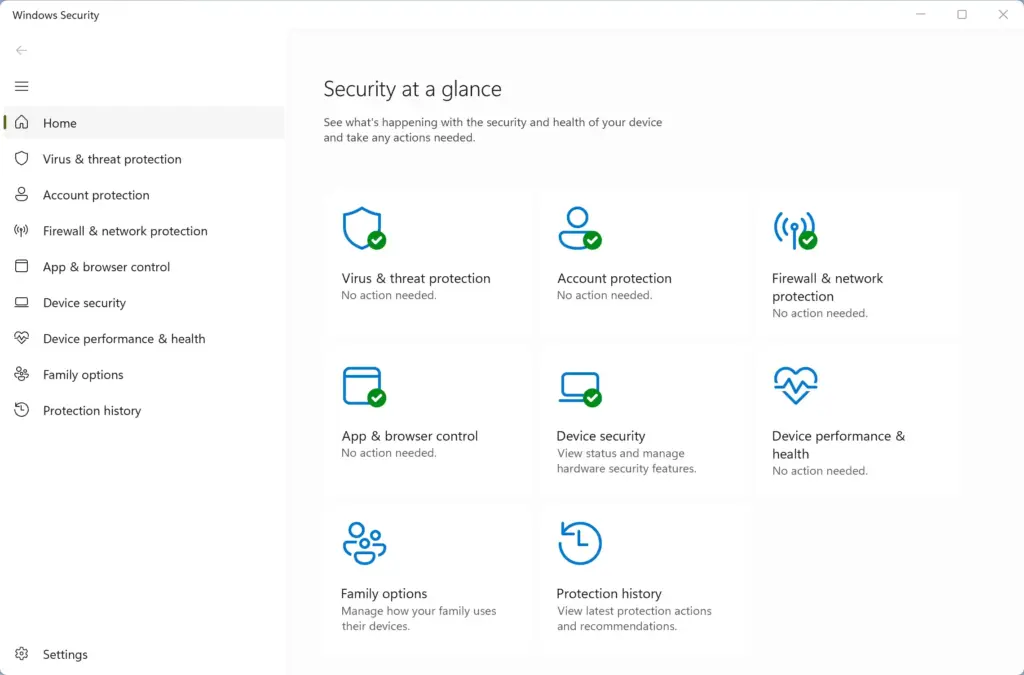
Windows Security - Select Virus & threat protection. This page shows scan and threat information.
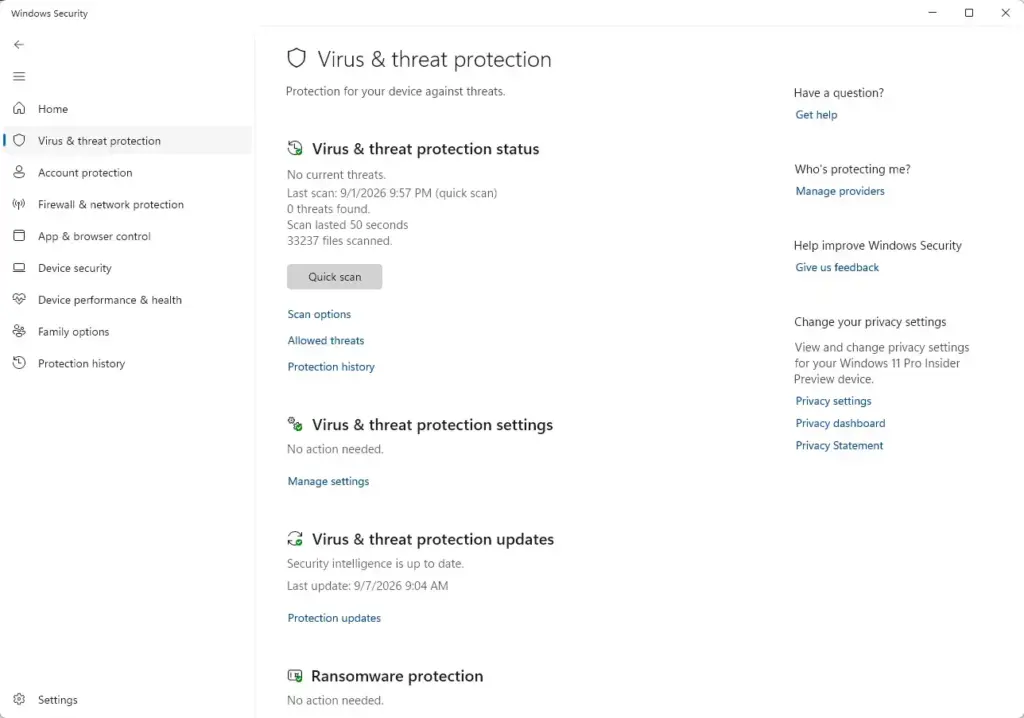
Windows Security › Virus & threat protection - Select Scan options. It sits under the Quick scan button. A list of scan types appears.
- Select Microsoft Defender Offline scan. This scan (one that runs before Windows fully loads, so malware cannot hide) finds threats that a normal scan misses.
- Select Scan now and confirm the prompt. This step needs administrator rights, which means permission to change system settings. Windows restarts and shows a scanning screen. The scan takes about 15 minutes, sometimes longer, and the PC then boots back into Windows.
- Check Protection history. Go to Windows Security Virus & threat protection > Protection history. Look for entries from the scan. If Windows removed a threat or moved it to quarantine (a safe holding area), the entry appears here.
- Copy the encrypted files to your spare drive. Connect the spare drive and drag the locked folders onto it in File Explorer. The reset later in this guide erases everything on the PC, so finish copying your files before you start it. A decryptor released in the future could still decrypt these copies.
- Skip if no decryptor exists. Otherwise run the decryptor. Copy the tool over from the clean device on a USB drive, then follow its instructions. Test it on a few copies first. Some decryptors need administrator rights.
- Open the folder that holds your locked files, then press Alt+Enter. The folder’s Properties window opens.
- Select the Previous Versions tab. Previous Versions are older copies Windows keeps through File History or restore points. A list of dated copies means you have options. If the list is blank, skip to the Windows File Recovery step below.
- Select a version dated before the attack, then select Copy. Choose a folder on your spare drive as the destination. Copy is safer than Restore here, because it leaves the current folder untouched while you check the results.
- Install Windows File Recovery from the Microsoft Store. This free Microsoft command-line tool tries to undelete files. It helps when the ransomware wrote an encrypted copy and deleted the original. It cannot help when the ransomware overwrote the original in place.
- Open Windows Terminal as administrator. Right-click Start and select Terminal (Admin). Select Yes on the prompt. Administrator rights are required.
- Run the winfr command with your spare drive as the destination. The first drive letter is where the lost files were, and the second is where recovered files go. The destination must be a different drive. For example:Code
winfr C: D: /regular /n \Users\USERNAME\Documents\Press Y when asked to continue. Recovered files land in a folder named Recovery_ followed by the date and time. If the /regular switch finds nothing, try /extensive, a deeper search for older deletions that takes longer.
- Open Settings to start the reset. Press Win+I. The reset erases every personal file on the PC and cannot be undone, so confirm that steps 13 to 20 are finished. Then select System, then Recovery. The path is Settings System Recovery.
- Select Reset PC. The button sits next to Reset this PC. A window asks how much to remove. Administrator rights are required.
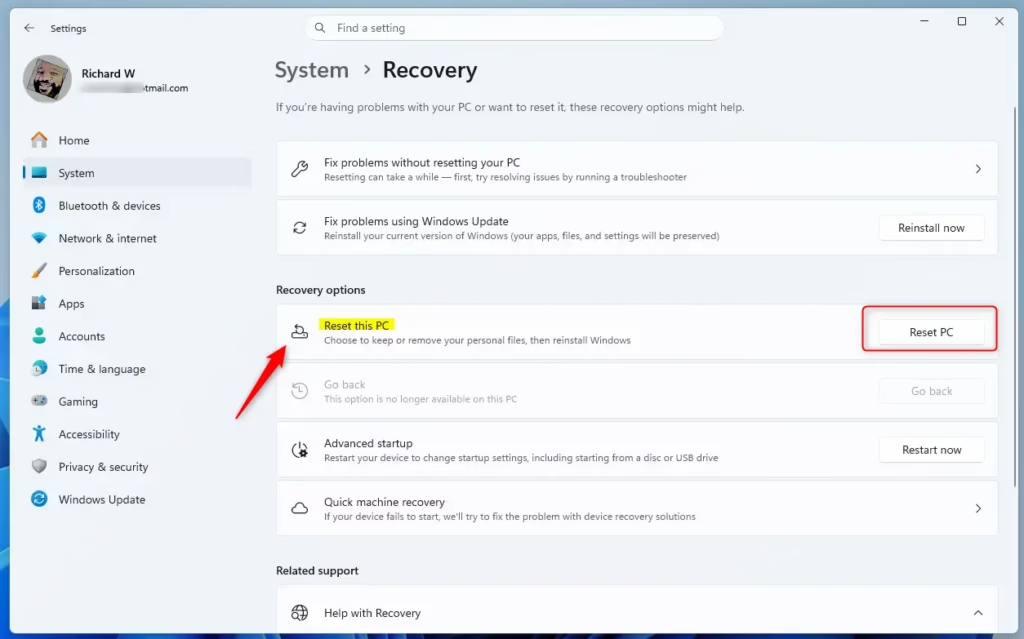
Reset this PC button in Windows 11 settings. - Select Remove everything. This wipes your files, apps, and settings, which clears any malware that survived the scan.
- Select Cloud download. This option downloads a fresh copy of Windows 11 instead of reusing files on the PC, which a threat may have altered. Reconnect to the network for this step. Follow the remaining prompts. The PC restarts several times.
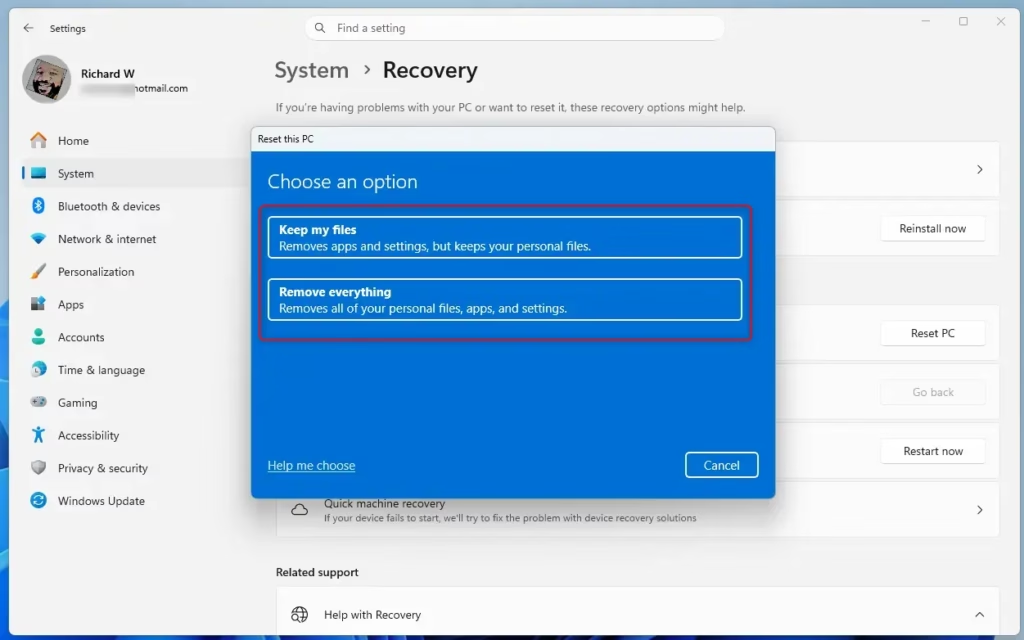
Windows 11 reset option: keep files or remove everything. - Run Windows Update after setup. Go to Settings Windows Update and select Check for updates. Install everything offered, then restart.
- Skip if you do not use OneDrive. Otherwise open OneDrive on the web. Sign in at onedrive.com from the clean PC or your second device.
- Look for the gear icon at the top right of the OneDrive page and select it. Then select Options, then Restore your OneDrive. This feature rolls your whole OneDrive back to an earlier time. It is offered on personal accounts with a Microsoft 365 subscription and on work or school accounts. A free personal account may not show it.
- Choose a date before the attack, then select Restore. The activity chart helps you spot the spike when files changed in bulk. Pick a time just before it. Your files come back to the sync folder once OneDrive syncs on the cleaned PC.
- Connect your backup drive and scan it first. Open Windows Security Virus & threat protection Scan options > Custom scan, select Scan now, and pick the backup drive. Do not restore from a drive you have not scanned.
- Skip if you do not use File History. Otherwise open File History. Open Control Panel and go to System and Security > File History. Select Restore personal files.
- Select the latest version before the attack, then select the green Restore button. Use the arrows at the bottom to move between dated versions. Windows asks what to do if a file already exists. Choose the option that replaces the file in the destination.
- Restore from any other backup you have. This includes a Backup and Restore (Windows 7) backup, a network drive, or a third-party backup. Backup and Restore (Windows 7) is still listed in Control Panel, under System and Security, in Windows 11.
- Scan the files you copied in steps 17 and 20 before moving them back. Use a Custom scan on the spare drive, then copy the clean files into your Documents, Pictures, or other folders.
- Open a few restored files from each folder. Check that documents, photos, and spreadsheets open normally. If a folder is missing files, go back to another source in the steps above.
Why Your Recovery Options Might Be Missing
Ransomware often targets the recovery features first. Here is what you may see and what to do next.
The Previous Versions tab is empty
Previous Versions only has content if File History or System Protection (the feature that creates restore points) was on before the attack. Many ransomware families also delete volume shadow copies, the snapshots Windows keeps behind the scenes. An empty tab means the copies are gone. Move to Windows File Recovery or an external backup.
File History shows no versions
Microsoft Defender Offline scan is missing or Windows Security will not open
If another antivirus product is your active protection, some Windows Security scan options may be limited. Some ransomware also disables security tools. If you cannot run the scan, create antivirus rescue media from the clean device, following that vendor’s instructions, and scan from it. If that is not possible, copy your files out and go straight to the reset in the steps above.
The Restore your OneDrive option is not offered
Free personal accounts may not see this option. Check the OneDrive recycle bin, and open an individual file’s Version history from its right-click menu on the web. The Windows Security ransomware protection settings page also has a Ransomware data recovery section that points to OneDrive options.
Windows File Recovery finds nothing
Nothing is returned when the ransomware overwrote the original data. SSDs also discard deleted data quickly through a process called TRIM, which cuts the odds further. Windows File Recovery is a long shot on a modern PC. Do not rely on it as your only plan.
If You Decide Not to Reset the PC
Resetting is the safest route, but some people cannot do it right away. If you skip it, the attacker may still have left something behind that starts again after a restart. Keep the network disconnected as long as you can, and run more than one scan.
Also open Windows Security Virus & threat protection Manage settings and look under Exclusions. Malware sometimes adds entries here so it escapes scanning. Remove any you do not recognize, as covered in our guide on Microsoft Defender exclusions.
What to Do Next
Turn on ransomware protection before you settle back in. Our guide on enabling ransomware protection in Windows 11 takes a few minutes. Then decide whether Controlled Folder Access suits how you work, since it can block legitimate apps from saving files. Keep SmartScreen app and file checks (Microsoft’s check for risky apps and downloads) turned on, so it can catch risky downloads, and set up File History on an external drive that you unplug after each backup.
Have a question about this guide?
Answered by AI from this guide. Good questions may be added to this page — please don't include personal details.
Did this guide fix your problem?

About the Author
Richard
Tech Writer, IT Professional
Richard is a writer at Geek Rewind who turns complex IT tasks into clear, step-by-step guides. He draws on years of hands-on experience in system administration and enterprise IT operations, focusing on Windows, Linux and WordPress: the problems people actually run into, and the fixes that work. His server and WordPress guides come from systems he runs himself. Richard builds and maintains the platform behind Geek Rewind, from its Ubuntu servers and Nginx configuration to its custom WordPress plugins. Many new tutorials start with readers' questions, and he's always glad to answer them in the comments.
No comments yet — be the first to share your thoughts!