Manage Ransomware Protection Settings in Windows 11

- 30 steps
- Needs administrator rights
Manage ransomware protection in Windows 11 from the Windows Security app: open Virus & threat protection, then select Manage ransomware protection under Ransomware protection. That page lets you turn Controlled folder access (a feature that blocks untrusted apps from changing files in protected folders) on or off. It also lets you choose which folders it guards, allow trusted apps, and set up file recovery through OneDrive.
Controlled folder access is off by default on most PCs. Many people never turn on the main defense Windows offers against ransomware (malware that locks your files and demands payment). This guide covers every control on the page and explains why an option may be missing or greyed out.
Several steps need an administrator account, and the guide flags each one.
To manage ransomware protection in Windows 11, open Windows Security, select Virus & threat protection, then choose Manage ransomware protection under Ransomware protection. From there you can turn Controlled folder access on or off, choose which folders it guards, allow trusted apps, and set up file recovery through OneDrive. Changing these settings requires an administrator account.
What Ransomware Protection Includes in 🪟 Windows 11
Ransomware protection is a section of the Windows Security app with two parts. Each handles a different stage of an attack, so it helps to know which one you are adjusting.
Controlled folder access
Controlled folder access watches a set of folders and allows only trusted apps to change files inside them. If ransomware, or any unknown app, tries to modify a protected file, Windows blocks the attempt and shows a notification. Protected folders include the folders in your user profile (the folders Windows sets up for your account), such as Documents, Pictures, Videos, Music, Favorites and Desktop. You can add more.
For a deeper look at whether the feature suits your setup, read Should You Enable Controlled Folder Access in Windows Security Ransomware Protection.
Ransomware data recovery
Ransomware data recovery connects Windows Security to OneDrive (Microsoft’s cloud storage service). If an attack damages files that sync to OneDrive, you can restore earlier versions from the cloud. This part does not stop an attack. It limits the damage afterward.
Which editions get it
Both features appear in Windows Security on Windows 11 Home and Pro. You do not need Group Policy (a tool for managing settings across a PC or network) or Registry Editor (a tool for editing Windows settings directly) to use them. Everything in this guide works from the Windows Security interface.
Before You Start: Why Ransomware Protection Options May Be Missing
If the Ransomware protection section is absent, or its switches are greyed out, one of three conditions is usually the cause. Check these first to save time.
- Another antivirus is active. Controlled folder access belongs to Microsoft Defender Antivirus. When a non-Microsoft antivirus is your main protection, Windows turns Defender’s controls off or hides them. Manage ransomware protection in that product instead, or uninstall it to return control to Windows Security.
- Real-time protection is off. Controlled folder access needs real-time protection (Defender’s constant background scanning) to run. Turn it on under Virus & threat protection settings.
- Your organization manages the PC. On a work or school device, administrators can lock these settings. You then see a message such as “Some of these settings are managed by your organization.” Ask your IT team.
To see the current state of your protection before you change anything, follow How to Check Windows Security Protection Status in Settings.
Also check that you are signed in with an administrator account. A standard account (one without administrator rights) triggers a User Account Control (UAC) prompt that asks for an administrator password. Without it, the change does not apply.
Tamper protection is a related setting that stops apps and malicious code from changing Defender’s settings behind your back. If a change does not stick, see How to Enable Tamper Protection in Windows 11.
Open Ransomware Protection and Turn On Controlled Folder Access
These steps open the settings page and turn on Controlled folder access. Administrator privileges are required for the final steps.
- Click Start. The Start menu opens with a search box at the top.

Start Menu - Type Windows Security and press Enter. The Windows Security app opens with a left-hand menu. You can also go to Settings Privacy & security Windows Security and click Open Windows Security.
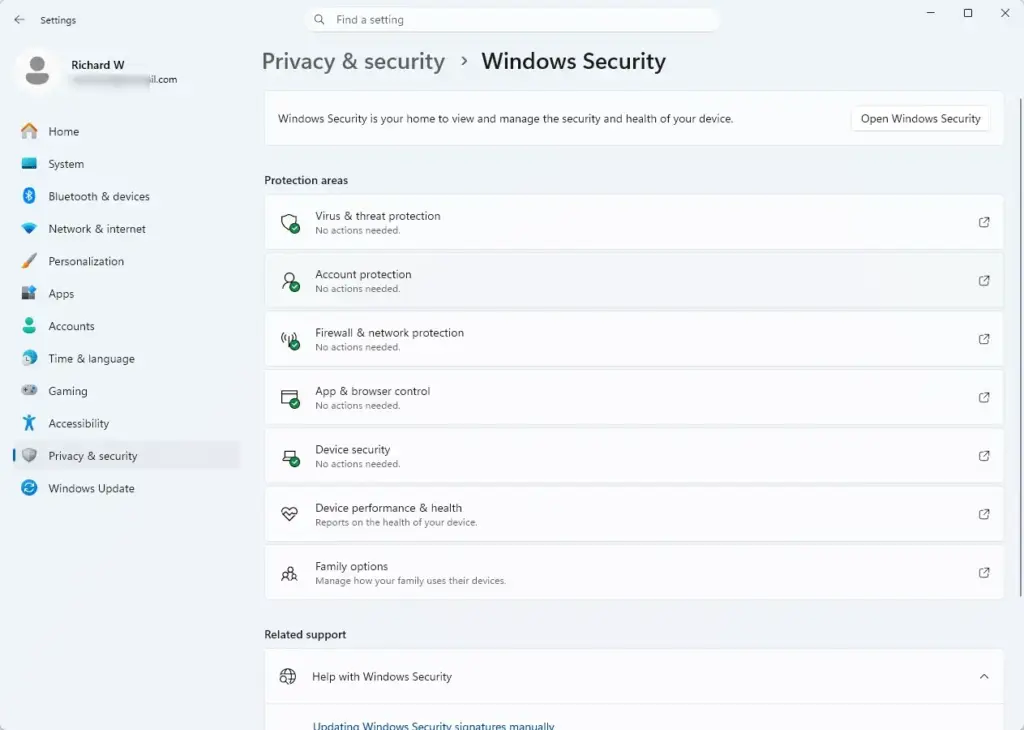
Settings › Privacy & security › Windows Security - Click Virus & threat protection in the left menu. The page shows scan options and protection settings.
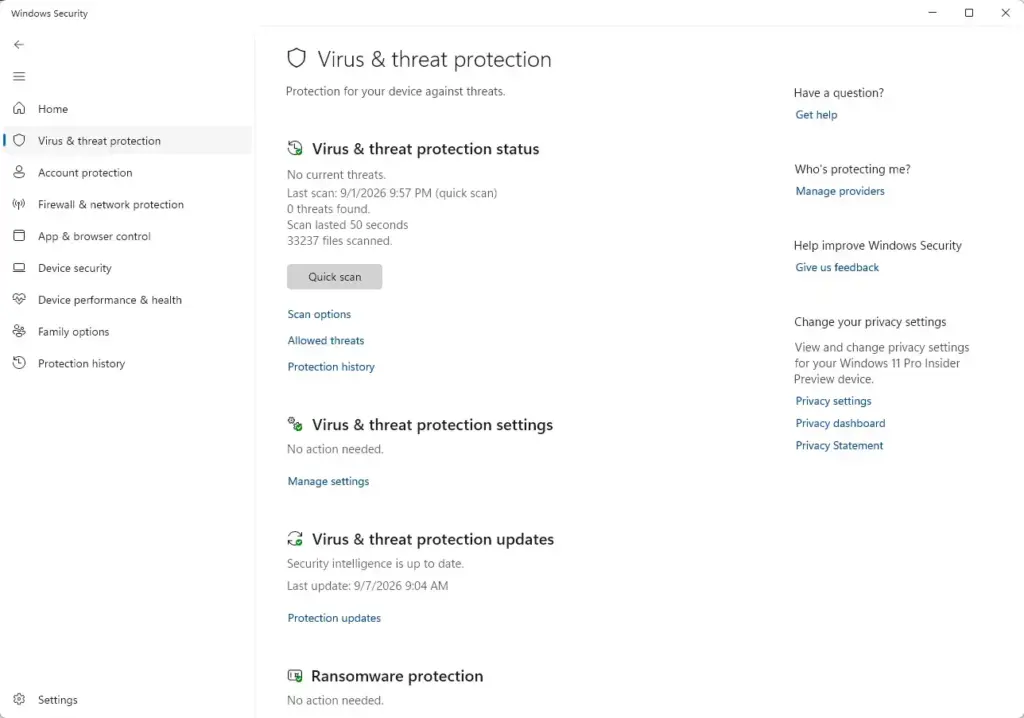
Windows Security › Virus & threat protection - Scroll down to Ransomware protection. This section sits near the bottom of the page and shows a short description of the feature.
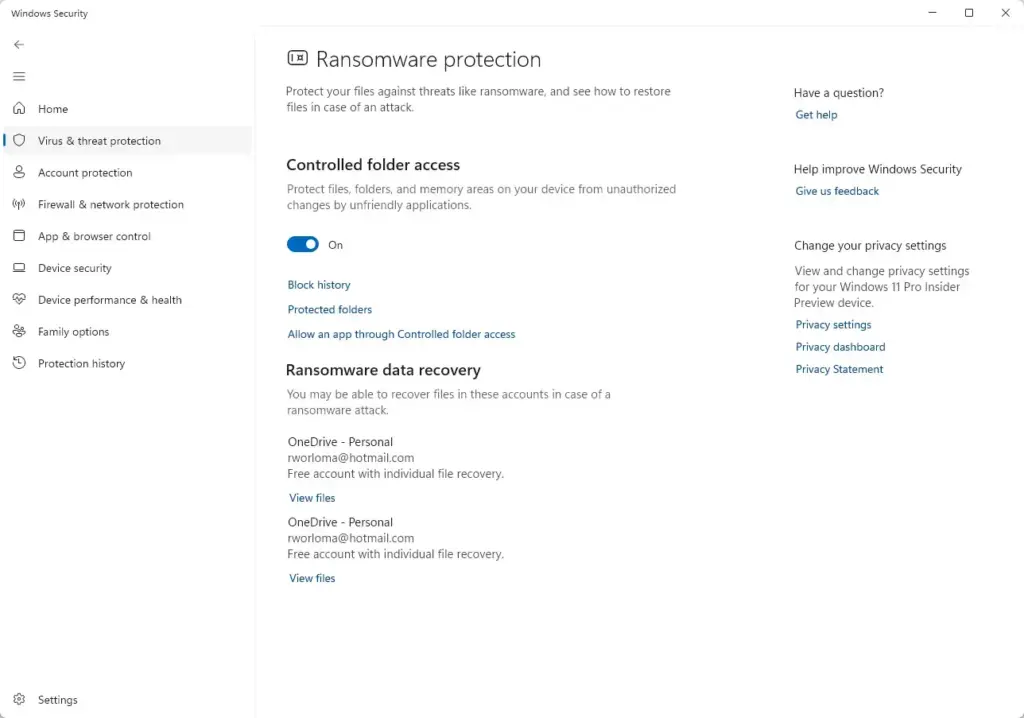
Windows Security › Virus & threat protection › Ransomware protection - Click Manage ransomware protection. The Ransomware protection page opens. It lists Controlled folder access at the top and Ransomware data recovery below it.
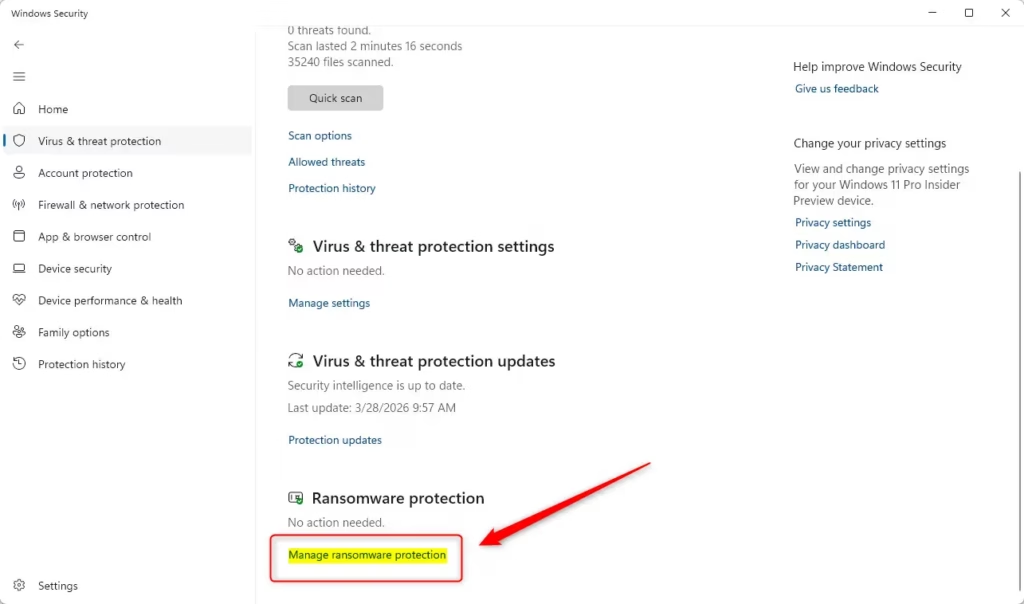
- Switch Controlled folder access to On. A UAC prompt appears. This step requires administrator privileges.
- Click Yes in the UAC prompt. If you are on a standard account, enter an administrator password instead. The switch now reads On, and three links appear under it: Block history, Protected folders and Allow an app through Controlled folder access.
If the Manage ransomware protection link is missing, return to the previous section. A third-party antivirus or a managed device is the most likely cause. If wording on your screen differs slightly, look for the same section names, since Microsoft adjusts the Windows Security layout between feature updates.
The protection takes effect immediately. You do not need to restart.
Choose Which Folders Controlled Folder Access Protects
The default folder list covers your user profile locations, but many people keep important files elsewhere, such as a second drive or a project folder. Add those folders so they get the same protection. Administrator privileges are required.
Add a protected folder
- Open Windows Security and go to Virus & threat protection Manage ransomware protection. The Ransomware protection page opens.
- Click Protected folders. A UAC prompt appears.
- Click Yes to approve the prompt. The list of protected folders opens, with a Add a protected folder button at the top.
- Click Add a protected folder. A folder picker window opens.
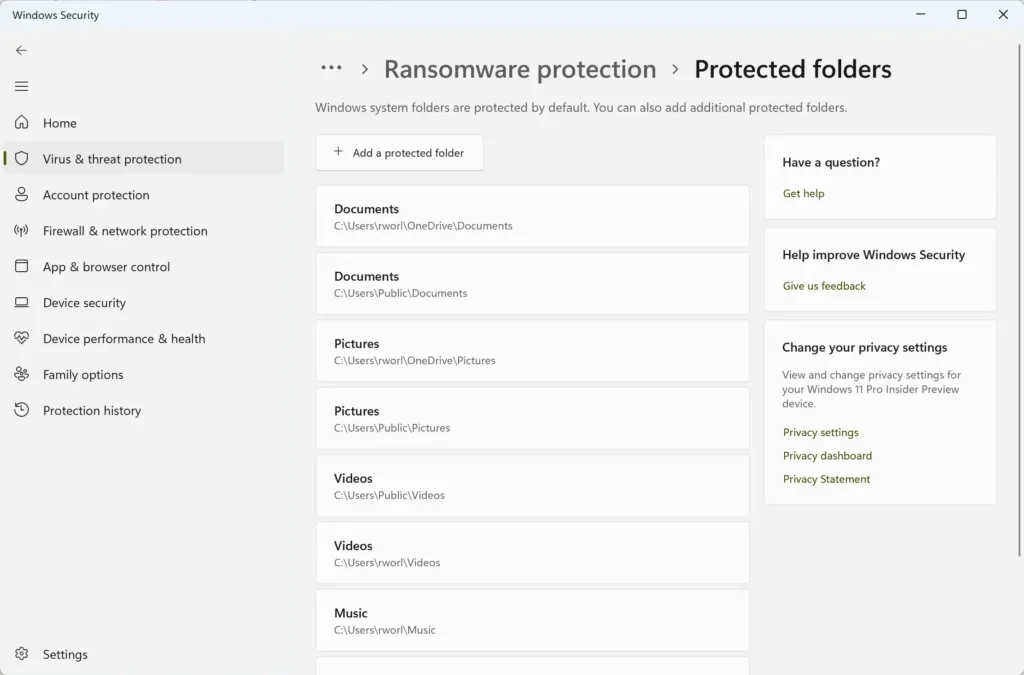
Windows Security - Select the folder you want to protect and click Select Folder. The folder now appears in the list.
Protect the folder that holds your files, not an entire drive. Protecting a very broad location, such as a whole system drive, raises the chance that Windows blocks legitimate programs.
Remove a protected folder you added
To undo an addition, return to the Protected folders list, click the folder, and then click Remove. Approve the UAC prompt if it appears. Windows stops guarding that folder right away. Windows lists its default folders, but you cannot remove them from the list.
Controlled folder access is separate from the privacy permissions that decide which apps can read your files. For that setting, see How to Manage App Permissions for Documents, Pictures and Videos in Windows 11 Privacy Settings.
Allow a Trusted App Through Controlled Folder Access
Controlled folder access can block safe programs, such as a photo editor, a backup tool or a game that saves to Documents. Add a trusted app to the allowed list so it can write to protected folders again. Administrator privileges are required.
Add an app to the allowed list
- Open Windows Security and go to Virus & threat protection Manage ransomware protection. The Ransomware protection page opens.
- Click Allow an app through Controlled folder access. A UAC prompt appears.
- Click Yes to approve the prompt. The allowed apps page opens with an Add an allowed app button.
- Click Add an allowed app. A small menu opens with two choices: Recently blocked apps and Browse all apps.
- Choose Recently blocked apps if Windows just stopped the program. A list of blocked apps appears. Click the + next to the app to allow it.
- Choose Browse all apps if the app is not in that list. Find its .exe file in the file picker, select it and click Open. The app now appears on the allowed list.
Try the action that failed again. The app should now save to the protected folder without a block notification.
Remove an allowed app
To take back permission, open the allowed apps list, click the app, and then click Remove. The app is blocked from protected folders again the next time it tries to write there.
Review the Block History
Block history shows every attempt Controlled folder access stopped. It tells you whether a block was a real threat or a trusted app that needs permission. Opening it changes nothing.
- Open Windows Security and go to Virus & threat protection Manage ransomware protection. The Ransomware protection page opens.
- Click Block history. The Protection history page opens.
- Select an entry marked as a blocked item. The details show the app name, the file it tried to change and the time.
- Decide what to do. If you do not recognize the app, leave it blocked and run a scan. If you do recognize it, use the allowed apps steps above.
When Windows blocks an app, a notification titled “Unauthorized changes blocked” appears on screen. Clicking that notification is a quick way to reach the same details.
Set Up Ransomware Data Recovery With OneDrive
Ransomware data recovery links your files to OneDrive so you can restore earlier versions if an attack damages them. Windows Security checks whether OneDrive is set up and prompts you if it is not. Setting up OneDrive does not require administrator privileges.
- Open Windows Security and go to Virus & threat protection Manage ransomware protection. The Ransomware protection page opens.
- Find Ransomware data recovery below Controlled folder access. It reports your OneDrive status.
- Click Set up OneDrive if the button appears. The OneDrive sign-in window opens.
- Sign in with your Microsoft account and follow the prompts. OneDrive begins syncing the folders you choose.
- Return to the Ransomware protection page. The section now shows that OneDrive is set up, and a link to manage or view your files appears.
Turn Off Controlled Folder Access or Reverse a Change
Turning off Controlled folder access removes your main defense against ransomware. Turn it off only for a specific reason, such as troubleshooting. Administrator privileges are required.
- Open Windows Security and go to Virus & threat protection Manage ransomware protection. The Ransomware protection page opens.
- Switch Controlled folder access to Off. A UAC prompt appears.
- Click Yes to approve it. The switch reads Off, and the three links under it disappear.
Your protected folders and allowed apps lists are not erased. To turn protection back on, switch the setting to On. The earlier lists return. For a full walkthrough of turning it on, see Protect Your Data: Enable Ransomware Protection in Windows 11.
Fix Common Problems With Ransomware Protection
The Controlled folder access switch is greyed out
A greyed-out switch usually means your organization manages the setting or another antivirus is in control. Check Windows Security Virus & threat protection for a message naming the provider. If real-time protection is off, turn it on under Virus & threat protection settings and return to the page.
A trusted program cannot save files
Controlled folder access often blocks programs that fail to save, or that report “access denied” in Documents or Pictures, so check Block history first. Find the app there and allow it as described above. If nothing appears there, something else is probably the cause, such as file permissions (the rules that decide who can change a file).
The UAC prompt keeps asking for a password
This means you are on a standard account. Enter the credentials of an administrator account, or sign in as an administrator and repeat the step.
A setting changes back on its own
On a managed PC, your organization’s policy can change the setting back and override your choice. On a personal PC, check that no other security program is changing Defender’s settings. How to Manage Windows 11 Security and Privacy Settings covers the wider set of controls you may want to review.
What to Do Next
Work as you normally would for a day or two with Controlled folder access on, then check Block history. Add any app you rely on that shows up there. Then confirm that the Windows Security home page shows no warnings for Ransomware protection, and back up important files to a drive that is not always connected.
Frequently asked questions
How to adjust power and sleep settings in 🪟 Windows 11?
Open Settings, select System, then Power & battery. Use the Screen and sleep section to set how long the screen stays on and when the PC goes to sleep, separately for when it is plugged in and when it runs on battery. Under Power mode, choose a balance of performance and battery life.
How to manage user accounts in 🪟 Windows 11?
Open Settings, select Accounts, then Other users to manage accounts for other people on the PC. To add a local account, select Add account. To change an account type, select it, choose Change account type, and pick Administrator or Standard User. Changing account types requires an administrator account.
How to adjust display settings in 🪟 Windows 11?
Open Settings, select System, then Display. Use Scale to make text and apps larger or smaller. Use Display resolution to change sharpness, and Orientation if the screen is turned sideways. Select Advanced display to see the refresh rate and each connected monitor. When you change resolution, Windows asks you to keep the change or revert it.
How to manage notifications in 🪟 Windows 11?
Open Settings, select System, then Notifications. Turn notifications on or off for the whole PC with the top switch, or expand an app in the list to control its banners and sounds. To silence alerts for a set time, use Focus.
How to backup system settings in 🪟 Windows 11?
Open Settings, select Accounts, then Windows backup. Turn on Remember my preferences to sync themes, passwords, language, and app settings to your Microsoft account. Sign in with a Microsoft account first, since this needs one. For a full system image, use Backup and Restore (Windows 7) in Control Panel instead.
Still have a question?
Answered by AI from this guide. Good questions may be added to this page — please don't include personal details.
Did this guide fix your problem?

About the Author
Richard
Tech Writer, IT Professional
Richard is a writer at Geek Rewind who turns complex IT tasks into clear, step-by-step guides. He draws on years of hands-on experience in system administration and enterprise IT operations, focusing on Windows, Linux and WordPress: the problems people actually run into, and the fixes that work. His server and WordPress guides come from systems he runs himself. Richard builds and maintains the platform behind Geek Rewind, from its Ubuntu servers and Nginx configuration to its custom WordPress plugins. Many new tutorials start with readers' questions, and he's always glad to answer them in the comments.
No comments yet — be the first to share your thoughts!