Show Your Virus Protection Status in Windows 11

- 19 steps
- Needs administrator rights
Windows Security in Windows 11 reports the state of your antivirus on its Virus & threat protection page. To check your virus protection, open Settings Privacy & security Windows Security Open Windows Security, then click Virus & threat protection.
That page shows whether Microsoft Defender Antivirus (the antivirus built into Windows 11) is on, when it last scanned, and whether it found threats. It also shows how up to date its threat definitions are, meaning the lists of known threats it uses to spot malware. Every Windows 11 edition, Home and Pro included, has the same page.
Viewing the page changes nothing and needs no restart. Turning protection on or off from it does need administrator rights, and the steps flag where.
To show your virus protection in Windows 11, open Settings Privacy & security Windows Security Open Windows Security, then click Virus & threat protection. The page shows whether Microsoft Defender Antivirus is scanning, when it last ran, and whether its threat definitions are up to date. Viewing it needs no administrator rights.
What “Virus Protection Status” Means in 🪟 Windows 11
Windows 11 does not show one single “protected” light. It checks several things and reports each separately. Knowing what each check covers tells you whether a green icon really means you are covered.
- Real-time protection: Windows scans files and apps as you open, download or copy them. This is the main defence, and the first thing to confirm is that it is on.
- Last scan: The date and type of the most recent scan, plus how many threats it found.
- Protection updates: Security intelligence (the database of known malware patterns that Defender uses) must be recent. Old definitions miss new threats.
- Current threats: Any detected item that still needs your attention.
Show Your Virus Protection Status in Windows Security
The steps below cover the whole check, from opening Windows Security to confirming that your definitions are up to date.
- Open Settings . Press Win+I, or right-click Start and choose Settings. The Settings window opens.

Start Menu - Click Privacy & security. It is in the left menu, below Accounts and Time & language.

- Click Windows Security. It is near the top of the Privacy & security page, under the Security heading. The path is Settings Privacy & security Windows Security.
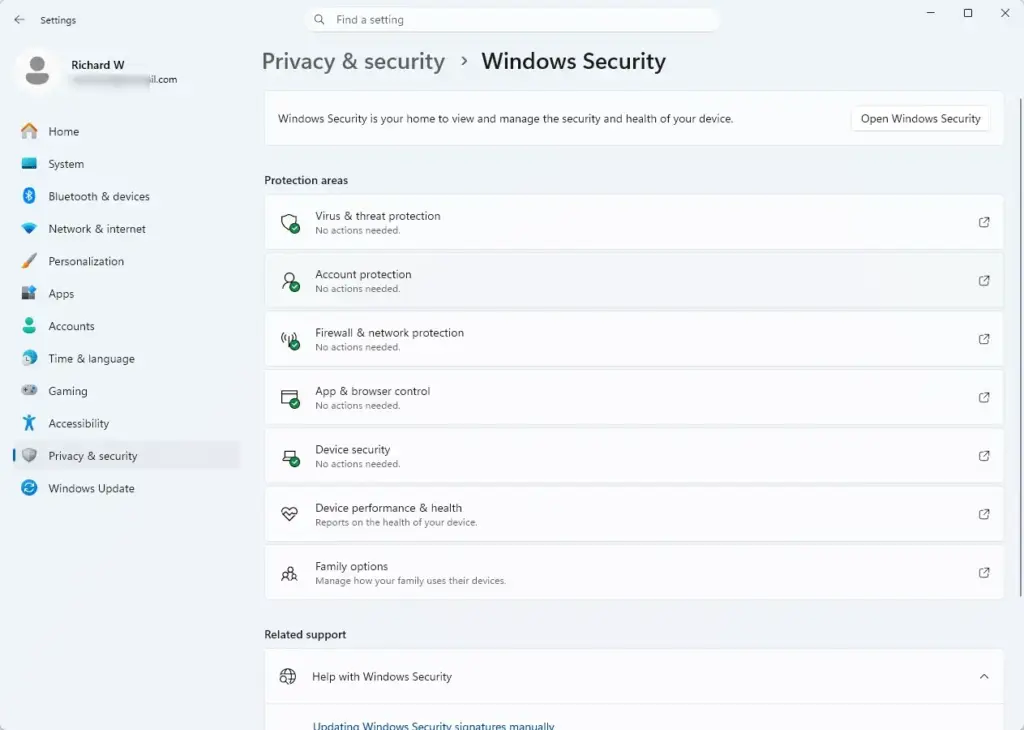
Settings › Privacy & security › Windows Security - Click Open Windows Security. The Windows Security app opens on its Home page. Its Security at a glance section shows one tile for each protection area.
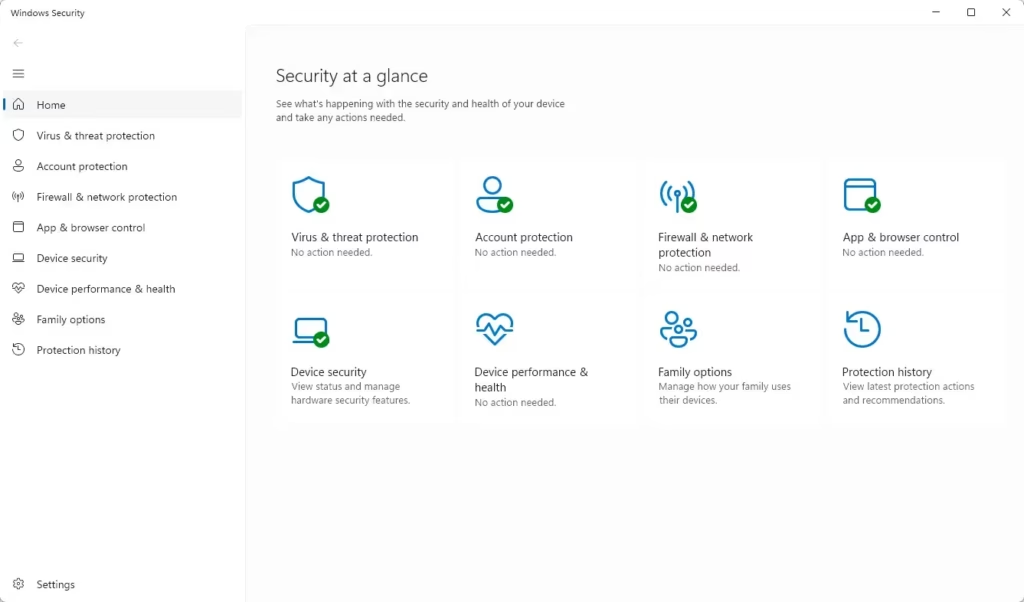
Windows Security dashboard showing an overview of PC protection status. - Click Virus & threat protection. It is the first tile, or the shield icon in the left menu. The page lists Current threats, then Virus & threat protection settings, then Virus & threat protection updates.
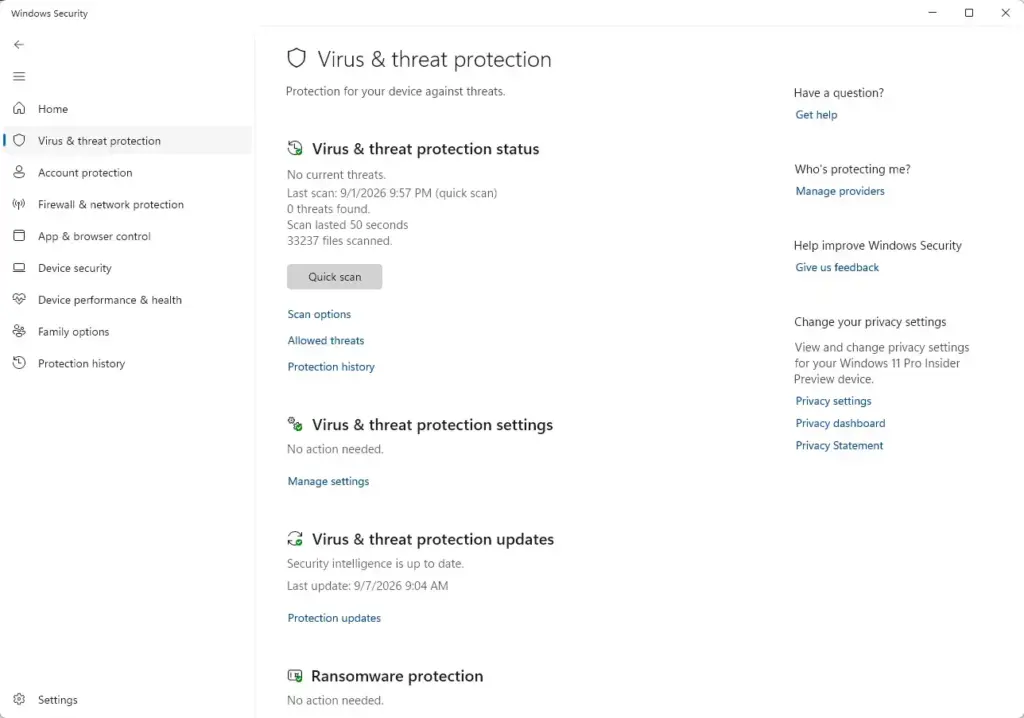
Windows Security › Virus & threat protection - Read the Current threats section. It shows the last scan date and type, such as “Last scan: (quick scan)”. It also shows the number of threats found, how long the scan lasted and how many files it checked. “0 threats found” means the last scan found nothing.
- Read the Virus & threat protection settings section. “No action needed.” means the settings are healthy. A warning such as “Real-time protection is off” means Defender is not scanning files as you use them.
- Click Manage settings. This opens the full list of switches. Check that Real-time protection and Cloud-delivered protection are set to On. Viewing them needs no administrator rights. Changing a switch needs administrator rights, and Windows shows a User Account Control prompt when you try.
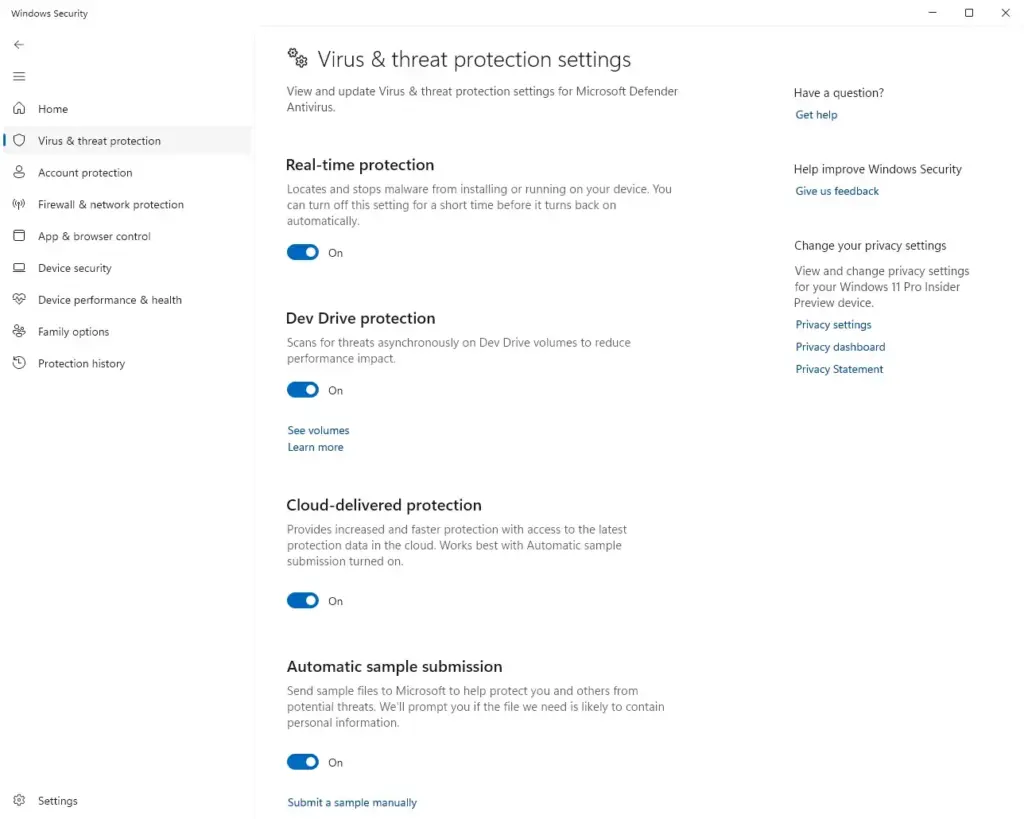
Windows Security - Click the back arrow. It is at the top left of the window. You return to the Virus & threat protection page.
- Click Protection updates. It is under Virus & threat protection updates. The page shows the security intelligence version, when it was created and when Windows last checked for updates.
- Click Check for updates . Windows downloads any new definitions. A message such as “Security intelligence is up to date” confirms the update. A date several days old without a newer check is worth a second look.
- Click Protection history. Return to the Virus & threat protection page first, then click Protection history under Current threats. This lists past detections and what Windows did about each one. An empty list means nothing has been flagged recently.
If a step does not match what you see, the section further down on a missing or managed page covers the usual causes.
Faster Ways to Open the Same Page
- Press the Win, type Windows Security, and press Enter. The app opens on the Home page.
- Click the up arrow at the right end of the taskbar to show hidden icons, then click the shield icon. This is the Windows Security notification icon.
The shield icon in the taskbar also acts as a quick status light. A plain shield means no action is needed. A small yellow warning or red mark on the shield means something needs attention.
How to Read What You See
Windows uses the same small set of icons and messages across the app. These explain what each one asks of you.
The Icons on the Home Page
Each tile in Security at a glance carries a small status icon. A green check mark means no action is needed. A yellow warning triangle means Windows has a recommendation. A red X means the area needs your attention now.
The tile for Virus & threat protection can turn yellow or red even when Defender is working. This happens, for example, when a scan found a threat that you have not yet dealt with. Open the tile to see the reason instead of guessing from the color.
For a full walk through every tile, see how to check your PC’s security status in the Windows Security dashboard.
The Current Threats Section
This section answers two questions: did the last scan find anything, and is anything waiting for your decision? If Windows finds a threat, a Start actions button appears so you can remove or quarantine it. Quarantine (moving a file to a locked area where it cannot run) is safer than deleting while you decide.
The Quick scan button here checks the places malware most often hides. It usually finishes in a few minutes. Under Scan options you can choose a full scan, a custom scan or Microsoft Defender Antivirus (offline scan). A full scan checks every file and takes much longer.
If a scan stalls and never finishes, this guide to a hung Windows Security virus scan covers what to try.
Real-Time Protection and the Other Switches
If it is off, Windows does not check files as you use them, even though the app itself still opens. Windows normally turns it back on by itself after a while, but do not rely on that.
Turning real-time protection on again is a single click on its switch. This needs administrator rights. Click Yes on the User Account Control prompt when it appears.
If the Tamper Protection switch is off, other apps and malware can change Defender’s settings. Turn on Tamper Protection in Windows 11 to stop that.
If Another Antivirus App Is Installed
When you install a third-party antivirus, Windows usually switches Microsoft Defender Antivirus off so the two do not compete. In that case the Virus & threat protection page shows the name of the other product and reports its status instead of Defender’s own.
This is normal and not a fault. The details in the Current threats section may be missing, because the other product keeps its own scan history. Open the other app from its taskbar icon or Start menu to see its last scan and update status.
Windows may also show a Periodic scanning switch under Microsoft Defender Antivirus options. When it is on, Defender runs an occasional scan beside your main antivirus. It is optional and adds a second opinion.
If you remove the other antivirus later, Windows should switch Defender back on. Open the Virus & threat protection page afterward and confirm that real-time protection reads On.
If Virus & Threat Protection Is Missing or Managed by Your Organization
Sometimes the tile is gone, or the page shows a message such as "Some of these settings are managed by your organization". Both usually mean a policy is controlling the app. Policies are rules set by an administrator, either on a work PC or on a PC where someone changed Windows settings by hand.
On a work or school PC, ask your IT department. A policy there overrides anything you change in the app. On your own PC, a past change may have hidden the section on purpose. Hide or display the Virus & threat protection section explains how to reverse it.
Switches that look greyed out and do not respond to clicks point to the same cause. Check whether your account is an administrator account before you decide the setting is broken.
Other Ways to See Your Virus Protection Status
Windows Security is the main place. Two other views are worth knowing, especially for IT staff who check many PCs.
Security and Maintenance in Control Panel
This older page still reports a summary. It is useful when you want one line that names the active antivirus.
- Open Control Panel. Press the Windows key, type Control Panel, and press Enter.
- Click System and Security. If your view is set to icons, skip to the next step.
- Click Security and Maintenance. The page opens.
- Click the arrow beside Security. The section expands. Look for the Virus protection line, which names the active antivirus and says whether it is on.
PowerShell
PowerShell (a command-line tool built into Windows) can print Defender's status as plain text. This helps when you want to copy the result or check a remote support session.
- Open Windows Terminal. Right-click Start and choose Terminal. A PowerShell window opens.
- Type the command below and press Enter. It lists three fields from Defender's status.
Get-MpComputerStatus | Select-Object AntivirusEnabled, RealTimeProtectionEnabled, AntivirusSignatureLastUpdated - Read the result.
AntivirusEnabledandRealTimeProtectionEnabledshould both readTrue.AntivirusSignatureLastUpdatedshows when the definitions last updated.
If another antivirus has taken over, these fields can read False even though your PC is protected. In that case, check the other product's own app.
What Else to Check Beyond the Antivirus
A healthy antivirus is one part of Windows protection. The same Windows Security app reports on several related areas worth a look while you are there.
- Ransomware protectionThis guards chosen folders against unauthorized changes. See how to turn on ransomware protection in Windows 11.
- Settings checkMicrosoft has a separate guide on checking your protection status in Settings, titled how to check Windows Security protection status in Settings.
- Firewall & network protectionThis tile shows whether Windows Firewall is on for each network profile.
What to Do Next
If the page shows a warning that you cannot clear, start with Check for updates under Protection updates, then run a Quick scan and look at the tile again. Once Virus & threat protection reads healthy, turn on Tamper Protection so other apps cannot switch your protection off quietly. Open the page again every few weeks, since a new antivirus install or a feature update can change the status.
Have a question about this guide?
Answered by AI from this guide. Good questions may be added to this page — please don't include personal details.
Did this guide fix your problem?

About the Author
Richard
Tech Writer, IT Professional
Richard is a writer at Geek Rewind who turns complex IT tasks into clear, step-by-step guides. He draws on years of hands-on experience in system administration and enterprise IT operations, focusing on Windows, Linux and WordPress: the problems people actually run into, and the fixes that work. His server and WordPress guides come from systems he runs himself. Richard builds and maintains the platform behind Geek Rewind, from its Ubuntu servers and Nginx configuration to its custom WordPress plugins. Many new tutorials start with readers' questions, and he's always glad to answer them in the comments.
No comments yet — be the first to share your thoughts!