How to Check Your PC’s Security Status in Windows Security Dashboard

- 50 steps
- Needs administrator rights
- Includes a restart or sign-out
To check Microsoft Defender status in Windows 11, open the Windows Security app and read the status icon on the Virus & threat protection tile. A green check means Defender is working.
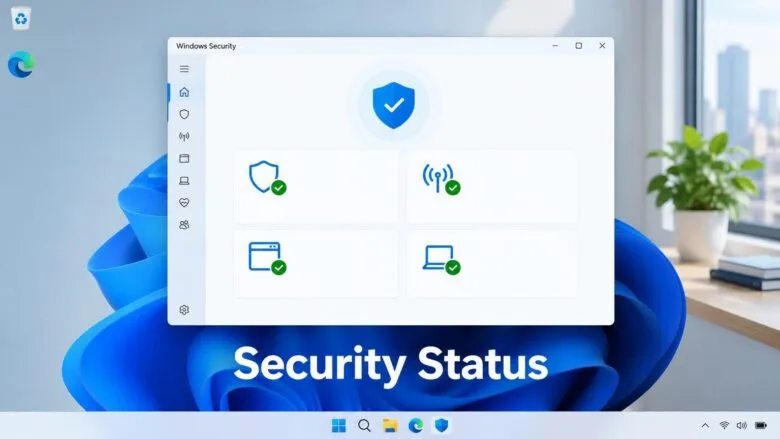
Windows Security Dashboard shows the health of your antivirus, firewall, sign-in protection and hardware security in one place. A yellow warning triangle or a red X means Windows needs you to act on that item.
To open it, press the Start key, type Windows Security and press Enter. The main page, Security at a glance, has one tile for each protection type. This guide explains each area, what the warnings mean, and what to do when a tile is missing or greyed out.
Open Windows Security from the Start menu by typing Windows Security and pressing Enter, then check the status icon on the Virus & threat protection tile to see if Microsoft Defender is working. A green check means Defender is active; a yellow warning triangle or red X means you need to act on that item.
Open the Windows Security dashboard
Windows Security is the built-in app that includes Microsoft Defender Antivirus, Windows Firewall and device protection. You can open it in several ways. Use whichever is closest.
From the Start menu
- Select Start, or press the Win.
- Type Windows Security.
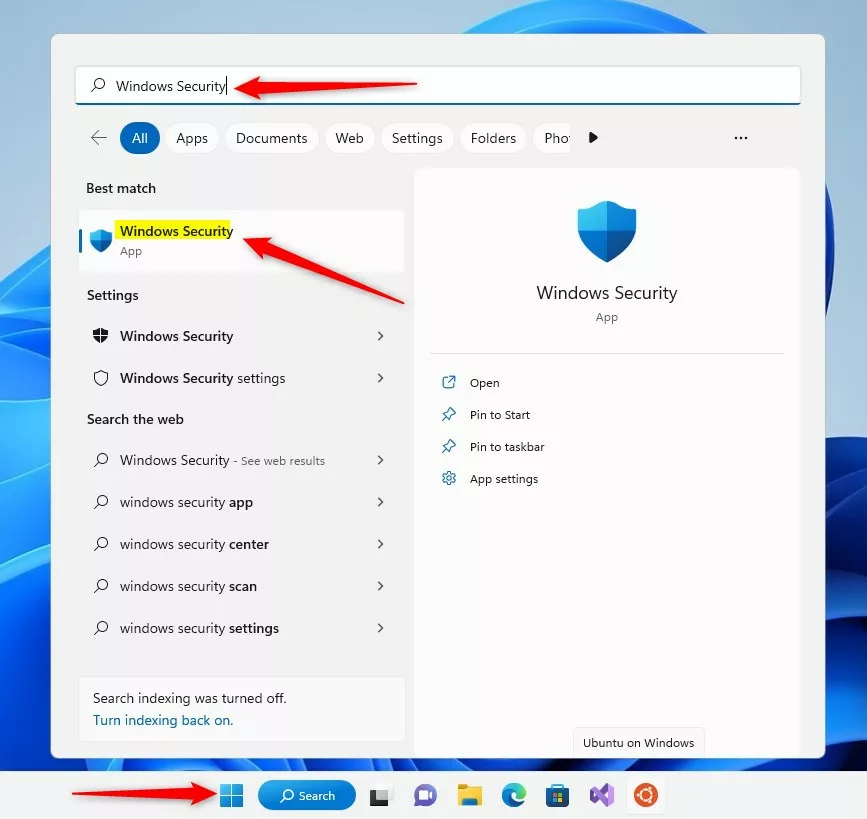
windows security app search on start menu - Select Windows Security in the results. The app opens on the Home page, titled Security at a glance.
From Settings
- Open Settings by pressing Win+I.

Windows 11 Start menu with Settings gear icon highlighted. - Select Privacy & security.
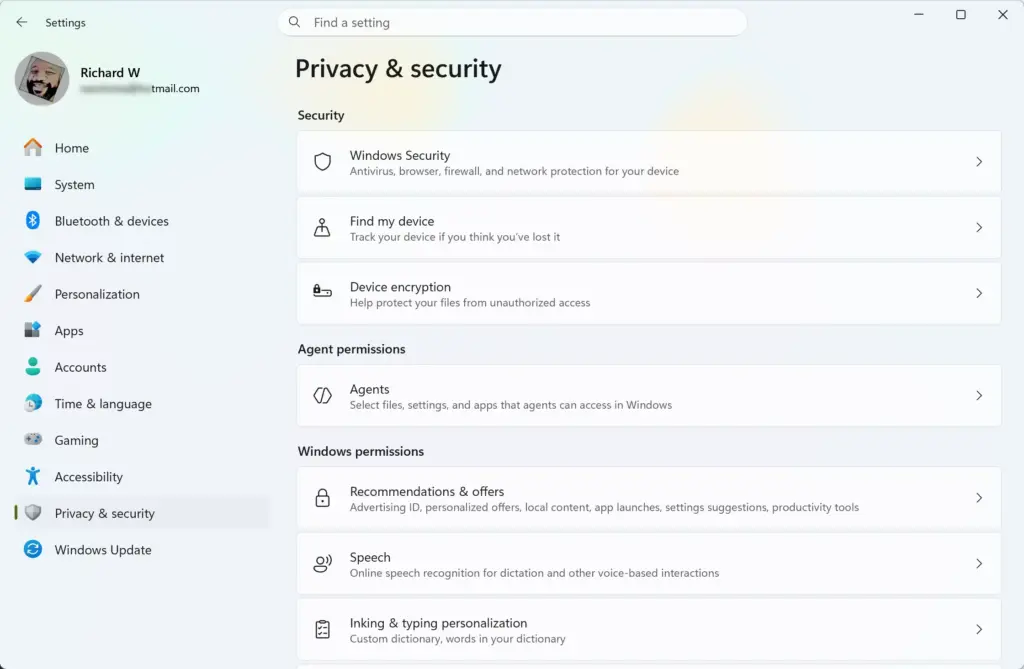
Settings › Privacy & security - Select Windows Security. This page lists the protection areas with their names.
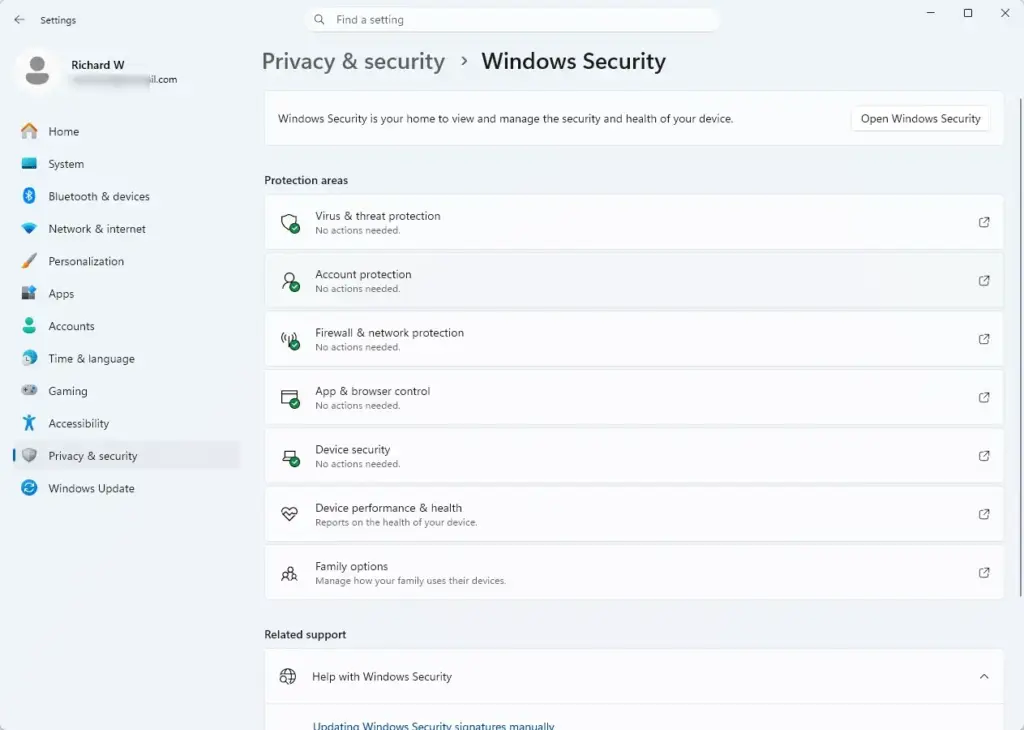
Settings › Privacy & security › Windows Security - Select Open Windows Security. The dashboard opens in its own window.
From the taskbar
- Select the up arrow at the right of the taskbar to show hidden icons.
- Select the Windows Security shield icon. The dashboard opens.
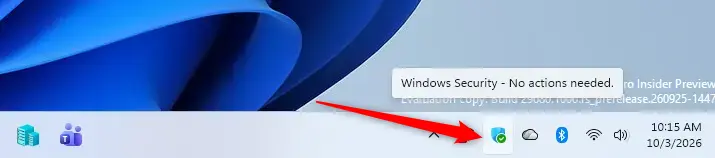
Windows Security
Check the shield icon itself. A small yellow warning or red X on it means the dashboard has an item that needs attention, even before you open the app. If the shield is missing, see the section on missing or greyed-out areas below.
Read the Security at a glance page
The Home page shows one tile for each protection area. The same areas appear in the left sidebar. Each tile carries a status icon, and that icon tells you whether you need to do anything. This is the quickest way to check your Windows Security status without opening each page.
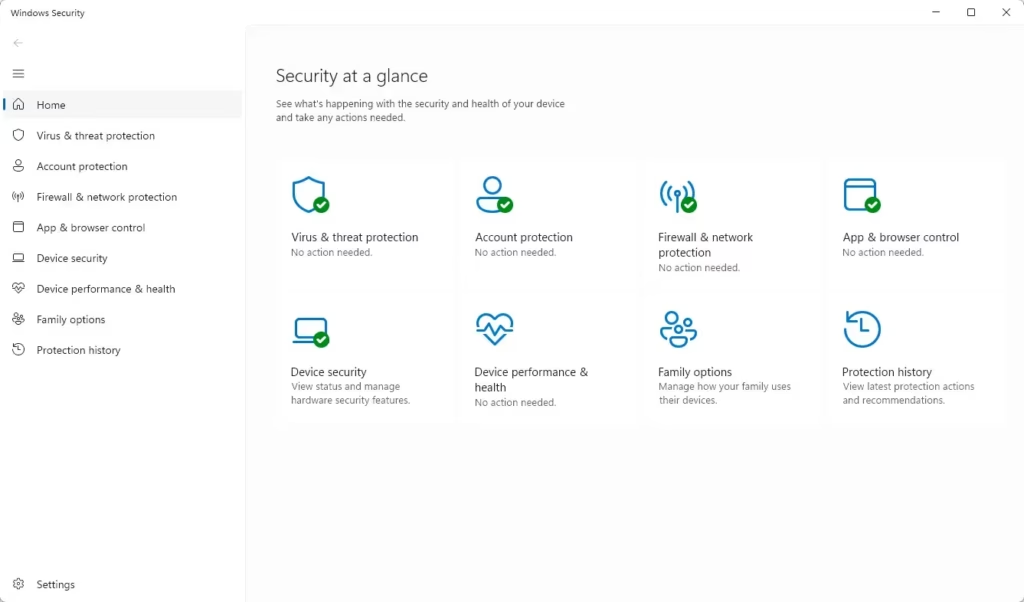
- Green check markthe area is working and has no recommended actions.
- Yellow warning triangleWindows recommends an action. Protection is usually still on, but something is out of date or switched off.
- Red Xan area needs your attention now. Protection is off, or something is blocking it.
The tiles you see are:
- Virus & threat protection
- Account protection
- Firewall & network protection
- App & browser control
- Device security
- Device performance & health
- Family options
The sidebar also has Protection history and a Settings entry at the bottom. If a tile shows a warning, select it. The page that opens names the problem and usually offers a button to fix it.
Check each protection area
Work through the areas in this order. The first two, Virus & threat protection and Account protection, matter most for everyday safety. The hardware items further down apply mainly to newer PCs.
Virus & threat protection
This area shows whether Microsoft Defender Antivirus is active, when it last scanned, and whether it has found anything. It is also where you check if Windows Defender is running.
- Select Virus & threat protection in the sidebar.
- Read the Current threats section. It shows No current threats and the time of the last scan when everything is clear. If it lists a threat, select Start actions and follow the prompts.
- Select Quick scan to run a scan now. The page shows a progress bar and an estimate of the time left. When the scan finishes, the page shows the result and the number of files scanned.
- Scroll to Virus & threat protection settings and select Manage settings. The settings page opens.
- Check that Real-time protection (scanning files as they open or download) is On. This switch is the clearest sign that Defender is enabled and running.
- Check that Cloud-delivered protection is On. This lets Defender check unfamiliar files against Microsoft’s online data.
- Check that Tamper Protection (a setting that stops apps and scripts from changing Defender’s settings) is On. Leave it on unless you are troubleshooting a specific problem.
- Select the back arrow, then scroll to Virus & threat protection updates and select Protection updates. Select Check for updates . The page then shows when the security intelligence (Defender’s list of known threats) was last updated.
If another antivirus product is installed, the switches here may be unavailable and the page names that product instead. The section on third-party antivirus below explains why.
It offers Full scan, Custom scan and Microsoft Defender Antivirus (offline scan). The offline scan restarts your PC and scans before Windows starts up, so save any open work first.
To see what Defender has done, select Protection history in the sidebar. It lists detected threats and the action taken on each.
Account protection
This area shows how you sign in and whether your sign-in methods are set up.
- Select Account protection in the sidebar.
- Read the Microsoft account section if it appears. It shows whether you are signed in with a Microsoft account.
- Read the Windows Hello section. Windows Hello is the PIN, fingerprint or face sign-in. A warning here means you have no Windows Hello method set up, or it needs repair. Select Set up if the button appears.
- Read the Dynamic lock section. Dynamic lock automatically locks your PC when a paired phone moves out of range. Since it is optional, a warning here does not mean your PC is at risk.
Firewall & network protection
This area shows whether Windows Firewall is blocking unwanted connections on each type of network you use.
- Select Firewall & network protection in the sidebar.
- Look for the three network types: Domain network, Private network and Public network. The one marked (active) is the network you are using now.
- Select the active network. The next page shows Microsoft Defender Firewall with a switch. It should be On.
Most home PCs show Private network or Public network as active. Treat a Public network label on your home Wi-Fi as a prompt to check the network profile in Settings. Public is the stricter profile, so it does no harm, but some local device sharing may not work.
App & browser control
This area controls SmartScreen (a Microsoft reputation check that warns you before you run unknown apps or open risky sites).
- Select App & browser control in the sidebar.
- Select Reputation-based protection settings.
- Check that Check apps and files is On.
- Check that SmartScreen for Microsoft Edge is On.
- Check that Potentially unwanted app blocking is On. This blocks adware and bloatware, which is software bundled with other programs that is not technically malware.
- Check that SmartScreen for Microsoft Store apps is On.
On some Windows 11 installations, this page also shows Smart App Control. If you see it, the status may read On, Evaluation or Off. The option does not appear on every PC, so a missing entry is not a fault.
Device security
This area reports on hardware-based protection. It matters most on newer PCs. Many older machines lack the hardware and show a notice instead.
- Select Device security in the sidebar.
- Read the top of the page. A green check and the words Your device meets the requirements for standard hardware security mean the hardware supports the main features. If you see Standard hardware security not supported, the PC lacks hardware that Windows needs for those features. Software changes cannot fix this.
- Select Core isolation details. Core isolation is a security feature that keeps critical Windows processes isolated, so malware or buggy drivers cannot interfere with them.
- Check Memory integrity. It blocks unsafe drivers from running in the most protected part of Windows. If it is Off, select the switch to turn it on. This step requires administrator privileges.
- Restart your PC when Windows asks. Memory integrity does not take effect until you restart.
If turning on Memory integrity fails, Windows shows a message that incompatible drivers are blocking it and gives a Review incompatible drivers link. Select it to see which drivers are the problem. Update or remove the software that installed them, then try again. The cause is usually an old driver, such as one for older hardware or virtual-machine tools.
Back on the Device security page, also look at Security processor and Secure boot if they appear. The security processor is the TPM, a chip that stores encryption keys. Secure boot prevents unauthorized or malicious code from running when your PC starts up. These show status only. Changing them means changing firmware settings, which is a separate task.
Device performance & health
This area reports general health rather than threats.
- Select Device performance & health in the sidebar.
- Read the report. It covers areas such as storage capacity, battery life, apps and software, and the Windows Time service. A warning on any of these names what is wrong.
Windows Update status is the other health check you need. Open Settings, select Windows Update, and select Check for updates. Security fixes arrive there, and an out-of-date PC is exposed however good the dashboard looks.
Family options
Select Family options to see links to Microsoft Family Safety. This is for parental controls and shows no security warnings about your own PC. Skip it if you do not manage children's accounts.
Fix a warning the dashboard shows
Most warnings clear with one button. Select the tile with the yellow or red icon and look for a button such as Turn on, Restart now or Dismiss.
Before you switch anything on or off, a word of caution. Turn protection off only briefly, and only when you have a clear reason. Never turn off Tamper Protection or the firewall unless you are troubleshooting a specific problem, and switch them back on straight afterwards.
- Select the tile that shows the warning.
- Read the message under the heading. It says what is off or out of date.
- Select the button offered. For switches such as Real-time protection or Microsoft Defender Firewall, select the switch to set it to On. This step requires administrator privileges. If you use a standard account, Windows asks for an administrator's password.
- Return to Home. The tile icon changes to a green check once the problem is fixed.
If you switch off Real-time protection to install something, Windows turns it back on after a short time, but do not rely on that. Turn it back on yourself as soon as you finish.
Turn security notifications on or off
The dashboard sends alerts about scans, threats and warnings. To review which ones you get:
- Select Settings (the gear icon) at the bottom of the sidebar.
- Select Manage notifications.
- Switch the notification categories on or off as you prefer.
Leave the threat notifications on. They are the way Windows tells you something needs action without you opening the app.
If an area is missing, greyed out or says it is managed
The dashboard does not always look the same on every PC. These are the usual reasons.
Another antivirus is installed
When you install a third-party antivirus program, Windows hands over antivirus duties. Virus & threat protection then names the other product, and the Microsoft Defender Antivirus switches become unavailable. This is expected.
Check the status inside the other product's own window instead. If you uninstall the other product, Defender normally takes over again after a restart.
Your organisation manages the settings
On a work or school PC, an administrator can control or hide parts of Windows Security. You then see Some settings are managed by your organization, or an entire tile is missing. Switches stay greyed out and you cannot change them. This is by design, so ask your IT department to change it.
On a personal PC, this message sometimes comes from leftover management settings from an old work account. Check Settings Accounts Access work or school for accounts you no longer use.
Windows Security opens blank or will not start
If the app opens empty, closes at once or the shield icon is gone, repair the app. This step requires administrator privileges on some PCs.
These steps assume Windows Security appears in the Installed apps list with an Advanced options entry. That is not true on every PC, and Repair does not always fix the problem. In that case, reset the app as in the last step, or re-register it, which is a more advanced fix. A restart may be needed after any of these.
- Open Settings and select Apps.
- Select Installed apps.
- Find Windows Security, select the three-dot menu beside it, and select Advanced options.
- Select Repair. Windows repairs the app without removing its data. Open Windows Security again to test it.
- If it still fails, return to the same page and select Reset. Reset clears the app's own data, and you may need to adjust the notification options again afterwards.
- Restart the PC if the app or the shield icon still does not return, then open Windows Security again.
Features differ between 🪟 Windows 11 Home and Pro
Windows 11 Home and Pro both include the Windows Security app and the tiles above. The difference is in management. Pro can be managed through policy tools, so work PCs are more likely to show locked or hidden settings. A Home PC rarely does unless it has been joined to a work or school account.
The status is wrong or seems stuck
A tile sometimes keeps showing an old warning after you fix the problem. Close Windows Security, wait a few seconds and open it again. If the warning persists, restart the PC. The dashboard reads its status from background services, and a restart reloads them.
What to do next
Check your security dashboard once a month to make sure every tile still shows a green check. Major Windows updates can reset or change your security settings, so review the dashboard again after any big update.
If the dashboard is clean and you still suspect a problem, run a Full scan or the offline scan from Scan options. For the next layer of protection, review your Windows Firewall rules and your Windows Hello sign-in setup.
Frequently asked questions
How do I check my PC security?
Open Windows Security by pressing the Windows key, typing Windows Security, and pressing Enter. The Home page shows your security status at a glance with tiles for antivirus, firewall, and device protection. Green checkmarks mean everything is working; yellow warnings or red X's mean you need to take action.
How to run a full PC health check?
Open Windows Security, select Virus & threat protection, then choose Scan options. Pick Full scan to check your entire PC, or Quick scan for faster results. Click Scan now to start. A full scan takes longer but checks more thoroughly for threats.
How do I check my Windows Security?
Press the Windows key and type Windows Security, then press Enter. This opens the dashboard showing your antivirus, firewall, and device security status. You can also reach it through Settings by pressing Windows key + I, selecting Privacy & security, then Windows Security.
Does 🪟 Windows 11 have a built-in security?
Yes. Windows 11 includes Microsoft Defender Antivirus, Windows Firewall, and device protection built in. These tools are always active and provide real-time protection against malware and viruses. You can check their status anytime through the Windows Security dashboard.
Still have a question?
Answered by AI from this guide. Good questions may be added to this page — please don't include personal details.
Did this guide fix your problem?

About the Author
Richard
Tech Writer, IT Professional
Richard is a writer at Geek Rewind who turns complex IT tasks into clear, step-by-step guides. He draws on years of hands-on experience in system administration and enterprise IT operations, focusing on Windows, Linux and WordPress: the problems people actually run into, and the fixes that work. His server and WordPress guides come from systems he runs himself. Richard builds and maintains the platform behind Geek Rewind, from its Ubuntu servers and Nginx configuration to its custom WordPress plugins. Many new tutorials start with readers' questions, and he's always glad to answer them in the comments.
No comments yet — be the first to share your thoughts!