How to Turn On or off Recommended Actions from Apps in Windows 11

Recommended actions in Windows 11 are pop-up shortcuts that offer a quick next step based on what you just did. For example, if you copy an email address, Windows may prompt you to open your mail app. Each app decides for itself what to suggest, so you will not see the same prompts everywhere.
This feature runs on Copilot+ PCs (computers built for AI tasks), though Microsoft plans to bring it to more Windows 11 devices. You can turn the prompts on or off, one app at a time, in the Settings app. You do not need to restart your PC, and you can reverse any change by flipping the same switch back.
Open Settings , go to Apps, then click Actions. Toggle each app’s switch on or off to control whether it can suggest recommended actions. Changes save automatically with no restart needed.
How to Turn Recommended Actions On or Off
Follow these steps to decide which apps can suggest actions to you. The whole job takes about a minute. The path you will follow is Settings Apps Actions
Step 1Open the Settings App
- Click the Start menu (the Windows icon in the bottom left corner of the taskbar ), then click Settings. The Settings window should open with the System page showing.
This opens Settings directly and is faster if the Start menu is not where you expect it.
Step 2Go to Apps Settings
- In the Settings window, click Apps in the left menu. The right side should now show a list of tiles for app-related settings, such as installed apps and default apps.
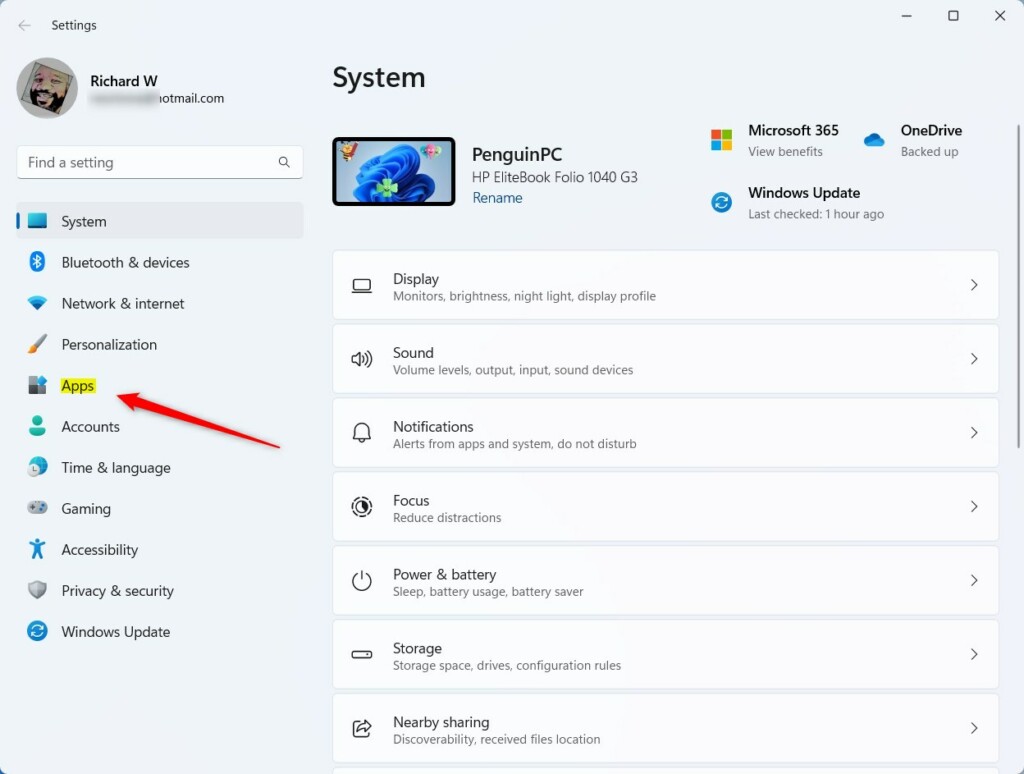
If the Apps page does not look like the one above, scroll down the right side. The tiles are listed one under another and the one you need may be below the first screen.
Step 3Open Actions
- On the right side, find and click the Actions tile. The Actions page should open.
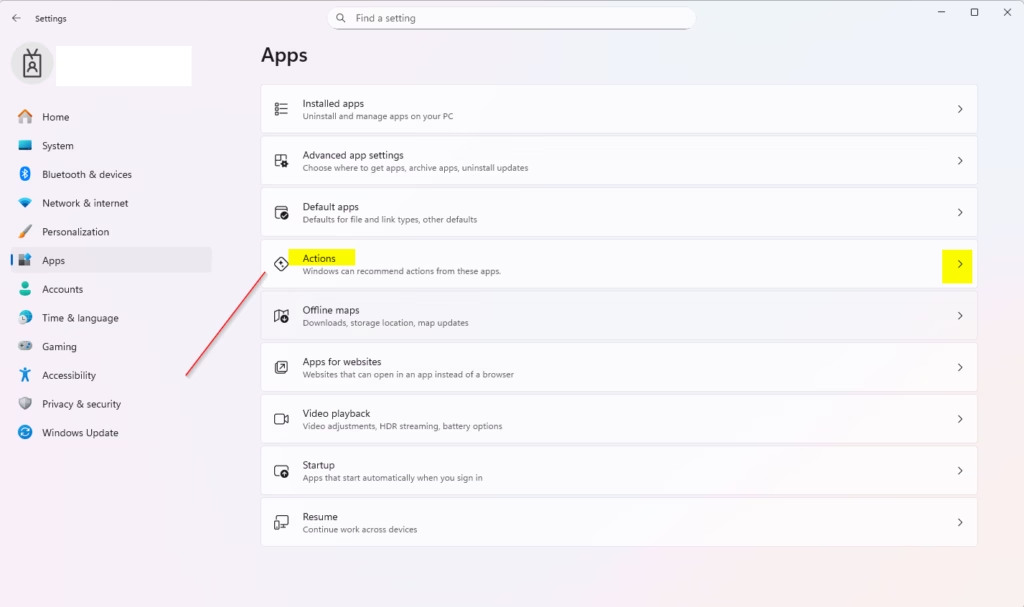
It is built for Copilot+ PCs first, so on other devices the tile may simply not be there. Check again after you install the latest Windows updates.
Step 4Choose Which Apps Can Make Suggestions
- Look through the list of installed apps on the Actions page. Each app has its own switch.
- Flip the switch next to an app to On if you want that app to suggest actions.
- Flip the switch next to an app to Off if you do not want that app to suggest actions.
The switch label should change right away to show the new state. Each app is controlled separately, so you can keep suggestions from the apps you find useful and silence the rest. To undo a change later, come back to this page and flip the switch again.
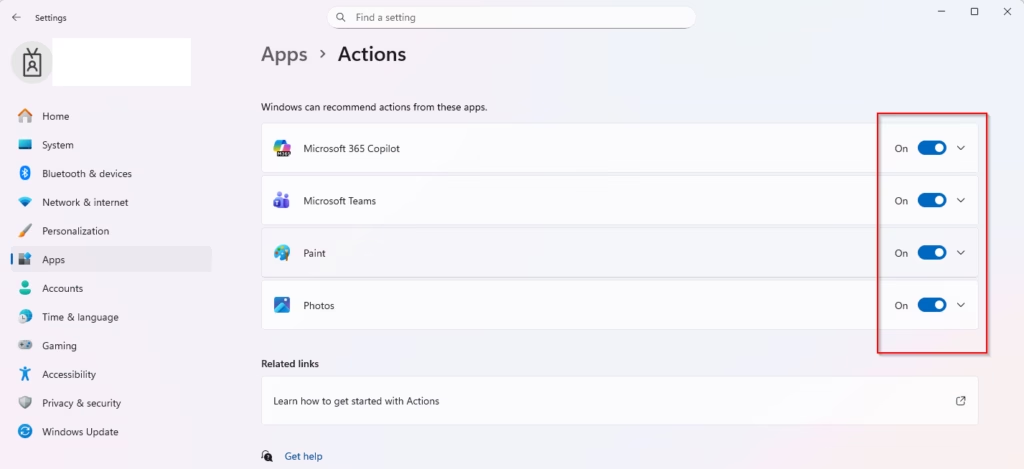
If an app you expect is missing from the list, it probably does not support recommended actions. Only apps that offer this feature appear here.
Step 5Close Settings
- Close the Settings window when you are done. Windows saves your choices automatically, so there is no Save or Apply button and no restart is needed.
Why Use Recommended Actions?
- Faster tasks: Get quick suggestions right when you need them, without hunting through menus.
- You stay in control: Pick exactly which apps can show you helpful tips, and turn any of them off if they get in the way.
- Works great with Copilot+: This feature is made for Copilot+ PCs.
Windows 11 recommended actions help you finish tasks faster by giving you quick shortcuts based on what you are doing. You stay in control of your computer because you can choose which apps are allowed to show these tips. The feature works best on Copilot+ PCs, and it should not get in the way of your daily work. If it does, turn off the apps that bother you.
Want more Windows 11 tips and tricks? Check out this guide on using Windows Settings.
Summary
Recommended Actions in Windows 11 lets apps suggest quick tasks, and you can turn this on or off for each app. To manage these suggestions, open Settings, go to Apps, click Actions, and then switch each app on or off to suit your preferences. Changes save automatically, and you can reverse them at any time from the same page.
Was this guide helpful?

About the Author
Richard
Tech Writer, IT Professional
Richard is a writer at Geek Rewind who turns complex IT tasks into clear, step-by-step guides. He draws on years of hands-on experience in system administration and enterprise IT operations, focusing on Windows, Linux and WordPress: the problems people actually run into, and the fixes that work. His server and WordPress guides come from systems he runs himself. Richard builds and maintains the platform behind Geek Rewind, from its Ubuntu servers and Nginx configuration to its custom WordPress plugins. Many new tutorials start with readers' questions, and he's always glad to answer them in the comments.


No comments yet — be the first to share your thoughts!